

Zenmap
About Zenmap
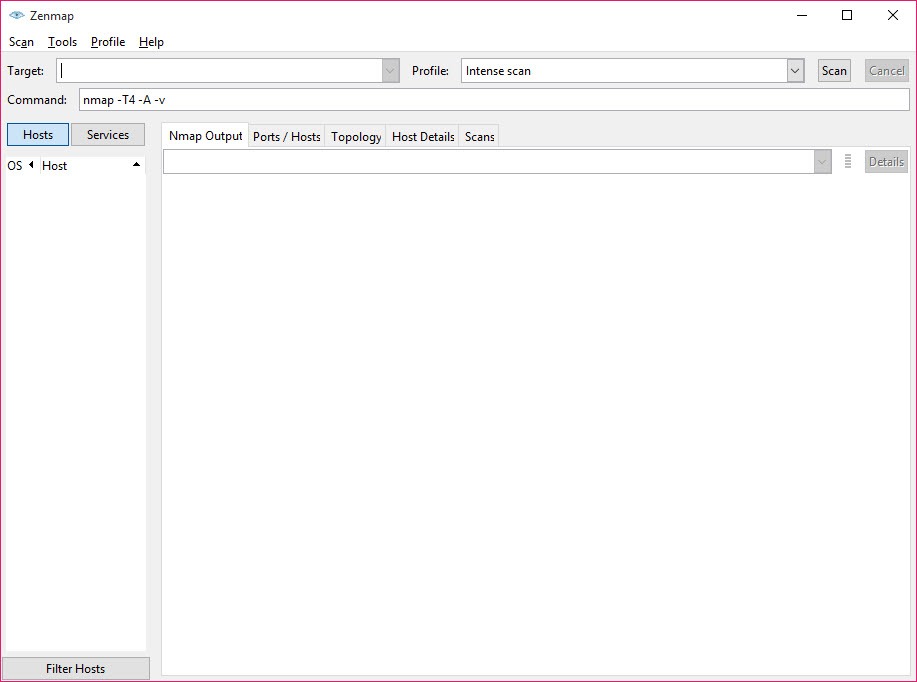
Zenmap is the graphical face of Nmap, the network scanner that security people and administrators have typed commands into for as long as most of them can remember. Enter a target, an address or a whole subnet, pick a scan profile from a list, and press Scan. The program builds the command, runs the scanner, and lays the results out in tabs. One lists every host found and its open ports.
One shows the full details of a single host, its services, its versions and its guessed operating system. One draws a map of the network from traceroute data, with your machine in the middle and the discovered hosts around it. The raw output sits in a tab of its own.
That arrangement serves two audiences at once. A beginner gets a working scan from a dropdown without learning a flag, and sees the exact command the choice produced, which is how many people learn the scanner’s syntax. An expert gets saved profiles, a searchable database of past results, and a comparison view that shows what changed between two scans of the same network. Zenmap ships with the scanner and installs alongside it, so it is never out of step with the engine underneath.
The sections below cover each of those, and the rule that applies to every scanner of this kind.
Profiles, and the command they build
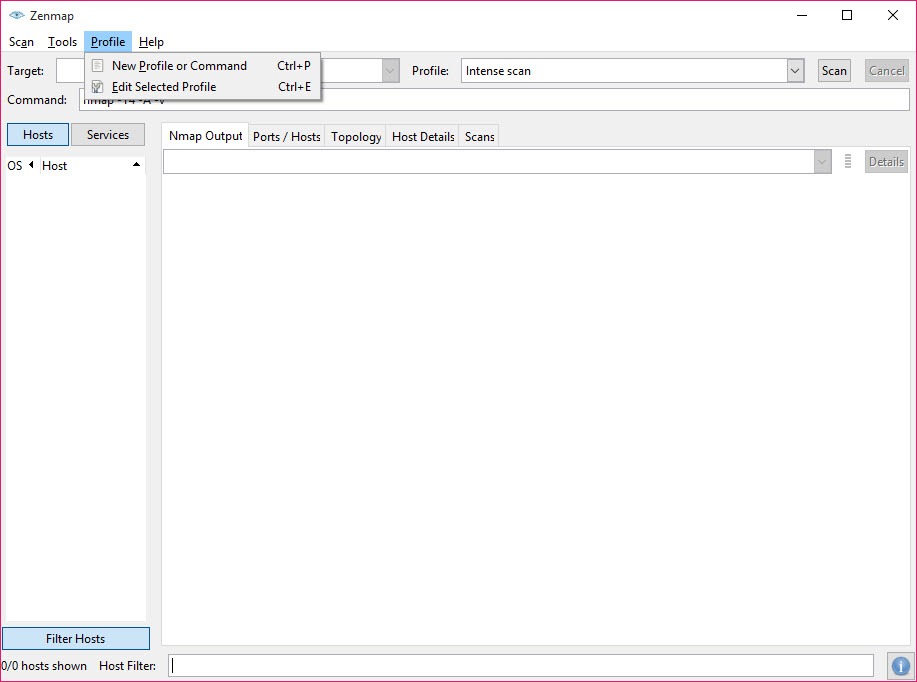
A Zenmap profile is a saved set of scanner options with a name. Several ship with the program, from a quick ping sweep to an intense scan that detects operating systems and service versions and runs the default scripts. Choose one, and the command line it produces appears in a box you can edit by hand before running. That box is the bridge between the two audiences.
The profile editor opens every option the scanner offers across tabs for scan type and ping method, scripts, targets and timing, each with a plain description. Tick what you want and a new profile is saved. That is how a repeatable scan of the office network becomes a single click on Monday morning.
Reading the results
The Zenmap Ports and Hosts tab is the working view. Select a host in the left column and its open ports appear with the service, the state and the version where detection found one. Switch the left column to services and the view inverts, listing every host that runs a given service. That is how all the web servers on a subnet are found at a glance. The host list sorts by name, address or operating system, with an icon for each system detected.
Host Details gathers everything learned about one machine on one page. Address, hostnames, state, the open and filtered port counts, the operating system guess with its confidence, uptime where the scanner could infer it, and a scrolling list of ports. For a single stubborn machine, this page answers most questions.
The Nmap Output tab keeps the scanner’s own text, highlighted. For a quick, friendly sweep of a home network without any of this depth, Advanced IP Scanner finds the devices and their shares in seconds.
The topology map
Run a scan with traceroute enabled and the Zenmap Topology tab draws the network. Your machine sits at the centre, hosts ring it at distances set by hop count, and lines show the routes packets took to reach them. Hosts are coloured by how many ports are open and marked with icons for their detected system. Routers that several paths pass through stand out as hubs. Zoom and pan the map, click a host to make it the centre, and open its details with a right-click.
The map is an aid to understanding rather than a precise diagram, since it shows the paths the scanner’s own packets took, not a cabling plan. It is good at revealing a router nobody remembered, a host sitting one hop further than expected, or a subnet that answers oddly. Filters narrow the map to hosts matching a search, such as those with a particular port open.
Comparing scans and the saved database
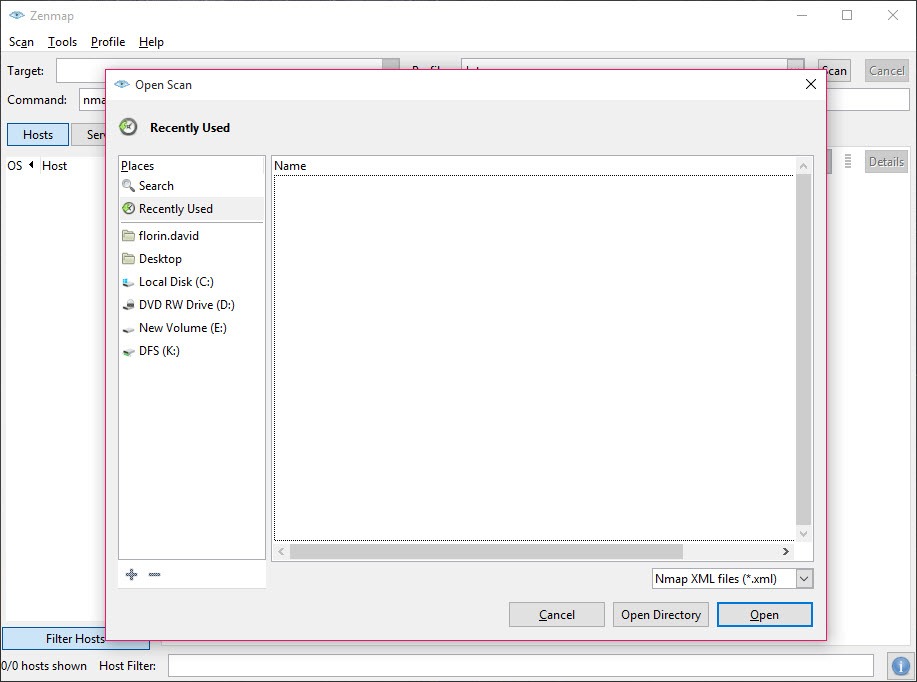
Zenmap keeps every scan in a searchable database until you remove it, and any scan can be saved to a file and loaded again later. Compare Results takes two scans and shows the differences line by line, hosts that appeared or vanished, ports that opened or closed, versions that changed. Run the same profile against the same network each week and the comparison is a change log of the network, which is what an administrator checks when something new appears on the wire.
Scans aggregate too. Several scans of different targets can be shown together as one combined result, so a network scanned in pieces reads as one. For following the actual traffic once a suspicious port has been found, Wireshark is the next tool to open.
The rule that applies to every scanner
Scanning a network you do not own or administer with Zenmap, without permission, is intrusive and in many places unlawful, and it looks on the target’s logs exactly like the opening move of an attack. The scanner is a professional’s tool, and the profiles that detect versions and run scripts are noisy by design. Scan your own networks, your own hosts and the systems you have written permission to test, and nothing else.
On a machine where the packet capture driver is not installed, the more advanced scan types fall back to slower methods or fail, and the program runs best with administrator rights, which it asks for. A firewall on the scanning machine can interfere with the results, which the scanner reports in its output.
Where it shows its age
The Zenmap interface is functional and plain, built on a toolkit from an earlier generation, and a few windows look it. Development of the graphical side moves slowly beside the scanner itself, though it keeps pace well enough to ship with every release. Large scans produce long host lists, and the topology map becomes a hairball on a big network.
The program is a front end, so anything the scanner cannot do, it cannot do either. For a small port scanner with a table view and nothing more, Angry IP Scanner is quicker to the point.
Conclusion
Zenmap suits administrators who audit their own networks, students learning how scanning works, and security people who want saved profiles and a change log of what is on the wire. The profile editor, the host and service views and the comparison tool turn the scanner’s text into something you can work with.
It is plain to look at, its map tangles on big networks, and it can do nothing the scanner cannot. Scan only what you are allowed to scan, install the capture driver, save a profile for the networks you look after, and let the comparison tell you what changed.
Pros & Cons
- Runs the full scanner from profiles, with the command line shown and editable
- Ports and Hosts view that flips between hosts and services
- Host Details page gathering everything learned about one machine
- Topology map drawn from traceroute data, with filters and zoom
- Compare Results shows what changed between two scans
- Searchable database of past scans, with saving and aggregation
- Plain interface built on an older toolkit
- Topology map becomes unreadable on large networks
- Depends on the packet capture driver and administrator rights for advanced scans
- Only as capable as the scanner it drives
Frequently asked questions
No. Profiles build the command for you, and the command box shows what each choice produced, which is how many people learn the syntax over time.
A map of the hosts found, drawn from traceroute data. Your machine sits at the centre, hosts are placed by hop count, coloured by open ports and marked by detected system.
Yes. Compare Results takes two saved scans of the same target and lists the differences, from hosts that appeared to ports that opened or closed.
The advanced scan types need the packet capture driver and administrator rights. Without them the scanner falls back to slower methods, and a local firewall can interfere.


