

Zadig
About Zadig
Most users never think about USB drivers because Windows handles them automatically. Plug something in, Windows finds the right driver from its database or downloads one through Windows Update, the device works. The system has been refined enough across two decades that ordinary USB devices (keyboards, mice, printers, flash drives) just function without users ever encountering the underlying driver mechanics.
But step outside the world of mainstream consumer USB hardware (into RTL-SDR radio dongles, Nintendo Switch homebrew, Arduino bootloader programming, microcontroller development, embedded electronics projects, or any number of niche hardware scenarios), and the friendly automatic driver story falls apart.
Zadig is the tool that fills this gap, providing a focused USB driver installer for the situations where Windows can’t help itself.
What it actually installs and why those drivers matter
The defining function of Zadig is installing one of four specific driver types: WinUSB (Microsoft’s generic USB driver), libusb-win32 (an older but still widely-used libusb implementation), libusb0 (the legacy version), and libusbK (a high-performance kernel-mode driver). These drivers exist for a specific reason: they provide direct, low-level access to USB devices through standardized APIs that programs can use to communicate with hardware in ways that purpose-built device drivers don’t typically allow.
When you connect a USB device to Windows, the operating system tries to install whichever specific driver matches the device, treating it according to its detected device class. A USB keyboard becomes a HID device. A USB printer becomes a print device. A flash drive becomes a mass storage device. This works perfectly for devices that fit standard categories, but completely fails for devices that need raw USB communication for purposes Windows wasn’t designed to anticipate.
For an RTL-SDR dongle (a USB device originally designed as a TV tuner but repurposed by the radio enthusiast community as a software-defined radio), Windows wants to install TV tuner drivers. The actual SDR software doesn’t want TV tuner drivers; it wants raw USB access through libusb. The tool replaces the inappropriate Windows-installed driver with WinUSB or similar, letting the SDR software work as intended.
This same pattern repeats across countless niche use cases.
How the actual installation process works
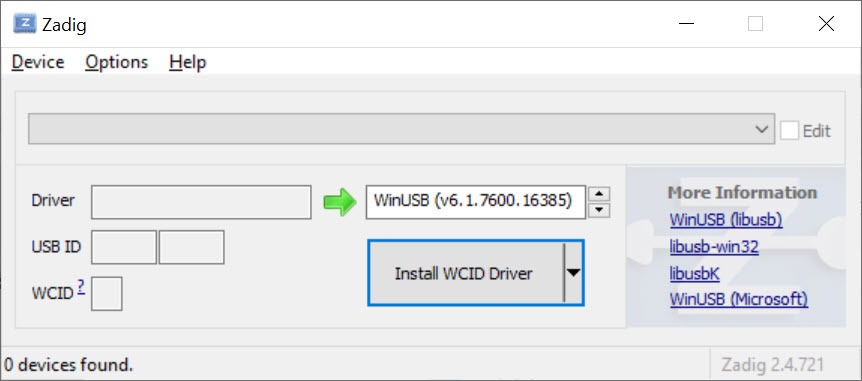
Launching Zadig triggers a UAC prompt because the tool needs administrator privileges to modify driver bindings. Confirming the prompt brings up the main interface, which displays a dropdown list showing available USB devices that don’t currently have drivers installed (or with the List All Devices option enabled, every USB device on the system).
Selecting a device from the list shows its details including the Vendor ID (VID) and Product ID (PID), which together uniquely identify the device hardware, plus the Interface ID (MI) for composite devices. The tool then lets you choose which driver type to install (WinUSB by default, with libusb-win32, libusb0, and libusbK as alternatives) and trigger the installation with a single button click.
The whole process typically takes seconds. The application generates the necessary INF and CAT files dynamically, signs them with a self-generated certificate, and installs the driver through Windows’ standard driver installation mechanisms. After installation, the device appears in Device Manager with the new driver assigned, and applications expecting that driver type can communicate with the device directly.
For situations where the same operation needs to happen repeatedly (deploying the same driver to multiple machines, or scripting installations as part of a larger setup process), the tool supports configuration through INI files and preset device files that pre-populate the relevant settings. The basic interactive workflow handles single-device scenarios well; the configuration files extend the same capability to automated scenarios.
The “device not in list” scenario explained
A common confusion users encounter is that their device doesn’t appear in the Zadig dropdown by default. The reason is straightforward: by default, the application only lists devices that don’t currently have drivers installed, since these are the typical targets for new driver installation. Devices with working drivers don’t show up because replacing their drivers usually isn’t what users want to do.
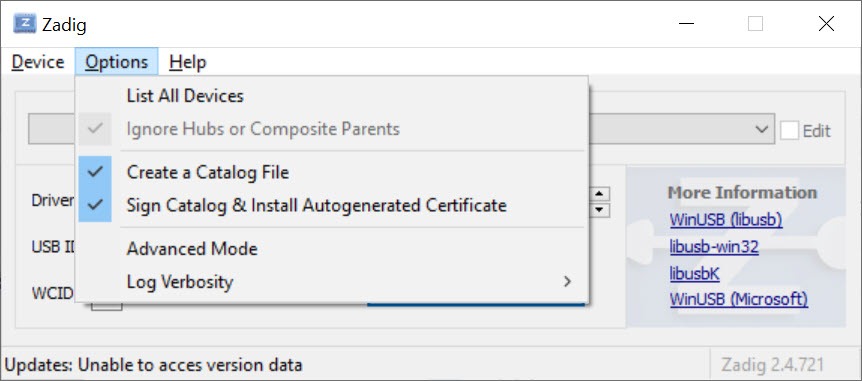
For devices that need to have their existing drivers replaced (the situation when Windows installed the wrong driver and you want to substitute libusb-compatible alternatives), the Options menu includes List All Devices, which expands the dropdown to show every USB device on the system regardless of driver status.
The tool’s documentation explicitly warns about the consequences of replacing existing drivers carelessly, since substituting libusb drivers for things like keyboards or mice would make those devices stop working with Windows itself.
The cautionary framing matters because driver replacement is genuinely irreversible without effort. If you replace your USB keyboard’s HID driver with WinUSB, the keyboard stops being recognized as a keyboard until you manually reinstall the appropriate HID driver.
Most users will never encounter this scenario, but the warnings exist because some users have caused exactly this kind of problem through inattentive driver replacement.
WinUSB versus libusbK and which to choose
For users who don’t already know which driver they need, the choice between WinUSB, libusb-win32, libusb0, and libusbK can feel arbitrary. The practical answer depends on what software you plan to use with the device. Most modern libusb-based applications work fine with any of these drivers, since libusb 1.0 abstracts the underlying driver differences. Older applications based on libusb-win32 specifically may require the libusb-win32 driver rather than alternatives.
WinUSB is generally the safest default for new installations. It’s Microsoft’s officially-supported generic USB driver, ships with Windows, has good performance characteristics, and provides the broadest compatibility with current libusb-based applications. The other options exist for specific scenarios where WinUSB doesn’t fit: legacy applications that explicitly require libusb-win32, performance-critical scenarios where libusbK’s kernel-mode design provides advantages, or compatibility issues with specific devices.
For users following tutorials or instructions from specific software projects, the tutorial typically specifies which driver to install. RTL-SDR documentation, for instance, explicitly recommends WinUSB for most use cases. Nintendo Switch homebrew tools sometimes specify libusbK. Following whatever guidance the software you’re trying to use provides is the right approach rather than guessing among the options.
Driver rollback and the libusbK problem
A specific issue that comes up repeatedly is Windows automatically rolling back libusbK driver installations after a reboot or after Windows Update operations. The cause involves Windows’ driver ranking system, which periodically rechecks whether better drivers are available for installed devices and switches to those if it finds them. For libusbK installations specifically, the relatively old date stamp on the libusbK driver files means newer manufacturer drivers can outrank them, triggering automatic rollback.
The workaround documented in the project’s wiki involves removing competing drivers through the Windows pnputil command, ensuring the libusbK driver isn’t outranked by alternatives Windows has cached. This is genuinely involved, requiring identification of the specific OEM INF file to remove and proper command-line invocation. For users who encounter this rollback issue, the wiki documentation provides the necessary steps; for users who don’t, the issue remains invisible.
This rollback behavior reflects Windows’ design rather than any flaw in the tool itself. The application installs drivers correctly, with Windows subsequently choosing different drivers based on its own ranking logic. Users encountering rollback should understand that fighting against Windows’ driver management is the actual underlying problem rather than blaming the installation tool.
Use cases that drive adoption across communities
The tool’s user base spans several distinct communities with different reasons for needing USB driver installation. Software-defined radio enthusiasts use it to set up RTL-SDR dongles, HackRF devices, and various other radio hardware that requires libusb access. Nintendo Switch homebrew users use it for connecting Switch consoles to PCs for payload injection and similar operations. Android flashing scenarios sometimes require libusb-compatible drivers for specific phone models or recovery modes.
Embedded electronics development is another major use case. Arduino, ESP32, STM32, and various other microcontroller platforms sometimes ship with bootloader interfaces that require WinUSB or similar drivers rather than vendor-specific alternatives. Hardware debug probes (J-Link, ST-Link, BlackMagic Probe), logic analyzers, and various other electronics development tools typically need libusb access to communicate with the host computer through the protocols their software uses.
Game console hacking communities (beyond Switch) use the tool for various consoles where USB-based homebrew or modification scenarios involve direct hardware communication. Industrial and scientific equipment that uses USB for control or data transfer often falls into this category as well, with specialized scientific instruments frequently shipping with libusb-based control software.
For any of these communities, the tool isn’t optional infrastructure but a required step in actually getting their hardware working. The relatively niche nature of these use cases is why most Windows users have never heard of the tool, while users who do know it consider it essential.
Advanced features for power users
Beyond basic driver installation, the application includes several capabilities aimed at users with more sophisticated needs. The Create New Device option lets you install drivers for hardware that’s not currently plugged in, useful when preparing systems for hardware that will be added later or for batch deployment scenarios.
The Open Preset functionality loads device configurations from saved files, supporting workflows where the same device configuration needs to be applied repeatedly. Combined with INI file support for application options, this enables scripted or automated deployment that would otherwise require manual interaction for each installation.
Catalog file generation and signing options handle the technical complexities around Windows’ driver signing requirements. The application can automatically generate self-signed catalog files for the drivers it installs, which Windows requires for proper driver installation on modern versions of the operating system. The certificate handling is transparent enough that users don’t typically need to think about it, but the underlying capability matters for the application to function on systems with stricter signing enforcement.
For users who want detailed information about what’s happening during driver operations, the Advanced Mode option exposes additional configuration options and detailed logging. The log levels range from debug-level traces showing every internal operation to error-only output that just reports problems. For troubleshooting unusual driver issues, the verbose logging frequently provides clues that wouldn’t otherwise be visible.
Considerations and limitations
The tool’s narrow purpose means it’s not useful for most Windows users. If you’re not working with hardware that requires libusb drivers, the application has nothing to offer. The community of people who actually need it is real but small, and the tool doesn’t try to expand its scope beyond that specific use case.
Driver replacement is irreversible enough to require care during operation. Replacing the wrong device’s driver can leave that device non-functional in Windows until you manually reinstall the original driver, which can range from straightforward to genuinely difficult depending on the device. Users new to the tool should follow tutorials carefully rather than experimenting with random devices in their dropdown.
The libusbK rollback issue affects some users repeatedly, particularly those who use Windows Update aggressively or whose devices have manufacturer drivers that get cached by Windows. The workarounds exist but require comfort with command-line tools and willingness to make somewhat technical changes to system driver storage.
Some specific Windows versions and configurations produce edge cases where driver installation fails for reasons that aren’t immediately obvious. Strict Secure Boot configurations, certain enterprise security policies, and various other unusual setups can interfere with the driver signing and installation process the tool relies on.
For users encountering these issues, the project’s documentation and forum discussions usually have answers, but the troubleshooting can require more effort than typical software issues.
Conclusion
Zadig has earned its essential-tool status across multiple hardware hacker communities by addressing a specific technical need (libusb-compatible USB driver installation) better than any general-purpose alternative. The combination of focused functionality, clean interface, support for multiple driver types, and configuration options for automated workflows produces a tool that hardware-oriented users keep installed permanently because they need it regularly across different projects and devices.
It’s not for everyone. Users who don’t work with hardware requiring libusb access have no reason to install it, with the application’s narrow purpose making it irrelevant outside its specific niche. But for the substantial communities that do need this functionality (software-defined radio enthusiasts, microcontroller developers, embedded electronics hobbyists, game console homebrew users, and the various other communities working with USB hardware that needs direct access), Zadig delivers exactly what’s needed, with the kind of focused capability that comes from being built specifically for this purpose by a developer with deep knowledge of Windows USB driver mechanics.
Pros & Cons
- Focused USB driver installation tool with clear single purpose
- Supports four driver types (WinUSB, libusb-win32, libusb0, libusbK) for different scenarios
- Auto-detects USB devices with dropdown selection interface
- Vendor and Product ID display helps verify correct device selection
- Configuration through INI files and preset files supports automation
- Advanced Mode and verbose logging for troubleshooting and power users
- Catalog file generation and signing handled automatically
- Narrow purpose limits relevance to specific niche communities
- Driver replacement can render devices non-functional if applied carelessly
- LibusbK installations sometimes get rolled back by Windows after updates
- Some Windows configurations produce installation failures requiring troubleshooting
- Casual users typically don't need it and shouldn't experiment with it
Frequently asked questions
This software installs USB drivers (specifically WinUSB, libusb-win32, libusb0, or libusbK) for devices that need direct, low-level USB access rather than the device-specific drivers Windows would normally install. It's primarily used for hardware that doesn't fit standard USB device categories, like software-defined radio dongles, microcontroller programming interfaces, game console homebrew tools, and various electronics development hardware.
Common use cases include setting up RTL-SDR radio dongles for software-defined radio applications, configuring Nintendo Switch consoles for homebrew payload injection, installing drivers for Arduino bootloaders or microcontroller programming interfaces, enabling libusb access for Android flashing scenarios, and various other niche hardware scenarios where standard Windows drivers don't provide the access that specialized software needs.
The application reads available USB devices from the system, lets you select which device to operate on, and installs the chosen driver type by generating necessary INF and CAT files dynamically, signing them with a self-generated certificate, and using Windows' standard driver installation mechanisms to register the new driver. The whole process typically takes seconds and replaces or installs the appropriate libusb-compatible driver for your selected device.
By default, only devices that don't currently have drivers installed appear in the list. If your device already has any driver assigned, you need to enable "List All Devices" through the Options menu to see it. The default behavior protects users from accidentally replacing existing drivers carelessly, since substituting libusb drivers for things like keyboards or mice would break those devices in Windows.
WinUSB is the generally safest default for new installations and works well with most modern libusb-based applications. The other options exist for specific scenarios: libusb-win32 for older applications that specifically require it, libusbK for performance-critical scenarios, and libusb0 for legacy compatibility. Most tutorials and software projects specify which driver they need, so following that guidance rather than guessing is the right approach.
Replacing an existing driver can render the device non-functional in Windows until you manually reinstall the appropriate original driver. For devices where the wrong driver was installed, you can typically restore functionality through Device Manager by right-clicking the device, selecting Properties, going to the Driver tab, and choosing "Roll Back Driver" or "Update Driver" to revert to the appropriate manufacturer driver.
This affects libusbK installations specifically, where Windows' driver ranking system sometimes determines that newer manufacturer drivers should replace the libusbK driver. The workaround involves removing competing drivers from Windows' driver store using the pnputil command. The project's wiki documentation provides detailed steps for this scenario, which requires comfort with command-line tools.


