

Yet Another Key Displayer
About Yet Another Key Displayer
Yet Another Key Displayer puts your keystrokes on screen so viewers can see exactly what you are pressing. It captures keyboard and mouse input in real time and shows it in a small overlay, which is the missing piece when you are streaming or recording gameplay and your audience cannot tell how you pulled off that move. Press a key, or a whole combination, and Yet Another Key Displayer shows it instantly with no delay.
The problem it solves is a familiar one for anyone who makes video content. Fast-paced play looks like magic from the outside, and a tutorial falls flat when the viewer cannot see which shortcut you just used. YAKD closes that gap by drawing each press as it happens, turning invisible hand movements into something the audience can actually follow. It does one job, and it does it cleanly.
Two ways to show your keys on screen
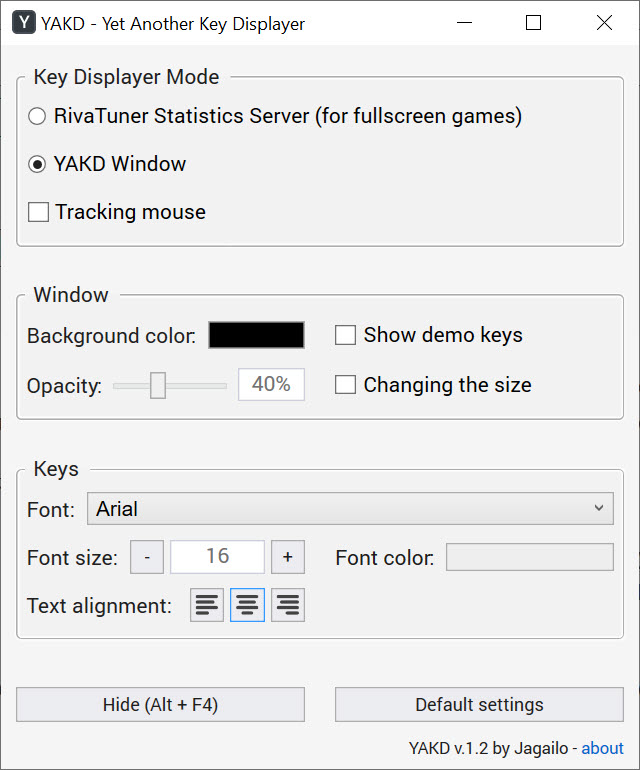
Yet Another Key Displayer gives you two display modes, and the choice between them comes down to how you capture your screen. The first is a standard overlay window that floats on top of everything else. You position it wherever you like, and your capture software picks it up along with the rest of the desktop. This mode suits desktop recording, software tutorials, and any game running in a window or borderless setup.
The second mode is the more clever one. It sends your keypresses to RTSS, the Rivatuner Statistics Server, which can draw them directly onto a game running in exclusive fullscreen. That matters because a normal overlay window often vanishes the moment a game takes over the whole display, leaving fullscreen players with no way to show their inputs.
Routing through RTSS solves exactly that, and it is the feature that sets this tool apart from the many simpler key displayers that only manage a windowed overlay.
Styling the overlay to fit your layout
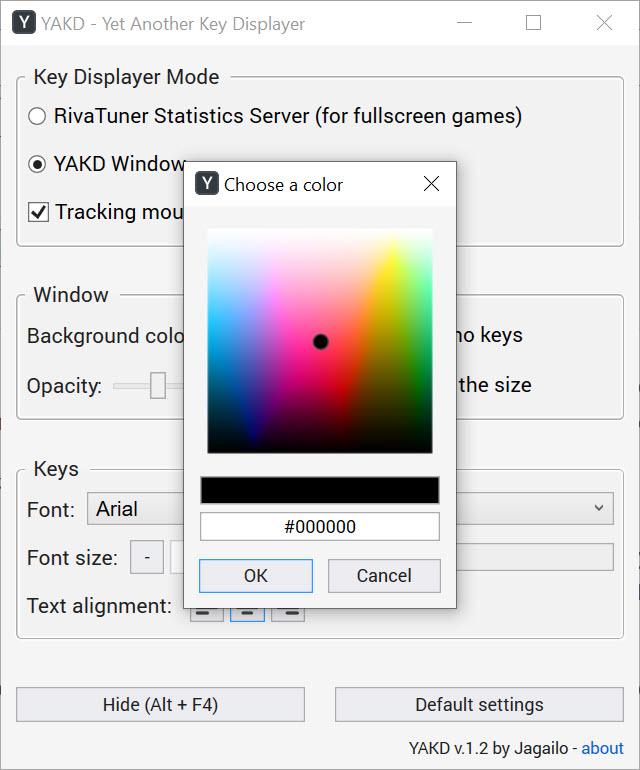
A keystroke display is useless if it is distracting, and the tool gives you real control over how it looks. You can change the font, the text size, and the color, along with the background color and the opacity of the window. Want a subtle semi-transparent readout tucked in a corner? Done. Need bold, high-contrast text for a busy tutorial? Also done. The dimensions and position are yours to set as well, so the overlay fits the empty space in your scene rather than fighting your other elements for room.
This flexibility is what lets the display blend into a stream layout instead of looking bolted on. If you capture with a broadcasting tool, the overlay window can be brought into your scene and made transparent with a chroma key filter, so only the keys themselves show over your gameplay.
For the wider production side of streaming, an all-in-one studio like Streamlabs Desktop handles scenes, alerts, and capture, and this little utility slots neatly into that kind of setup as the keystroke layer.
Capturing the mouse, not just the keyboard
It is called a key displayer, but it tracks mouse activity too, including the middle button. For a lot of games and creative software, the mouse is half the story, and showing clicks alongside keys gives viewers the full picture of what your hands are doing. A combo that mixes a held key with a click reads clearly when both halves appear together on screen.
That combination matters most for teaching. If you are learning a sequence in a game, seeing your own inputs displayed back reinforces the pattern, and if you are teaching it, your viewers get the same benefit.
The keys and clicks show together with no lag, so a quick flurry of inputs reads as the sequence it actually was rather than a blur. For the opposite job, sending keystrokes automatically rather than displaying them, a tool like Auto Key Presser covers that need instead.
The rough edges worth knowing about
Honesty about a small tool means naming its quirks, and this one has a few. The configuration window cannot be minimized to the system tray while the application runs, so it sits among your open windows rather than tucking away quietly. The overlay also appears in the taskbar, which adds a little clutter you might wish you could hide. Neither breaks anything, but both are the kind of polish that would make the experience feel more finished.
On the positive side, your styling settings save automatically, so you set up your look once and it is there every time you launch. There is a quiet notice when a new release is available, and it stays out of your way rather than nagging.
None of the rough edges touch the core function, which is fast, accurate, and reliable. They are the difference between a good simple tool and a perfectly polished one, not between a working tool and a broken one. A dedicated gameplay recorder such as Fraps pairs well here when you want to capture the footage that the key display will sit on top of.
Conclusion
Yet Another Key Displayer is a focused tool that earns a spot in any streamer’s or tutorial maker’s kit. The real-time accuracy, the styling options, and especially the RTSS mode for fullscreen games make it more capable than its plain name suggests, and the automatic saving of your settings means you configure it once and forget it. For showing viewers what your hands are doing, it covers the job well.
The quirks are minor and honest. A configuration window that will not tuck into the tray and an overlay that lingers in the taskbar are small annoyances, not dealbreakers, and they sit beside a core function that simply works.
If you make content where your inputs matter and you want them visible without wrestling with a heavier suite, this is a quick, reliable answer that does exactly what it sets out to do.
Pros & Cons
- Shows keyboard and mouse presses on screen in real time with no delay
- Offers a windowed overlay mode and an RTSS mode for exclusive fullscreen games
- Full control over font, size, color, background, opacity, and position
- Tracks mouse buttons, including the middle button, alongside keys
- Overlay can be captured in broadcasting software using a chroma key filter
- Styling settings save automatically, so setup carries over between launches
- The configuration window cannot be minimized to the system tray
- The overlay window shows up in the taskbar, adding some clutter
- It displays input only, so it is not a recorder or streaming suite on its own
- RTSS mode depends on having that separate server set up for fullscreen display
Frequently asked questions
It shows the keyboard and mouse buttons you press on screen in real time, drawn in a small overlay. It is built for streamers and tutorial creators who want viewers to see exactly which keys and clicks they are using.
Yes. Beyond the standard overlay window, it can route keypresses through RTSS, the Rivatuner Statistics Server, to draw them directly onto a game running in exclusive fullscreen, where a normal overlay window would not appear.
Quite. You can change the font, text size, color, background color, and opacity, and set the window's position and dimensions. That lets the display blend into your scene rather than distracting from the action.
Yes. Despite the name, it captures mouse buttons as well as keys, including the middle button, so combinations that mix a keypress with a click are shown together clearly on screen.
Yes. The overlay window can be brought into a broadcasting tool's scene and made transparent with a chroma key filter, so only the keystrokes themselves appear over your gameplay or desktop capture.


