

Yasisoft GIF Animator
About Yasisoft GIF Animator
Yasisoft GIF Animator builds animated GIFs by drawing them. Instead of recording the screen or stitching photos together, you draw shapes, type text and place images on a canvas and arrange them in layers. Then you lay out frames on a timeline that play back as an animation. Each frame is a picture you can edit, with its own delay.
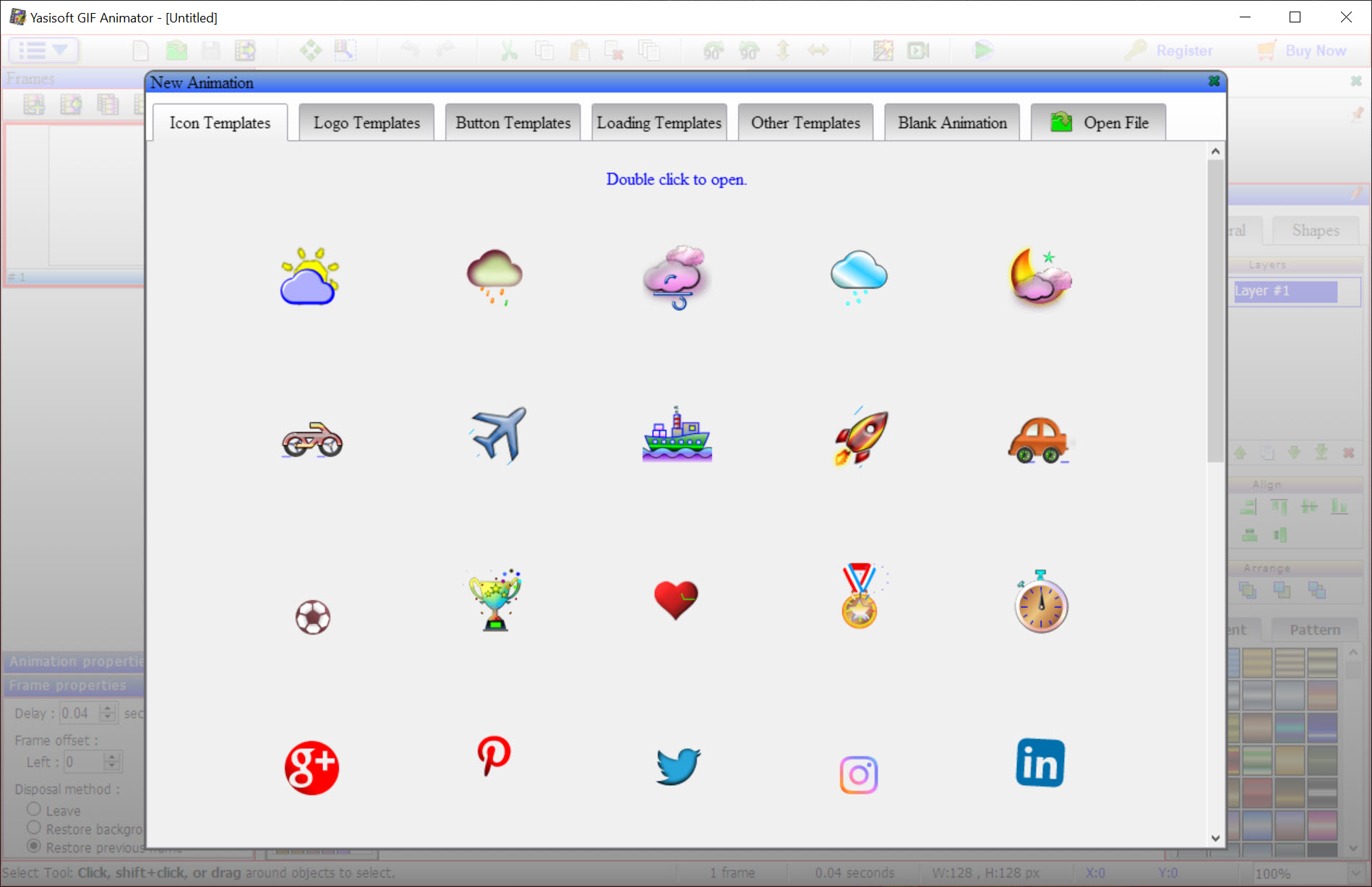
The result exports as a GIF for a banner, a button, a loading spinner or an animated logo, which is what the program was made for. Templates give a starting point for those, and an animation wizard builds a sequence from a set of images.
It is as much an image editor as an animator, and that is the point. Yasisoft GIF Animator carries vector shapes whose nodes can be dragged, text that follows a path and casts several shadows, and gradient and pattern fills. A brush and a spray handle freehand work, and a long list of effects includes several kinds of lighting. Projects save in the program’s own format so a GIF stays editable later.
Development has been quiet for some time, so the sections below describe the program as it stands and say where a drawn GIF is the right approach and where a recorded one is.
Drawing on the canvas
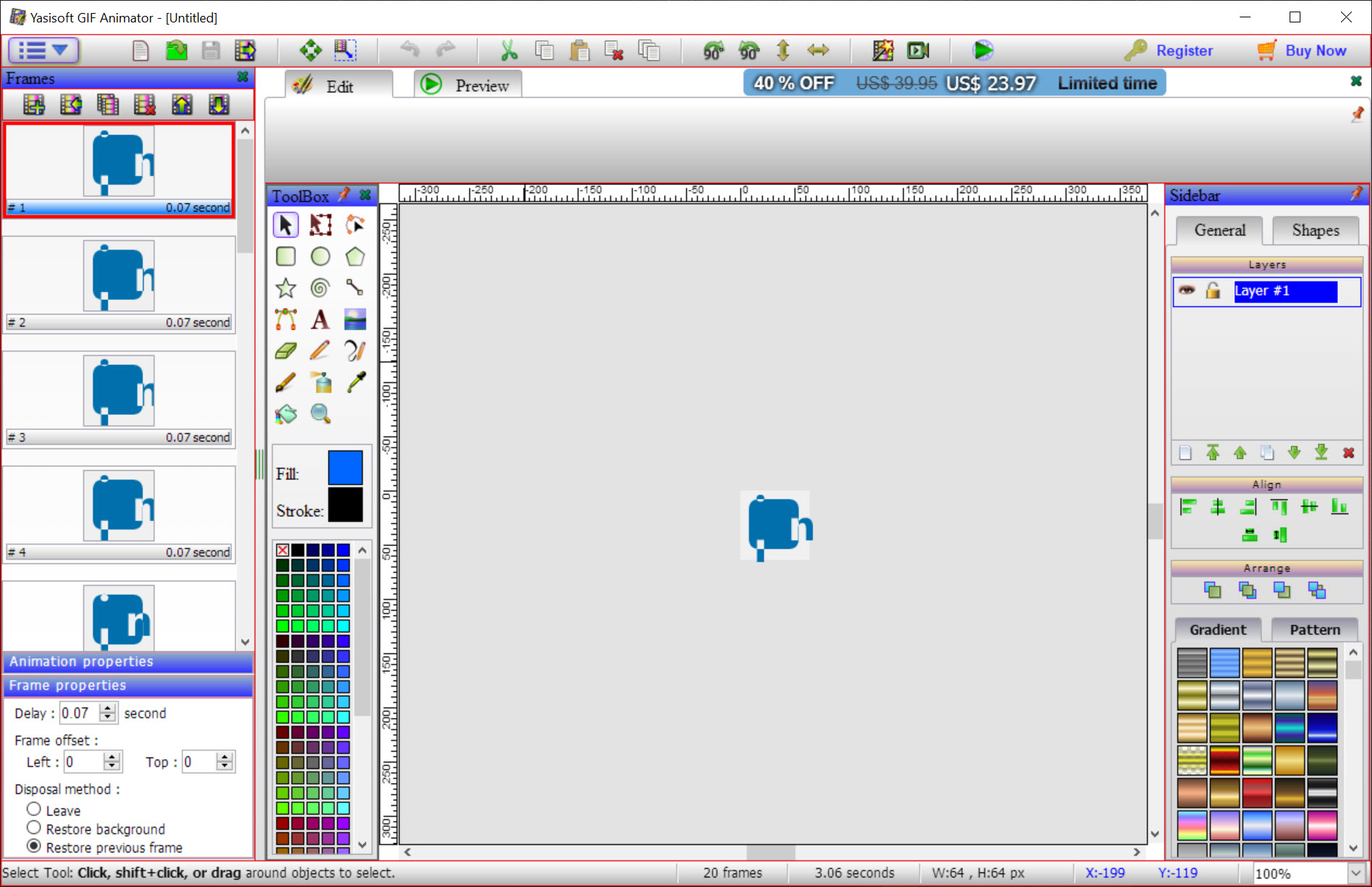
The Yasisoft GIF Animator editor works with objects rather than pixels. Draw a rectangle, an ellipse, a star or a free path, and it stays a shape you can move and recolour afterwards. An edit-path tool exposes the nodes of a curve, so a shape is bent into exactly the outline you want. Fills take flat colours, gradients or patterns, with transparency on all of them.
Text is an object too. Type it, set the font, and it can run along a path, carry more than one shadow, and take the same gradients and patterns as the shapes. A brush and a spray handle freehand marks, and imported photos drop in as objects with their own layer.
For anyone who has used a vector drawing program, the model is familiar. For anyone who has not, it is the thing that makes a drawn GIF editable rather than fixed.
Layers and effects
Yasisoft GIF Animator objects live on layers that stack, and a layer can be locked or hidden while you work on another, which keeps a background still while the moving parts are edited. Effects apply to images and shapes from a long menu, colour adjustments and blurs and sharpening among them. A set of lighting effects, from distant and point lights to specular highlights, gives a flat drawing some depth.
The effects are quick to apply and quick to undo, and they are where a plain button turns into a glossy one. For editing a photograph before it goes into a frame, GIMP remains the fuller tool, and this editor is for the drawing and the assembly.
Frames and the timeline
Frames are the animation in Yasisoft GIF Animator. Add them, remove them, duplicate one to make the next, move them in the sequence, and select several at once to apply a change to all of them. Each frame has properties, the delay before the next one above all, so a spinner runs smoothly while a banner lingers on its text. A built-in player previews the result at any time.
The frame tools are deliberate rather than clever. There is no automatic in-betweening that moves an object from one frame to the next for you, so a smooth motion means duplicating a frame and nudging the object each time. That is how classic GIF animation was always built, and it is also why the program suits short loops rather than long sequences.
For hand-drawn frame animation at a larger scale, with onion skinning and a proper timeline, a frame-by-frame animation program is the dedicated tool.
Templates, the wizard and formats
The templates are editable starting points for the common jobs, from banners and buttons to loading animations, with the shapes and text already laid out. The animation wizard takes a set of images and builds a frame sequence from them with a chosen delay, which is the quick route from a folder of pictures to a slideshow GIF.
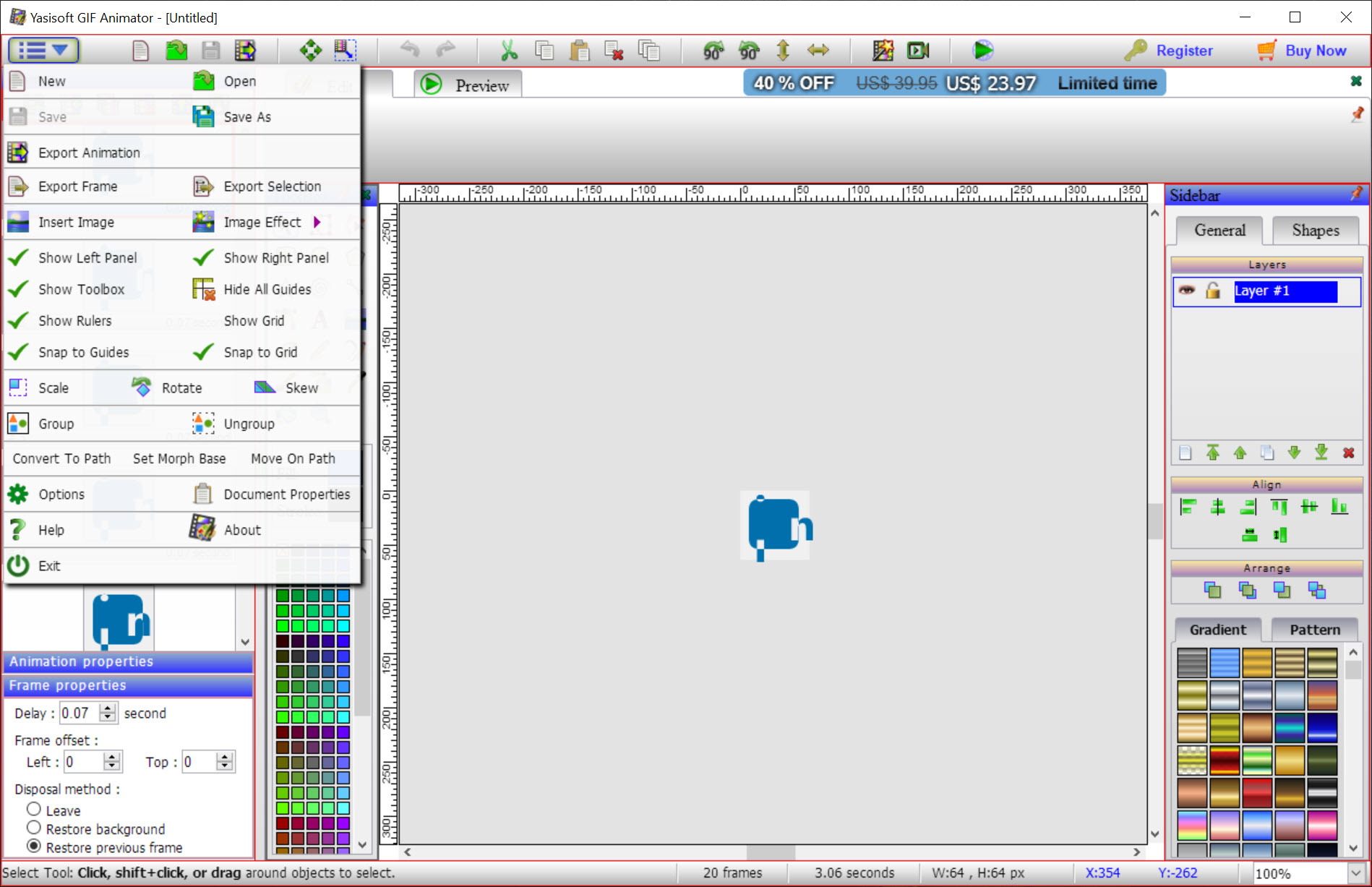
Images import from the common formats, JPEG, PNG, TIFF, WEBP, BMP and TGA among them, and the finished animation exports as a GIF. Projects save in the program’s own format, which keeps the layers and objects for later editing, something a GIF file itself cannot do.
Where a recorded GIF is the better route
Yasisoft GIF Animator draws GIFs. It does not record them, so a demonstration of something happening on screen is a job for a capture tool, and GifCam does that in a few clicks. The lack of in-betweening makes long or smooth animations laborious. Development has been quiet, and the interface, while clear, is from an earlier generation of design software.
This one is for the small, polished loop built from shapes and text.
Conclusion
Yasisoft GIF Animator suits anyone who needs a small animated graphic built from shapes and text, from a banner for a web page to a loading spinner or an animated logo. It suits those who want it to stay editable afterwards. The vector tools, the text effects and the layers are what set it apart from GIF makers that only stitch frames.
It does not record and does not in-between, and it has been quiet. Start from a template, keep the loops short, save the project file, and let a capture tool handle anything that happens on screen.
Pros & Cons
- Vector shapes with editable nodes, text on a path and multiple shadows
- Gradient and pattern fills with transparency on shapes and text
- Layers that lock and hide, with a long effects menu including lighting
- Frame management with per-frame delays and a built-in player
- Templates for banners and buttons, plus an animation wizard
- Projects saved in an editable format
- No automatic in-betweening, so smooth motion means frame-by-frame work
- Does not record the screen
- Development has been quiet for some time
- Interface from an earlier generation of design software
Frequently asked questions
No. It draws and assembles GIFs from shapes and text, and from imported images. Screen recording needs a capture tool.
Yes, if you save the project in the program's own format, which keeps the layers and objects. A finished GIF file does not.
No. There is no in-betweening. Duplicate a frame and move the object a little each time for smooth motion.
JPEG, PNG, TIFF, WEBP, BMP and TGA among others, and the finished animation exports as a GIF.


