

XnView
About XnView
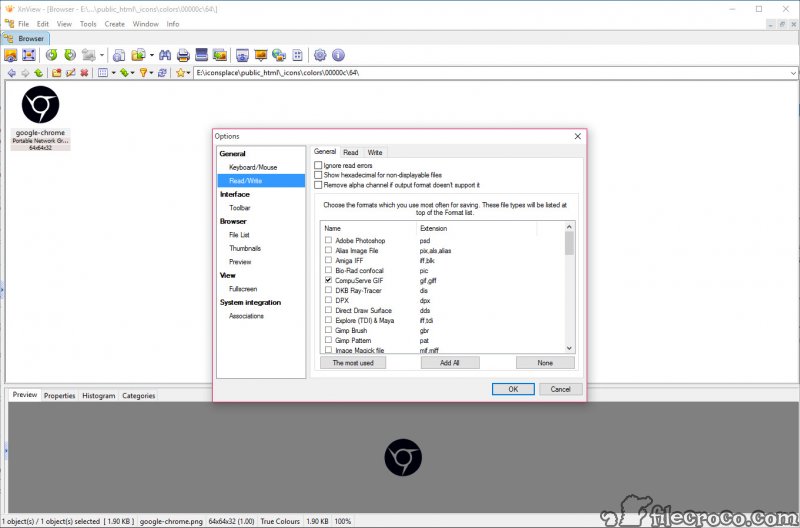
XnView reads roughly 500 image formats and writes about 70, and that number is the reason it stays installed on machines where three other viewers have come and gone. Camera RAW from most bodies, PSD, multipage TIFF, animated GIF and ICO, JPEG 2000, OpenEXR, EPS and PostScript through Ghostscript, even a fair number of audio and video containers. When somebody sends you a file with an extension you have never seen, this is the application you open it with.
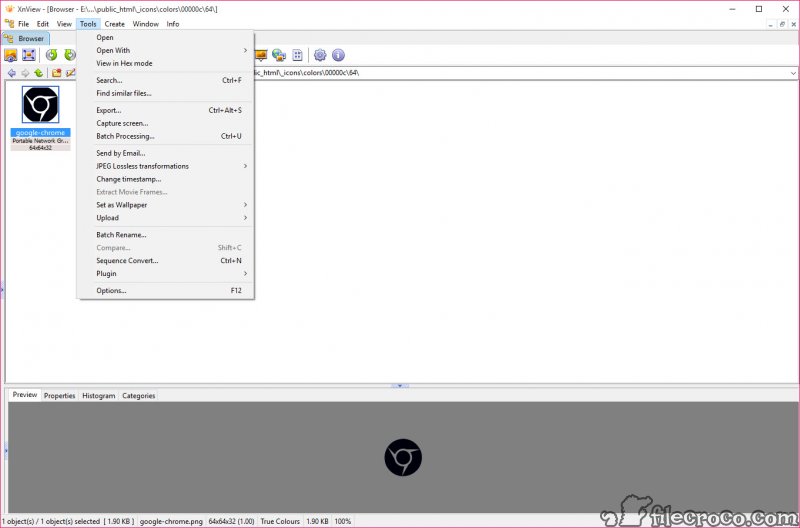
It is three tools sharing one window. The browser is an explorer-style pane with thumbnails, folder tree and sortable columns. The viewer opens a single image with zoom and pan, plus a filmstrip along the edge. Fullscreen strips everything away for actual looking.
You move between them with a keypress, and the whole thing runs from a folder with no installation if you prefer it that way. Note that two lines of XnView exist. The classic build described here is lighter and faster, while the MP build adds a catalog and hierarchical keywords.
The browser, and working with folders rather than files
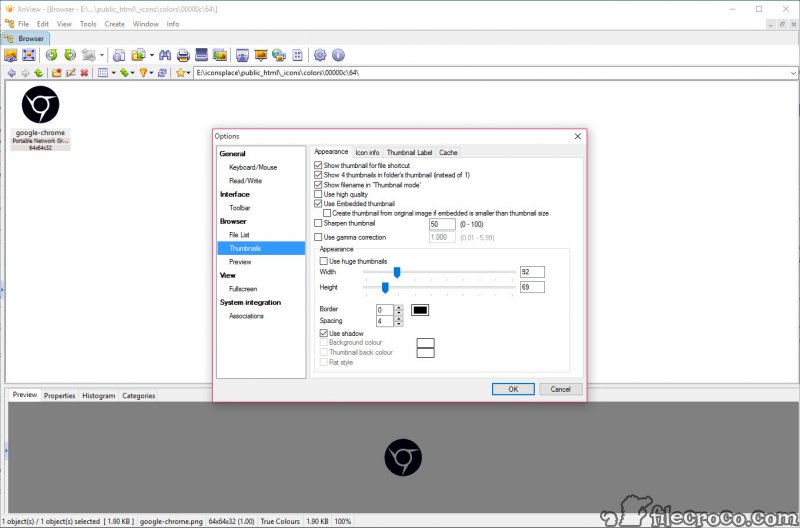
The XnView browser is where the time is saved. Thumbnails at a size you set, a tree on the left, metadata columns you can sort by, and file operations that work on a selection rather than one image at a time. File operations run on the whole selection without leaving the pane.
Filmstrip layout puts the thumbnails in a strip under a preview, which is the fastest way to work through a shoot deciding what to keep. Compare side by side opens up to four images together with synchronised zoom and pan, and that is the feature that settles which of two nearly identical frames is sharper.
Duplicate detection scans a folder for repeated images, matching on content rather than filename, so a photo saved twice under different names is caught. It is narrower than a general duplicate file finder but it understands images, which the general tools mostly do not.
Batch convert and batch rename
These two dialogs are what people come back for. Batch convert takes a folder of images and outputs them in another format, resized, rotated, filtered, watermarked, with the operations chained in a list you can save as a script and reuse. Convert 800 camera files to web-sized JPEG with a logo in the corner and it runs unattended.
Batch rename accepts placeholders drawn from the file’s own metadata, so filenames can be built from the date the photo was taken, the camera model or a counter. A folder of DSC_ filenames becomes a dated, numbered set in one pass. That single dialog replaces most of what people write scripts for.
The interface for both is dense and the options are not always where you expect. Set aside twenty minutes the first time, save your settings as a script, and you will never think about it again.
Metadata, and what you can change
EXIF and IPTC are both readable and editable, with an IPTC editor covering captions and keywords alongside copyright and the standard fields, applicable to a selection rather than one file. EXIF auto rotation turns portrait shots the right way up automatically based on the camera’s orientation flag.
Metadata can also be stripped, which matters when publishing photos that would otherwise carry GPS coordinates and a camera serial number. If your work is metadata-first rather than image-first, ExifPro gives a more focused interface for it, but for most people editing captions in the same window where the pictures are is enough.
Editing, and the honest limits of it
XnView does light editing and does not pretend otherwise. Resize and crop, rotate and flip, with lossless rotate and crop for JPEG so recompression never touches the image. Brightness, contrast, gamma, auto levels, colour depth changes, red eye correction. Filters for blur and sharpen, along with emboss and average, and effects like lens and wave that belong to another era of image software.
There are no layers, no masks, no adjustment history beyond undo. That is the right choice for a viewer, and anyone needing more should keep PhotoDemon or a full editor alongside it and set that as the external editor so it opens from the browser with a keypress.
Contact sheets, screen capture and scanners
Contact sheets in XnView arrange a folder of thumbnails into a printable page with filenames and metadata underneath, which is the quickest way to produce an index of a shoot. The web page generator does the same for a browser, producing a gallery of thumbnails linking to full images, which is dated in style but still useful for a quick local index.
Slideshows run with transition effects and configurable timing. Screen capture grabs a window, a region or the whole screen straight into the browser. TWAIN and WIA support pulls images directly from a scanner or camera, and multipage files in TIFF and DCX can be created or edited page by page.
Conclusion
XnView suits anyone whose relationship with images is mostly about finding and sorting them rather than retouching. Photographers culling a shoot, people handling files from unfamiliar sources, and anybody who has ever needed 400 images resized by tomorrow will get more from the two batch dialogs than from anything else in this category.
It is not pretty and it never has been. The interface asks for patience and the effects belong to an older idea of what image software does. But the format coverage is unmatched, the batch tools are properly built, and it sits quietly on a machine until the day you need it.
Pros & Cons
- Reads about 500 formats and writes about 70, including RAW, PSD and EPS
- Batch convert chains operations into reusable scripts
- Batch rename builds filenames from EXIF dates and camera fields
- Compare up to four images with synchronised zoom
- Image-aware duplicate detection that ignores filenames
- Runs without installation from a folder
- Interface is dense and dated, with options in unexpected places
- No layers or masks, so a separate editor is still needed
- Classic and MP lines differ, and the newer features live in MP
- Vector format support needs an additional component
- Effects look like effects from a much older application
Frequently asked questions
They share a core, but MP adds a catalog, hierarchical keywords and newer dialogs, while the classic line is lighter and faster. Long-time users often stay with classic for that reason.
Yes. Batch rename accepts placeholders that read EXIF fields, so filenames can be built from the capture date, the camera model or a counter.
Yes. Both are readable and the IPTC editor writes captions and keywords, plus copyright, across a selection. Metadata can also be stripped before publishing.
Yes, RAW from most camera bodies is supported for viewing and conversion, along with PSD, multipage TIFF and JPEG 2000.
No. It handles resizing and cropping, along with levels and red eye, but has no layers or masks. Set a full editor as the external editor and open from the browser.


