

WinToFlash
About WinToFlash
WinToFlash is the bootable USB creator that’s been around long enough to have legitimately handled essentially every Windows version from XP forward. The application converts your USB flash drive into a bootable installation source for Windows, with the practical use case being installing Windows on systems without optical drives. Drop a Windows installation ISO into the application, point it at your USB drive, and follow the wizard through formatting, file copying, and boot configuration.
Within ten to twenty minutes depending on USB speed and Windows version, you have a USB that boots and runs the Windows installer just like an installation DVD would have.
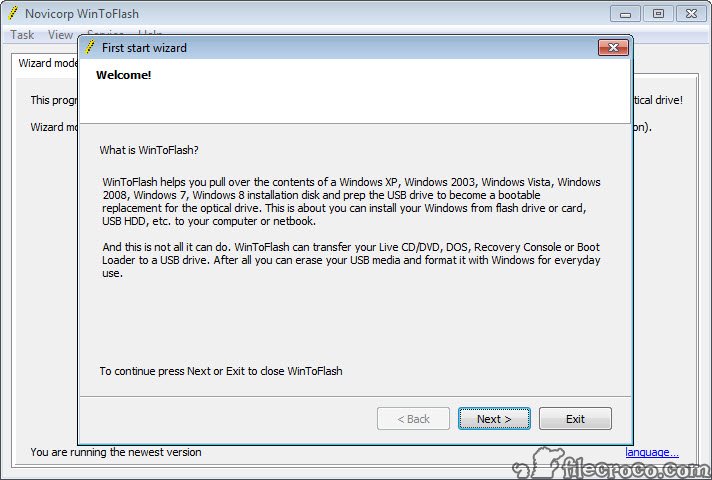
The application’s positioning combines two modes that target different user populations through one program. The wizard mode walks beginners through bootable USB creation with simple step-by-step prompts that hide technical decisions behind reasonable defaults.
The advanced mode exposes the full configuration surface for users who want explicit control over partition schemes, file system formats, boot loader configuration, and various other parameters. The free Lite version covers basic Windows installation USB creation for the common case, while the paid Home License and Professional tiers add multi-ISO USB creation that lets you fit multiple bootable images on one USB drive, additional file system options, advanced formatting features, and various other capabilities that serious system administrators benefit from.
Wizard mode and the simplified workflow
The wizard mode is what most casual users come for first. The interface presents a sequence of screens that ask one question at a time. What kind of bootable USB do you want to create. What’s the source of the Windows files. Which USB drive should receive the installation. Each screen has reasonable defaults selected, with the user typically clicking Next through most steps without changing anything. The final screen confirms the operation, after which the application handles formatting, file copying, and boot configuration automatically.
For users who don’t know what MBR versus GPT means, what NTFS versus FAT32 implies for boot compatibility, or how UEFI versus legacy BIOS booting works, the wizard hides these decisions entirely. The defaults work for the typical case, with the user getting a working bootable USB without learning the underlying technical concepts that more configurable tools force users to understand.
The wizard handles the most common use case (creating a bootable USB for installing a current Windows version on a current computer) without configuration friction. Users with specific requirements outside this common case need the advanced mode, but the wizard covers what most users actually want to do.
Advanced mode and the configuration depth
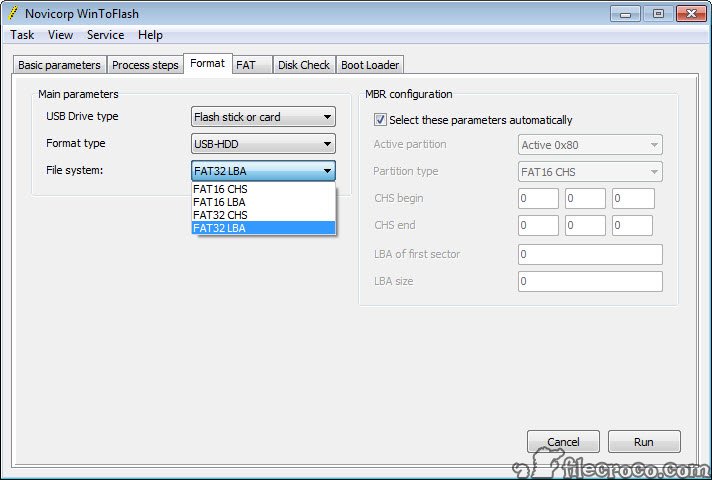
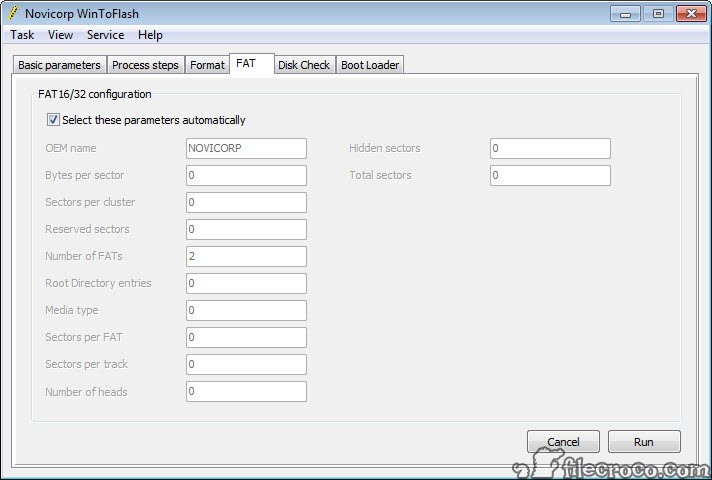
The advanced mode exposes the substantial configuration surface that’s hidden behind the wizard’s defaults. Choose between MBR and GPT partition schemes for compatibility with different firmware types. Select FAT32 or NTFS file system based on file size requirements and target firmware support. Configure cluster sizes for users with specific performance or compatibility needs. Set boot loader options for systems with unusual boot requirements.
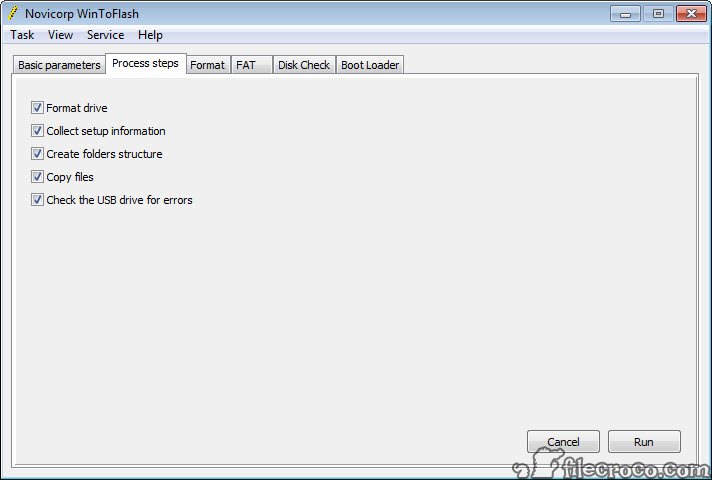
The advanced mode also exposes capabilities that the wizard doesn’t surface. Pre-formatting USB drives with specific configurations before writing Windows files. Wiping USB drives completely (overwriting all sectors) for users wanting to securely erase previous content before creating a new bootable USB.
Verifying USB drives after writing to confirm successful creation. Various other operations that users with specific requirements appreciate having available.
For users administering systems where specific configuration matters (hardware with unusual UEFI implementations, systems with specific firmware boot quirks, embedded systems with non-standard requirements), the advanced mode handles scenarios that wizard-only tools can’t address.
The trade-off is that advanced mode requires understanding what the configuration options actually mean, with users without technical background sometimes finding the wizard mode more appropriate.
Multi-source support beyond Windows ISOs
The application supports more source types than just Windows ISOs. Folders containing extracted Windows installation files work when you’ve already extracted an ISO or have installation files from a network share. Physical DVDs containing Windows installation media work for users still using optical media as a source. Live Linux distributions can be written to USB through similar workflows, which extends the application’s usefulness beyond strict Windows-only territory.
The Linux distribution support varies in quality based on the specific distribution. Common distributions like Ubuntu, Debian, Fedora, and various others typically work reliably. Less common distributions sometimes produce results that boot but with quirks, or sometimes don’t boot at all because of distribution-specific boot configurations. Users specifically wanting Linux USB creation through dedicated tooling may find UNetbootin or similar tools producing more consistent results across the broader Linux distribution ecosystem.
The BartPE and WinPE support handles users creating rescue and recovery USBs rather than just installation media. WinPE images contain stripped-down Windows environments designed for system maintenance, with bootable WinPE USBs being valuable for system recovery scenarios where the main Windows installation has failed to boot.
The application creates these rescue USBs through the same workflow that handles installation media, which means one tool covers both installation and recovery scenarios.
Multiboot USB creation
The Multiboot feature in paid versions creates USB drives that contain multiple bootable images. Boot from the Multiboot USB and you get a menu offering different operating systems, recovery tools, or installation sources, with the user selecting which one to load for that boot session. Switch between Windows 11 installation, Windows 10 installation, Ubuntu Live, system rescue tools, and various other options through one USB drive instead of carrying separate USBs for each scenario.
For system administrators and power users dealing with multiple system types and multiple recovery scenarios, this multi-boot capability fundamentally changes what one USB drive can accomplish. The alternative of maintaining separate USB drives for different purposes produces drawer clutter and drive-management overhead that one comprehensive multiboot drive eliminates.
The Multiboot implementation handles the boot menu, the partition layout that fits multiple bootable images, and the boot configuration appropriate to each image type. Users add new images through the application’s interface, with the existing multiboot configuration being preserved as new content gets added.
The capability rivals what dedicated multi-boot tools like Ventoy or SARDU offer through their respective approaches, with this software’s advantage being integrated single-image and multi-image workflows in one application.
File size handling and the FAT32 limitations
Modern Windows installation ISOs include files (specifically install.wim) that often exceed 4 GB, which FAT32’s file size limit can’t accommodate. The application handles this through several approaches. Writing to NTFS-formatted USBs accommodates the large files directly. For users requiring FAT32 USBs (because of older firmware compatibility or specific embedded system requirements), the application can split the install.wim into smaller pieces that fit within FAT32’s limits, with appropriate boot configuration that handles the splits transparently during installation.
The split-file approach works for most scenarios but isn’t universal. Some specific Windows versions and some specific installation scenarios produce issues when working with split installation files, requiring NTFS USBs for reliable results.
The application’s documentation covers which scenarios work with FAT32 splits versus which require NTFS, with users targeting specific scenarios benefiting from understanding their requirements before USB creation.
For users specifically targeting older firmware that handles FAT32 better than NTFS for boot purposes, this split-file capability matters substantially. Without it, the choice would be between FAT32 USBs that don’t actually boot Windows installations and NTFS USBs that some older firmware can’t reliably boot from. The application’s split approach provides a middle path that produces working FAT32 boot USBs for current Windows versions.
Comparison with alternatives
The bootable USB creator category has substantial competition with each tool taking different positioning. Rufus is probably the most popular alternative, offering extensive configuration options through a single dense interface. The trade-off is that Rufus exposes everything immediately rather than hiding complexity behind a wizard, which some users find empowering and others find intimidating.
Drag-and-drop focused tools like WinToBootic take an even simpler approach than this software’s wizard, with essentially zero configuration but correspondingly limited flexibility. For users wanting absolute minimum interaction, drag-and-drop tools fit. For users wanting wizard-driven simplicity with the option of advanced configuration when needed, this software’s dual-mode approach covers more scenarios.
Multi-ISO focused tools like Ventoy handle the multi-boot scenario fundamentally differently by installing a permanent bootloader that loads ISO files placed on the USB drive without re-creating the boot configuration each time. For users specifically focused on multi-boot scenarios with frequent ISO additions, Ventoy’s approach often produces better results than traditional multi-boot tools.
Linux-focused tools like UNetbootin handle Linux distribution USB creation more reliably than general-purpose tools. For users primarily creating Linux USBs with occasional Windows needs, the dedicated Linux tools may produce better results despite covering less ground.
Considerations and limitations
The free Lite version covers basic single-ISO Windows USB creation without paid-tier features. Multi-boot creation, advanced formatting options, and various other capabilities require paid tiers. For users whose needs fit the free tier scope, the application provides genuine value at no cost. For users needing multi-boot specifically, the paid tier purchase becomes necessary or alternative tools that offer multi-boot in their free versions become more appropriate.
The interface design reflects priorities from years of development. The visual aesthetic looks notably different from current desktop application design trends, with various small interface conventions that newer software has moved past. The functional capability remains adequate, but users coming from polished current applications find the experience feeling like software from a previous era. The wizard mode mitigates this somewhat through its simplified presentation, but the advanced mode exposes the older interface patterns more directly.
Some specific firmware combinations produce edge cases that the application doesn’t fully address through its standard configuration options. Very recent UEFI implementations with strict secure boot policies, very old BIOS implementations with unusual boot quirks, and various specific manufacturer firmware peculiarities can produce USBs that don’t boot despite being correctly created. Users encountering these specific scenarios may need to switch to alternative tools or use specific manual configuration approaches that go beyond what the application’s options expose.
Conclusion
For users needing bootable USB creation that scales from beginner-friendly wizard workflows through advanced multi-boot scenarios, WinToFlash delivers comprehensive capability through dual-mode interface design and a feature set developed across more than a decade.
The wizard handles the common case of creating Windows installation USBs without requiring technical knowledge, while the advanced mode and paid-tier multi-boot capability handle the more complex scenarios that system administrators and power users encounter. The wide range of supported Windows versions from XP through current releases plus Linux distribution support, WinPE rescue environment creation, and physical DVD source handling produces a tool that addresses essentially the full range of bootable USB creation scenarios.
The reasons to consider alternatives are mostly about specific scenarios. Users wanting maximum configuration flexibility through one dense interface find Rufus covering more ground without the wizard versus advanced separation. Users wanting drag-and-drop simplicity find WinToBootic handling the basic case more directly. Users specifically focused on multi-boot scenarios with frequent ISO additions find Ventoy providing a fundamentally better approach through its persistent bootloader model.
For users wanting flexible Windows-focused bootable USB creation with optional multi-boot capability and active development continuity, this software remains a capable option that handles the practical scenarios users actually encounter.
Features & benefits
Pros & Cons
- Wizard mode handles bootable USB creation through simplified step-by-step workflow
- Advanced mode exposes substantial configuration depth for users with specific requirements
- Supports Windows installation from XP through current Windows 11
- Multi-boot creation in paid tiers fits multiple bootable images on one USB drive
- File size handling accommodates large install.wim files through NTFS or FAT32 splits
- Wide source format support including ISOs, extracted folders, DVDs, and Linux distributions
- Free Lite version covers basic single-ISO Windows USB creation
- Active development across more than a decade provides consistent updates
- WinPE and BartPE support handles rescue and recovery USB creation
- Multi-boot and advanced features require paid tier upgrade
- Interface design reflects priorities from earlier development eras
- Some specific firmware combinations produce edge cases that don't fully resolve
- Linux distribution support varies in quality across different distributions
- Wizard versus advanced mode separation can confuse users uncertain which to use
Frequently asked questions
This software is a bootable USB creator from Russian developer Novicorp that converts USB flash drives into bootable installation sources for Windows, Linux distributions, and various recovery environments. The application offers both a wizard mode for simplified step-by-step USB creation and an advanced mode that exposes substantial configuration depth. The free Lite version covers basic single-ISO Windows USB creation, while paid Home License and Professional tiers add multi-boot capability and various other advanced features.
The application reads Windows installation sources (ISO files, extracted folders, or physical DVDs), formats the target USB drive with appropriate file system and boot configuration, copies the installation files to the USB, and configures the boot sectors so the USB is recognized as bootable when the system starts. The process takes ten to twenty minutes depending on USB drive speed and source size. After completion, the USB can boot any compatible computer to install Windows or run rescue environments.
For typical Windows installation USB creation, run the application and choose the wizard mode. Follow the step-by-step prompts to select your Windows source, choose your USB drive, and confirm the operation. The wizard handles formatting, file copying, and boot configuration automatically with reasonable defaults. For users wanting explicit control over configuration, the advanced mode exposes the full set of options including partition schemes, file systems, and various other parameters.
The Multiboot feature in paid versions creates USB drives containing multiple bootable images. Boot from the Multiboot USB and you get a menu offering different operating systems, recovery tools, or installation sources, with the user selecting which one to load for that boot session. One USB drive can contain Windows installation media for multiple Windows versions, Linux live distributions, system rescue tools, and various other bootable images simultaneously.
Both target the bootable USB creator category with substantial capability overlap. Rufus exposes its full configuration through a single dense interface that some users find empowering and others find intimidating. WinToFlash offers a wizard mode that hides complexity behind simplified step-by-step workflow plus an advanced mode for users wanting explicit configuration control. For users wanting maximum flexibility through one interface, Rufus fits. For users wanting wizard-driven simplicity with optional advanced configuration, this software fits better. Both are actively developed and produce reliable results for their target scenarios.
Modern Windows installation files often exceed 4 GB, which FAT32's file size limit can't accommodate. The application handles this through two approaches. Writing to NTFS-formatted USBs accommodates the large files directly. For users requiring FAT32 USBs because of older firmware compatibility, the application can split install.wim into smaller pieces that fit within FAT32's limits, with appropriate boot configuration handling the splits during installation.
Yes, the application supports UEFI bootable USB creation through both wizard and advanced modes. The wizard mode handles UEFI configuration automatically based on the source content. The advanced mode exposes explicit control over partition schemes (MBR for legacy BIOS, GPT for UEFI), file systems, and other parameters that affect UEFI boot compatibility. Users with specific UEFI requirements (secure boot, specific firmware quirks) benefit from the advanced mode's explicit configuration.
The Lite version is free and covers basic single-ISO Windows USB creation through both wizard and advanced modes. The Home License (paid) adds multi-boot creation, additional file system options, and various other features. The Professional tier extends further with capabilities aimed at system administrators including bulk USB creation, advanced configuration options, and various other professional features. The free Lite version handles common scenarios for casual users, with paid tiers addressing more elaborate use cases.
The duration depends on USB drive speed, source size, and selected operations. Typical Windows installation USB creation takes ten to twenty minutes from start to finish on reasonably current USB 3.0 drives with current Windows ISOs. Older USB 2.0 drives may take substantially longer. Multi-boot USB creation with multiple sources takes longer because each source must be processed sequentially. Users should plan for the operation to take time rather than expecting instant results.


