

WinPatrol
About WinPatrol
WinPatrol is a behavior-based Windows monitoring tool with a Scottish Terrier named Scotty for a mascot and a heritage going back to 1997. Instead of scanning for malware signatures the way antivirus software does, it watches the parts of Windows where unwanted programs typically install themselves (startup entries, services, scheduled tasks, browser helper objects, the hosts file, file type associations) and barks at you when something changes. The metaphor is genuinely the dog. New startup program detected. Scotty barks. You decide whether to allow it.
The tool was the work of Bill Pytlovany, a Windows developer who maintained the project for over two decades through BillP Studios. Active development effectively ended after Pytlovany’s death in 2019, and the application has sat at version 35.5.2017.800 since then. D
espite that, WinPatrol still installs and runs on current Windows 10 and 11 systems, and the monitoring approach (which doesn’t depend on signature databases or cloud lookups) still works for what it was designed to do. Whether it makes sense as a tool you’d install today is a more nuanced question.
The behavioral monitoring approach
Most antivirus software in 2026 is signature-based, behavior-based, or some combination. Signature-based scanning matches files against known malware databases, which is fast but blind to anything new. Behavioral monitoring watches what software does and flags suspicious actions, which catches novel threats but generates more false positives. WinPatrol sits in a specific corner of the behavioral approach. It doesn’t analyze running code or use machine learning. It watches specific Windows persistence mechanisms and alerts when they change.
The persistence mechanisms it monitors are the same ones almost all unwanted software uses to survive a reboot. The Run and RunOnce registry keys that launch programs at startup. The Services control manager. The Task Scheduler. Browser helper objects and ActiveX controls. The hosts file. File type associations that determine which program opens what. Active processes. Cookies and recent file activity.
When a new entry appears in any of these locations, Scotty pops up with a notification asking whether to keep the change, remove it, or just remember it as approved. The first few weeks of use generate a lot of prompts as legitimate software gets through and gets whitelisted. After that, the prompts mostly mean something interesting is happening, which is the point.
What the interface actually looks like
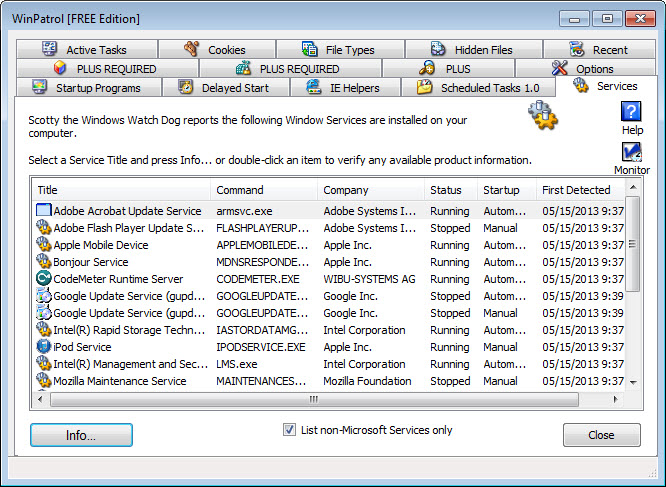
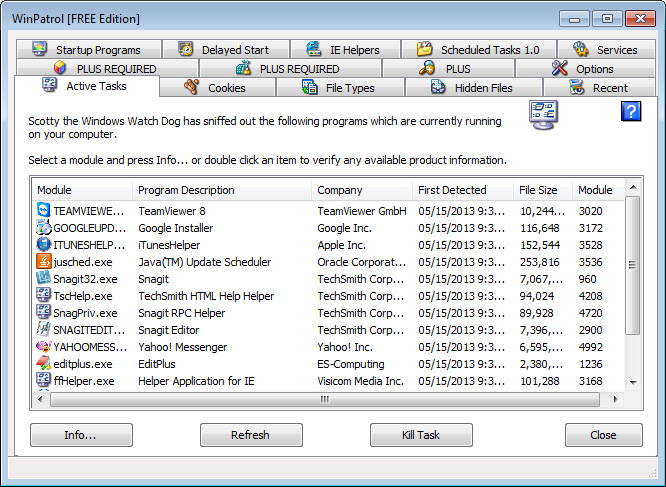
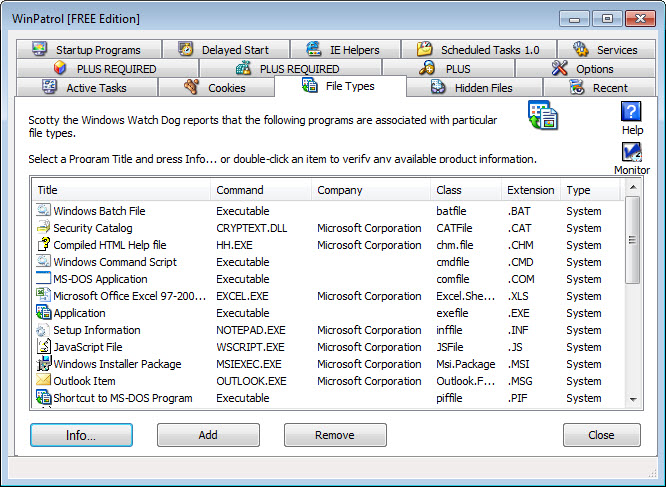
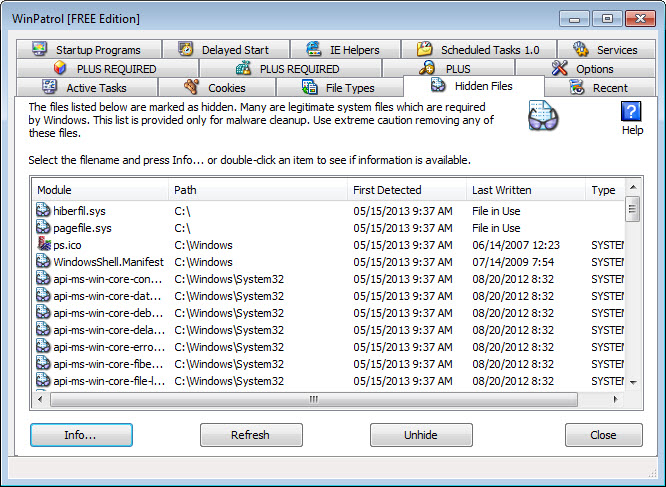
The main window is divided into tabs across the top, one for each monitored category. Startup Programs lists every entry that runs when Windows boots. IE Helpers shows browser plugins and ActiveX controls. Services lists Windows services with their startup type and current state. Scheduled Tasks displays anything registered with Task Scheduler. Recent shows file activity tracked over a configurable window. Hidden Files lists items in standard hidden locations. File Types maps extensions to their handlers. Active Tasks is essentially a process list.
The UI is unapologetically late-2000s. Buttons are chunky, fonts are flat, and the layout uses the kind of fixed-width panels that don’t scale well to high-DPI monitors. None of that affects functionality, but if you’ve been spoiled by modern Windows utilities like AutoRuns from Sysinternals, the visual style will feel like stepping back in time. The flip side is that the interface is dense with information and doesn’t waste space on whitespace or animations.
Each entry in any tab can be selected and acted on. Disable, delete, ask Scotty about it (which checks a small built-in info database), or pull up the underlying file location. The right-click context menu adds options for searching the web for the entry name, viewing properties, and adjusting how often the tool checks for changes.
Scotty and the notification model
The mascot is meant to be friendly, but the actual notification flow is more pragmatic. When a change is detected, a balloon-style alert appears near the system tray showing what changed. Clicking the alert opens the main window with the relevant tab focused. From there, you decide whether the change is legitimate.
There are three states for any monitored item. Approved means WinPatrol has been told this entry is fine and won’t alert about it again. Unknown means the item is being tracked but hasn’t been explicitly approved or denied. Watch closely means the tool will alert on any subsequent changes to that entry specifically.
The notification cadence is tunable. Aggressive monitoring catches more changes but interrupts more often. Looser settings cut the noise but might miss things. For new installs the aggressive defaults make sense for a few weeks while the system learns what’s normal, then relaxing to a less intrusive setting is the usual workflow.
The free version versus PLUS
WinPatrol historically came in two flavors. The free version, which is the one most users encounter, covers the core monitoring functionality. WinPatrol PLUS was a paid upgrade that added a database lookup for unknown entries, automated detection of common unwanted programs, and a few other refinements.
The PLUS database lookup was the most useful difference. When Scotty barked about a new entry, PLUS could check the entry name against a community database and give you a quick read on whether it was known good, known bad, or unfamiliar. Without that database, you’re left searching the web yourself or making a judgment call based on the file path and publisher info.
Given that active development stopped after 2019, the PLUS database hasn’t been getting fresh data for years. The signature lookup for genuinely new software is essentially blind. The free version is the practical choice today since the PLUS advantages have decayed.
Where this fits in 2026
Honest assessment. Windows 10 and Windows 11 have Defender built in, which combines signature scanning with cloud-backed behavioral analysis that’s more sophisticated than what WinPatrol does. SmartScreen blocks unsigned downloads at the browser and shell level. Tamper Protection prevents most unauthorized modifications to security settings. The monitoring use case that WinPatrol filled in the Windows XP and 7 era is now mostly covered by the operating system itself.
For advanced users specifically interested in startup program control, AutoRuns from Sysinternals is the standard tool. It shows more entries than WinPatrol does (autorun locations the older tool doesn’t monitor), is actively maintained by Microsoft, and is free. For startup management specifically focused on boot speed, Autorun Organizer handles that workflow more cleanly than Scotty’s general-purpose alerts.
So why would anyone still install WinPatrol in 2026? Three reasons. First, the unified interface combining startup, services, scheduled tasks, browser helpers, and hosts file monitoring in one window is genuinely convenient compared to having separate tools for each. Second, the change-detection notification model is something the built-in Windows tools don’t really replicate. AutoRuns shows you everything but doesn’t alert when things change. Third, the tool has its fans who appreciate the personality and the simplicity over Microsoft’s more complex security stack.
The abandonment problem
There’s no way around discussing this. WinPatrol hasn’t had a real update since 2019. The codebase reflects Windows assumptions from the early 2010s. The startup locations it monitors are the classical ones, which means newer persistence mechanisms (WMI subscriptions, certain UWP autostart patterns, modern scheduled task variations) may not be covered. The watchlist of “known suspicious” entries hasn’t been updated for current threats.
For users running older Windows 7 or earlier installs, the tool still does most of what it always did. For current Windows 11 systems being protected against modern threats, the gaps are real and growing. Pair it with AdwCleaner for current adware detection and Windows Defender for general antivirus, and WinPatrol becomes a supplementary monitoring layer rather than the primary defense.
The fact that the application still runs at all on Windows 11 says something about how stable the underlying Windows APIs are. The features it depends on (registry monitoring, service enumeration, task scheduler access) haven’t changed in fundamental ways. The tool keeps working because Windows itself maintains backward compatibility, not because WinPatrol is being updated to match new Windows behavior.
Resource use and footprint
One thing the tool gets right consistently is resource use. The background monitoring component uses minimal CPU and a few megabytes of RAM. There’s no real-time scanning of file contents, no cloud lookups, no heavy database to load. The polling-based approach to change detection is light on system resources.
This makes it a reasonable supplementary install on older hardware where running a full antivirus suite alongside other security tools would be too much. A Windows 7 machine with 4 GB of RAM that needs to keep running for legitimate reasons (legacy software, specific industrial use cases) can host WinPatrol without noticeable performance impact.
The installer is small, the application is portable in practice (most settings live in its own files rather than scattered through the registry), and removal cleans up after itself reasonably well. None of these are remarkable in 2026, but they reflect the careful authorship that characterized the tool throughout its active development.
Conclusion
WinPatrol occupies a particular spot in the Windows security history, which is the long-running independent utility that filled a gap the operating system wasn’t addressing. For its era, the behavioral monitoring approach and the Scotty notification model were genuinely useful, and many users developed real loyalty to the tool through fifteen-plus years of releases. The fact that it still runs on Windows 11 is a small testament to how carefully Bill Pytlovany built it.
The honest position in 2026 is that this is a legacy tool with a specific audience. Users on older Windows installs, retro computing enthusiasts, and people who value the personality and unified interface will continue to find use in it. Users looking for current protection against modern threats should rely on Windows Defender as the baseline and add AutoRuns for advanced startup management when they need it. Installing WinPatrol as a primary defense in 2026 isn’t the right call.
Installing it as a supplementary monitoring layer on a system where its strengths still apply, or out of appreciation for what it represented during its active years, is a reasonable choice that the tool will quietly support.
Features & benefits
Pros & Cons
- Unified interface for monitoring startup, services, tasks, browser helpers, and hosts file
- Change-detection notifications alert you when monitored entries are modified
- Light resource use even on older hardware
- Free version covers core functionality without nagging upgrades
- Still works on current Windows 10 and Windows 11 despite age
- Memorable interaction model with Scotty the dog providing personality
- Per-entry whitelist and watch-closely controls give granular notification management
- Active development ended in 2019, with no updates for newer Windows threats or behaviors
- PLUS database lookup is effectively useless due to staleness
- Interface design is solidly stuck in the 2008-2012 visual era
- Newer persistence mechanisms (WMI subscriptions, UWP autostart patterns) may not be monitored
- Free version doesn't include the database lookup that PLUS originally provided
- Many of its functions are now covered by Windows Defender, SmartScreen, and Sysinternals tools
Frequently asked questions
The application monitors Windows persistence mechanisms (startup entries, services, scheduled tasks, browser helpers, hosts file, file associations) and alerts you when anything changes. The goal is to catch unwanted software that tries to install itself for persistent execution.
No. The original developer Bill Pytlovany passed away in 2019, and the application has been at the same version since then. It still functions on current Windows versions because the underlying Windows APIs it uses haven't changed significantly.
Traditional antivirus scans files against known threat signatures. This tool monitors specific Windows locations for changes rather than scanning file contents. The two approaches complement each other, though the change-detection model needs less frequent updates to remain useful.
Yes. The application installs and runs on current Windows 11 systems and monitors most of the same persistence mechanisms it always did. Some newer persistence techniques aren't covered because the tool predates them.
PLUS originally added a database lookup that identified unknown entries as known good or bad based on a community database. Since active development stopped, the database is years out of date and the PLUS advantages have largely evaporated, making the free version the practical choice today.
AutoRuns from Sysinternals shows more startup locations and is actively maintained by Microsoft. It doesn't have the change-detection alert model that this tool offers, so the two are complementary rather than direct substitutes.
The tool prompts when monitored locations change, which includes legitimate software adding startup entries during installation. New users typically see many prompts during the first few weeks while approving normal applications. The whitelist persists, so the frequency drops as the tool learns what's normal.


