

WBFS Manager
About WBFS Manager
WBFS Manager is the bridge between your computer and a Wii that loads games from a USB drive. If you have set up a Wii to run backups off an external hard drive instead of swinging discs in and out, you have run into WBFS, the special drive format those USB loaders expect. That format is not something a normal computer can read or write to. This tool is what lets you put it together and fill it with games from your PC.
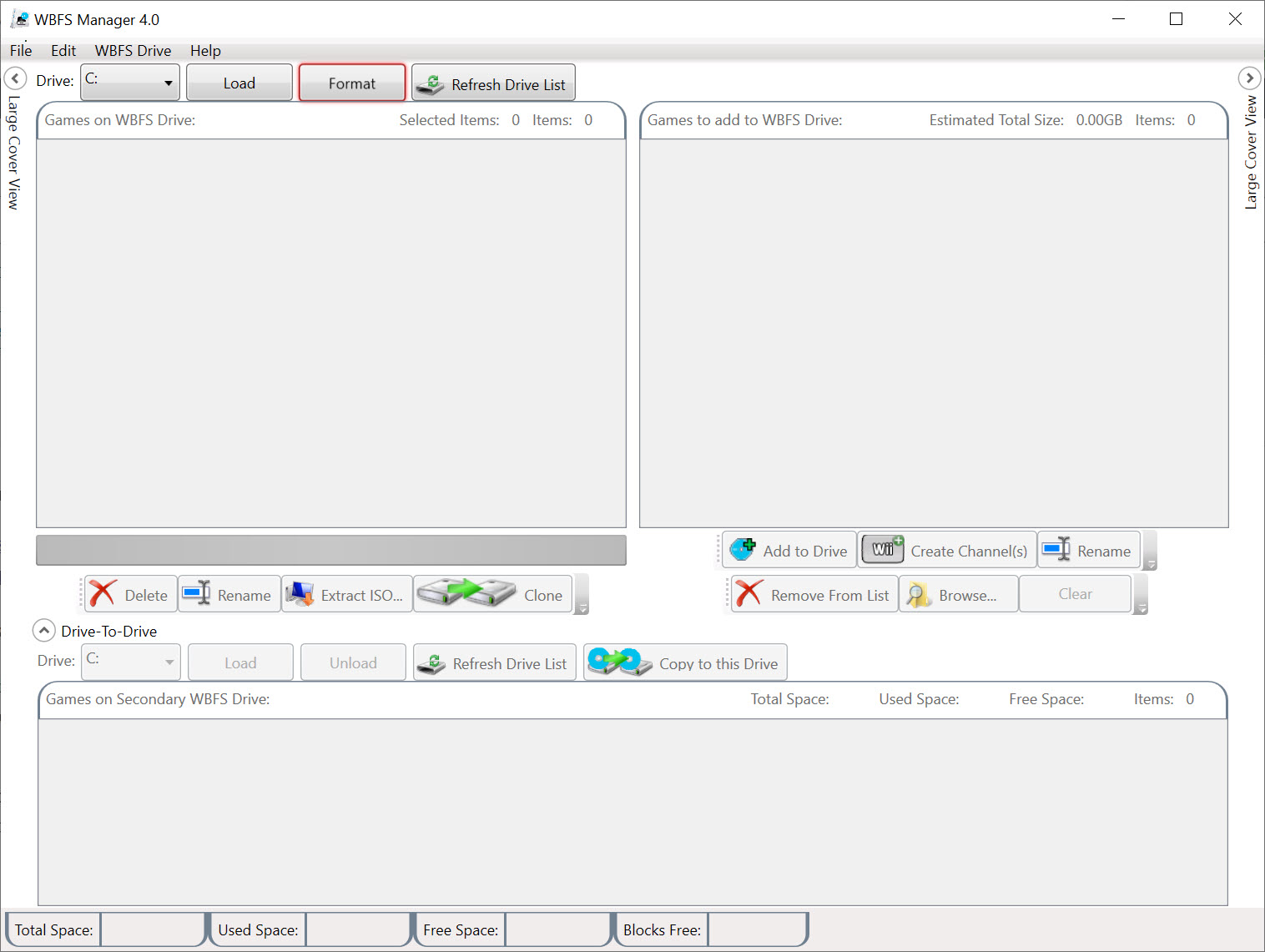
The job it does is specific. It formats a USB or external drive into the Wii Backup File System, then copies your Wii game backups onto it in the exact layout the console’s loader needs. Drag an ISO in, and WBFS Manager writes it to the drive in WBFS form, ready to show up in your loader’s game list the next time you plug the drive into the Wii. It is the missing link that turns a pile of game images on your hard drive into a working library on the console.
There is a neat space-saving trick built into how this works, too. A full Wii disc image is large, but most of that size is empty padding the original disc carried. When WBFS Manager writes a game to a WBFS drive, it strips that padding out, so each game takes only as much room as its actual data.
The practical result is that you fit far more games on a drive than the raw ISO sizes would suggest.
What WBFS actually is
It helps to understand the format to understand the tool. The Wii Backup File System is a purpose-built way of storing Wii games on a drive, designed so the console’s homebrew loaders can find and launch them quickly. It is not a general file system. Once a drive is formatted this way, your computer will no longer see it as an ordinary disk with browsable folders. Plug it into a PC and the operating system may even offer to format it, because it does not recognize the layout.
That is exactly why a dedicated tool is needed. You cannot just copy game files onto a WBFS drive through a normal file window. You need something that speaks the format, and that is the entire reason this application exists.
Adding, removing, and managing your library
The day-to-day use of WBFS Manager is refreshingly simple. The interface shows you the drive’s contents on one side and lets you add new games from your computer on the other. You add a Wii ISO, and it gets converted and written to the drive. You can remove titles you are done with to free up space, and rename entries so your loader’s list stays tidy rather than showing cryptic disc IDs.
It also works in reverse. If you need to pull a game back off the WBFS drive as a standard ISO, the tool can extract it for you, which is handy when you want to move a backup elsewhere or feed it into another program.
That two-way capability matters, because a drive in WBFS format is otherwise a one-way street as far as your computer is concerned.
How it compares to the alternatives
This is not the only tool for the job, and it is worth knowing where it sits. Wii Backup Manager covers the same core task but goes further, handling more formats and notably supporting GameCube backups alongside Wii ones, plus conversion between different backup formats. If your collection spans both consoles, that broader tool is often the better fit.
Where WBFS Manager wins is simplicity. It does one thing, formatting WBFS drives and managing Wii games on them, without burying you in options. For someone who just wants to load up a drive and play, the smaller, more focused interface is easier to get going with.
The games themselves come from dumping your own discs, which is what a tool like RawDump handles, reading a GameCube or Wii disc into an image file you can then manage here.
The limitations worth knowing
There are honest gaps. The biggest is that WBFS Manager handles Wii games only. There is no GameCube support, so if you were hoping to manage both on one drive through one program, you will need to look at the broader alternative instead. It is built for the Wii side and nothing else.
The format lock-in is the other thing to plan around. Once a drive is WBFS, it stops being usable for general storage, so you commit a drive to this purpose. And because the tool is not actively growing new features, what you see is what you get. For the narrow task it targets that is fine, but do not expect it to expand into a do-everything backup suite. It is a focused utility, and it stays in its lane.
Conclusion
WBFS Manager is for the Wii owner who has set up USB loading and just wants a straightforward way to get games onto the drive. It formats the drive, writes your backups in the right layout, trims wasted space, and lets you tidy and extract titles without fuss. For that single purpose it is quick to learn and does exactly what it promises.
It is not the tool for a mixed Wii and GameCube collection, and it is not going to grow new tricks over time. If your needs are broader, the heavier alternatives earn their extra complexity. But if your world is Wii backups on a USB drive and you value a clean, no-nonsense approach, this remains one of the simplest ways to get there.
Pros & Cons
- Formats USB and external drives into the WBFS layout Wii loaders require
- Adds, removes, and renames Wii games with a simple drag-and-drop interface
- Strips disc padding so games take far less space than their raw ISO size
- Extracts games back to standard ISO files when you need them elsewhere
- Lightweight and easy to learn, with a focus on one job done plainly
- Handles Wii games only, with no GameCube support
- A WBFS-formatted drive can no longer be used for general file storage
- Not under active development, so the feature set is fixed
- Fewer format and conversion options than heavier alternatives
Frequently asked questions
It formats a USB or external drive into the Wii Backup File System and copies your Wii game backups onto it in the layout a console loader needs, while also letting you remove, rename, and extract games.
Because a WBFS-formatted drive uses a special layout that an ordinary file window cannot read or write. You need a tool that understands the format, which is what WBFS Manager provides.
No. It is built for Wii games only. If you want to manage GameCube backups as well, a broader tool like Wii Backup Manager is the one to use.
No. Once a drive is in WBFS format, your computer no longer sees it as a normal disk and may prompt to reformat it. That is expected, and it is why the games must be managed through this tool.
Yes. The tool can extract a stored game back into a standard ISO file, so you are not locked into the WBFS drive once a game is on it.
A Wii disc image includes empty padding. When WBFS Manager writes a game to a WBFS drive, it removes that padding, so each title uses only its real data and you fit more games per drive.


