

WHDownloader
About WHDownloader
WHDownloader (formerly Windows Hotfix Downloader) is the tool you reach for when manually managing Windows updates becomes practical rather than just letting the operating system handle them invisibly. The application connects to Microsoft’s update servers, retrieves the catalog of available updates for the operating system version you specify, and lets you select exactly which ones to download.
Once downloaded, the same interface installs them on your current system, integrates them into installation media for slipstreaming, or saves them as standalone files for offline use later. Where the built-in Windows Update mechanism handles updates as a background service that mostly works invisibly, this application surfaces the entire catalog with the granular control that built-in mechanisms hide from typical users.
The audience is genuinely specific. Users who reinstall the operating system frequently get particular value from the application because waiting through hours of post-install update cycles becomes tedious enough that batch-downloading updates once and applying them after each install saves substantial time. System administrators managing multiple machines benefit from downloading updates once and distributing them to systems that don’t have direct internet access.
Users on metered or limited internet connections appreciate downloading specific updates rather than having Windows Update fetch everything in the background continuously. Users dealing with specific update problems where they need to skip particular updates or roll back to previous versions get the granular control that the built-in mechanism doesn’t fully expose.
For these specific scenarios, the application provides functionality that Windows Update alone doesn’t deliver, with active development continuing through community forks despite the original project entering quieter development phases over recent years.
How update catalog access works
The application connects to Microsoft’s official update servers and retrieves the same catalog of updates that Windows Update itself uses. The connection happens through documented Microsoft endpoints rather than scraping or unofficial methods, which means the updates downloaded match what Microsoft actually distributes through its standard channels. The packaging, signatures, and metadata all match what Windows Update would produce if it had selected the same updates.
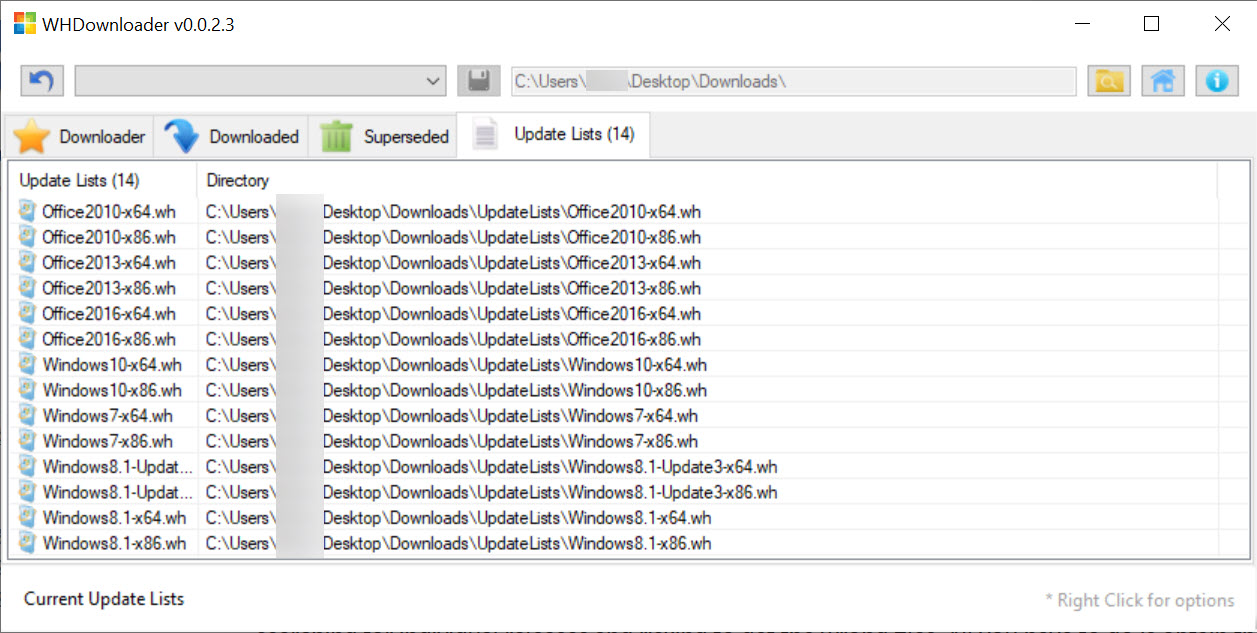
The catalog organization separates updates by operating system version, with substantial coverage including Windows 7, 8.1, 10, and 11 alongside Server editions, plus Microsoft Office releases including 2013 and 2016. Each operating system version has its own specific update list that reflects what’s actually available for that version, with security updates, cumulative updates, optional updates, language packs, and various other categories all visible.
For each update in the catalog, the application shows the KB number (Microsoft’s identifier for individual updates), title, release date, file size, and various other metadata that helps you decide whether each specific update is worth downloading.
The granularity matters because some updates are essential security fixes while others are optional features or specific compatibility patches that may or may not apply to your needs.
Slipstream integration into installation media
The slipstream feature integrates downloaded updates directly into Windows installation media (ISO files, USB installers, or network deployment images). The integration produces installation media that includes all the integrated updates from the start, which means systems installed from that media arrive current rather than requiring update downloads after first boot.
For users who reinstall the operating system frequently, this slipstreaming capability transforms the install workflow. The first install spends a few minutes downloading updates through the application, then those updates get integrated into installation media. Every subsequent install from that media skips the post-install update cycles entirely, with the system arriving fully patched and ready to use within the time the base installation itself takes.
The integration handles the technical complexity that manual slipstreaming would require. Update files get unpacked, integrated into the appropriate Windows image components, and repackaged into valid installation media without requiring you to understand DISM commands or component manifests.
The result is functionally equivalent to what manual slipstreaming would produce but accessible through a graphical interface rather than command-line work.
For multi-system deployment scenarios, the slipstreamed installation media becomes the deployment artifact. IT administrators preparing systems for multiple machines benefit from the time savings across each deployment, with the cumulative effect being substantial when deploying to dozens or hundreds of machines.
Selective installation and update control
Beyond catalog access, the application provides installation control that the built-in update mechanism doesn’t fully expose. Select specific updates to install rather than accepting whatever Windows Update has queued. Skip updates that have known issues with your specific configuration. Uninstall previously-applied updates that have caused problems, with the rollback happening through the same interface as installation rather than requiring separate recovery procedures.
For users dealing with specific update-related problems (a recent update breaking specific applications, a security update causing performance regressions on particular hardware, optional updates getting installed that the user didn’t actually want), this granular control matters.
The built-in Windows Update mechanism’s automatic behavior produces friction when updates cause problems, with this application providing the alternative path of explicit user control over what gets installed when.
The selective approach also handles the case where users want to delay specific updates rather than installing them immediately. Pin known-good update versions that work reliably while skipping newer versions that might introduce regressions. T
he trade-off is that you’re now responsible for keeping your system updated rather than having the operating system handle it automatically, which works for users who actually want this responsibility but isn’t appropriate for users wanting hands-off update management.
Office and language pack integration
The Office update support extends the same capabilities to Microsoft Office releases. Download Office updates separately from operating system updates, integrate them into Office installation media, or apply them to running Office installations through the same interface. For users managing Office across multiple machines, this consolidation produces the same benefits as operating system update management through one application.
Language pack handling lets you download additional language support beyond what’s installed by default. The integration with installation media means custom installation images can include multiple language packs from the start, useful for users who work in multilingual environments or who want their installation media to support languages beyond the base installation.
The driver download and integration capabilities cover specific drivers that Microsoft distributes through Windows Update. Generic drivers for common hardware come through this channel, with the application enabling slipstream integration of these drivers into installation media. For specific manufacturer drivers, dedicated tools handle that scenario better, but for the standard drivers that Windows Update would deliver anyway, this application’s integration capability matters.
Offline use and disconnected scenarios
The downloaded updates can be saved as standalone files separate from immediate installation. This separation enables offline scenarios where one machine downloads updates with internet access and other machines apply those updates without needing direct internet connectivity. For environments with isolated networks, secured systems that can’t connect to internet update servers, or simply machines without reliable internet, this offline workflow handles the practical scenarios.
The downloaded files retain their standard Microsoft update format (typically MSU or CAB files), which means they can be applied through other update mechanisms beyond this application. Standard Microsoft tools accept the same files for installation, which provides flexibility about how the offline update workflow actually proceeds. Save files from this application, transfer through whatever means fits your environment, apply through this application or alternatives based on what’s available on the target system.
For users on limited or metered internet connections, this approach lets you download updates once when convenient (perhaps from a connection without metered usage) and apply them later from local storage.
The bandwidth impact happens at download time only rather than each time the operating system would otherwise check for updates, which produces predictable usage patterns rather than the continuous background traffic that automatic update mechanisms generate.
The application’s UI and workflow
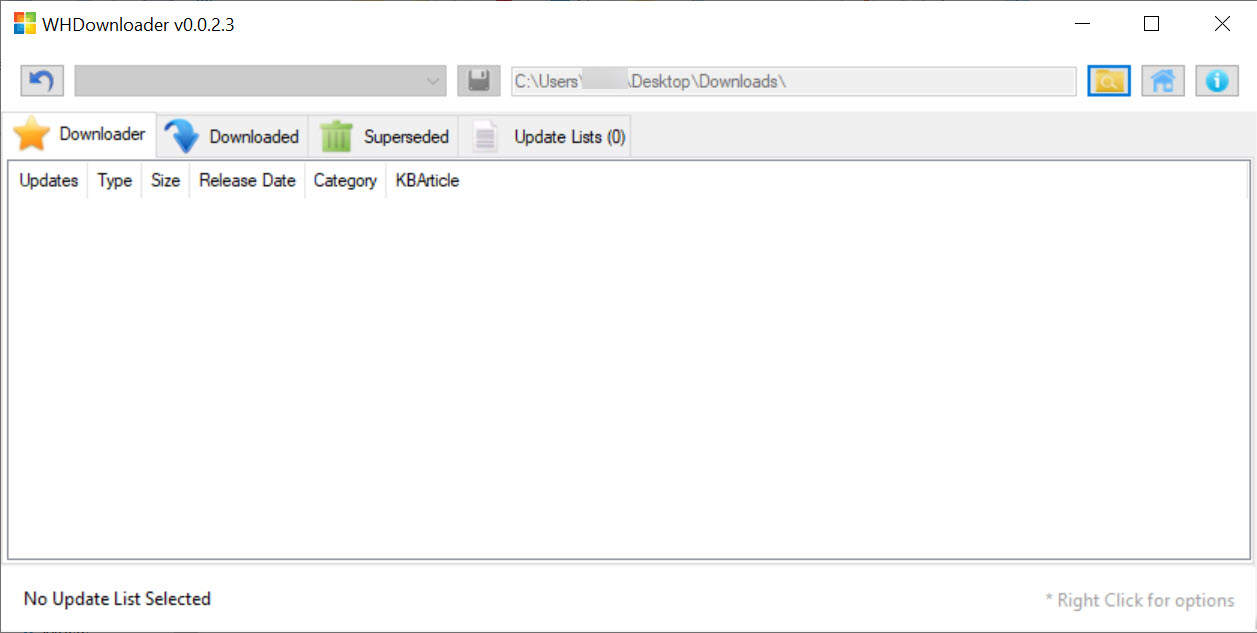
The interface organizes the workflow around tabs for different operating system versions, with each tab containing the catalog of updates for that specific version. Click the operating system version you’re interested in, browse the available updates, select what you want to download, and the application handles the rest. The download progress shows for each file with appropriate status indicators.
After downloads complete, the same interface handles installation, integration, or management of the downloaded files. Install selected updates on the current system. Integrate them into installation media you specify. Manage previously-downloaded files for later use. The workflow stays within one application rather than requiring multiple tools for different stages of update management.
The configuration options expose various settings that affect how updates get downloaded and applied. Download paths can be customized for users who want updates stored in specific locations. Verification options control whether downloaded files get checked for integrity before use.
Various other settings handle scenarios that specific use cases require. Most users don’t need to adjust the defaults, but the options exist for users with specific requirements.
Comparison with the alternatives
The alternatives in this category have different positioning. WSUS Offline Update is more focused on offline scenarios specifically, with a workflow designed around batch downloads for offline installation. The trade-off is a more rigid workflow versus this application’s more flexible approach. For users specifically wanting offline-only workflows, WSUS Offline Update fits well. For users wanting flexibility across online and offline scenarios, this software produces a smoother experience.
Windows Update MiniTool focuses on selective control over the built-in Windows Update mechanism rather than providing its own catalog access. It’s a frontend for the operating system’s existing update infrastructure rather than an independent update download tool. For users who want enhanced control over Windows Update’s behavior without bypassing it, the MiniTool fits. For users wanting independent catalog access and flexible workflows, this application covers different ground.
NTLite handles broader installation customization beyond just update integration, including component removal, registry tweaks, and various other customization tasks. For users wanting to customize their installation media beyond just adding updates, NTLite provides substantially more capability. For users who only need update integration without the broader customization scope, this software is more focused on the specific task.
The built-in Windows Update mechanism remains the appropriate choice for typical users who don’t have specific scenarios that motivate using third-party update tools. Modern Windows handles updates reliably enough that most users don’t need to bypass it. The application matters specifically for the scenarios where Windows Update’s automatic behavior doesn’t fit user requirements rather than as a general replacement for the built-in mechanism.
Considerations and limitations
Active development on the original project has slowed substantially, with major version releases becoming less frequent than the application’s earlier history. Community forks and continuations exist, but the formal development cadence isn’t what the application had during its peak years. For users wanting actively-evolving software with regular feature additions, this isn’t the application. For users whose specific use cases the application already serves well, the slower development pace doesn’t materially affect daily usage.
Update catalog accuracy depends on Microsoft’s published catalogs remaining accessible through the documented endpoints. Microsoft has occasionally changed update distribution mechanisms in ways that affected third-party tools accessing the catalogs, with the application requiring updates to maintain compatibility when these changes happen. Users encountering catalog access issues should check whether their version is current rather than assuming everything will work indefinitely without updates.
The level of detail required for productive use exceeds what casual users typically want to deal with. KB numbers, update categories, severity levels, dependency relationships between updates, and various other technical details all matter for making good update decisions. Users who don’t want to engage with these technical details find the application overwhelming compared to the simpler “let Windows Update handle it” approach.
Some specific update scenarios produce friction that automatic mechanisms handle better. Updates with prerequisites that depend on other updates being installed first sometimes fail when those prerequisites aren’t manually identified. Updates that conflict with other installed software produce issues that the automatic mechanism would have surfaced through dependency resolution. Manual update management requires understanding these patterns rather than getting automatic resolution from the operating system.
The slipstreaming workflow requires specific operating system versions that support component-based servicing for the integration to work cleanly. Older operating system versions sometimes produce slipstreaming problems that aren’t easily resolved without substantial configuration work. Users targeting specific scenarios should verify that the application supports their target operating system version before assuming everything will work.
Conclusion
For users with specific Windows update management needs that the built-in Windows Update mechanism doesn’t fully address, WHDownloader delivers the granular control and flexible workflows that make those scenarios practical. The combination of direct catalog access, slipstream integration into installation media, offline workflow support, selective installation control, and unified handling of operating system, Office, language pack, and driver updates produces a tool that handles the specialized update management scenarios that motivated installing it in the first place.
The reasons most users don’t need this software are equally important. Casual users benefit from the automatic Windows Update mechanism without engaging with the technical complexity that this application exposes. Users without specific scenarios involving frequent reinstallation, offline systems, slipstreaming requirements, or selective update control find the built-in mechanism handling their needs more smoothly than third-party alternatives would.
The specific audience this software targets is real but limited, with the application being essential infrastructure for that audience while being unnecessary for the broader population of typical users.
Pros & Cons
- Direct catalog access provides granular control over which updates to install
- Slipstream integration into installation media eliminates post-install update cycles
- Offline workflow downloads updates once for application across multiple disconnected machines
- Office and language pack support extends the same capabilities to Microsoft Office and additional languages
- Selective installation and uninstallation provides update control beyond what built-in Windows Update exposes
- Standard Microsoft update file formats produce files compatible with other update mechanisms
- Free without commercial restrictions for users in the specific scenarios it targets
- Single application handles download, installation, integration, and management workflows
- Original development has slowed with continuation through community efforts
- Catalog access depends on Microsoft's distribution endpoints remaining accessible
- Technical complexity requires understanding of Windows update mechanics
- Some update scenarios produce friction that automatic mechanisms handle better
- Less appropriate for typical users who benefit from automatic update management
- Slipstreaming workflow requires specific operating system version compatibility
Frequently asked questions
This software is a Windows update management tool, formerly known as Windows Hotfix Downloader, that connects to Microsoft's update catalogs and provides granular control over which updates to download, install, integrate into installation media, or save for offline use. It supports operating system updates across Windows 7, 8.1, 10, and 11, plus Microsoft Office updates and language packs. Common use cases include slipstreaming updates into installation media, managing updates on disconnected systems, and providing alternatives to the built-in Windows Update mechanism for users wanting explicit control.
The application connects to Microsoft's official update servers using the same documented endpoints that Windows Update uses, retrieves catalogs of available updates for the operating system version you select, and presents the catalog through a graphical interface where you can choose which specific updates to download. Downloaded files retain standard Microsoft update format (MSU, CAB), which means they can be installed through this application or through alternative update mechanisms that accept the same file formats.
Use the slipstream feature in the application's interface. Specify the source ISO or installation media, select the downloaded updates you want to integrate, and start the integration process. The application unpacks the installation media, integrates the updates into the appropriate components, and repackages the result into modified installation media that includes the integrated updates. The resulting media installs systems that arrive current without requiring post-install update cycles.
Both tools target offline update scenarios with overlapping capabilities. WSUS Offline Update is more focused on offline-only workflows with a workflow designed specifically around batch downloads for offline installation. WHDownloader offers more flexibility across online and offline scenarios with a more interactive interface for selecting specific updates rather than batch operations. For users specifically wanting offline-only workflows, WSUS Offline Update fits well. For users wanting flexibility, this software covers different ground.
Windows Update MiniTool is a frontend for the built-in Windows Update mechanism, providing enhanced control over the existing infrastructure rather than independent catalog access. WHDownloader provides its own catalog access independent of the operating system's built-in update mechanism, which means it can work in scenarios where Windows Update isn't functioning correctly. For users who want enhanced control over Windows Update's behavior without bypassing it, the MiniTool fits. For users wanting independent update management, this software covers different ground.
Slipstreaming is the process of integrating updates directly into Windows installation media so that fresh installations from that media include the integrated updates from the start. Without slipstreaming, fresh installations require downloading and installing all accumulated updates after the operating system itself is installed, which takes substantial time. Slipstreamed media produces systems that arrive fully updated without the post-install update cycles, which matters substantially for users who reinstall frequently or deploy to multiple machines.
Yes, the application supports Microsoft Office update download and integration alongside operating system updates. Office update catalogs are accessible through the same interface, with downloaded updates applicable to running Office installations or integrable into Office installation media for slipstreamed deployment. The Office support covers releases including 2013 and 2016, with the same general workflow that operating system updates follow.
The application can uninstall previously-applied updates through its installation management interface. Select the update you want to uninstall, trigger the uninstall operation, and the application handles the rollback through standard Microsoft uninstall mechanisms. The rollback restores the system to its pre-update state for that specific update, useful when specific updates have caused problems and reverting to the previous version is preferable to keeping the problematic update.
Specific updates may not download for various reasons including dependencies on other updates that aren't currently selected, operating system version incompatibilities, regional availability restrictions, or temporary issues with Microsoft's distribution servers. The application's error messages typically indicate which specific issue is affecting the failed download, with the resolution depending on the specific cause. For dependency issues, selecting prerequisite updates first usually resolves the problem.


