

VoiceMeeter
About VoiceMeeter
Most audio problems on a PC come down to one limitation. The operating system treats audio as a one-way pipe, you pick a playback device, you pick a recording device, and everything else has to fight over those two slots. The moment you want to send your microphone to two different applications, or mix system sounds into your stream while keeping Discord chat separate, the standard sound panel runs out of answers.
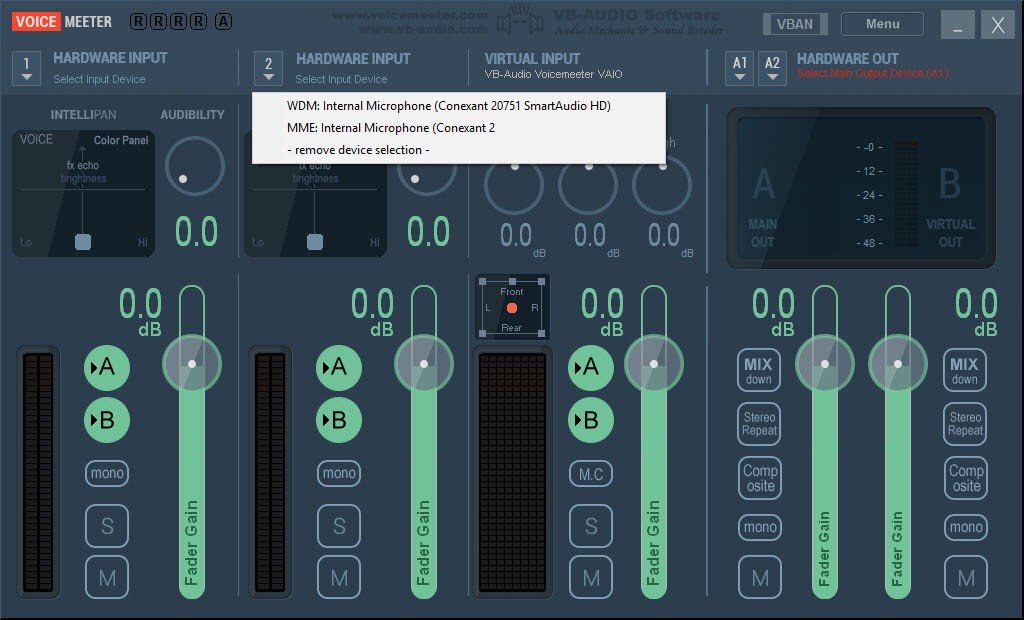
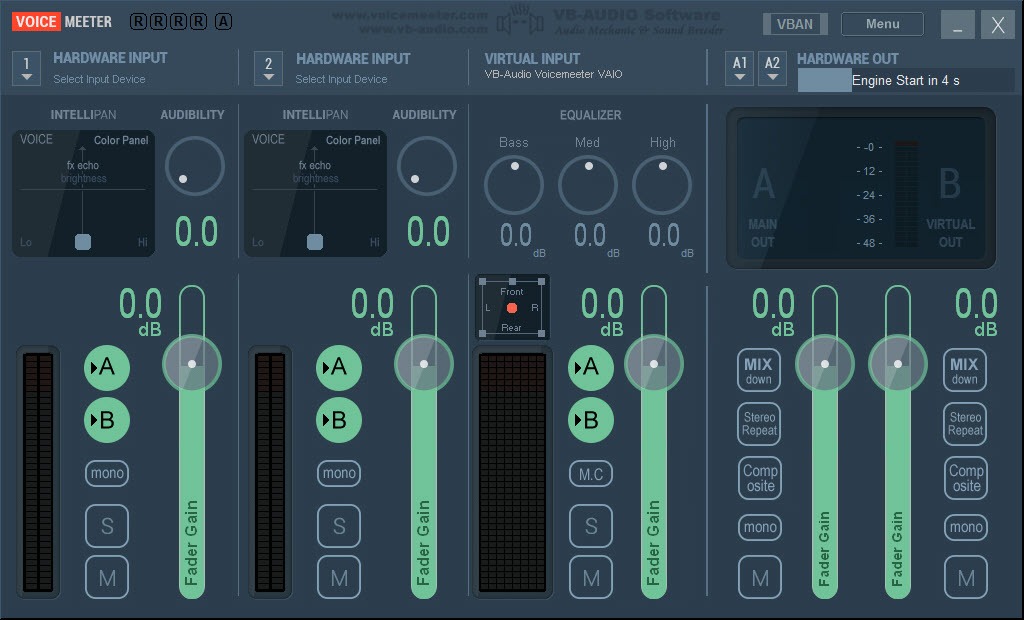
VoiceMeeter is the tool people reach for when they hit that wall. It installs as a virtual mixer with real and virtual inputs, real and virtual outputs, and full routing between them. Each input strip behaves like a channel on a hardware console, with gain, mute, EQ, and assignable destination buses.
Once running, it shows up across Windows as a regular audio device, which is the trick that makes everything else possible. Any application that lets you choose a playback or recording device can be routed through VoiceMeeter without knowing it exists.
Three editions covering very different ambitions
VoiceMeeter ships in three flavors and they are not just bigger versions of each other. The base VoiceMeeter gives you two physical input strips, one virtual input strip, and three output buses (A1 hardware, A2 hardware, B1 virtual). That covers the classic case, route your mic plus your desktop into a virtual output that streaming software can capture.
VoiceMeeter Banana adds two more physical inputs, a second virtual input, and a fifth bus (B2). This is the version most streamers actually run because it cleanly separates “what I hear” from “what my audience hears,” with enough headroom for a second microphone, an instrument, and a phone or console patched in over a virtual audio cable chain.
VoiceMeeter Potato pushes the count to five physical and three virtual inputs, with eight buses total. It also unlocks features the smaller editions do not have, including a built-in cassette recorder, an intellipan, multi-track recording, and FX rack slots on every strip. If you find yourself drawing routing diagrams on paper before you start, Potato is the edition that probably matches your setup.
The donationware model applies to all three, you can run them without paying, with a reminder dialog that shows up every few hours and asks you to consider a license. Functionality is not crippled in the unpaid state.
Routing that the sound panel cannot do
The actual reason to bother with VoiceMeeter is what happens after you set up the strips. Every input can be sent to any combination of buses by clicking the colored A1/A2/B1/B2 buttons at the top of the strip. That means your microphone can go to your headphones (so you hear yourself), to the streaming bus (so your audience hears you), and to the recording bus (so your local capture catches it), all in one click each.
Browser audio can be split off and sent only to the stream while game audio stays in your headphones. Discord can be quarantined onto its own bus so chat never bleeds into a recording.
The patch matrix is the kind of thing that sounds abstract until you have a problem the regular sound panel cannot solve, and then it sounds like the only sensible answer. A more focused alternative is Audio Router, which lets you reassign per-application output without the full mixer overhead, useful if your needs stop at “send Spotify somewhere else.”
Drivers, buffers, and the latency question
Underneath the mixer, VoiceMeeter installs WDM virtual audio devices and supports MME, KS, WDM, and ASIO on the hardware side. The hardware out can be set to ASIO directly if your interface exposes it, which keeps round-trip latency low enough for live monitoring. For interfaces that lack a native ASIO driver, the usual move is to pair it with ASIO4ALL and let that handle the bridge.
Buffer size and sample rate are exposed in the main menu and matter more than people expect. Smaller buffers mean lower latency but more CPU and more risk of dropouts. Larger buffers are stable but introduce noticeable delay when you hear yourself through the mixer.
The sweet spot for live use tends to be 256 or 512 samples at 48 kHz, but cheap USB mics sometimes only behave at 7 or 10 ms buffering and you find out by trial. The point is that those knobs are actually exposed, which is more than the Windows sound panel will ever do for you.
The Master Section, EQ, gate, and compressor per strip
Each input strip carries a parametric EQ (six bands on Banana and Potato), a gate, and a compressor, plus a denoiser threshold on the strips that have it. None of these are reference-grade processors, the compressor in particular is functional rather than musical, but they are good enough to clean up a budget condenser mic and tame a noisy room without an external chain.
If you want surgical control you would still reach for a dedicated processor or a system-wide EQ like Equalizer APO, but for live streaming use the built-in tools cover most needs.
The Master Section adds a separate EQ and limiter on each bus, which is the right place to handle “this sounds fine in my headphones but blown out on stream” mismatches. Gain staging across input strip, bus, and master is where most setup problems hide, and the meters on each strip help you find what is clipping.
VBAN, MacroButtons, and the extras nobody mentions
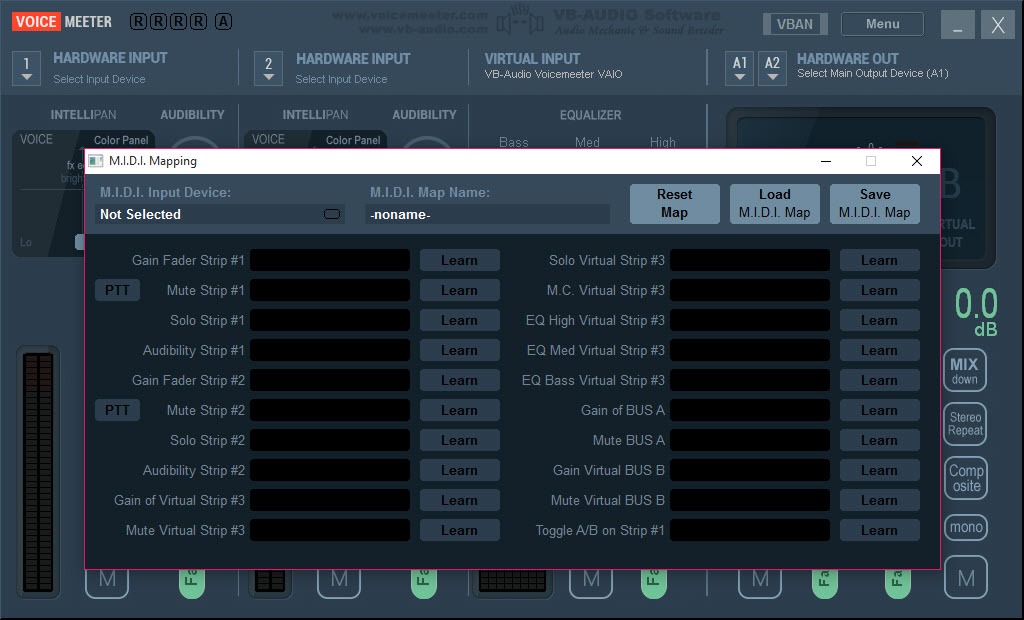
VBAN is a small protocol bundled with VoiceMeeter that streams audio over a local network. The practical use case is sending audio from a second PC (a streaming machine, a sampler, a phone running the VBAN app) into your main mixer without a cable. It runs over UDP, so it is sensitive to network conditions, but on a wired LAN it is genuinely useful for two-PC streaming setups where the alternative is a USB capture card or an HDMI loop.
MacroButtons is a free companion utility that gives you an on-screen panel of programmable buttons, each of which can mute a strip, toggle a bus, run a script, or trigger any of the API actions VoiceMeeter exposes. Combined with a Stream Deck or a regular keyboard shortcut, it covers the “I need to mute fast” case that comes up on every live call.
The same API is what third-party apps use to talk to the mixer, and the documentation is detailed enough that hobbyist tools for muting per-application sources keep showing up in the wider audio community.
The interface, which is the polarizing part
Honest take, the UI is dense and looks like a piece of hardware from a different decade. Knobs are small, labels are tiny, and you cannot resize the window in a way that helps if you have poor eyesight or a 4K display at native scaling. There is no per-input naming on the base edition, and the strips do not remember what you plugged in unless you save and reload a configuration.
The flip side is that everything is on one screen. No tabs, no hidden menus, no settings buried three submenus deep. Once you learn what the colored letters mean, you can rewire your entire audio chain without taking your hand off the mouse. People either bounce off the interface in the first ten minutes or learn it once and never think about it again. Not much middle ground there.
Where it sits next to streaming software
VoiceMeeter is not a replacement for Streamlabs Desktop or similar broadcast suites. It sits one layer below them, handling the audio plumbing while the streaming software handles scenes, encoding, and output. The typical setup has the mixer feeding a virtual output (B1 or B2) that the streaming application captures as a “microphone,” which lets you send a fully mixed audio bed (mic + game + alerts) instead of trying to align everything inside the broadcaster.
For recording, the same trick works with Audacity or any DAW that can pick a recording device. You point the recorder at a VoiceMeeter virtual output and capture exactly what you have routed there, no more, no less.
This is how people record podcasts with remote guests on Discord and end up with clean isolated tracks instead of a single mixed mess.
Conclusion
VoiceMeeter is the right tool when your audio needs outgrow what the operating system can express. That is a real threshold and not everyone hits it, plenty of people get by with one device in and one device out for years. But once you find yourself wanting two destinations for one source, or one destination fed by three sources, the mixer earns its install.
Streamers, podcasters, multi-mic creators, and anyone running a two-PC setup will get the most out of it, especially in the Banana or Potato editions. Casual users who just want their headphones to sound louder will find the interface intimidating and the feature set overkill, a simpler audio enhancer or a per-app router covers that ground with less to learn.
The application is not pretty and not gentle, but it does something nothing else does as completely, and once it clicks, taking it back out of the chain feels harder than learning it in the first place.
Pros & Cons
- Three editions covering everything from a single-stream desktop to a multi-source studio rig
- Virtual outputs that any audio-aware application can pick up, no extra cable software required
- Per-strip EQ, gate, compressor, and per-bus master processing built in
- VBAN protocol for streaming audio across a local network between machines
- MacroButtons companion and a documented API for hotkey muting and external control
- Donationware, no crippled features in the unpaid state
- UI is dense and unfriendly to high-DPI displays
- Built-in dynamics processors are functional but not high quality
- Setup requires understanding the routing matrix, the learning curve is real
- The reminder dialog in the unpaid state appears at fixed intervals during active use
- VBAN over wireless networks is unreliable, needs a wired connection to be useful
Frequently asked questions
The sound panel lets you pick one playback device and one recording device per application at best. This tool gives you a mixer with multiple virtual inputs and outputs, so you can send audio to several destinations at once, mix sources before they reach a streaming or recording application, and separate chat from game audio onto independent buses.
The base edition handles a single mic plus desktop audio. The Banana edition is the common choice for streaming because it has enough strips for a mic, a second source, and separate output buses for headphones and stream. Potato is for multi-mic setups, hardware instruments, or anyone who needs the cassette recorder and multitrack capture.
Some, always. Routing audio through any virtual mixer costs a few milliseconds. With ASIO on the hardware out and a buffer of 256 samples at 48 kHz, the round trip is usually low enough for comfortable live monitoring. Larger buffers add noticeable delay when you hear yourself.
Yes, this is one of the most common reasons people install it. You set Discord's output to the virtual cable (B1) and the game's output to your headphones (A1), then route the virtual cable only into your stream bus. Your audience hears chat plus game, you hear both, and your local recording captures whatever you decide.
The application is donationware. It runs fully featured without payment, but a reminder dialog appears periodically during long sessions. A one-time license removes the dialog and supports the application.
VBAN sends audio over UDP between two machines on a local network. It is mostly used for two-PC streaming setups where one machine plays games and another handles broadcast. On a wired connection it works well. On Wi-Fi it drops packets and produces clicks, so a cable is effectively required.


