

Vivaldi
About Vivaldi
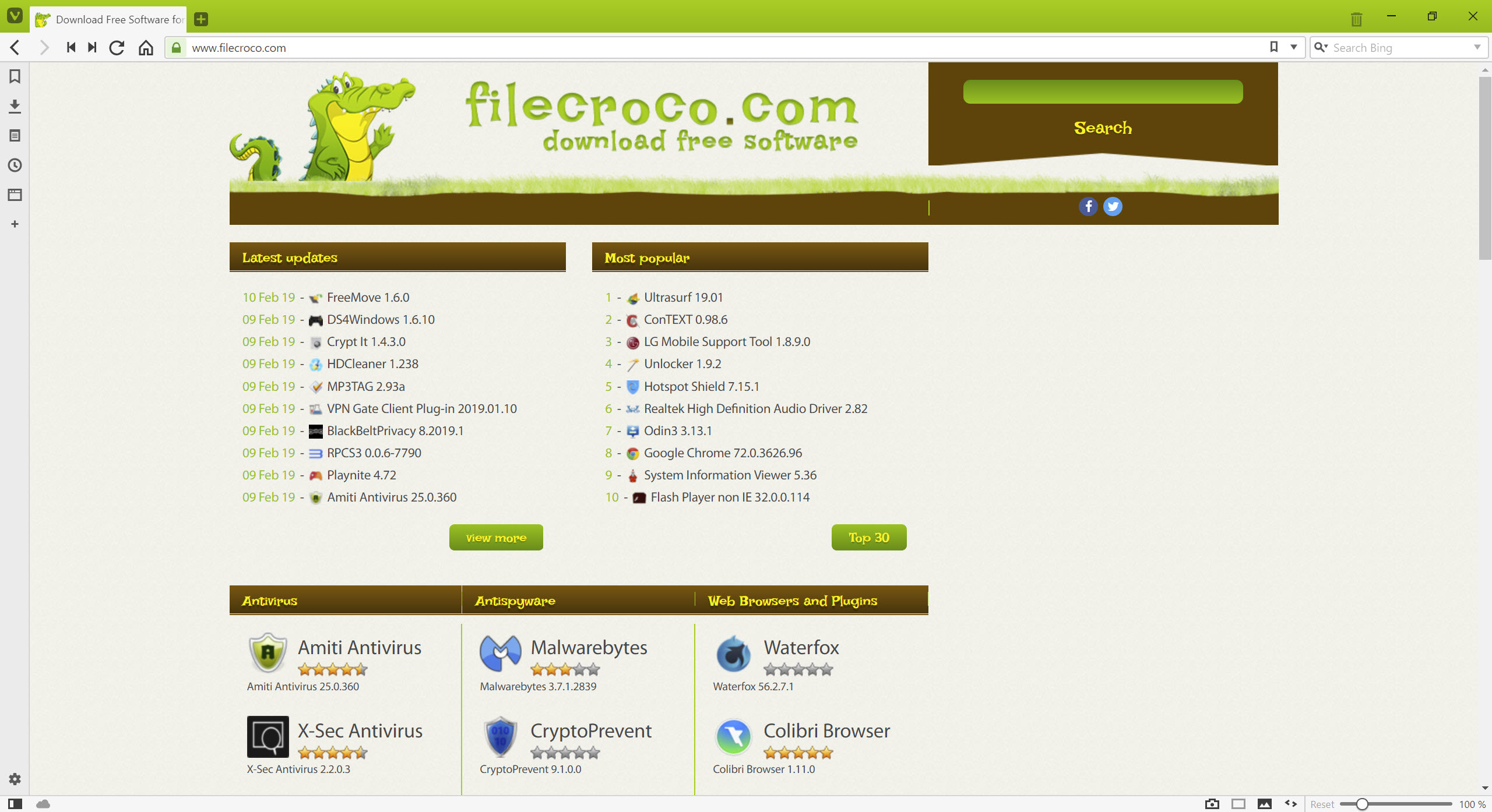
Vivaldi is the browser built for people who think modern browsers have lost their feature ambition. While Chrome, Edge, and Safari have spent the past decade simplifying their interfaces and removing options, Vivaldi has been doing the opposite.
Tab grouping with multiple visual modes, vertical sidebars stuffed with custom panels, mouse gestures, keyboard shortcuts for essentially every command, built-in note-taking, a calendar, mail, RSS, translation tools, and a screenshot utility all live within a single browser that runs on the Chromium engine. The result feels like a power-user workstation built into a web browser, and the team behind it has been adding capability rather than removing it for nearly a decade.
The project started in 2015 as an answer to the simplification of Opera, with the founding team including former Opera leadership who wanted to bring back the dense, customizable experience that classic Opera offered before its Chromium reboot.
Vivaldi uses Chromium as its rendering engine (the same foundation as Google Chrome and most other modern browsers) but builds an entirely different interface and feature layer on top of it. The trade-off is that web pages render with full Chromium compatibility while the browser itself behaves nothing like Chrome.
Tab management that earns the install
For users who routinely have dozens of tabs open, Vivaldi handles them in ways no other browser really matches. Tabs can be displayed across the top (the default), down the left or right side as a vertical column, or even at the bottom of the window. Vertical tabs are particularly useful on wide monitors where vertical screen space is more precious than horizontal, and the implementation shows tab favicons and titles cleanly in a list view that scales to hundreds of tabs without becoming unusable.
Tab stacking lets you group related tabs into a single tab that expands to show its members when clicked. Tabs can be stacked manually by dragging one onto another, or automatically by host name (every Google Docs tab stacks together, every GitHub tab stacks together). The stacks display as compact previews or full lists depending on the configured view mode, and the keyboard shortcuts for navigating within stacks make the feature genuinely fast to use.
Tab tiling is the feature that distinguishes the browser from anything else in the category. Select multiple tabs, click Tile, and they display side-by-side in the same browser window. This is essentially split-screen browsing without needing to manage multiple windows or rely on operating system window management. For comparing two documents, watching a video while reading an article, or working with reference material alongside a primary document, the tiled view is dramatically more productive than alt-tabbing between separate windows.
Tab hibernation puts inactive tabs to sleep, freeing memory while preserving the ability to wake them up instantly when needed. For users with chronic tab overload, this hibernation is the difference between a browser that consumes 12 GB of RAM and one that uses 3 GB while functionally holding the same tab set.
The sidebar and panels system
The left sidebar (the web panel system) is one of Vivaldi‘s most distinctive features. Click any tab in the sidebar to open it as a narrow panel docked to the left of the browser window, with the main viewport showing whatever page you’re focused on. The panels work alongside regular tabs rather than replacing them, so you can have a chat application docked in the sidebar while browsing in the main viewport.
The panel system is genuinely useful for keeping reference material visible while working. A Twitter timeline, a chat application, an email inbox, a documentation reference, or any other secondary site can be docked to the sidebar for persistent visibility without consuming the main browsing space. Panels can be set to mobile site rendering, which displays many sites in their phone-optimized layouts that fit the narrow panel width better than desktop layouts would.
Built-in panels include downloads, bookmarks, history, notes, contacts (mail integration), calendar, RSS feeds, and translations. Custom web panels can be added for any website. The combination of system panels and web panels turns the sidebar into a productivity surface that other browsers don’t really have an equivalent for.
Built-in mail, calendar, RSS, and notes
Vivaldi includes a full email client, calendar, RSS reader, and note-taking system within the browser. This is unusual in a market where browsers have generally moved away from bundled applications, and the integration is more polished than the “Microsoft Outlook web extension” approach most browsers take.
The mail client supports IMAP and POP accounts with all the standard email features (folders, filters, labels, conversation threading, search across multiple accounts). It’s not trying to replace Mozilla Thunderbird for users who need deep email power, but for casual email use within the browser, it works.
The calendar supports CalDAV and Google Calendar integration with multiple calendar overlays, event creation, and reminders. The RSS reader handles standard RSS and Atom feeds with categorized organization and automatic updates. The notes system stores formatted text notes with attachment support, organized by folders, accessible from a sidebar panel that’s always available.
For users who want browser-centric productivity without separate applications, these built-in tools cover real use cases. For users who already have established workflows with separate mail clients, calendar apps, and note-taking software, the built-in versions can be ignored without affecting the rest of the browser.
Mouse gestures and keyboard shortcuts
Mouse gestures (holding the right mouse button while drawing a shape) trigger configurable browser actions. Drag right-and-down to close the current tab. Drag up-and-down to reload. Drag left to go back. The gesture system includes dozens of default mappings and supports custom gesture configuration for users who want specific shapes for specific actions.
For users who prefer the mouse over the keyboard, mouse gestures are genuinely faster than reaching for shortcuts or clicking menu items. The learning curve is real (memorizing which shape triggers which action takes a week of regular use) but the workflow improvement after that period is substantial.
Keyboard shortcuts cover essentially every command in the browser, with full configuration support. Want a shortcut for “open the third item in the bookmarks bar”? You can configure that. Want different shortcut sets for different working contexts? The browser supports profile-based configuration that handles this. The depth of keyboard control rivals what dedicated keyboard-driven applications offer.
For users who use mouse and keyboard heavily, AutoHotkey handles system-wide shortcut customization. Vivaldi‘s built-in shortcut and gesture system handles browser-specific customization without needing additional tools, which is the practical advantage of having this depth integrated.
Privacy and the Chromium dependency
The browser is built on Chromium, which means web compatibility matches Chrome. Sites that work in Chrome work here. The same web standards, the same JavaScript engine, the same security model at the rendering layer. For users who need broad compatibility with modern web applications, this is the right foundation.
The privacy posture is different from Chrome despite the shared foundation. Vivaldi doesn’t include Google’s tracking or telemetry, doesn’t tie to a Google account, and includes a built-in ad and tracker blocker that’s enabled by default. The blocker uses standard filter lists similar to what extensions like uBlock Origin provide, integrated into the browser so no extension is required.
The company is privately held with a small team, headquartered in Norway, and has been public about its commitment to not collecting user data beyond what’s needed for the browser to function. The sync service that handles cross-device bookmarks, passwords, and history uses end-to-end encryption so the company can’t read the synced data. For users specifically wanting Chromium compatibility without Google’s data collection, the browser is one of the more credible options in the category.
For users prioritizing privacy with a different architectural approach, Brave Browser builds aggressive tracker blocking and a built-in cryptocurrency reward system into the Chromium foundation. Firefox takes a completely different path with its Gecko engine and Mozilla’s longer-standing privacy advocacy. Epic Privacy Browser sits in a more aggressive privacy-first niche. All occupy different points in the trade-off between web compatibility, performance, and data minimization.
Customization that goes deep
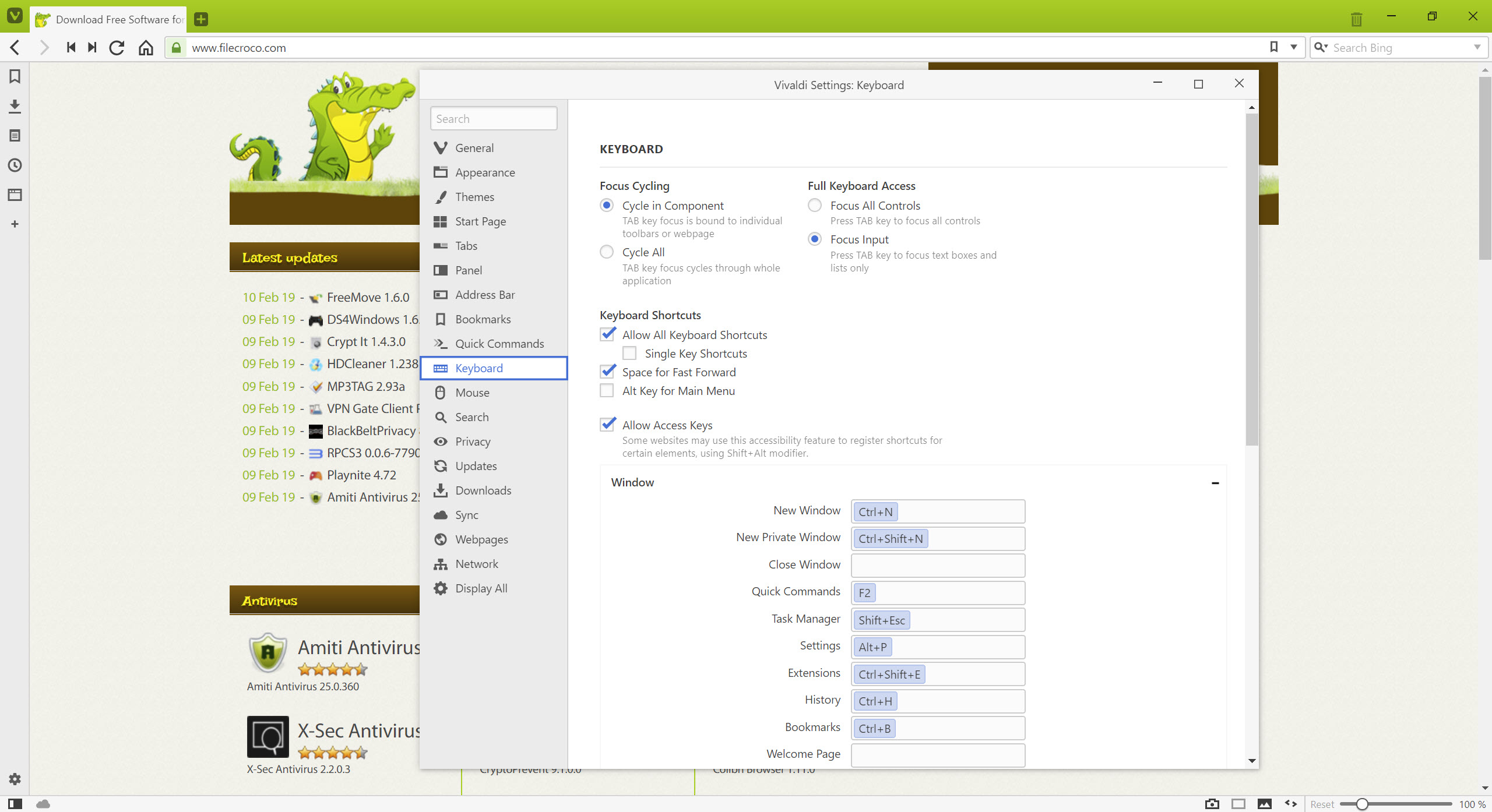
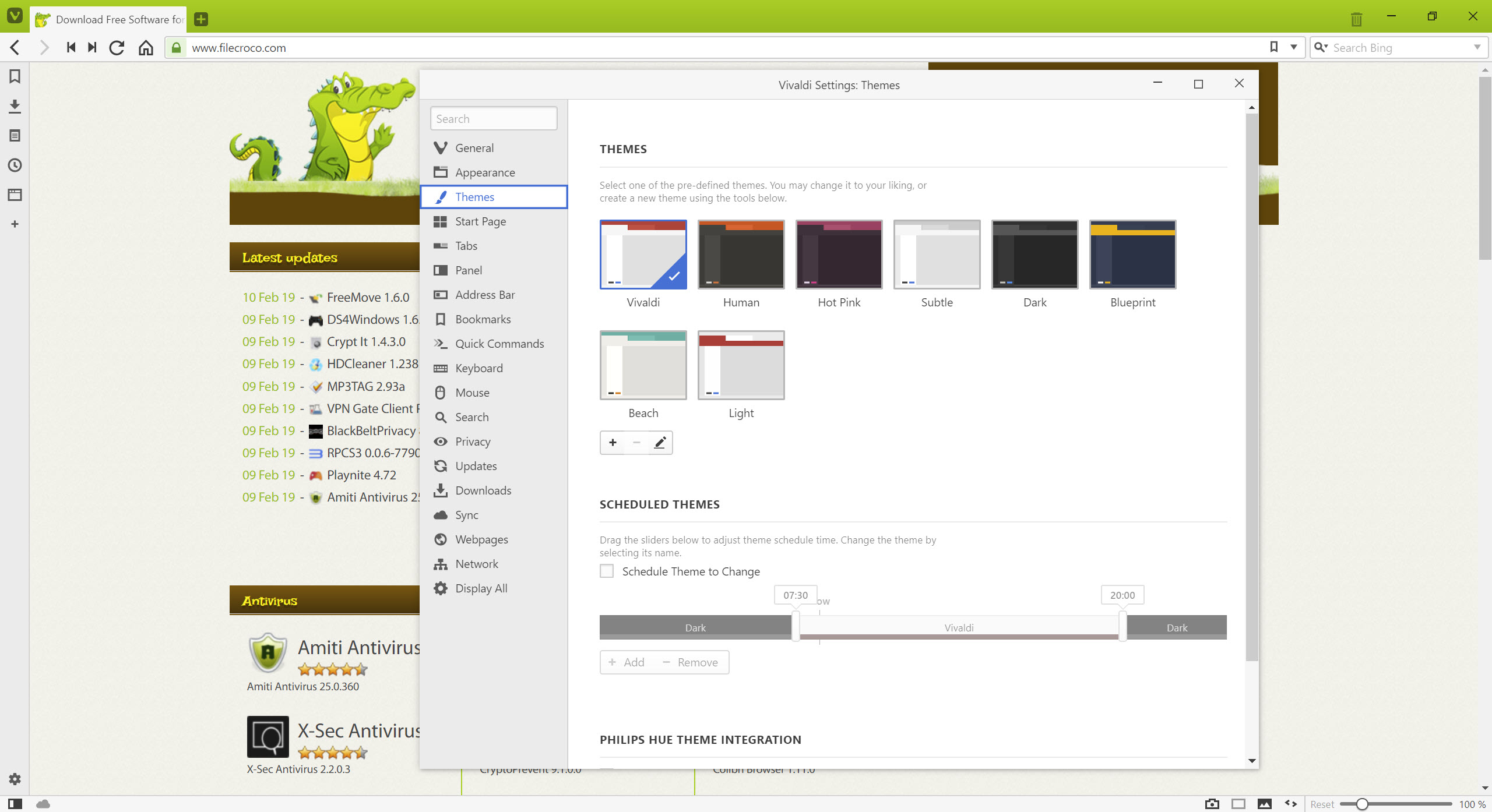
The customization options are where Vivaldi earns its power-user reputation. Themes can be configured with custom accent colors that change throughout the browser, including extracting accent colors from the current website (so the browser theme shifts as you navigate). Multiple themes can be scheduled to change throughout the day automatically (a light theme during work hours, a dark theme in the evening).
The interface itself is reconfigurable. The address bar position, the tab bar position, the bookmark bar visibility, the status bar contents, the toolbar buttons, and dozens of other interface elements can be moved, hidden, or replaced. For users coming from older browsers with specific layout preferences, the configuration depth means the browser can usually be made to look and behave the way you want.
Custom CSS can be applied to modify the browser’s own interface, which is an enthusiast feature that goes beyond what most browsers expose. The browser also supports a Quick Commands feature (similar to a command palette in code editors) that opens a search dialog from a keyboard shortcut and finds tabs, bookmarks, history, settings, and commands by name.
Performance characteristics
This is worth addressing directly because feature-rich browsers have a reputation for being heavy. Vivaldi‘s memory and CPU use depends substantially on which features are enabled. With the mail client, calendar, and RSS reader disabled, the browser performs roughly comparably to other Chromium browsers like Google Chrome and Brave Browser.
With all features enabled, the resource use is higher because the built-in mail and calendar are running continuously. The trade is that the integrated experience replaces separate applications, so the total system resource use across the browser plus separate mail and calendar applications often comes out lower than running them all separately would.
Tab hibernation helps significantly with heavy tab loads. For users with 100+ tabs open routinely, the hibernation feature can reduce memory consumption by half or more compared to keeping all tabs active. The trade-off is a brief reload when a hibernated tab is reactivated, which is usually faster than the original load.
The Android and iOS versions
The browser is also available for Android and iOS, though the mobile versions have different feature emphasis than the desktop version. The mobile apps include a strong tab management system with stacking and the panel-style interface adapted for touch, but some desktop features (extensive customization, the full mail and calendar, extensive panel system) don’t translate fully to mobile.
For users who want consistent experience across desktop and mobile, the synchronized bookmarks, passwords, history, and open tabs across devices work well. The mobile versions are good but the desktop is where the browser’s full character emerges.
Conclusion
Vivaldi is the right browser for users who want their browser to do more rather than less. Power users with dozens of tabs, productivity-focused users who appreciate built-in mail and calendar without needing separate applications, customization enthusiasts who want to reshape their browser, and anyone moving from a power-user setup in classic Opera or Firefox will find the feature density genuinely valuable. The Chromium foundation provides web compatibility while the custom interface layer provides the distinctive experience.
For users who prefer minimalist interfaces, who don’t use enough features to justify the learning curve, or who want the leanest possible browser, simpler options work better. Brave Browser covers the privacy-focused Chromium niche with less interface density.
Firefox offers the independent Gecko engine for users who specifically don’t want Chromium. Pale Moon targets users wanting Firefox’s older customization model in a current browser. Vivaldi wins for users who actively want the dense, configurable, feature-rich approach, and within that audience it has no real competition in the current browser landscape.
Pros & Cons
- Tab management features (stacking, tiling, vertical bars, hibernation) are genuinely better than competing browsers offer
- Sidebar panel system enables persistent secondary content alongside main browsing
- Built-in mail, calendar, RSS, and notes cover real productivity use cases without separate applications
- Mouse gestures and configurable keyboard shortcuts give power users deep workflow control
- Chromium-based rendering ensures compatibility with modern web applications
- Privacy posture excludes Google tracking and includes built-in ad and tracker blocking
- Customization depth allows the browser to be reshaped substantially to user preferences
- End-to-end encrypted sync across devices
- Feature density creates a learning curve that some users find overwhelming initially
- Resource use with all features enabled is higher than minimalist browsers
- Some advanced features (custom CSS, Quick Commands) assume technical familiarity
- Mobile versions don't fully replicate the desktop feature richness
- The interface remains visually busy by default, which appeals to power users but not minimalists
- Built-in mail and calendar aren't as deep as dedicated applications for heavy users of those tools
Frequently asked questions
The browser uses Chromium as its rendering engine, the same foundation as Google Chrome and many other modern browsers. The interface and feature layer on top of Chromium is entirely custom, which is where the browser's distinctive character comes from.
While both use Chromium for rendering, the user experience is dramatically different. Chrome focuses on minimalist interface and Google service integration. This browser focuses on dense customization, built-in productivity features (mail, calendar, RSS, notes), advanced tab management (stacking, tiling, vertical tabs), and power-user workflow features (gestures, shortcuts, command palette).
Yes. A built-in ad and tracker blocker is included and enabled by default, using standard filter lists similar to what browser extensions like uBlock Origin provide. No additional extension is required for basic blocking, though extensions can be added for more aggressive configurations.
The sync service shares bookmarks, passwords, history, notes, and open tabs across devices logged into the same account. The data is end-to-end encrypted using your sync password, so the company cannot read the synced content on their servers.
Yes. The Chromium foundation means Chrome Web Store extensions install and work in the browser. Some extensions may have minor visual issues because they expect Chrome's interface, but functional compatibility is high.
The current Opera has moved away from the feature-dense interface that classic Opera was known for. This browser was founded by former Opera leadership specifically to continue the dense customizable approach that classic Opera offered. The two browsers now occupy different positions in the browser market despite their shared origin.
Brave is built around aggressive privacy protection and a cryptocurrency-based advertising replacement model. This browser is built around customization and built-in productivity features with a more conventional approach to privacy (no tracking, integrated blocking, but no cryptocurrency component). Both use Chromium and both block trackers by default.


