

VirtualBox
About VirtualBox
VirtualBox runs a whole computer inside a window. You give it a slice of memory, a few processor cores and a virtual disk, then point it at an installation ISO. A second operating system installs and boots on your desktop as if it had its own hardware.
That machine can be paused, copied and rolled back, and its network can be sealed off from yours or joined to it. It is how people try a different system without repartitioning, keep an old release alive for one stubborn program and test software they do not trust. It is also how programmers build throwaway servers by the dozen.
It shares the desktop hypervisor field with VMware Player and the host’s own built-in virtualisation layer. VirtualBox is the one with the widest guest support, the most permissive licence for the core program and the longest list of features you can switch on from a dialog rather than a command.
It is also the one most often installed on a machine whose configuration fights it, and the section on that below is the one to read if a virtual machine crawls.
Creating a machine and giving it hardware
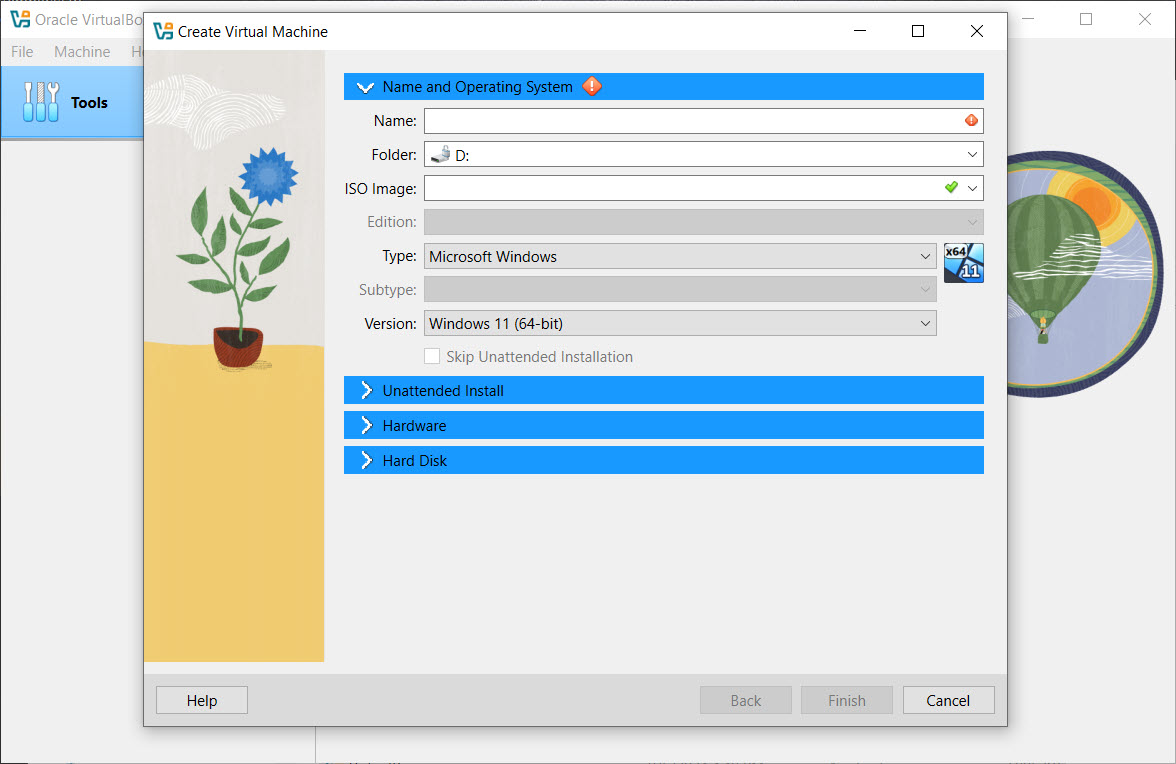
The VirtualBox New Machine wizard asks for a name, an ISO, the amount of memory, the number of processors and the size of a virtual disk. For some guest systems it can install unattended from the ISO, entering a username and password for you. Behind the wizard, the Settings dialog exposes the whole virtual hardware. Chipset, boot order, EFI or legacy firmware, video memory and graphics controller, audio device, storage controllers with SATA, NVMe and floppy options, serial ports, USB controllers and up to eight network adapters.
Virtual disks come in the program’s own VDI format or in VMDK and VHD for compatibility with other hypervisors. Each can be dynamically allocated, growing as the guest writes to it, or fixed at full size for a little more speed.
Disks can be cloned, resized, encrypted or moved between machines from the Virtual Media Manager, and a whole machine exports to an OVA appliance that imports on any other installation.
Guest Additions, and why the window feels wrong without them
A freshly installed guest runs at a fixed low resolution, cannot share the clipboard and captures the mouse until you press a key to release it. Guest Additions is the package installed inside the guest that fixes all of that. The Devices menu mounts it as a virtual CD.
Once installed, the guest desktop resizes with the window and the clipboard and drag and drop work in both directions. Folders on the host appear as shared drives inside the guest, and the mouse moves freely across the boundary. A further mode drops the guest’s desktop background and floats its program windows among yours.
Without the Additions, VirtualBox works but feels broken, and the number of people who conclude the whole program is slow before installing them is large. It is the first thing to do after any guest finishes installing, and it needs reinstalling after a major update of either side, since the versions are meant to match.
The Extension Pack
A second add-on installs on the host rather than the guest. The Extension Pack adds USB 2.0 and 3.0 controller support, so a phone or a stick plugged into the host can be handed to a virtual machine. It also adds a remote display server that lets you reach a machine’s screen from another computer, disk encryption for virtual disks, webcam passthrough and PXE network boot. Without it, USB is limited to the slow 1.1 controller and the encryption option is grey.
The pack carries a separate licence from the main program, which businesses need to read before deploying at scale. For a home machine, install it, since USB alone justifies the two minutes.
Snapshots, clones, and the disk that quietly grows
A VirtualBox snapshot freezes the machine’s disk and, if it is running, its memory, so that an experiment can be undone. Take one before installing anything doubtful, and Restore puts the machine back as if the last hour never happened. Snapshots chain, and the tree of them is shown per machine with the current state marked. Clones copy a whole machine, either in full or as a linked clone that shares the base disk and stores only differences. That is how a dozen test machines fit on one drive.
Snapshots have a downside people discover late. Every one adds a difference file that grows with every write. A machine with six months of snapshots can occupy several times its nominal disk size and run slower with each layer.
Merge them back when the experiment is over.
Five kinds of network
A VirtualBox network adapter can be attached in five ways, and the choice decides what the guest can reach. NAT gives the guest internet access through the host and hides it from the rest of the network, which is the default and right for most people.
NAT Network does the same for a group of guests that can also see each other. Bridged puts the guest on the real network with its own address, as if it were another computer on the switch, which is what a server or a game host needs. Host-only creates a private network between the host and its guests with no route out. Internal connects guests to each other and nothing else, which is the sandbox for testing anything nasty.
Port forwarding on NAT lets a service inside the guest be reached at a port on the host, so a web server in a machine answers on the host’s address without bridging. Each adapter has its own attachment, so a machine can have a bridged card and an internal one at once.
Where the speed goes
Two settings and one conflict account for most complaints about slowness. The first setting is video memory and the graphics controller. Give a desktop guest the maximum video memory and the recommended controller for its type. Enable 3D acceleration only where the guest’s drivers support it, because a wrong pairing produces a black screen or a crash. The second is processor count. Give the guest no more than half the host’s cores, since the host still needs to run.
The conflict is the host’s own hypervisor. If it is enabled, whether directly or through a container platform or a compatibility subsystem that relies on it, VirtualBox cannot use the processor’s virtualisation extensions itself. It falls back to running through that layer.
The machine still runs, with a small turtle icon in the status bar to say so, but at a fraction of its normal speed. Disabling the built-in hypervisor features restores full speed, and choosing between the two is the decision most people with a slow machine have not realised they are making.
Command line and headless machines
Everything the VirtualBox interface does, VBoxManage does from a prompt, and a good deal more. Create machines, change any setting, take snapshots, control the machine’s power, mount discs and read guest properties, all scriptable. Start a machine headless and it runs with no window at all, reachable by the remote display from the Extension Pack or by the network. That is how a test server sits in the background of a laptop. A tool that builds virtual machines from a text file drives this program entirely through that interface and never opens its window.
Nested virtualisation, running a hypervisor inside a guest, is a checkbox on the processor tab for machines that support it, and a resource monitor graphs each running machine’s load.
Conclusion
VirtualBox is for anyone who needs a second computer without buying one. That covers programmers building test servers, students learning another system, support staff reproducing a customer’s setup and anyone keeping an old program alive on the release it was written for. The snapshot and network features let you experiment freely and contain the results.
Its two enemies are the host’s own hypervisor and the person who skips Guest Additions, and both are fixed in ten minutes once you know. Sort those out, install the Extension Pack, and it remains the most flexible way to run one machine inside another on a desktop.
Features & benefits
Pros & Cons
- Guest hardware configurable in detail, with NVMe, EFI and up to eight network adapters
- Guest Additions give a resizing display, a shared clipboard and shared folders
- Snapshots with a tree and restore, plus full and linked clones
- Five network modes from sealed sandbox to bridged, with port forwarding
- Extension Pack adds USB 3.0, remote display and disk encryption
- Complete command-line control and headless operation
- Runs at a crawl when the host's own hypervisor is active
- Guest Additions must be installed and kept in step or the guest feels broken
- 3D acceleration is fragile on some guest and driver combinations
- Snapshots swell disk usage and slow the machine as they accumulate
- Extension Pack carries a separate licence for business use
Frequently asked questions
Look for a turtle icon in the status bar. If it is there, the host's built-in hypervisor is active and VirtualBox is running through it. Turn off the hypervisor features on the host, including any subsystem that depends on them, and the machine returns to full speed. Also check that the guest has enough video memory and no more than half the host's cores.
Install Guest Additions in the guest, then add a folder under Shared Folders in the machine settings with auto-mount ticked. It appears as a network drive in the guest. Drag and drop and the shared clipboard need the same Additions.
Install the Extension Pack on the host and set the machine's USB controller to 2.0 or 3.0. Then add a filter for the device, or pick it from the Devices menu while the machine runs. The host must release it first, so close programs using it.
Yes. Attach its network adapter as Bridged and it gets its own address on the network. Alternatively keep NAT and add a port forwarding rule so a service inside the guest answers on a port of the host.
Take a snapshot before the change from the Snapshots pane. Afterwards, select the snapshot and choose Restore, and the machine's disk and state return to that moment. Delete old snapshots when done to recover disk space.


