

Universal USB Installer
About Universal USB Installer
If you’ve ever needed to install Linux on an old laptop, run a system rescue from a flash drive, or test out a different operating system without committing to a full installation, you’ve probably encountered the world of bootable USB drives. Creating one used to involve cryptic command-line tools and the occasional sacrificed flash drive when something went wrong.
Universal USB Installer (often shortened to UUI) is the small utility from PendriveLinux that simplified this process years ago and has remained one of the most reliable tools in the category ever since.
The premise is straightforward: take an ISO file you’ve downloaded, point the application at a USB flash drive, and a few minutes later you have a bootable drive ready to install or run an operating system from.
The simplicity hides a substantial amount of compatibility work happening under the hood, with the tool handling the various quirks of different Linux distributions, Windows installers, system rescue tools, and antivirus boot environments.
A wide net cast across distributions and tools
The defining feature of Universal USB Installer is the breadth of what it supports. The dropdown list of distributions covers essentially every major Linux release you might want to install or run live, including Ubuntu, Linux Mint, Debian, Arch, Fedora, Manjaro, Kali, and dozens more.
Beyond Linux, the tool handles Windows installation media, antivirus rescue disks, system recovery tools like Hiren’s BootCD and Clonezilla, and various other specialty boot environments.
Each entry in the distribution list isn’t just a label. The tool applies specific configuration tweaks for each distribution to handle their particular boot requirements. Some distributions need certain bootloader parameters, others need specific file structures preserved, and a few have quirks that would otherwise require manual intervention. By selecting the right distribution from the dropdown, you avoid the trial-and-error process that simpler tools force on users.
If your specific distribution isn’t listed, the application includes a generic “Try Unlisted Linux ISO” option that handles most modern distributions through standard methods, even if specific optimizations aren’t available.
The persistence feature for portable Linux setups
A particularly useful capability for users running Linux directly from the USB drive (rather than just installing it) is the persistence feature. Without persistence, any changes made during a live session vanish when you shut down. With persistence enabled, the application creates a special storage file (called casper-rw or live-rw depending on the distribution) where settings, installed software, and personal files persist across reboots.
In newer versions, persistent storage supports up to 40GB, which is enough for serious portable Linux usage. You can install software, configure your environment, save documents, and treat the USB drive almost like a portable computer, with everything ready and configured each time you boot from it.
For users who want a Linux environment they can carry between machines, this turns a flash drive into a genuinely portable computing setup. Plug it into any compatible computer, boot from USB, and you’re back in your customized Linux environment with all your work and settings preserved.
Three-step workflow that respects your time
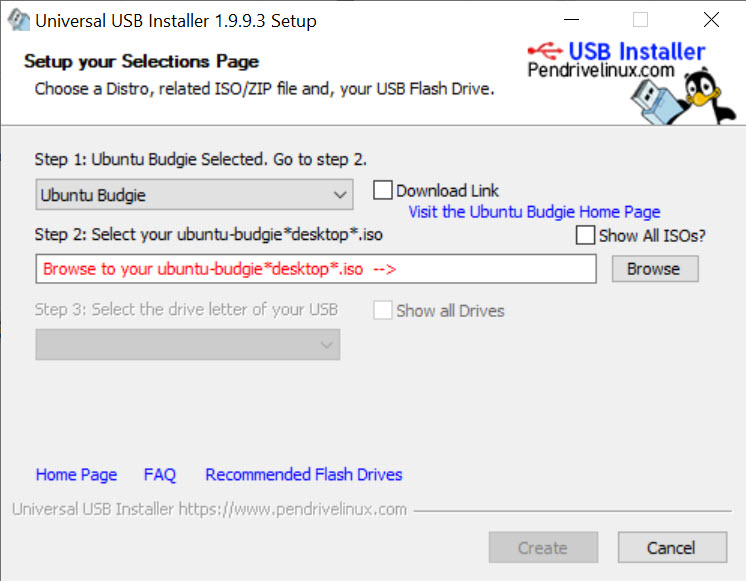
The interface presents a streamlined three-step process: select your distribution from the dropdown, point the application at your downloaded ISO file, and select the USB drive you want to write to. There’s an option to format the drive first, which is generally recommended for fresh installations to ensure no leftover data interferes with the boot process.
Once you click Create, the tool extracts the ISO contents to the drive, installs the Syslinux bootloader configured for the specific distribution, and (if you’ve requested it) sets up the persistence file. The whole process takes anywhere from a few minutes to fifteen or twenty depending on ISO size and USB drive speed.
For users who just want a working bootable drive without learning the technical details of bootloader configuration, this simplicity is the entire appeal. You don’t need to understand Syslinux, partition tables, or boot parameters to get a working result.
Two-partition layout for dual-purpose drives
A particularly thoughtful detail is how the application typically structures the resulting USB drive. The tool creates two partitions: one formatted for the bootloader and the operating system files, and another that remains available for regular storage use.
This means your bootable drive doesn’t waste space. Whatever capacity isn’t needed for the OS files remains usable as standard portable storage, accessible when you plug the drive into a running computer.
For users who want their flash drives to do double duty as both rescue tools and regular storage, this layout is genuinely practical.
File system handling for compatibility
The tool formats drives with either FAT32 or exFAT depending on requirements. FAT32 is the more universally compatible choice, working with essentially every BIOS and UEFI implementation, but it has a 4GB file size limit that some larger ISOs or persistence configurations exceed. exFAT removes the file size limit while maintaining broad compatibility with modern systems.
The application picks appropriate defaults based on the distribution and configuration you select, but advanced users can override these choices when specific scenarios call for different setups. For most users, accepting the default formatting works perfectly fine.
Useful for system rescue and recovery
Beyond installing operating systems, this software is particularly valuable for creating rescue and recovery drives. Antivirus boot environments like ESET SysRescue and Kaspersky Rescue Disk help clean infected systems that won’t boot normally. Tools like Clonezilla, Parted Magic, and Rescatux help with disk imaging, partition management, and various recovery scenarios.
For IT professionals and tech-savvy users who maintain a collection of rescue tools, having a reliable way to create bootable versions of these utilities is essential.
The same application that creates Linux installation drives also handles the rescue tools, with the same simple workflow regardless of what you’re putting on the drive.
Conclusion
Universal USB Installer has earned its place as one of the standard tools for creating bootable USB drives by combining broad compatibility, simple workflow, and reliable results across the wide variety of distributions and tools it supports.
For users who occasionally need to install Linux, run a rescue tool, or create a portable Linux environment, the application delivers exactly what’s needed without unnecessary complexity.
It’s not the only option in this category, and tools like Rufus offer their own strengths for specific scenarios. But for users who want a reliable application that handles essentially any common bootable USB scenario through the same simple workflow, Universal USB Installer remains a solid recommendation that has aged well across many years of changing operating systems and boot requirements.
Pros & Cons
- Supports a vast list of Linux distributions and system tools out of the box
- Persistence feature with up to 40GB storage for portable Linux setups
- Simple three-step workflow accessible to non-technical users
- Two-partition layout preserves drive usability as regular storage
- Handles Windows installers, antivirus rescue disks, and recovery tools
- FAT32 and exFAT support balances compatibility and file size requirements
- Portable application requires no formal installation
- Distribution-specific configurations handle quirks automatically
- Some very recent or obscure distributions may not be in the dropdown list
- Generic "unlisted ISO" option doesn't always work for distributions with unique requirements
- Persistence configurations occasionally fail with specific Linux versions
- Interface design is functional rather than visually polished
- Documentation could be more thorough for advanced configurations
Frequently asked questions
This software creates bootable USB flash drives from ISO image files, allowing you to install operating systems, run live Linux environments, or boot system rescue tools without needing CDs or DVDs. The tool handles the technical details of bootloader installation and file system configuration automatically.
The application supports essentially every major Linux distribution including Ubuntu, Linux Mint, Debian, Arch, Fedora, Manjaro, Kali, and many others. The dropdown list includes specific configurations for each supported distribution to handle their particular boot requirements properly.
The application includes a generic "Try Unlisted Linux ISO" option that handles most modern distributions through standard methods. While distribution-specific optimizations aren't available for unlisted options, the generic approach works for most current Linux releases.
Persistence lets you save changes made during live Linux sessions across reboots, including settings, installed software, and personal files. Without persistence, everything resets each time you boot from the USB drive. With it, the drive becomes a portable Linux environment that retains your customizations.
Newer versions support up to 40GB of persistent storage, which is enough for serious portable Linux use including installing software, saving documents, and configuring the environment to your preferences. The exact limit depends on your USB drive size and file system choice.
Yes, the application handles Windows installation media alongside Linux distributions. The process works the same way: select Windows from the dropdown list, point at the Windows ISO, and select your USB drive to create a bootable Windows installer.
The format option (which is generally recommended) erases everything on the drive before creating the bootable version. If you have important data on the drive, back it up first. The tool gives you the choice of whether to format, but skipping the format step occasionally causes problems with specific distributions.
Yes, the typical drive layout creates two partitions, with one for the bootloader and OS files and another available for regular storage use. The unused space on the drive remains accessible for storing files when you plug it into a running computer.
FAT32 is more universally compatible with older BIOS and UEFI systems but has a 4GB file size limit that some large ISOs or persistence configurations exceed. exFAT removes the file size limit while maintaining broad modern compatibility. The tool chooses appropriate defaults based on your specific configuration.
The time depends on ISO size and USB drive speed. Small distributions on fast USB 3.0 drives complete in a few minutes, while large ISOs on slower drives can take fifteen to twenty minutes or more. The application shows progress during creation so you can estimate when it'll finish.
This particular tool focuses on single-OS bootable drives. For multi-boot drives that combine multiple operating systems on one USB, the related YUMI application from the same developer specifically handles that use case better than this single-OS focused tool.


