

Uninstaller
About Uninstaller
Uninstaller is a straightforward, lightweight utility designed to help users remove unwanted programs from their computer more thoroughly than the built-in Windows uninstall feature typically allows. Rather than overwhelming users with complex options or feature creep, this tool focuses on doing one thing well: cleanly removing applications along with the leftover files and registry entries that often remain after standard uninstall procedures.
For users who want a no-nonsense alternative to the default Programs and Features control panel, especially when dealing with stubborn applications or accumulated leftover data from years of software installations, this software delivers focused functionality without the complexity or aggressive monetization that plague many alternatives in this category.
Clean program removal with leftover detection
The defining feature of Uninstaller is its ability to remove programs more thoroughly than standard Windows uninstall procedures.
After running the program’s official uninstaller, this tool scans for files, folders, and registry entries that the application left behind, presenting them for review and optional removal. This two-stage approach catches the residual data that frequently accumulates over years of software installations and uninstallations, gradually slowing down systems and cluttering both the file system and registry with abandoned remnants.
For users who have noticed their computer feeling progressively slower or who simply prefer keeping their system tidy, this thorough cleanup approach genuinely makes a difference compared to the basic removal that Windows handles on its own.
Simple program list interface
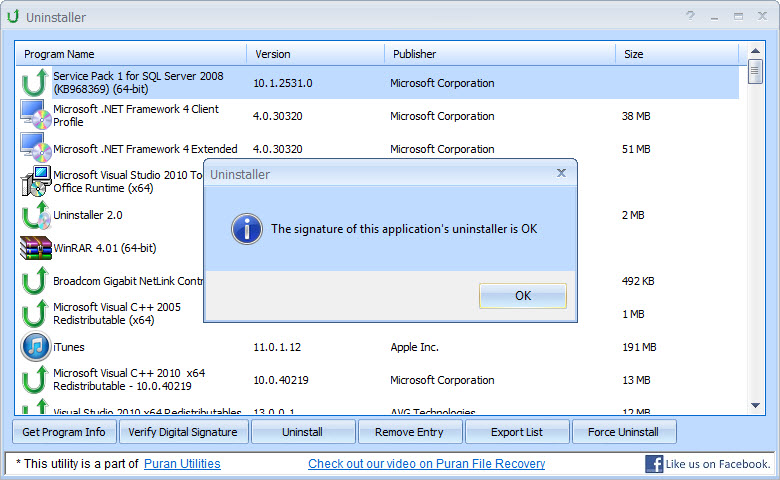
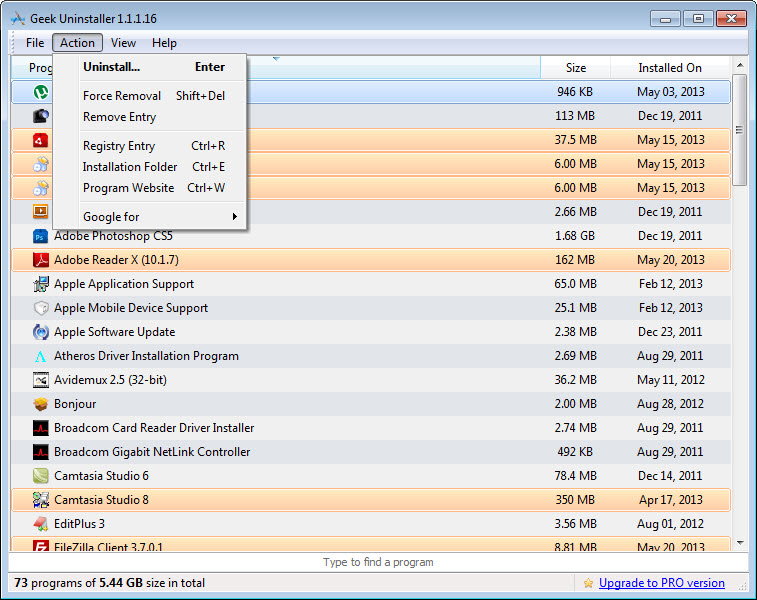
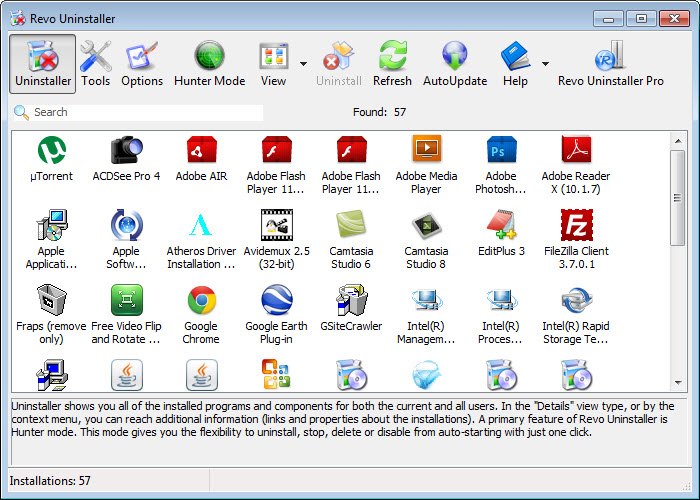
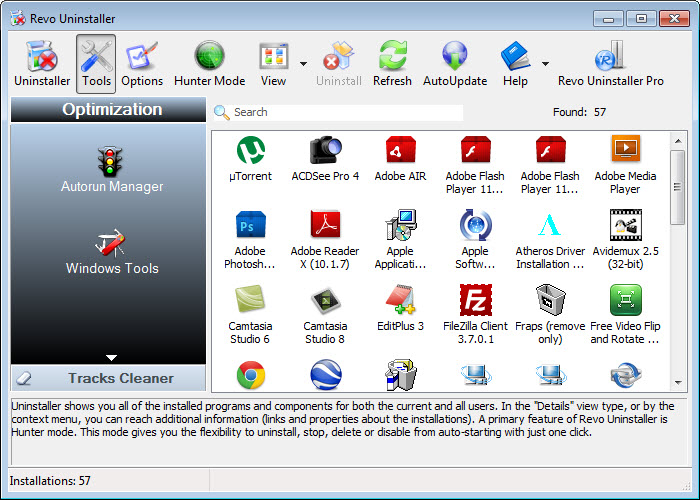
When launched, this software presents a clean list of all installed programs on the computer, organized in a way that makes it easy to find what you want to remove.
Programs can be sorted by name, installation date, size, or publisher, making it straightforward to identify candidates for removal based on whatever criteria matters in your situation. The interface stays focused on the task without unnecessary visual clutter, presenting just enough information to make informed decisions while avoiding the overwhelming density that some alternatives use to look more capable than they actually are.
For users who simply want to see what is installed and remove what they no longer need, this approach feels refreshingly direct and uncomplicated.
Forced removal for stubborn programs
A particularly useful capability is the ability to forcibly remove programs that resist normal uninstallation, either because their uninstaller is broken, missing, or simply ineffective at cleaning up after itself.
This feature scans for all components associated with a problematic program and removes them directly when standard methods fail to work properly. While this approach should be used with care since it bypasses the program’s own cleanup logic, it provides a valuable last resort for situations where applications would otherwise remain stuck on the system indefinitely, taking up space and potentially causing conflicts with other software.
Quick scanning and minimal wait times
The application scans installed programs and detects leftovers without lengthy delays that would test users’ patience.
Even systems with hundreds of installed applications process quickly, and the cleanup phases that scan for residual files and registry entries complete in reasonable time rather than requiring extended waits. This responsiveness makes the tool practical for occasional cleanup work without feeling like a chore that needs to be scheduled rather than performed whenever the need arises.
For users who appreciate utilities that respect their time and do not waste it on unnecessary delays or splash screens, this efficiency contributes meaningfully to the overall experience.
Lightweight installation and operation
This software is small in installation size and modest in resource usage, which makes it suitable as an occasional utility rather than something that needs to run constantly in the background.
You can launch it when needed for cleanup tasks, perform whatever removals you want to handle, and close the application without leaving any persistent processes or services running. For users who appreciate utilities that respect their system resources and stay out of the way until needed, this approach feels exactly right and stands in welcome contrast to bloated alternatives that try to justify their existence by constantly running.
No bundled extras or aggressive prompting
Unlike many uninstaller utilities that bundle additional software, push subscription upgrades, or constantly nag users about premium features, this tool maintains a focused approach without these distractions.
The application does what it claims to do without trying to upsell you to more expensive editions, install browser toolbars, or display advertising. For users tired of utilities that feel more like marketing platforms than useful tools, this restraint is genuinely refreshing and contributes to a much more pleasant overall experience that treats users as customers rather than targets for monetization.
Search and filter functions
Finding specific programs in the installation list is made easier through search and filtering options that help narrow down the display when working with extensive software collections.
For users who only remember part of a program’s name or want to focus on programs from specific publishers, these filtering tools eliminate the need to scroll through long lists looking for particular entries. While this might seem like a small detail, it significantly improves the experience for users with many installed programs who need to find specific items quickly without wasting time on visual scanning.
Safe removal with confirmation
Before removing programs or leftover items, this software requests confirmation, which provides a safety net against accidental deletions that could affect important applications or system components.
The confirmation dialogs clearly indicate what will be removed, giving users the chance to review their decisions before any changes happen. This kind of careful design philosophy reflects awareness that removal mistakes can be difficult or impossible to undo without restoring from backups, and it ensures that the speed advantages of the tool do not come at the cost of safety for less experienced users.
Conclusion
Uninstaller delivers exactly what its name promises: focused, effective program removal without the bloat or aggressive monetization that plagues much of this software category.
Its straightforward approach to cleaning up after standard uninstall procedures, combined with the ability to forcibly remove stubborn programs, makes it a practical addition to any user’s toolkit. For people who appreciate utilities that solve specific problems without trying to be everything at once, Uninstaller offers a refreshingly direct solution that respects users’ intelligence, time, and system resources while doing its actual job genuinely well.
Features & benefits
Pros & Cons
- Thorough cleanup removes leftover files and registry entries that standard Windows uninstall leaves behind
- Simple, focused interface makes the tool approachable for users without technical backgrounds
- Forced removal capability handles stubborn programs that resist normal uninstallation procedures
- Quick scanning and operation respects users' time without unnecessary delays or splash screens
- Lightweight installation and modest resource usage suit occasional cleanup workflows perfectly
- No bundled extras or aggressive monetization prompts during typical usage scenarios
- Search and filter functions help locate specific programs in extensive installation lists
- Lacks some advanced features found in more comprehensive uninstaller utilities like batch removal
- Forced removal should be used cautiously since it bypasses program's own cleanup logic
- Interface design feels somewhat utilitarian rather than visually polished compared to modern alternatives
- Documentation is minimal, leaving users to figure out advanced features through experimentation
- Cannot recover programs after removal, so careful decision-making is essential before action
Frequently asked questions
This tool runs the program's official uninstaller first, then scans for any files, folders, and registry entries the application left behind. The leftover items are presented for review, and you can choose to remove them, resulting in a cleaner system than the standard Windows process produces on its own.
Yes, this software includes a forced removal feature for stubborn programs whose uninstallers are broken or missing. This feature should be used carefully since it bypasses the program's own cleanup logic, but it provides a valuable last resort when standard methods fail completely.
This tool focuses on installed applications listed in the standard programs registry, so the risk of affecting Windows itself is low. However, leftover scans should still be reviewed carefully, since some files might be shared by multiple programs and should not be removed without consideration of what depends on them.
In most cases, leftover items belong to the program being removed and are safe to delete. However, exceptions can occur when files are shared between applications or when entries in the registry serve broader purposes, so reviewing each item briefly before confirming removal remains the safest approach for users.
Portable applications that simply run from a folder without installation typically do not appear in the standard programs list and cannot be managed through this software. For these applications, manual deletion of the program folder is the appropriate removal method since no installation registry exists.
Once items are removed, recovering them generally requires restoring from a system backup. This software does not maintain its own backup of removed items, so careful decision-making before confirming removal is essential to avoid accidentally deleting programs you want to keep.
Yes, modifying installed software and registry entries requires administrator rights as required by Windows itself. This tool requests appropriate elevation when needed and uses standard system mechanisms to apply changes, ensuring proper integration with system security requirements.
This software focuses on core uninstall and cleanup functionality without the additional features that some competitors include like installation monitoring or batch operations. For users who simply want clean program removal, the focused approach offers what they need without the complexity or learning curve of more elaborate alternatives.


