

Ultimate Windows Tweaker
About Ultimate Windows Tweaker
Microsoft has spent decades building Windows into a system that works reasonably well for the average user out of the box, but anyone who has spent serious time using the operating system eventually runs into things they want to change. Maybe the taskbar behavior annoys you, maybe a particular notification keeps appearing, maybe you want to disable a feature that Microsoft thinks everyone should have enabled.
The traditional answer was diving into the Registry Editor with a list of keys to modify, which works but invites the kind of mistakes that can break your installation in interesting ways. Ultimate Windows Tweaker is the small utility that exposes all those hidden settings through a graphical interface, letting you make changes safely without manually editing anything.
This software has built a long-standing reputation among power users and technicians as the go-to tool for adjusting the behavior of Windows beyond what the standard Settings app exposes.
Hundreds of tweaks organized by category
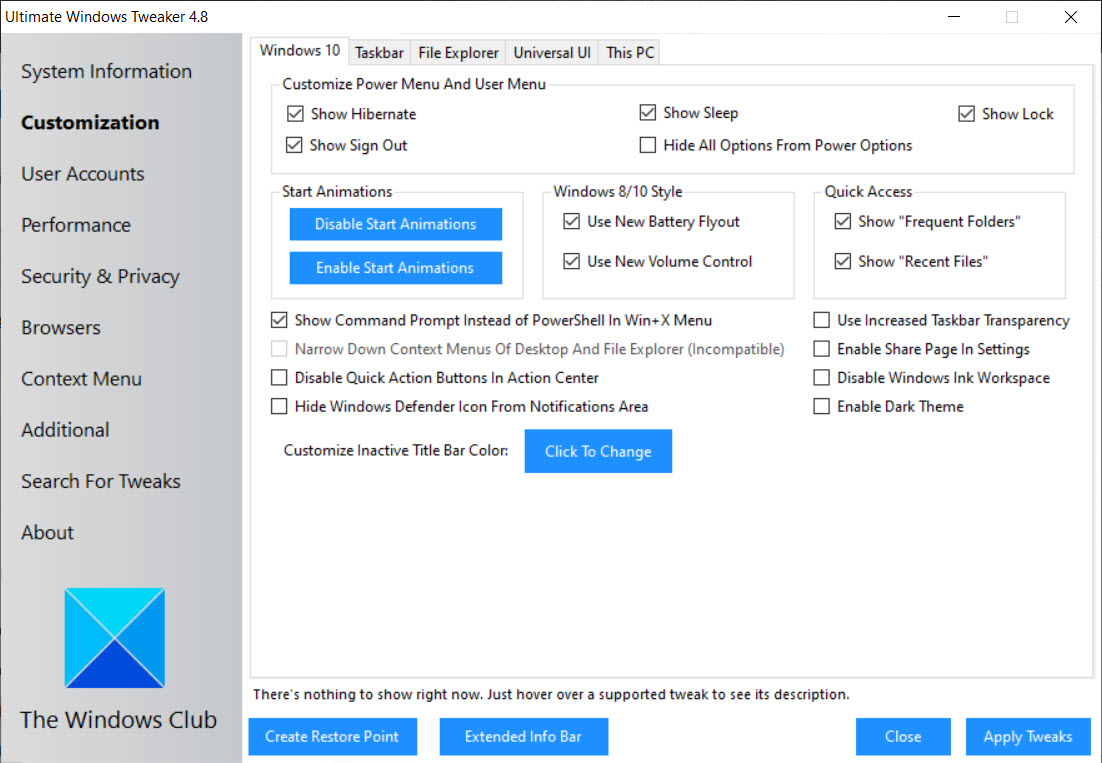
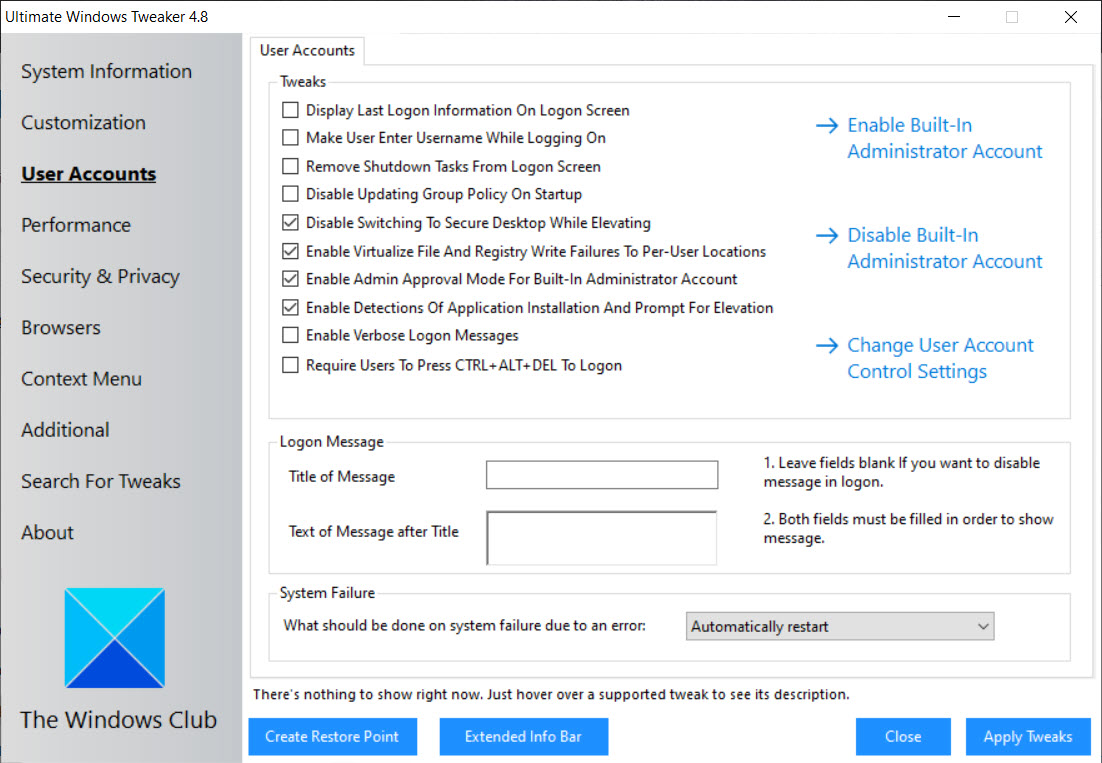
The defining feature of Ultimate Windows Tweaker is the sheer breadth of settings exposed through its interface. The application organizes tweaks into logical categories like Customization, User Accounts, Performance & Security, Privacy, Context Menu, File Explorer, and additional sections, each containing dozens of toggles and adjustments.
The total count runs well into the hundreds across all categories, covering essentially every commonly-requested customization that the standard Windows interface doesn’t offer.
The categorical organization matters because finding what you want would otherwise be hopeless. Looking for a way to disable a particular notification? Privacy section. Want to add or remove items from the right-click context menu? Context Menu section. Trying to tweak how File Explorer behaves? File Explorer section. Each category groups related tweaks together, which makes browsing for specific changes practical even without knowing exactly what the setting is called.
For users who arrived from a forum thread or article that recommended a specific tweak, the search functionality lets you find settings by name without manually navigating through the categories. This combination of browsing and searching covers both the “I know what I want to change” and “let me see what’s available” use cases.
Customization tweaks for the visual experience
A substantial portion of the available tweaks affect how Windows looks and behaves visually. Taskbar customizations let you adjust positioning, behavior, and appearance in ways that go beyond what the standard Settings app offers. Start Menu tweaks affect what appears, how it’s organized, and what gestures trigger which behaviors. Lock screen, login screen, and various other visual elements all get their own sections of available adjustments.
For users running Windows 11 specifically, the visual customization options become particularly valuable since Microsoft has reduced what users can change through the standard interface.
Things like restoring classic right-click menus, adjusting taskbar size and alignment, and modifying various visual behaviors that Windows 11 hides become available through this software, recovering some of the customization flexibility that earlier Windows versions offered openly.
The visual tweaks generally apply immediately or with a quick logoff, with no system reboot typically required for most changes. This makes experimentation practical, since you can try a tweak, see how it looks, and reverse it quickly if you don’t like the result.
Privacy controls that go deeper than Windows Settings
The Privacy section of Ultimate Windows Tweaker addresses one of the more controversial aspects of modern Windows: the various data collection, telemetry, and advertising-related features that Microsoft has progressively added across recent versions. The standard Windows Privacy settings cover some of this, but the tool exposes substantially more controls that aren’t surfaced in the regular interface.
You can disable telemetry data sharing, Cortana data collection, advertising ID generation, location tracking by individual apps, diagnostic data submission, and various other privacy-relevant features that the standard interface only partially exposes. For users who care about minimizing what Windows reports back to Microsoft, having a single tool that consolidates these controls is dramatically more practical than hunting through Group Policy editor or making manual registry edits.
The privacy tweaks come with appropriate cautions about which features depend on the data collection being adjusted. Some Windows features (like personalization based on usage patterns) actually rely on the telemetry that the privacy tweaks disable, so extreme privacy lockdown can affect functionality.
The tool documents these tradeoffs reasonably well, letting users make informed choices rather than blindly disabling everything.
Context menu management for cleaner right-clicks
Over time, the Windows context menu accumulates entries from every application you install, growing from a clean list of useful actions into a sprawling menu where finding what you want takes longer than performing the action. The Context Menu section of this software lets you remove unwanted entries, add useful ones, and generally clean up the right-click experience.
Common cleanup operations include removing entries left behind by uninstalled software, disabling entries from applications you have but don’t use through the right-click menu, and adding shortcuts for operations you actually perform regularly. For users who right-click hundreds of times per day during normal computer use, even small improvements in context menu efficiency add up over time.
The application also handles the New menu (which controls what file types appear when you right-click and choose New), which similarly accumulates entries from installed applications and benefits from periodic cleanup.
File Explorer adjustments
File Explorer is one of the most-used Windows components, and many users have specific preferences about how it should behave that the standard interface doesn’t accommodate. The File Explorer section of Ultimate Windows Tweaker addresses these gaps with adjustments to navigation pane behavior, default view settings, search behavior, ribbon visibility, and various other aspects.
Common adjustments include changing the default opening location (This PC vs Quick Access), modifying how Quick Access populates and what it shows, adjusting how the navigation pane displays drives and folders, and controlling various behaviors that Windows changes between versions in ways some users find unwelcome. Restoring previous behavior or customizing toward specific preferences becomes practical through these consolidated tweaks.
For users who spent years training muscle memory around specific File Explorer behaviors that recent Windows versions changed, the ability to restore familiar behavior often justifies installing the tool by itself.
Performance and security tweaks
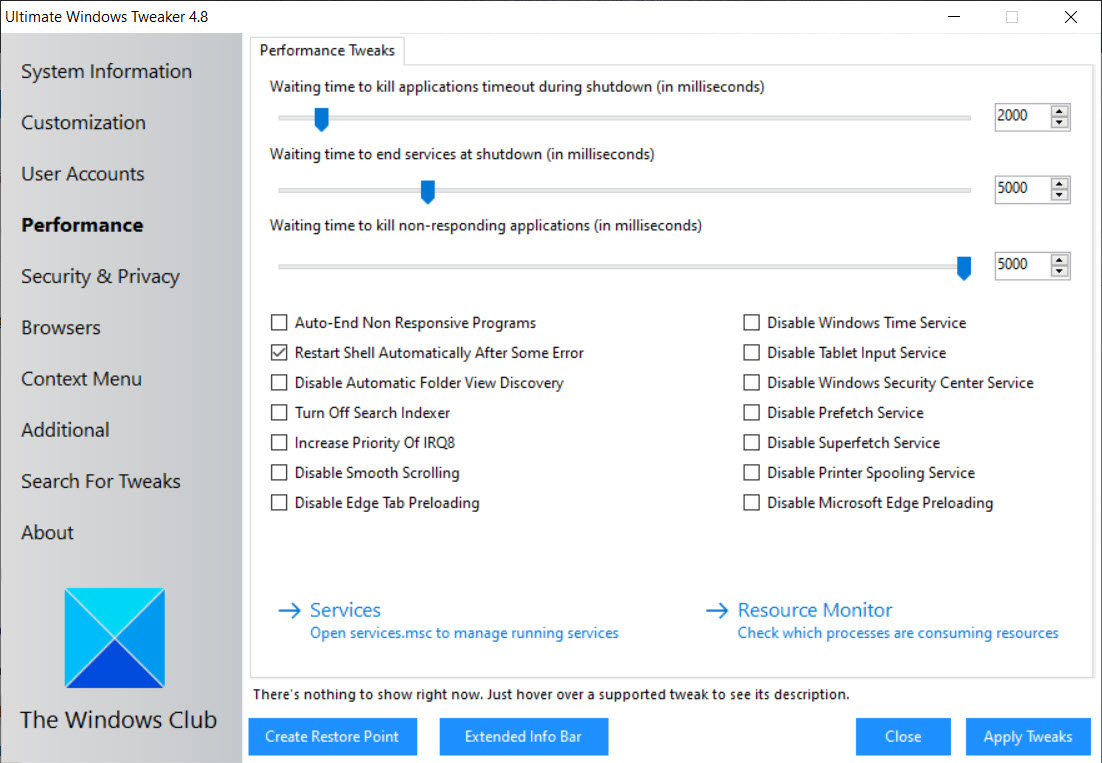
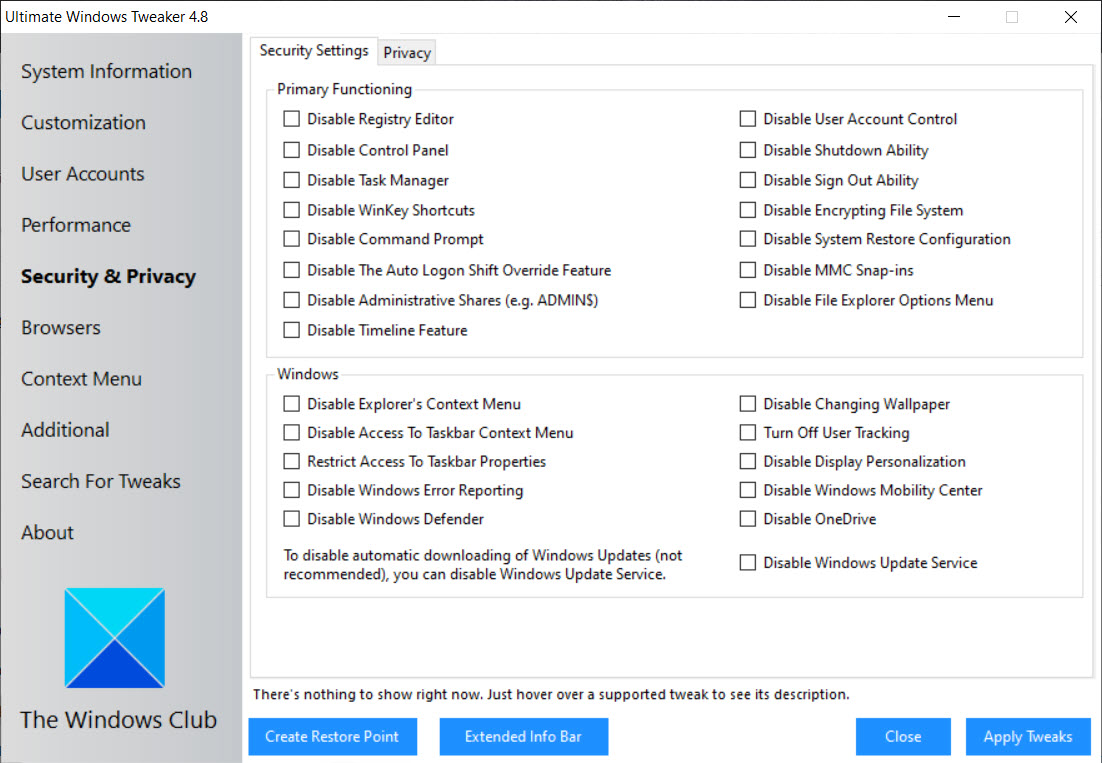
Beyond cosmetic and behavioral adjustments, the application includes sections for performance optimization and security hardening. Performance tweaks adjust various Windows behaviors that affect responsiveness, including visual effects, startup programs, indexing options, and similar settings. Security tweaks address features like SmartScreen, User Account Control sensitivity, and various protection mechanisms.
The performance tweaks rarely produce dramatic changes (Windows 10 and 11 are already reasonably optimized for most hardware), but they can help on older or constrained systems where every bit of optimization matters. Disabling visual effects on a low-end laptop can produce noticeable improvements, while the same tweaks on a modern desktop are essentially placebo.
The security tweaks lean toward configuration flexibility rather than making the system definitively more secure. Some adjustments actually reduce security in exchange for convenience or compatibility, which the documentation typically notes. For users running Windows in environments with specific security requirements, these tweaks let you align the system configuration with your particular needs.
Backup and restore for safety
Making system tweaks always carries some risk that a change produces unexpected results or interacts badly with other settings. Ultimate Windows Tweaker addresses this through built-in backup and restore functionality that captures the current state of all relevant settings before changes, allowing reversal if something goes wrong.
The backup approach matters because manually undoing dozens of tweaks would be impractical, especially if you don’t remember exactly what you changed. The application’s ability to snapshot configurations and restore them later means you can experiment with tweaks knowing that bad results are reversible without significant effort.
For technicians who tweak customer machines or users who experiment with new Windows installations, this safety net makes the tool substantially more practical to use aggressively. Without it, the risk of breaking something while exploring would discourage the kind of experimentation that actually finds the tweaks you want.
Portable design with no installation needed
The application is distributed as a portable executable that runs without installation, leaving no permanent footprint on the system beyond the changes you make through it. You download the file, run it directly, make your changes, and close the application. There’s no installer, no system services running in the background, no startup entries.
For users who appreciate not adding permanent software to their system for occasional use, the portable design is exactly the right approach. For technicians who carry their toolkit on USB drives, the same portability lets the tool travel with them across customer machines without installing anywhere.
The flip side is that the tool only affects the system while the changes you make persist after the executable closes. The actual tweaks are made by writing to the appropriate registry keys and configuration files, which Windows then reads on subsequent operations. Closing the application doesn’t undo your changes; it just removes the application itself from active operation.
Conclusion
Ultimate Windows Tweaker has earned its reputation among power users and technicians by consolidating an enormous range of Windows customization options into a single accessible interface. For users who want to adjust how Windows behaves beyond what the standard Settings app exposes, this tool eliminates the alternative of manual registry editing while providing safety mechanisms that make experimentation practical.
It’s not for everyone. Casual users who are happy with default Windows behavior won’t find much reason to use it, and the variety of available tweaks can overwhelm users who don’t have specific changes in mind. But for the substantial audience that wants more control over their Windows installation than Microsoft offers through standard interfaces, Ultimate Windows Tweaker delivers exactly that, with the kind of breadth and reliability that has kept it a recommended tool across many years and Windows versions.
Title: Customize hundreds of hidden Windows settings through a single interface
Pros & Cons
- Hundreds of tweaks organized by category for systematic browsing
- Search functionality finds specific settings quickly
- Privacy controls expose telemetry and data collection adjustments beyond standard settings
- Context menu management cleans up right-click clutter
- File Explorer customizations restore preferred behaviors
- Backup and restore protect against unexpected results
- Portable executable runs without installation
- Free with no licensing restrictions for personal use
- Different versions required for different Windows generations
- Some tweaks have non-obvious side effects requiring documentation review
- Microsoft updates can break specific tweaks until the application is updated
- Performance tweaks rarely produce dramatic improvements on modern hardware
- Beginner users may overwhelm themselves with too many available adjustments
Frequently asked questions
This software exposes hundreds of Windows settings through a graphical interface, letting you customize behaviors and appearances that the standard Windows Settings app doesn't make available. The underlying changes happen through registry modifications and policy adjustments, but the tool handles all that automatically rather than requiring manual editing. 2 Will my tweaks survive Windows updates? Most tweaks persist through normal Windows updates, but some major updates change underlying registry locations or policies in ways that effectively reset particular tweaks to defaults. After major Windows updates, it's worth opening the application to verify your tweaks are still in effect and reapplying any that the update reverted. 3 Can I undo my changes if I don't like the results? Yes, the backup feature lets you snapshot the current configuration before making changes, then restore from that backup if results aren't what you wanted. Individual tweaks can also typically be reversed by simply toggling the setting back to its original state through the same interface.
The tool produces equivalent results to manual registry editing for most tweaks but handles the technical work automatically. Users don't need to know specific registry paths, value types, or expected data, which dramatically reduces the chance of mistakes that could break the system. For technicians comfortable with manual editing, the tool serves primarily as a convenient consolidated interface rather than a fundamentally different approach.
Some Windows 11 tweaks specifically address restoring previous behaviors that Microsoft changed or hidden in the new version, including classic context menus, taskbar adjustments, and various interface elements. The exact recovery scope depends on what Microsoft did to each feature, but the tool generally maximizes what's recoverable through user-mode adjustments.


