

Ueli
About Ueli
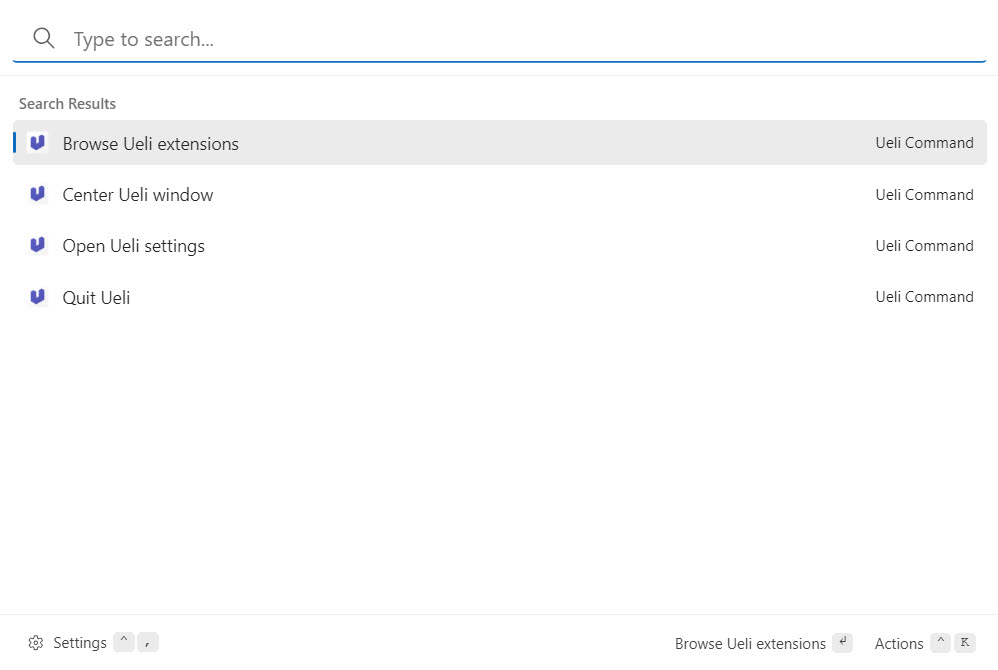
Ueli is a keyboard-driven application launcher that you summon with a single hotkey, type a few characters, and use to open whatever you need without touching the mouse. The default invocation is Alt + Space, the search bar appears at the top center of the screen, and results populate as you type with fuzzy matching that usually nails the right target in two or three keystrokes.
The basic idea is older than Windows itself. Alfred, Raycast, Launchy, Wox, Flow Launcher, PowerToys Run, and a dozen other tools all do approximately the same thing. Ueli lands in this crowded category with a deliberately minimal, clean design that feels native to Windows, a modest but useful extension system, and a Workflows feature that handles chained commands.
The Alt + Space invocation and what it replaces
The launcher loop is simple. Press Alt + Space from anywhere, including over a fullscreen game or a maximized application. The search bar appears. Type a few letters of what you want. Press Enter on the highlighted result. The bar disappears and your action runs.
In practice this replaces a surprising chunk of the daily Windows interaction model. Opening an unpinned application stops being a Start menu scroll, becomes a three-keystroke sequence.
Opening a project folder you actually use becomes faster than navigating through Explorer. Triggering a system shutdown, a sleep, or a restart skips the Start menu entirely. After about a week, the muscle memory replaces the visual habit and you stop reaching for the mouse for routine launches.
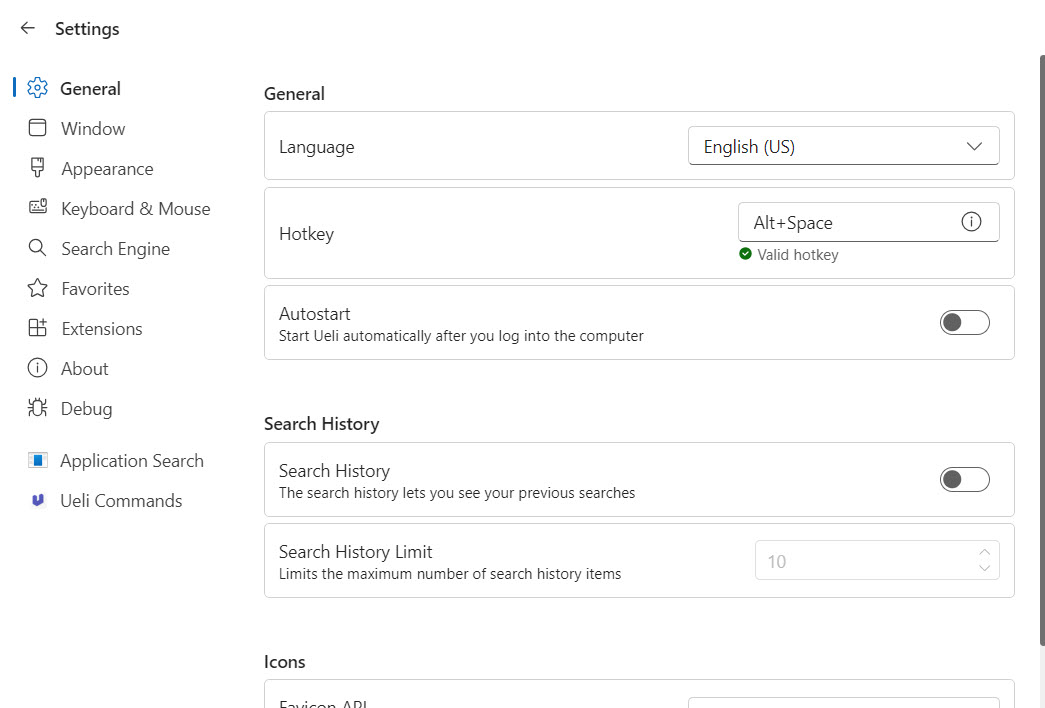
The hotkey is rebindable if Alt + Space conflicts with something else you use. Some terminal applications and a few legacy Windows utilities still bind Alt + Space to a window menu, but the launcher claims the chord globally and overrides them once it’s running. There’s also a single-click invocation option if you prefer summoning from a tray icon, though using it that way mostly defeats the purpose.
Search scope and how the fuzzy matching behaves
By default Ueli indexes installed applications (both traditional Win32 and UWP from the Microsoft Store), system commands (lock, sleep, shut down, restart, sign out, hibernate), Control Panel items, and a configurable set of folders for file search. The indexer builds and updates the cache in the background, so first-launch results appear within a second of typing.
Fuzzy matching means you don’t need to type the start of a name. “vsc” finds Visual Studio Code, “ph” finds Photoshop, “cmd” finds Command Prompt.
Acronyms work because the search splits camel-case and word boundaries when building match candidates. The ranking algorithm also remembers what you launch frequently and floats those results to the top, so repeat targets train themselves into the first slot.
Where the search gets interesting is the breadth of sources. With the right extensions enabled, the same query bar handles browser bookmarks, file system search, calculator expressions, color value conversions, web searches against any engine, and translation. You can type “1280 / 16 * 9” and get 720. You type “weather london” and the configured web search opens.
You type a hex color and get RGB, HSL, and CMYK conversions back. The launcher decides which extension owns the query based on the input format.
This is also where it lags behind the deepest competitors. Launchy has fewer built-in sources but a longer-running plugin ecosystem. Executor offers deeper file search and a richer regex-based command system. For dedicated file finding, pairing Ueli with Everything running in the background gives faster filesystem search than Ueli’s built-in folder indexer.
The extension system and what each one does
The built-in extensions cover most of what a daily-driver launcher needs. Application Search is the core one. Calculator handles arithmetic, including parentheses, basic functions, and unit conversions.
Color Converter takes a hex, RGB, HSL, or HSV value and outputs the others, useful for front-end work without alt-tabbing to a dedicated picker.
Browser Bookmarks search supports the major Chromium-based browsers (Chrome, Edge, Brave, Vivaldi, Opera, Chromium itself) by reading the bookmark database directly. Firefox is supported through a separate mechanism. Type part of a bookmark title or URL fragment, press Enter, the page opens in your default browser.
Command-line access exposes a shell prompt inside the launcher. Type a command, get output, or pass it through to PowerShell or cmd.exe. Operating System commands cover shutdown, restart, sleep, hibernate, log off, lock, and a few other system-level actions. Control Panel exposes every applet by name. File Browser and Simple Folder Search index user-defined folders and return matches. Email opens your default client with a recipient. Shortcuts let you define your own custom triggers that map a short keyword to any action.
Translation uses a web translation service. URL recognizes when you’ve typed a domain and opens it. UWP search covers Microsoft Store apps separately from traditional Windows applications. Web Search routes any prefixed query (configurable per engine) to the search provider of your choice.
Each extension can be turned off if you don’t use it, which keeps the result list cleaner. The trade-off is that the extension ecosystem is fixed at what ships with the application.
There’s no plugin marketplace, no community-contributed extension store, no third-party integrations. If you need an extension for, say, querying Jira or pulling weather data from a specific API, Ueli can’t do that. Tools with broader plugin ecosystems can.
Workflows for chaining commands
The Workflows feature is the most powerful piece of Ueli and the one most users discover last. A workflow binds a custom keyword to a sequence of actions that run together. You can open three applications at once, launch a set of URLs in tabs, run a script, or chain commands across categories.
A typical example: bind the keyword “work” to open your code editor at a specific project folder, launch a browser tab pointed at the issue tracker, and open the terminal with a cd to the project directory. Hit Alt + Space, type “work”, press Enter, and your morning setup is one step instead of seven.
The workflow editor is a simple form where you add actions one at a time. Each action is one of the same things the launcher does individually (open file, open URL, run command, etc.). The setup is less expressive than a full automation tool like AutoHotkey, but it’s enough for the routine chained launches that most users actually need.
AutoHotkey gives you a full scripting language with conditionals and event-driven triggers. Ueli gives you a one-shot chained action attached to a keyword. Different tools for different problems.
Customization options
Visual customization covers theme (light, dark, system-matched), search bar width, font, and result count. The search bar can be positioned at the top center of the screen, vertically centered, or pinned to a specific location. The default rendering is unmistakably modern and looks like it could be a native Windows feature, which is unusual for a third-party launcher and one of the more compliment-worthy details.
Behavior customization includes hotkey rebinding, fuzzy match aggressiveness, result count, indexing schedule, and per-extension settings. The folder indexer lets you whitelist directories to search through and blacklist subfolders you don’t want cluttering results.
Configuration is stored in a plain JSON file under the user profile, so you can sync settings between machines by copying the file or putting it in a cloud-synced folder.
There’s no built-in cloud sync, though. If you want your launcher configuration to follow you between two computers automatically, you’ll arrange that yourself.
Where it falls short
The honest weakness is the extension ecosystem. Ueli has a fixed set of built-in extensions and no community contributions. PowerToys Run, Flow Launcher, and the older Wox all have hundreds of community plugins covering everything from Spotify control to system info readouts to ChatGPT queries. If your launcher use case needs one of those niche extensions, Ueli won’t reach it.
Microsoft Store app integration is also a bit weaker than dedicated Windows-only launchers. UWP search works, but Store-specific quirks (apps with no traditional .exe, apps that require launching through their App User Model ID) occasionally surface results that don’t open cleanly. Tools designed only for Windows handle these edge cases more reliably.
File search performance on large drives is acceptable but not exceptional. Indexing tens of thousands of files across deep folder trees takes time on first run, and the search doesn’t match a dedicated file finder for raw speed.
The catalog has better options if file finding is the main job, including Everything for filesystem search and Search My Files for filter-based queries.
The launcher also doesn’t have a clipboard manager, a snippet expander, a window manager, or several other features that competitors increasingly bundle. Ueli is a launcher, not a productivity Swiss Army knife, and you should evaluate it on that basis.
Conclusion
Ueli is the right launcher for people who want a clean, fast, keyboard-first experience without the configuration overhead of a deeply extensible platform. The built-in extensions cover the routine cases (calculator, bookmarks, file search, color conversions, system commands, web search, workflows) and the interface stays out of the way.
If you currently launch applications by clicking through the Start menu or by pinning things to the taskbar, switching to Ueli will save you measurable time across a typical workday.
It’s not the right pick for someone who wants an extensible plugin platform with hundreds of community-contributed integrations. Flow Launcher, PowerToys Run, and the older Wox all hold the advantage there for Windows users specifically, and dedicated power-user tools like Executor handle deeper customization and search scenarios that Ueli doesn’t try to cover.
Ueli stakes out a more focused position, polished and minimal, and within those limits it’s one of the more pleasant launchers in the category.
Pros & Cons
- Cross-platform with consistent behavior on Windows, macOS, and Linux
- Clean modern interface that feels native rather than third-party
- Fuzzy matching is accurate and learns from your launch frequency
- Workflows feature handles chained launches without external scripting
- Built-in calculator, color converter, and translation cover common micro-tasks
- Configuration in a plain JSON file makes settings portable between machines
- Fixed extension set with no community plugin ecosystem
- UWP and Microsoft Store apps occasionally have edge-case launch issues
- File search is competent but slower than dedicated tools on large drives
- No clipboard history, snippet expansion, or window management features
- Some keyboard chords conflict with terminal applications using Alt + Space
Frequently asked questions
Ueli is a keyboard-driven application launcher. You press a hotkey (Alt + Space by default), type a few characters of what you want, and press Enter to open it. The same interface handles applications, system commands, file search, calculations, color conversions, web searches, and chained workflows.
The core launching experience is similar. The main differences are extension philosophy and cross-platform support. PowerToys Run and Flow Launcher have larger community plugin ecosystems with hundreds of third-party extensions, particularly for Windows-specific tasks. Ueli has a smaller fixed set of built-in extensions but runs on macOS and Linux as well, with the same interface and configuration.
Files and folders from indexed locations, browser bookmarks (Chrome, Edge, Brave, Vivaldi, Opera, Firefox), system commands (shutdown, sleep, restart, lock), Control Panel items, web searches against any configured engine, URLs typed directly, and custom workflows you define.
Workflows let you bind a keyword to a sequence of actions that run together. Typing the keyword and pressing Enter triggers all actions at once, useful for opening a set of applications, URLs, and files that make up a routine work setup.
Yes, the calculator extension handles arithmetic expressions including parentheses, basic mathematical functions, and unit conversions. Type the expression in the search bar and the result appears as a result you can press Enter to copy to the clipboard.
Yes, for Chromium-based browsers (Chrome, Edge, Brave, Vivaldi, Opera) and Firefox. Type part of a bookmark title or URL fragment and matching bookmarks appear as results. Selecting one opens the page in your default browser.
Yes. You can rebind the activation hotkey, change theme and search bar appearance, enable or disable individual extensions, set folders to index for file search, and define custom shortcuts and workflows. Configuration is stored in a JSON file under the user profile.
The UWP extension indexes Microsoft Store apps separately from traditional desktop applications. Most Store apps appear in results correctly, though some apps with unusual launch requirements occasionally produce results that don't open cleanly.


