

Twinkle Tray
About Twinkle Tray
Windows lets you slide the brightness of a laptop screen from the action center, and that’s about where its support for monitor brightness ends. The moment you plug in a desktop monitor, brightness controls disappear from the interface entirely, and you’re sent to the physical buttons under the bezel. Twinkle Tray is the response to that gap. It puts a real brightness slider for every connected display into the system tray, where it should have lived all along.
The application sits in the notification area as a small icon, and clicking it opens a panel with one slider per monitor. Move the slider and the actual monitor dims or brightens, the same way pressing the hardware buttons would. No software dimming, no semi-transparent black overlay faking the effect.
Twinkle Tray talks directly to the display through the DDC/CI protocol, which is the same channel the on-screen menu uses internally.
How it actually changes the brightness
This is the part that matters and the part most users don’t realize. Twinkle Tray doesn’t lower brightness by darkening pixels. It sends a command to the monitor over DDC/CI (Display Data Channel / Command Interface), and the monitor’s own backlight responds. Black levels stay black, contrast doesn’t collapse, and the image quality is identical to what you’d get from poking the bezel buttons.
The catch is that the monitor itself has to expose DDC/CI. Most desktop displays do. Some budget panels disable it by default and you have to dig into the on-screen menu to turn it on. A small minority of cheap monitors don’t implement it at all, and for those, Twinkle Tray falls back to the WMI brightness call (which is what laptops use) when possible, or simply skips that display.
For laptops, the slider talks to the integrated panel through the standard Windows brightness API. So a setup with a laptop screen plus two external monitors gets three independent sliders, each controlling its own backlight at the hardware level. That’s the function nothing built into Windows offers.
The closest alternative is Monitorian, which does the same job with a slightly different interface and a stricter focus on per-monitor control without the extra features.
Time-based schedules and the case for them
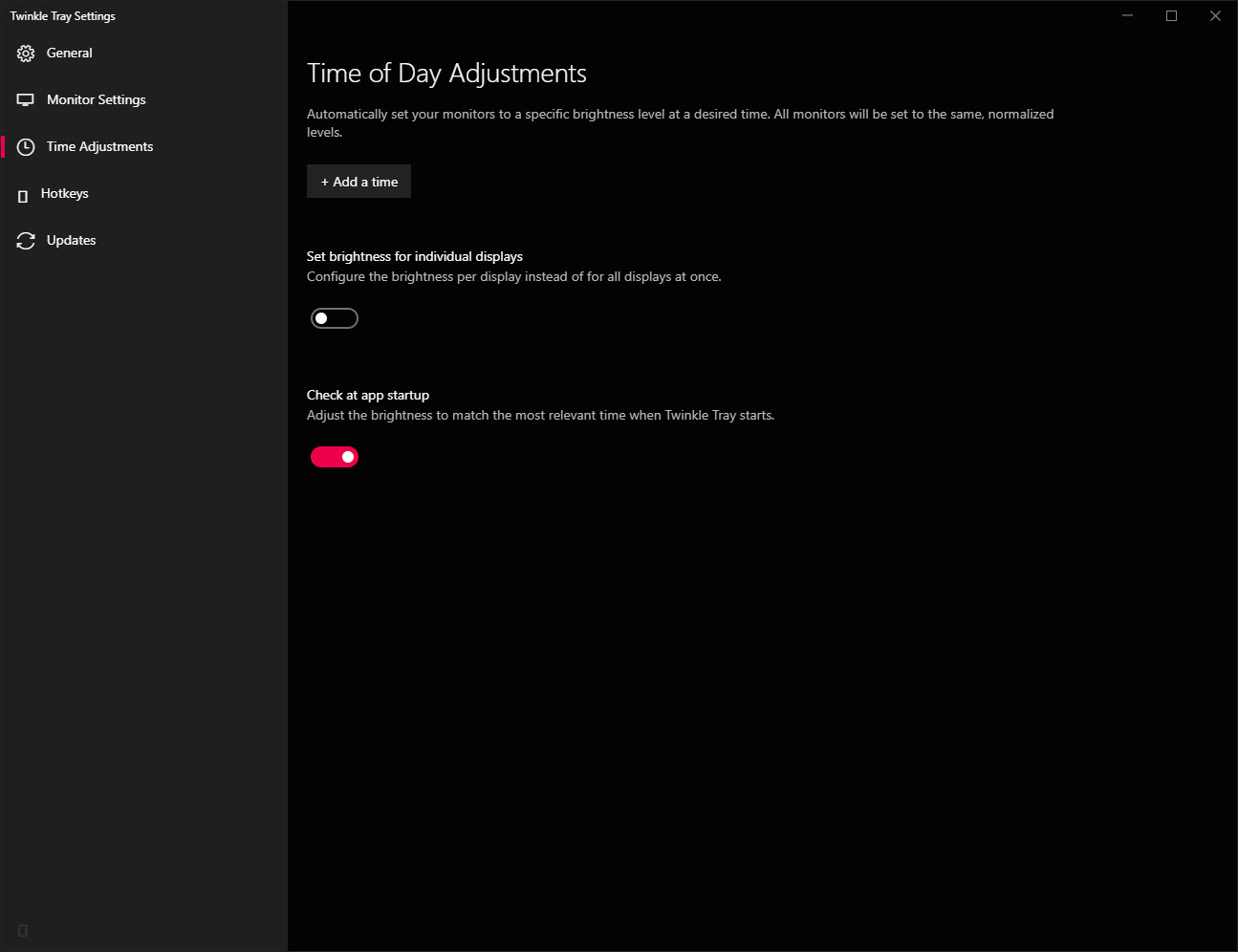
The schedule panel is the feature that turns Twinkle Tray from a quick fix into a daily-use utility. You can set named time blocks (e.g., “morning” at 80%, “evening” at 50%, “night” at 20%), assign different brightness values per monitor for each block, and let the application transition between them automatically. The fade is gradual, not a hard switch, so the screen eases into the new level instead of jolting.
It’s a different approach than what color-temperature tools take. Twinkle Tray changes how much light the panel emits, not what color it emits. So it can run alongside a blue-light filter without conflict. Some users pair it with built-in Windows Night Light for color temperature shifts, while Twinkle Tray handles the actual luminance.
Others find that brightness alone, dropped low enough at night, removes the need for any color filter at all.
Hotkeys, mouse wheel, and the small interface choices
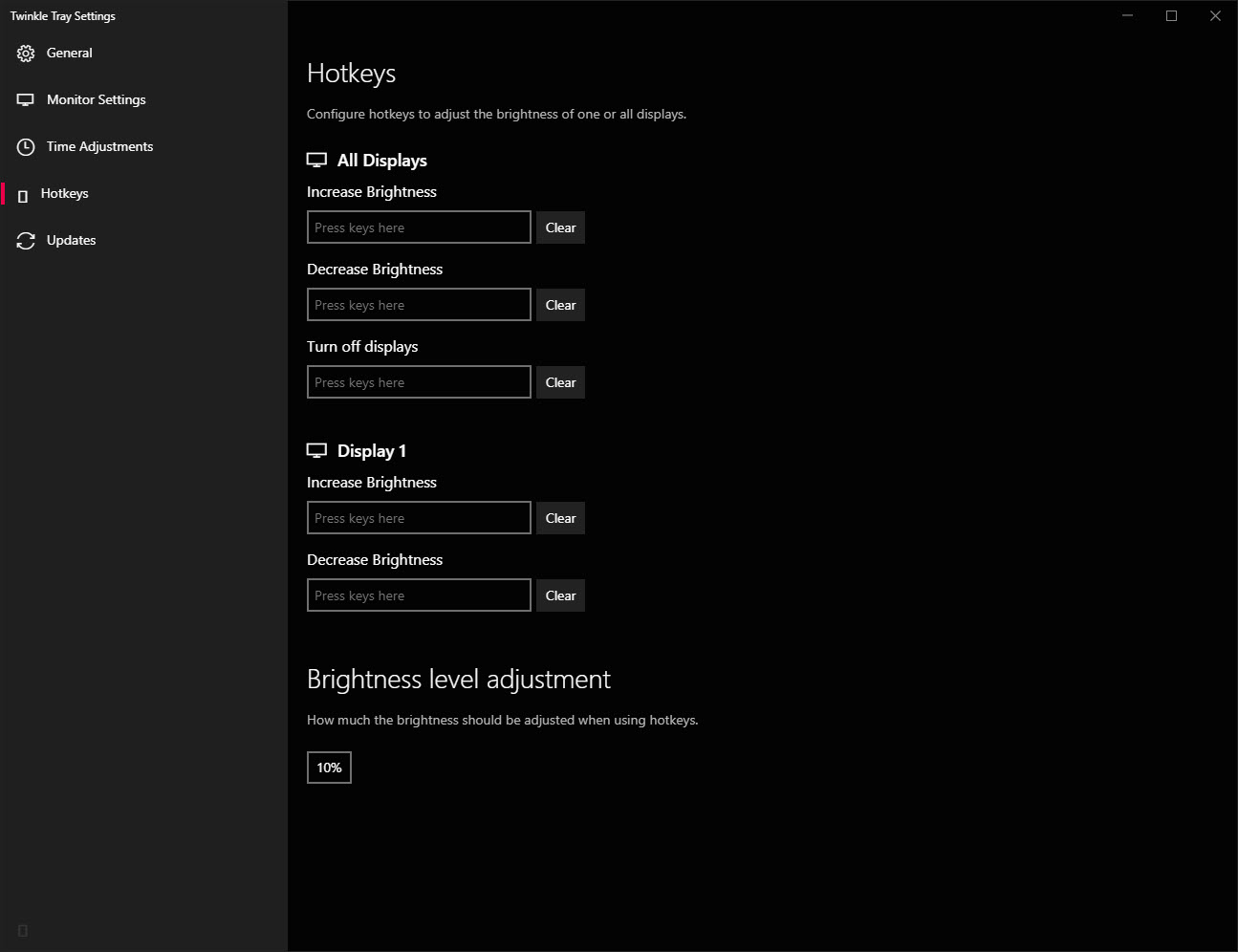
Brightness adjustment by hotkey is supported, with separate bindings for “increase brightness on all monitors,” “decrease all,” and increase/decrease for each specific monitor. Combined with media keys on a keyboard that doesn’t have native brightness buttons, this restores a feature that desktop users typically lose entirely.
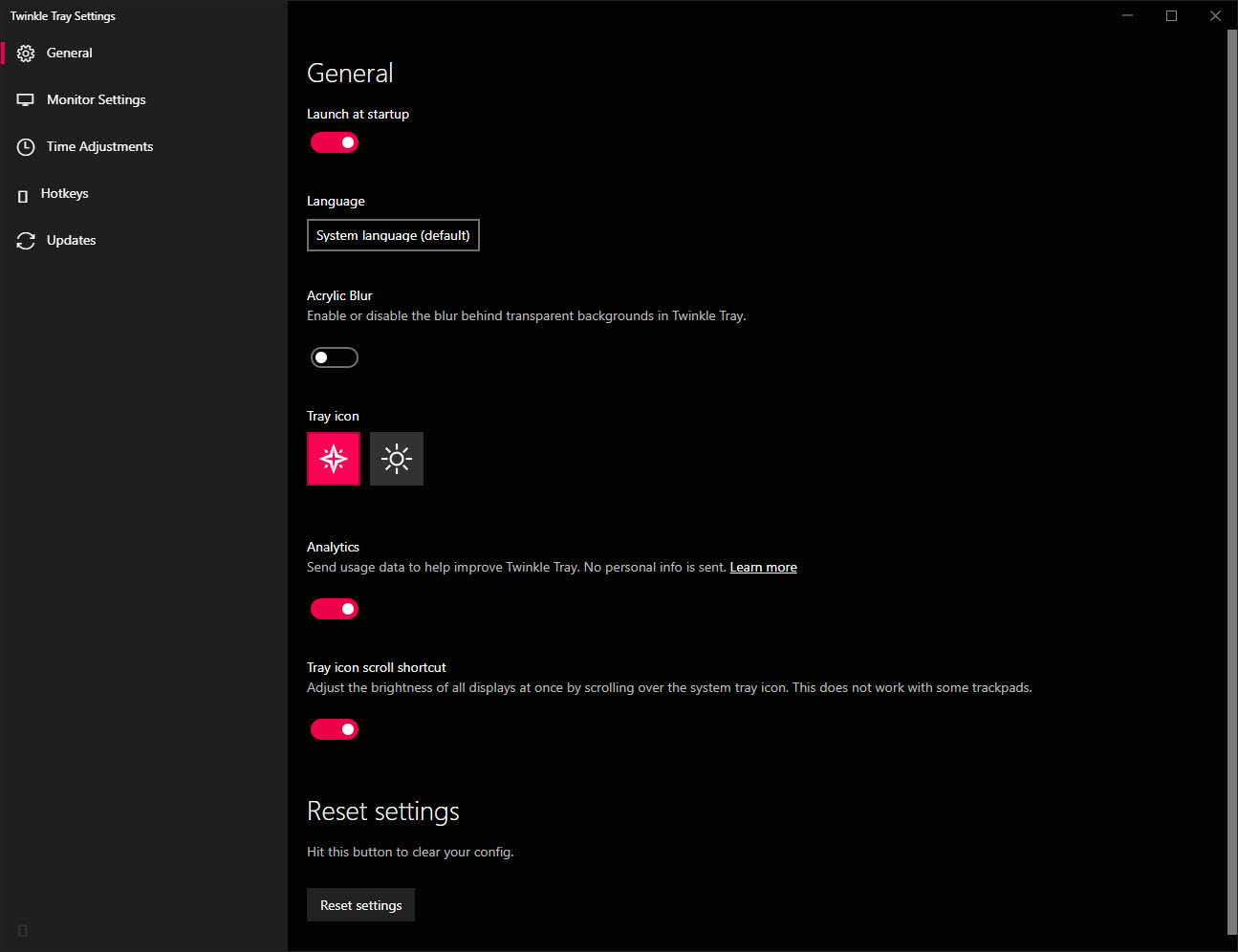
The mouse wheel works inside the slider panel itself, and there’s a setting that lets the wheel adjust brightness when hovering over the tray icon. That’s a small touch but a useful one, since it means a one-second brightness tweak doesn’t require a click-and-drag motion.
The step size for hotkey adjustments is configurable, from 1% increments (slow but precise) up to 25% (fast but coarse). Default is 10%, which works for most cases. The transition smoothing is also adjustable. A linear setting changes brightness instantly, while smoothing levels add a fade.
The HDR situation
This is the limitation that catches new users off guard. When a monitor is in HDR mode under Windows, the operating system itself takes over backlight management for tone mapping, and DDC/CI brightness commands either get ignored or have erratic effects. Twinkle Tray can still send the commands, but the result is unpredictable.
The workaround is to use the application’s separate “HDR brightness” slider, which controls the SDR brightness level within the HDR signal (the Windows setting that determines how SDR content appears on an HDR display). It’s not the same as panel backlight, but it covers the most common need (making SDR content less blinding on an HDR monitor without leaving HDR mode entirely).
For monitors not in HDR mode, none of this applies. The standard slider works as expected.
Customization and the look of it
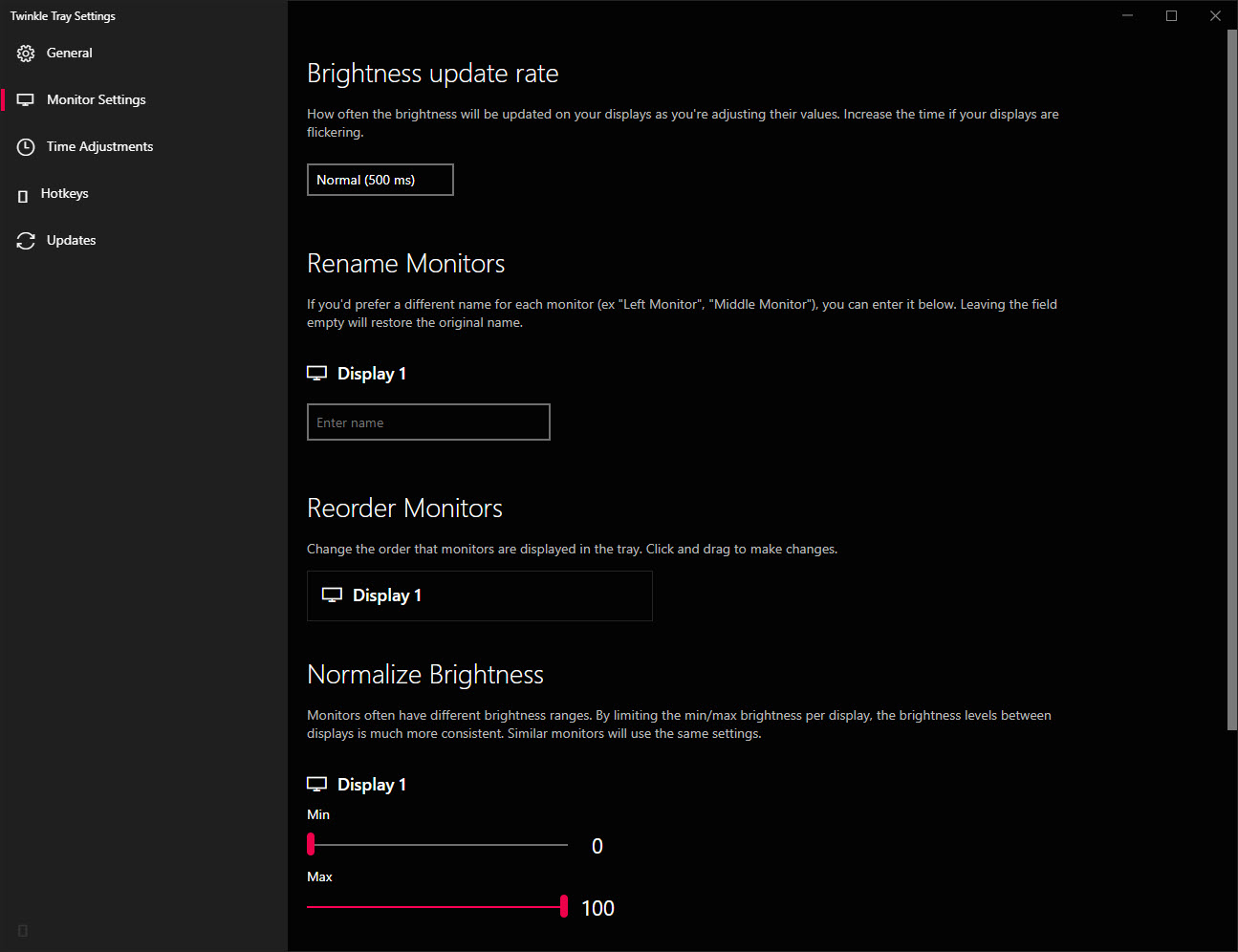
The popup panel can be themed (light, dark, system-default), have its width adjusted, show or hide percentages next to each slider, and reorder displays by drag. Monitors can be renamed (the default names tend to be cryptic strings like “Generic PnP Monitor”) and given custom icons. For multi-display setups where the physical arrangement doesn’t match the auto-detected order, the rename function alone is worth the install.
Twinkle Tray can also be set to use the same brightness on all monitors, which links the sliders together. Move one, the others follow. Useful for dual-monitor desk setups where you want them visually matched, less useful for laptop-plus-external configurations where the screens have different luminance ranges. Vendor utilities like Dell Display Manager cover similar ground for matched hardware setups, but lock you to one brand. Twinkle Tray works across whatever you’ve plugged in.
There’s an option to launch the brightness panel from a system hotkey, even if the tray icon is hidden, which keeps things tidy on systems where notification area space is at a premium.
Where it falls short
Multi-monitor setups with mixed brands sometimes produce inconsistent results. Two monitors set to “50%” via Twinkle Tray can have visibly different actual brightness, because each manufacturer interprets the DDC/CI value differently. The application can’t normalize across brands. You end up calibrating by eye, or going further with a proper color tool like DisplayCAL if visual matching matters.
DDC/CI communication can also be slow on some displays. A few monitors take 200-500 milliseconds to respond to each command, which makes dragging the slider feel laggy. The smoothing setting helps mask this, but the underlying delay comes from the monitor’s firmware, not the application.
Sleep and wake cycles occasionally break the connection. After a system resume, one or more monitors might not respond until you toggle them off and back on inside Twinkle Tray. Not catastrophic, but a real annoyance for anyone with a daily cold-boot habit.
There’s no per-application brightness profiles, no automatic adjustment based on ambient light sensors, and no integration with light sensors that some monitors have built in. The schedule is purely time-based.
Conclusion
Twinkle Tray is for desktop users who got tired of reaching behind the monitor every time the lights changed in their room, and for multi-monitor users who want each screen to settle at its own brightness without using three different OSD menus.
The DDC/CI approach gives you real hardware brightness control rather than the software dimming overlays that most “brightness tools” actually use, and the difference is visible the first time you compare them on a dark scene.
It’s a single-purpose tool and stays within that purpose, which is the right call. The schedule feature, the per-monitor hotkeys, and the small UI choices (rename, reorder, mouse wheel) turn what could have been a one-trick utility into something that solves a real daily friction, especially for anyone whose desk lighting changes between morning and night.
Pros & Cons
- Real hardware brightness control over DDC/CI, with no overlay or software dimming
- Independent slider per connected monitor, including laptop and external displays together
- Time-based schedules with smooth fade transitions between brightness presets
- Hotkeys, mouse wheel, and tray icon scroll all work as adjustment methods
- HDR mode supported through a separate SDR-level slider
- Monitor rename and reorder fixes the cryptic default labels
- Light on resources, lives in the tray with negligible memory footprint
- DDC/CI must be enabled on the monitor, some cheap displays don't implement it
- Mixed-brand multi-monitor setups can show different actual brightness at the same slider value
- Slow response on some displays, with noticeable lag while dragging
- Wake-from-sleep sometimes loses the connection until manually toggled
- No ambient light sensor integration or per-application brightness profiles
- HDR brightness is a workaround through SDR-level control, not true panel adjustment
Frequently asked questions
Yes. Each connected display gets its own slider, including any combination of laptop screen and external monitors. The brightness on each is controlled independently, and the sliders can be linked together if you want them to match.
The application sends DDC/CI commands to the monitor, the same protocol the on-screen menu buttons use internally. The monitor's own backlight changes in response, just like pressing the hardware buttons. Laptops use the standard Windows brightness API instead.
Partially. When a monitor is in HDR mode, Windows takes control of backlight management, and direct brightness commands have inconsistent effects. The application provides a separate HDR brightness slider that adjusts the SDR content level within the HDR signal, which covers most use cases.
Both use DDC/CI to control monitor brightness from the system tray. This software adds time-based schedules with fade transitions, more customization for the popup panel, configurable hotkey step sizes, and per-monitor renames. Monitorian focuses on a simpler interface with tighter scope.
The most common cause is DDC/CI being disabled in the monitor's on-screen menu. Look for a setting labeled DDC/CI, DDC, or similar in the OSD and enable it. A small number of budget monitors don't support DDC/CI at all.
No. The application only controls brightness, the amount of light the panel emits. Color temperature shifts are handled by separate tools or by the built-in Windows Night Light feature, which can be used alongside this software without conflict.


