

Total Commander
About Total Commander
Total Commander is a two-pane file manager for people who move, rename, pack and compare files all day and have run out of patience doing it with a mouse. Source on one side, destination on the other, a row of function keys along the bottom, and every operation a keystroke away. That layout has outlived every fashion in interface design for a simple reason. For file work, nothing faster has been invented.
File Explorer treats file management as an occasional chore. This application treats it as the whole job, and it bundles the tools that normally live in five separate programs. An archiver, an FTP client, a batch renamer, a folder synchroniser and a file search that reads inside archives all sit under one roof, which is why people who adopt it tend to keep it for decades of their own.
Two panes and a row of function keys
The model takes an afternoon to click. Each pane shows a folder, F5 copies from the active pane to the other, F6 moves, F3 views, F4 edits, F7 makes a folder, F8 deletes. No dragging across a crowded screen, no second window to arrange. You stop thinking about the mechanics and start thinking in batches.
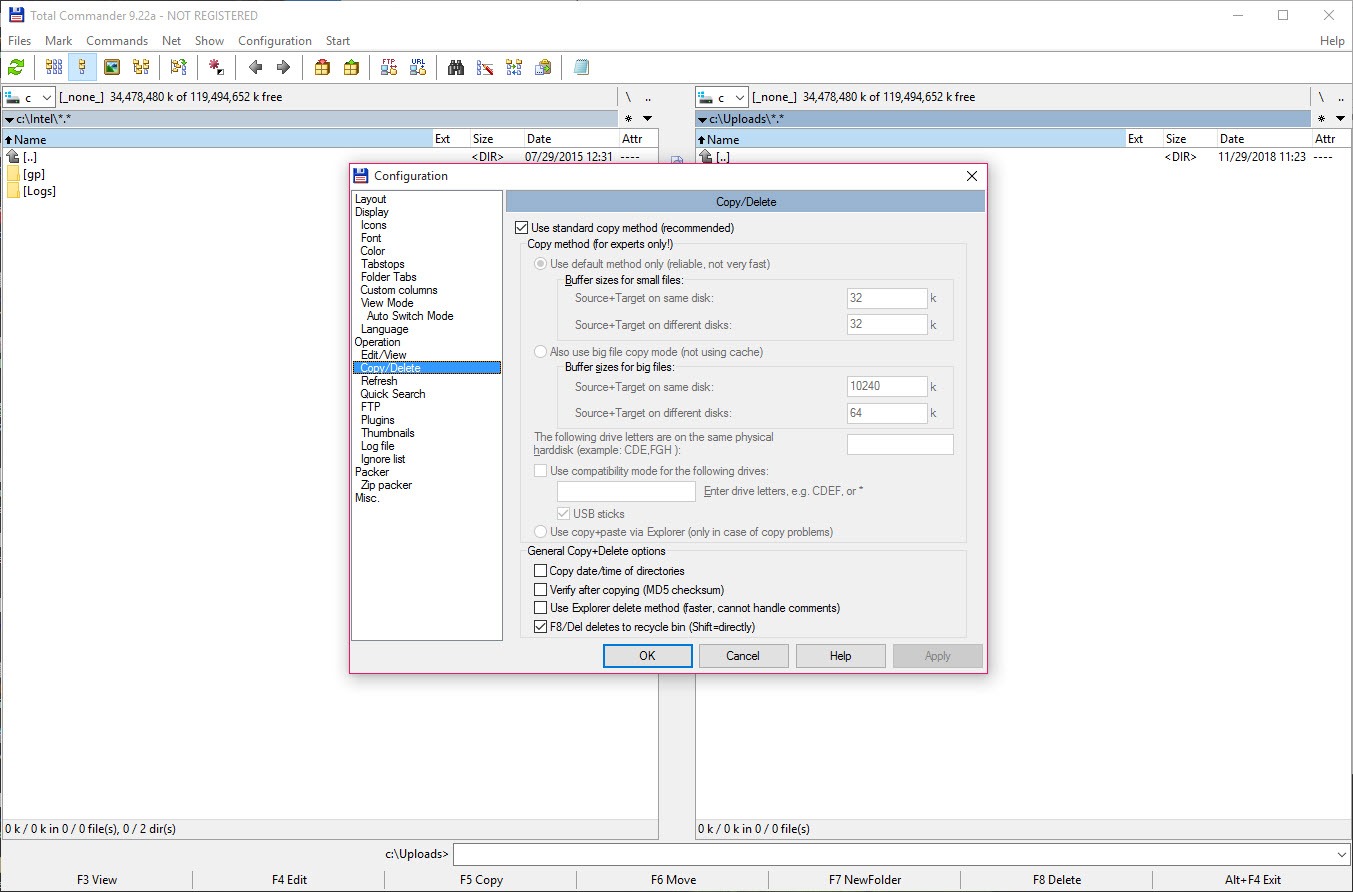
One Total Commander habit will ambush newcomers. By default you select files with the right mouse button or the Insert key, not with a left click, because the scheme was designed around marking many files quickly. It is configurable, and the left-button mode is one setting away, but nobody discovers that before the first confused minute.
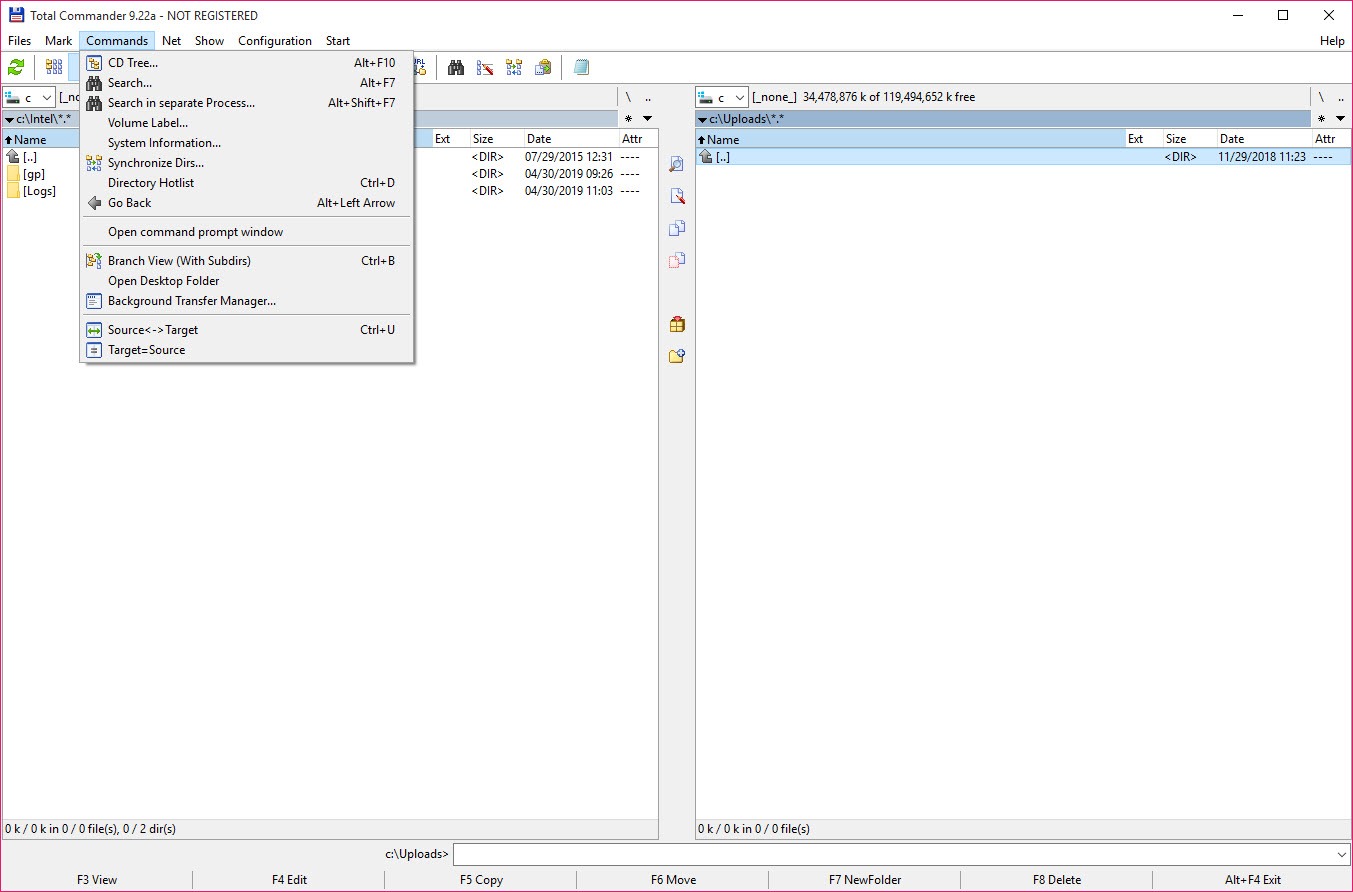
Tabs complete the picture. Each pane holds as many folder tabs as you want, tabs can be locked so a stray double-click cannot wander them off somewhere else, and a directory hotlist on Ctrl+D jumps to the places you actually use.
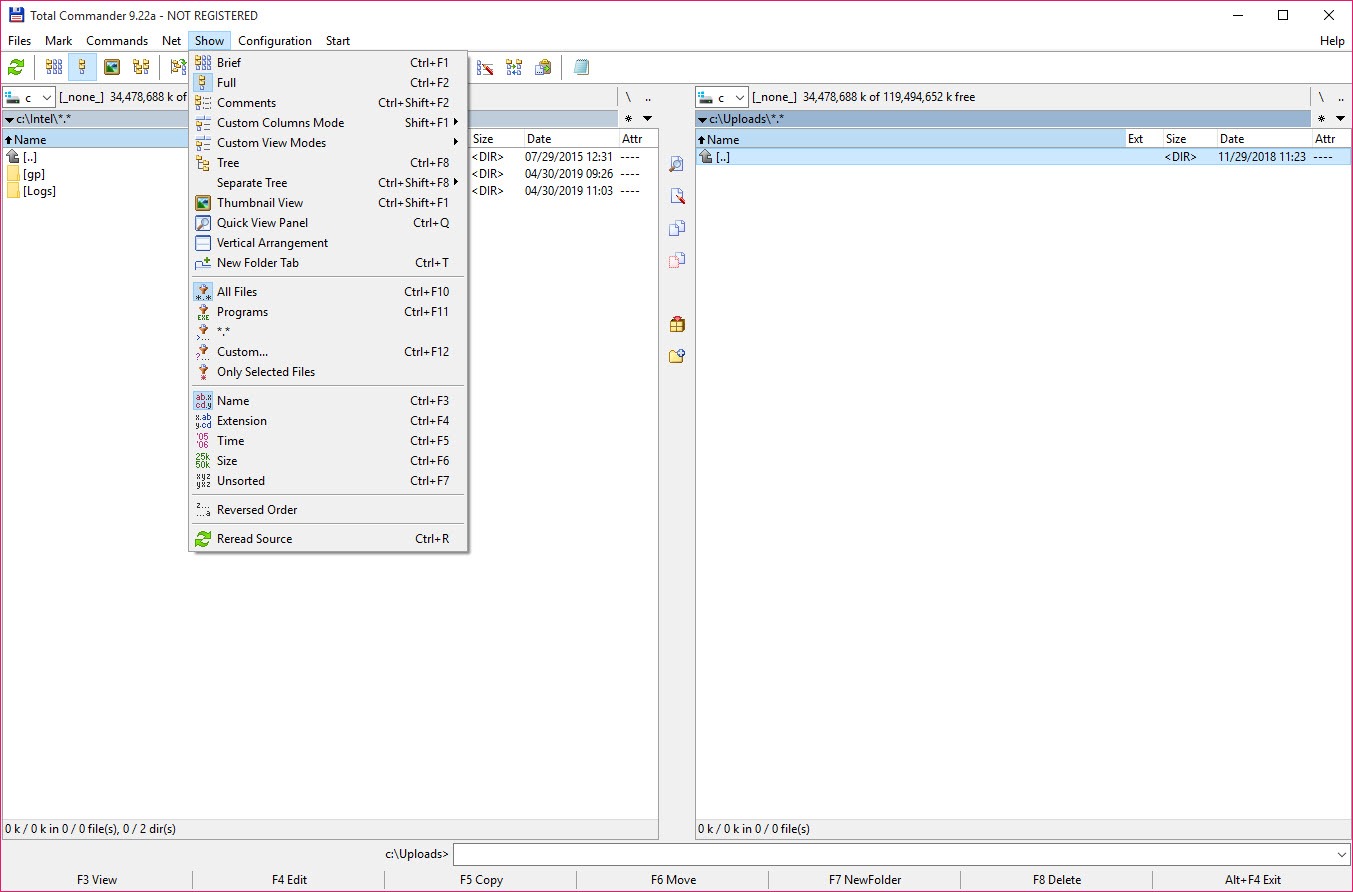
Add the branch view, which flattens a folder and all its subfolders into one list, and whole categories of tedious digging disappear.
Archives behave like ordinary folders
Press Enter on a ZIP in Total Commander and it opens like any directory. Copy files in, copy files out, edit a file inside and have it repacked on the way back. Packing to ZIP is built in, unpacking covers RAR, TAR, GZ, ARJ, LZH and CAB, and packer plugins extend the list to practically anything with a file extension.
For most daily archive traffic that ends the matter. What it does not replace is a dedicated archiver’s compression control, so when you need to squeeze a backup with tuned settings, 7-Zip still earns its keep alongside. For opening and extracting, you will stop reaching for anything else.
FTP without leaving the file manager
Total Commander connects to FTP and FTPS servers directly, and the remote site simply appears in a pane like any other folder. Copy with F5, resume interrupted transfers, keep multiple connections open, and move files server-to-server the same way you would between two local disks. SFTP arrives through a plugin rather than out of the box, which is a strange gap given how standard secure shell transfer has become.
If you administer servers all day, a dedicated client like FileZilla offers queue management this cannot match. For the weekly update of a website or grabbing files off a NAS, the built-in client means one less program open.
A batch renamer people buy the whole program for
The multi-rename tool on Ctrl+M takes any selection of files and rebuilds their names from parts. Counters with configurable digits and start values, search and replace with regular expressions, case changes, date stamps pulled from the files themselves, and a live preview of every result before anything is touched. Get it wrong anyway, and the tool can undo the whole batch.
Photographers renaming a card full of images and anyone untangling inherited chaos on a shared drive will use this weekly. It is strong enough that a standalone batch renamer only becomes necessary for exotic rules.
Search that reads inside files and archives
Alt+F7 opens a search that goes well past filenames. It finds text inside files, applies regular expressions, filters by date and size, and looks inside archives while it works, which matters the day a contract is buried in a ZIP inside a backup folder. Results can be fed to the panes as a list and operated on like any other selection.
The honest comparison is speed. This search walks the disk when you ask, so a deep scan takes time, while an indexed search tool answers before you finish typing. The two are not rivals so much as different questions. Indexed search finds a file by name instantly, and this one finds the needle by what is written inside it.
Heavy lifting, from background copies to checksums
Large transfers run in a background manager with pause and resume, plus a speed limit, so moving half a disk does not hold the rest of your work hostage. Total Commander also handles paths longer than the classic 259-character limit that still trips up File Explorer, which anyone who has nested project folders too deep will recognise as a quiet lifesaver.
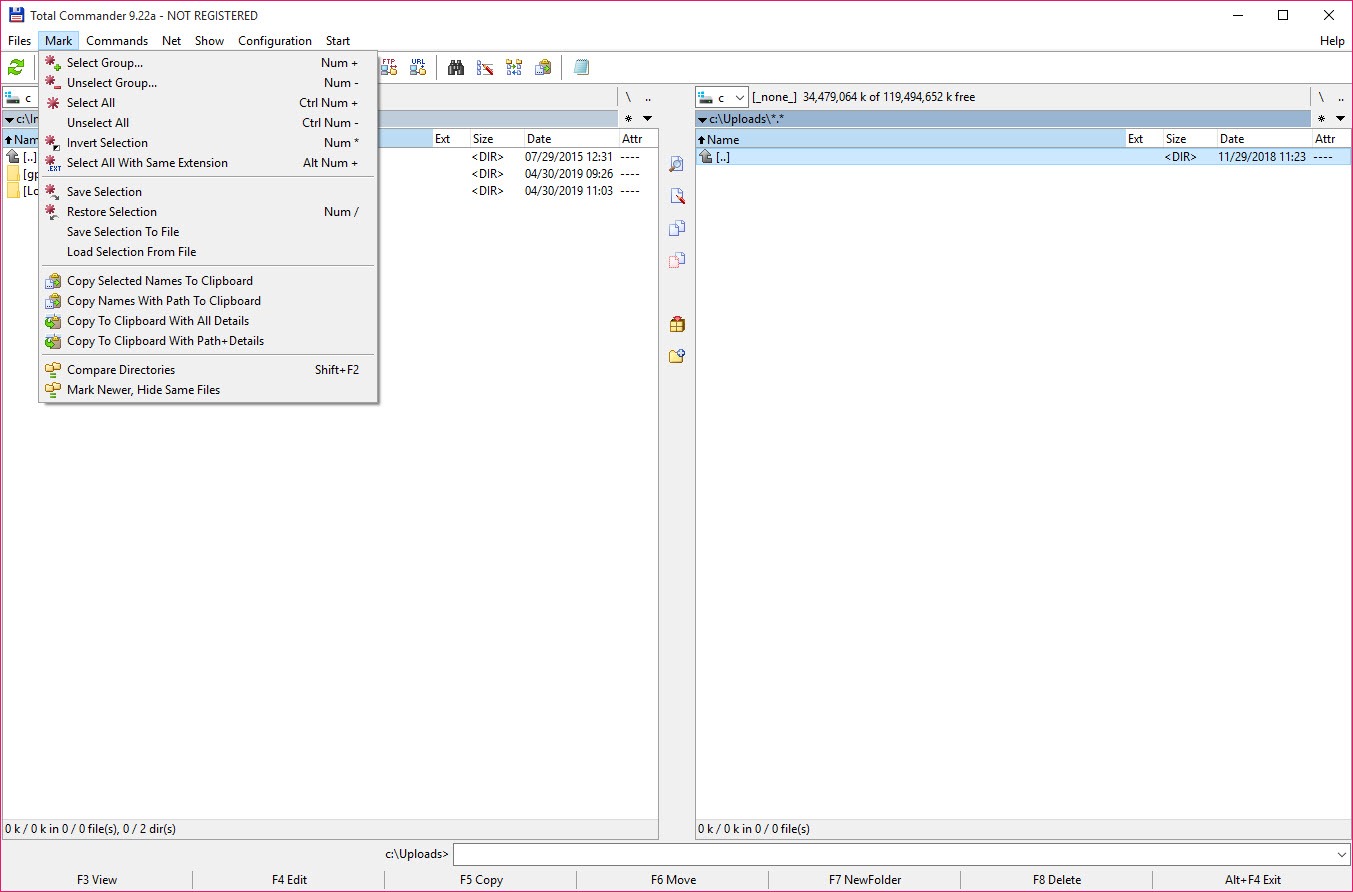
The verification tools are the underrated part. Checksums in CRC, MD5 and SHA variants can be created and verified from the Files menu. Synchronise Dirs compares two folder trees, shows exactly what differs on which side, and copies only the differences. And Compare By Content puts two files side by side, highlights the changed lines, and lets you edit them on the spot, covering most of what a casual user wants from a full comparison tool.
Files can also be split to a size you choose and combined again later, an old trick that still helps when a transfer channel has a cap.
Plugins turn it into whatever you need
The plugin system has four sockets. Packer plugins add archive formats, file system plugins mount things that are not disks at all (device storage, cloud accounts, even the system registry) as browsable folders, lister plugins teach the F3 viewer new file types, and content plugins add columns such as image dimensions or audio tags straight into the file list, where they can also drive the multi-rename tool and the search.
That last trick is the sleeper feature. Columns you add can colour-code the list and sort it, so a folder of photos can be sorted by camera model without opening a single file.
A huge catalogue of community plugins has accumulated around Total Commander, and it is a large part of why users who leave tend to come back. The flip side is honest work. Out of the box the interface looks dense and dated, the toolbar icons are small, and shaping the program into its best self takes an evening in the settings you will never get back. It is a tool you configure once and inhabit, not one that charms on first launch.
Conclusion
Total Commander is for people who handle files in volume. Programmers, photographers, archivists, server keepers, and anyone whose daily work involves hundreds of files rather than five. For them, the keyboard model, the renamer and the plugin sockets repay the learning curve many times over.
If you open a file manager twice a week to find a document, this is more machine than the job requires, and File Explorer will do. The difference only appears under load. Put a thousand files through both, and you will understand why this one has a following that borders on the devotional.
Pros & Cons
- Two-pane, keyboard-first model built for bulk file work at speed
- Archives open like folders, with ZIP packing and wide unpacking built in
- Built-in FTP and FTPS with resume and server-to-server copying
- Multi-rename tool with regex, counters, live preview and undo
- Search reads inside files and archives, and results feed back into the panes
- Handles paths beyond the 259-character limit without complaint
- The default right-button selection confuses every newcomer
- SFTP requires a plugin instead of working out of the box
- The interface looks dense and dated until you spend time configuring it
- Search is unindexed, so deep scans take time
Frequently asked questions
Yes, FTP and FTPS are built in, with resumable transfers and multiple simultaneous connections. SFTP works too, but through a plugin you add separately.
Yes. RAR, TAR, GZ, ARJ, LZH and CAB unpack directly, ZIP packs and unpacks, and packer plugins add further formats. Archives browse like normal folders either way.
Select them and press Ctrl+M. The multi-rename tool applies counters, search and replace, regular expressions and date stamps, previews every new name live, and can undo the batch afterwards.
The default selection mode uses the right mouse button or the Insert key, a scheme built for marking many files fast. A single option in the configuration switches it to the left button.
Yes. Synchronise Dirs lays both trees side by side, marks what differs and in which direction, and transfers only what you approve. Individual files can be compared by content and edited in place.


