

TLauncher
About TLauncher
The official Minecraft launcher does one thing well, it launches the official Minecraft client tied to your Microsoft account. Anything beyond that, switching to an obscure historical version, installing a mod loader, browsing community servers from inside the launcher, managing multiple modpacks side by side, falls on the player to figure out manually. For a single profile playing recent vanilla, that is fine.
For anyone juggling multiple versions, modpacks, or a mix of vanilla and modded play, the official launcher feels deliberately minimal.
TLauncher is a third-party Minecraft Java Edition launcher that fills in those gaps. It boots into a version selector that lists every release from current builds down through historical snapshots and pre-release builds. Mod loaders install with a single click. Profiles are first-class objects you can clone, customize, and switch between without rebuilding from scratch.
The launcher itself is a Java application, which is unsurprising given what it launches, and it runs on whatever machine already has a working Java Runtime Environment installed for the game itself.
The version selector that actually goes back
This is the feature that brings most people to the application. The official launcher lists current releases and recent snapshots. TLauncher lists everything. Current full releases, current snapshots, beta and pre-release builds, every previous full release back through the early years, the alpha versions, the infdev and indev historical builds, even some of the very earliest playable Minecraft prototypes.
The use case for this is more practical than it sounds. Mod authors regularly target a specific older version (modpacks built around a particular release stay viable for years), and the modding community has produced enormous content libraries for specific versions that newer releases never received.
Playing a modpack from a specific era means running the matching Minecraft version, and an alternative launcher like ATLauncher takes a different approach to the same problem, with curated modpacks rather than a raw version list. TLauncher treats every version as equally available, which is what someone trying to play a specific community modpack actually wants.
Historical versions are also a curiosity, the early alphas play very differently from current Minecraft, and being able to launch them with a click rather than chasing down archive files is the kind of convenience the official launcher has never offered.
Mod loader integration that does the boring work for you
Installing a mod loader manually on Minecraft Java involves downloading the loader installer, running it against a target Minecraft version, configuring the profile to use the patched version, and pointing the launcher at the right directory. It is not hard but it is fiddly, and getting it wrong produces silent failures or crashes that are difficult to diagnose.
TLauncher handles this inside the version selector. Pick a Minecraft version, the dropdown next to it shows the available mod loaders for that version (Forge, Fabric, Quilt, OptiFine, sometimes combinations). Select one, the launcher downloads and patches everything in the right places, the profile launches into a modded game. No file copying, no command-line work, no version mismatch troubleshooting.
This matters more than it sounds because mod compatibility is version-specific. A mod that works on one Forge version often does not work on another. Setting up a working modded environment is one of the most common reasons new players abandon Minecraft modding entirely. Reducing that to two dropdowns is a real benefit.
For users who want to go further with client modifications, LabyMod handles the kind of UI and gameplay tweaks that work alongside the launcher’s mod loader setup, and the Minecraft Manager tool offers a different approach to add-on management for users who want to organize installed mods separately from the launcher itself.
Profiles, instance separation, and modpack-style use
Each profile in TLauncher is a self-contained game instance. Its own version, its own mod loader, its own mods folder, its own resource packs, its own save folder if you want it that way. You can clone a working profile, swap one mod, and test it without breaking the original. This is closer to the modpack-style instance model that dedicated modpack launchers use than to the simple profile system in the official launcher.
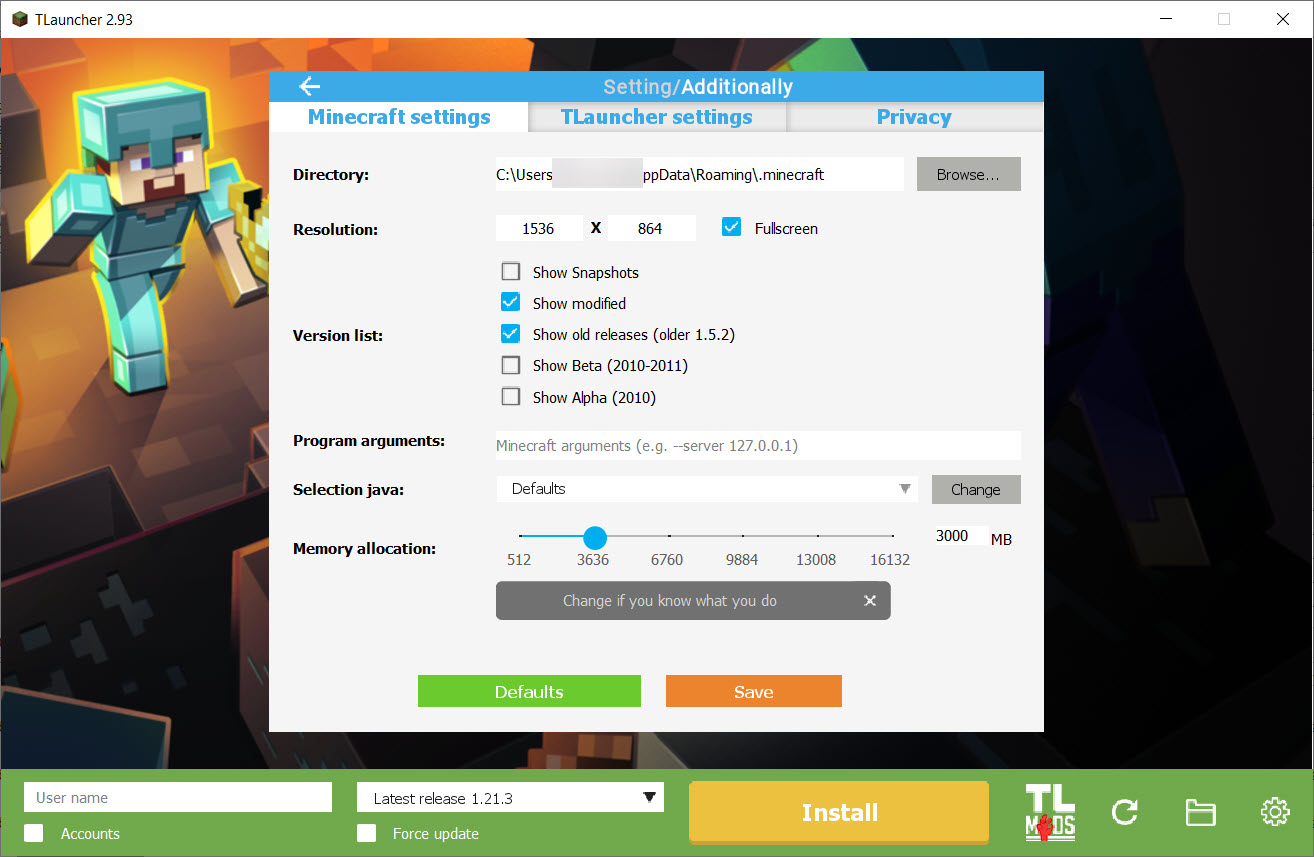
The launcher exposes Java arguments per profile, which matters for modded play. Heavy modpacks need RAM allocations the official launcher does not encourage you to change. Garbage collection flags affect performance noticeably on long sessions. The application puts those settings in the profile editor where you can edit them per instance rather than globally.
Resource packs and shaders fit into the same per-profile model. The launcher browses, downloads, and installs both, which is convenient even though it duplicates what the in-game menus offer.
The actual win is that resource pack and shader configurations attach to the profile rather than the global game, so you can have a profile that always launches with a specific aesthetic and another profile that launches vanilla.
The skin system and where it diverges from the official ecosystem
Player skins are tied to accounts in Minecraft. On the official chain, your skin lives on Mojang’s servers and is associated with your Microsoft account. Other players see it because their game queries Mojang for it.
TLauncher supports two authentication modes, you can sign in with a Microsoft account (which uses Mojang’s skin system normally), or you can use a TLauncher account, which has its own separate skin storage.
The two systems do not talk to each other. A TLauncher-account skin is visible to other TLauncher-account players on compatible servers, but appears as a default Steve or Alex on official Mojang multiplayer servers because those servers query the Mojang skin service and find nothing.
The practical effect, the version of multiplayer play depends on which kind of account you use. The launcher itself is agnostic about which path you choose, but the skin and multiplayer behavior you get on different servers depends entirely on the authentication mode.
Server browser and the multiplayer side
The launcher includes a built-in server browser with community-listed Minecraft servers, sorted by player count, version, and game mode. This duplicates functionality available inside the game itself, but having it in the launcher matters for finding version-compatible servers before you launch, especially when you are deciding which profile to start. A server running a specific modpack on a specific version is easier to find by browsing first.
For hosting your own server rather than joining others, MC Server Soft handles server-side setup more directly than the launcher does, since the launcher is focused on the client side. The two roles are different enough that no single tool covers both well.
The interface and what running it actually feels like
The interface is functional rather than polished. A left sidebar lists profiles, the main panel shows version selection and launch controls, settings live in their own panel. The visual language is dated, the layout is dense, and several settings are in places you would not expect, look for them through the menus the first time. People used to the official launcher’s minimal aesthetic find the interface busy. People used to other third-party launchers find it familiar.
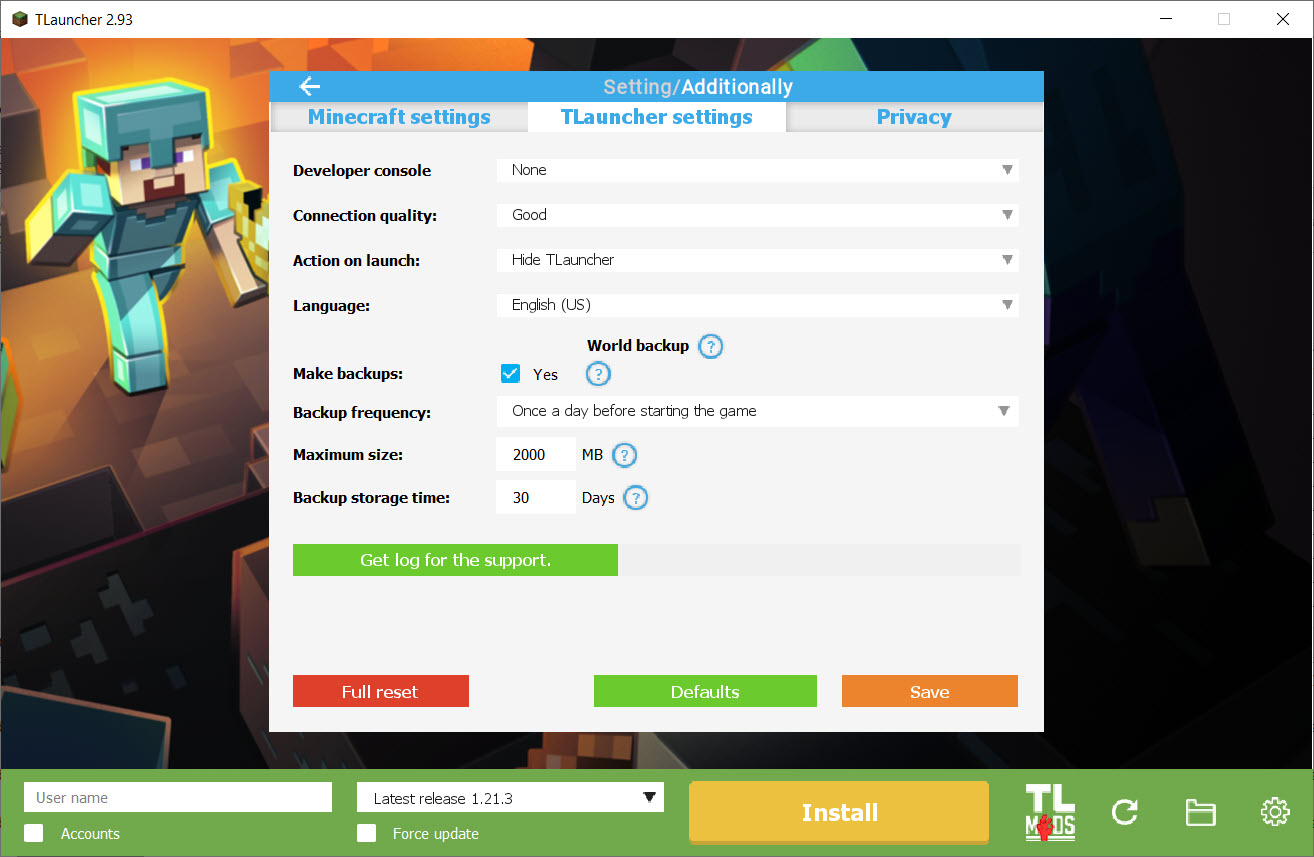
Localization is broad, the application ships with dozens of language options, which makes it accessible internationally. Advertising appears in some builds, banners in the launcher window rather than in the game itself, which is part of how the application has been funded historically. The amount and placement varies between releases.
Where it sits next to the alternatives
The Minecraft Java launcher ecosystem is crowded. The official launcher is minimal and tied to the Microsoft account chain. ATLauncher focuses on curated modpacks with a one-click install model. Other community launchers focus on instance management, server hosting integration, or specific modpack distributions.
TLauncher lands in the middle, broad version coverage, easy mod loader installation, two-account authentication, server browser, profile management. Not the cleanest interface in the category, not the most curated modpack experience, but the most directly useful for someone who knows what version and mod loader they want and just wants to launch it without manual setup.
For users with a Microsoft account who want to follow the most direct path to vanilla play, the official launcher remains the simpler choice. For users juggling multiple modded instances or historical versions, the third-party launchers have advantages the official one does not offer.
Conclusion
TLauncher is the right answer for a specific Minecraft Java workflow, one that involves multiple modded instances, historical versions, or fine control over Java arguments that the official launcher does not expose. The version selector and the mod loader installation are the features that bring users in, the per-profile instance model is the feature that keeps them once they realize how useful it is for managing several modpacks at once.
It is not a replacement for the official launcher in the strict sense, the official client handles vanilla play with a Microsoft account more cleanly and the visual polish is better. But for players whose use case extends past vanilla, the third-party launcher ecosystem offers conveniences that the official one has never matched.
Within that ecosystem, TLauncher is one of the broadest options by version coverage and mod loader support, and the choice between it and an alternative like ATLauncher usually comes down to whether you want raw version control (this application) or curated modpack delivery (the alternative). Different workflows, different priorities, same underlying game.
Pros & Cons
- Version selector covers every Minecraft release from current builds back through historical alphas
- Mod loader installation (Forge, Fabric, Quilt, OptiFine) handled inside the version selector
- Per-profile Java arguments and RAM allocation, useful for heavy modpacks
- Built-in server browser with community-listed servers sorted by version and player count
- Resource pack and shader management attached to profiles rather than globally configured
- Supports both Microsoft account authentication and an independent TLauncher account
- Broad localization, dozens of supported languages
- Interface is dense and dated compared to the official launcher
- Skins from a TLauncher account do not appear on official Mojang multiplayer servers
- Advertising appears in some builds of the launcher window
- No native modpack curation, finding and assembling a modpack is still a manual process
- Some Java argument defaults are not optimal for modern heavy modpacks, manual tuning expected
- The launcher itself is a separate ecosystem with its own account system that does not interoperate with Mojang services
Frequently asked questions
Access to every historical Minecraft version including alphas and snapshots, one-click installation of Forge, Fabric, Quilt, and OptiFine for any compatible version, per-profile Java arguments and RAM allocation, an integrated server browser, and resource pack management at the profile level. The official launcher targets vanilla play with a Microsoft account, and most of these features are either missing or require manual setup there.
Yes. When you select a Minecraft version in the launcher, a dropdown offers compatible mod loaders for that version. Selecting one downloads and installs the loader, patches the game files, and configures the profile to use the modded version. This replaces the manual installer download, target version selection, and profile editing that the same process requires on the official launcher.
Each profile is an isolated instance with its own version, mod loader, mods folder, resource packs, and optionally its own save folder. You can clone profiles, edit Java arguments per profile, and switch between profiles without affecting each other. This is closer to the modpack-style instance management used by dedicated modpack launchers than to the simpler profile system in the official launcher.
A Microsoft account uses the standard Mojang authentication chain, your skin lives on Mojang's servers, and you can join any Minecraft server that requires account verification. A TLauncher account is a separate system with its own skin storage, your skin appears on compatible servers but not on official Mojang ones, and not all online play modes are available. The launcher supports both modes side by side.
Yes, when signed in with a Microsoft account. The launcher uses the same authentication path as the official launcher in that mode, so any server that accepts the official launcher accepts this one. The TLauncher account mode is for offline play and servers that do not require Mojang verification.
Both are managed per profile rather than globally. The launcher includes a browser for downloading resource packs and shader packs directly, with the selection saved as part of the profile configuration. Switching profiles automatically switches the resource pack and shader setup, which is useful when one profile is a vanilla survival game and another is a modded build with a different aesthetic.
RAM allocation is the most important setting and lives in the profile's Java arguments. Heavy modpacks need 6-8 GB or more, well above the default. The launcher exposes the Java arguments directly so you can set the heap size, garbage collection flags, and any other JVM parameters the modpack documentation recommends. The official launcher hides most of these settings, which is part of why heavy modded play often pushes users toward third-party launchers.


