

TinyWall
About TinyWall
TinyWall is a firewall that never asks you anything. Install it and every program on the machine loses network access until you allow it, and when a program is blocked, nothing pops up to say so. The application simply fails to connect, you notice, and you decide whether it deserves an exception.
That inversion of the usual firewall design is the entire philosophy, and it produces a machine where only the programs you consciously approved can talk to the network, which is a stronger position than one where you clicked Allow on a hundred dialogs you did not read.
Underneath, it does not install a driver or a kernel component of its own. It configures the firewall already built into the system, hardens the configuration, and guards it against tampering, so the filtering runs on code that is already there and already trusted. TinyWall is the brain, not the engine.
That is why it uses a few megabytes of memory and why nobody notices it running. The catch is the first hour, when the browser, the mail client and the update tools are all silent until whitelisted.
Whitelisting without popups
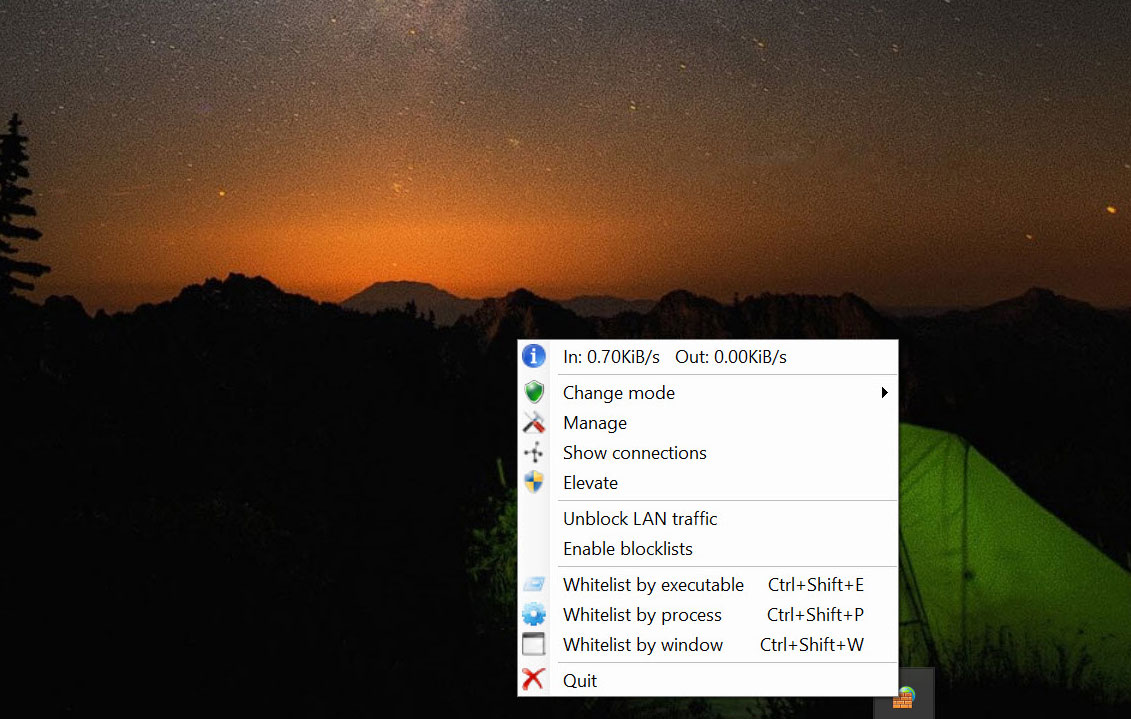
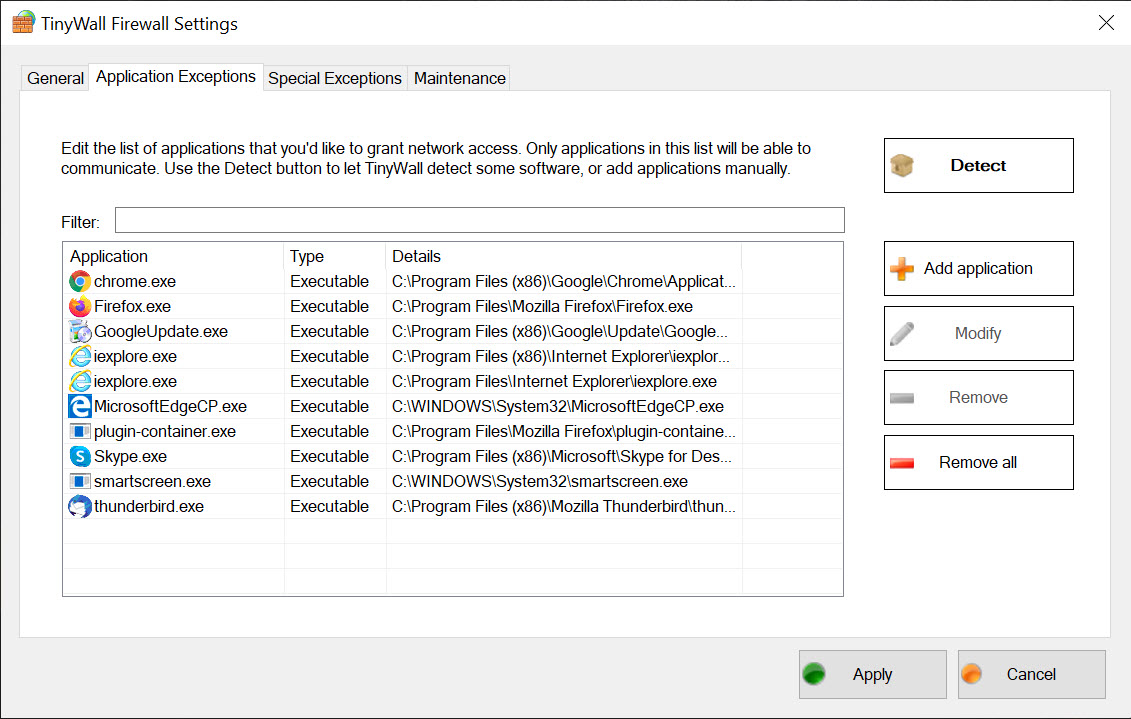
The TinyWall tray menu offers several ways to allow a program. Whitelist by executable opens a file picker. Whitelist by process lists what is running and lets you pick from it. Whitelist by window arms a hotkey, Ctrl+Shift+W by default, after which you click any window on screen and the program behind it gets an exception.
That last method is the fastest, and it is the one people end up using daily, because it turns “this thing cannot connect” into a two-second fix without knowing the executable’s name or location.
Exceptions can be permanent or timed, so a program that needs the network once can be allowed for an hour and forgotten. Each exception can be restricted to the local network, which suits a printer utility or a media server that should never reach the internet, and the setting to always allow communication within the LAN keeps file sharing working without a rule for every service.
The rules are stored in the built-in firewall as ordinary entries, visible and editable there if you ever remove this program.
Autolearn, and the day-one ritual
Autolearn is how the first hour with TinyWall stops hurting. Switch to it from the tray, use the computer normally for a while, deliberately opening the browser, the mail client, the chat tool, the game launcher and anything else that lives online, then switch back to normal protection. Every program that used the network while learning has an exception, and everything else stays blocked.
The one rule is to run it on a machine you trust. Learning mode allows all traffic while it watches, so malware already present gets whitelisted along with everything else. Clean first, learn second. Run for an afternoon rather than a minute, since programs that only connect occasionally, a backup tool at midnight or an updater once a week, are missed by a short session and need adding by hand later.
The five modes and the connection view
Mode switching sits at the top of the TinyWall tray menu. Normal protection is the default, blocking everything not whitelisted. Allow outgoing lets any program out and blocks unsolicited inbound, which is close to how the built-in firewall behaves on its own. Block all cuts the network entirely, useful when something suspicious is running and you want it isolated while you look. Disable firewall does what it says, and Autolearn is the fifth. Switching takes two clicks and the tray icon changes colour, so the current mode is never in doubt.
Show connections opens a live list of established and blocked connections with the process, protocol, ports and remote address for each. It is the diagnostic view for “which program is talking to whom”, and it doubles as the place to spot something that should not be there.
Open ports on the machine are listed too. For a graphical, historical view of the same traffic, GlassWire is more pleasant, though it is a monitor first and a firewall second.
Blocklists, hosts protection and tamper resistance
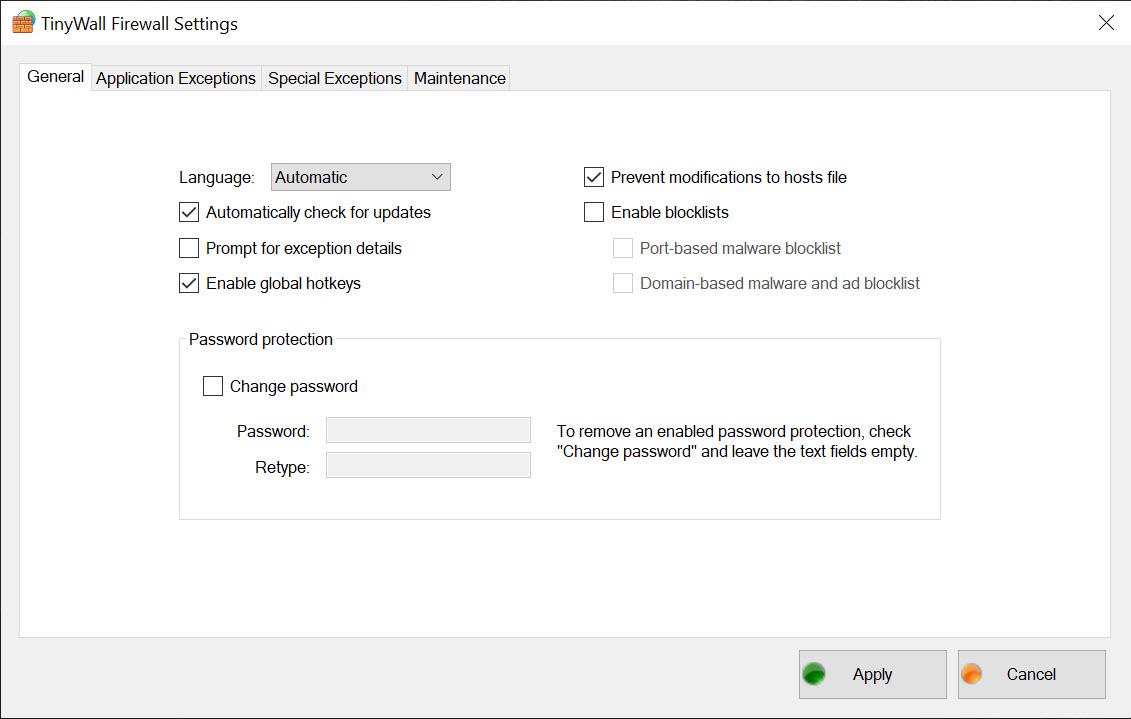
TinyWall can switch on optional blocklists of known malicious domains and ports, adding a layer that catches connections to servers already flagged as bad regardless of which program makes them. Hosts file protection locks the hosts file against the redirection trick malware uses to hijack websites. Port scan prevention and boot-time filtering close the gap where a machine is briefly reachable before the firewall service starts.
Tamper protection prevents other processes from altering the firewall’s settings, which matters because disabling the firewall is one of the first things a piece of malware attempts. Settings can be locked with a password, so a shared or family machine cannot have its rules loosened by someone who does not understand them. None of this replaces an antivirus, and the two run side by side without conflict, as does an outbound telemetry blocker that writes its own rules into the same built-in firewall.
What it does replace is the other third-party firewalls, and running two is not supported.
Where it falls short
There are no popups, and that cuts both ways. A program silently failing to connect is fine when you know this firewall is installed and think to check. It is baffling when you forget, and a spouse or colleague who does not know the tool exists will assume the internet is down. You have to open the connections view yourself to find the culprit.
Rule granularity is application-level. Allowing a program allows it everything, with the LAN restriction as the only narrower option, so there is no per-port or per-address rule for a specific program without going into the built-in firewall directly.
A rule-based firewall front end offers finer control in exchange for a busier interface. For a machine with dozens of network-aware programs, the initial whitelisting is real work even with Autolearn.
Conclusion
TinyWall suits people who want to know exactly which programs on their machine may use the network and who would rather approve a short list once than answer a stream of dialogs forever. Privacy-minded users, anyone running software they do not fully trust, and those who like their security tools invisible will find the hotkey whitelisting and the tiny footprint hard to give up.
It is a poor fit for a shared computer where other users will not understand why things fail, and for anyone needing per-port rules on individual programs. Spend the first afternoon in Autolearn on a clean machine, learn the hotkey, and it fades into the background while doing more than most firewalls that shout.
Pros & Cons
- Blocks every program by default with no popups at all
- Whitelist by clicking a window with a hotkey
- Autolearn builds the exception list from normal use
- No drivers or kernel components, so almost no resource use
- Tamper protection and a settings password guard the rules
- Timed exceptions and LAN-only restrictions per program
- Blocked programs fail silently, which confuses anyone unaware of the firewall
- Rules are per application only, with no per-port control for a program
- Initial whitelisting takes real effort on a busy machine
- Autolearn whitelists malware if run on an infected system
- Settings window looks dated
Frequently asked questions
Everything is blocked until allowed. Press Ctrl+Shift+W, click the browser window, and it gains an exception. Or use Autolearn mode for a while to whitelist everything you use.
No. It controls network access only and runs alongside any antivirus. It does replace other third-party firewalls, and two should not run at once.
It allows all traffic while watching which programs use the network, then keeps exceptions for each of them when you switch back to normal protection. Run it only on a clean machine.
Yes. Exceptions can be timed, so a program gets network access for a set period and is blocked again afterwards.
Yes. Restrict that program's exception to the local network and it can reach devices on the LAN while being blocked from anything beyond the router.


