

TeraCopy
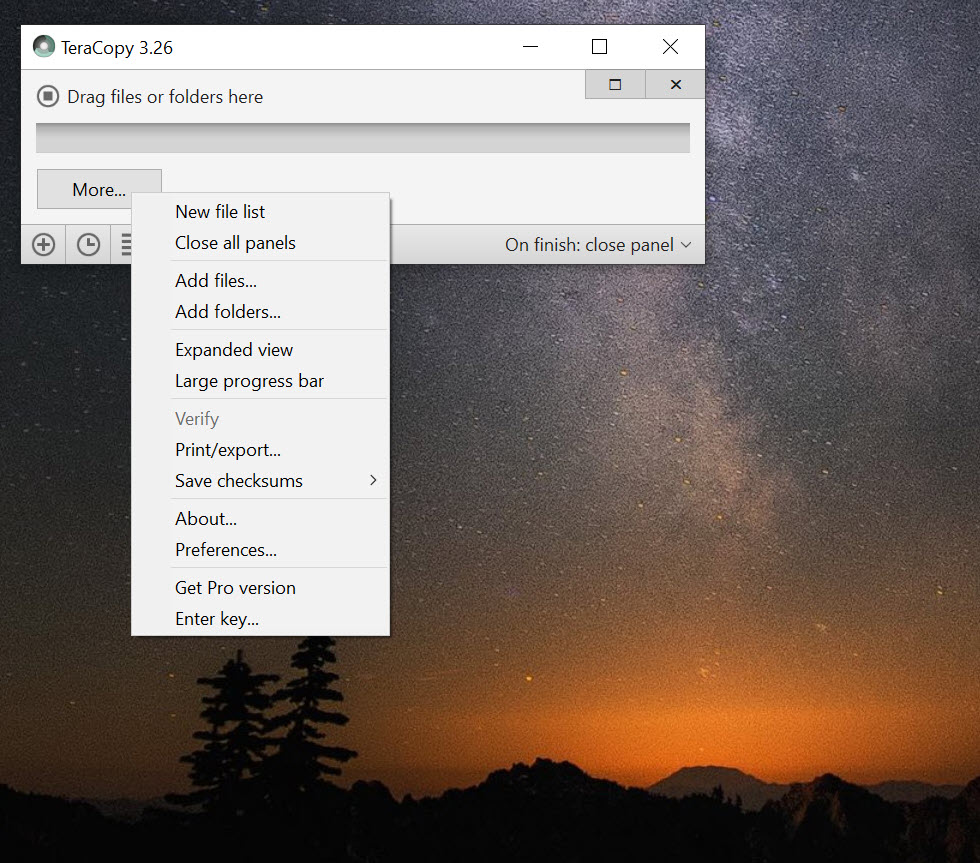
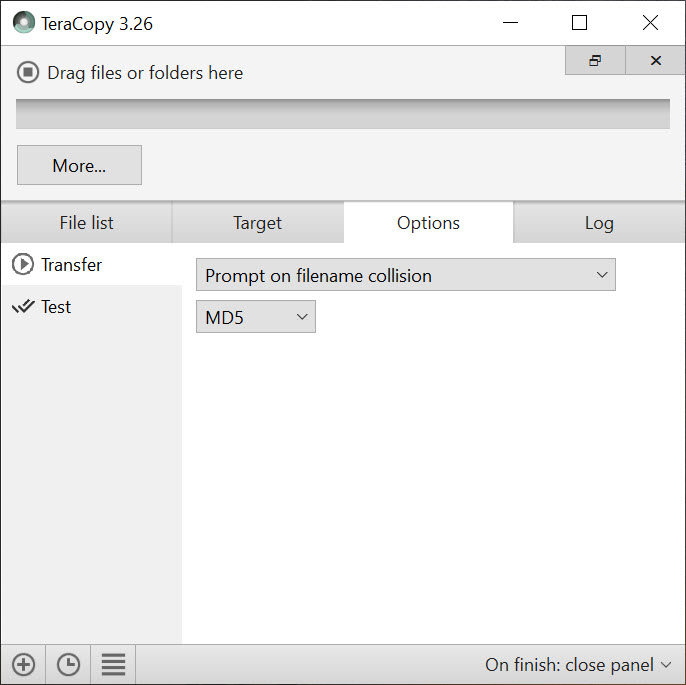
About TeraCopy
TeraCopy replaces the file copy dialog you already use with one that is faster, tougher, and far more informative. Every time you drag a folder somewhere or paste a batch of files, the built-in copy routine handles it, and most of the time that is fine. But the moment a transfer gets big, or a single file goes bad, or a drive hiccups halfway through, the limits of that built-in routine show up fast. This tool steps into exactly that gap.
The pitch is simple. Copy files quicker, verify they arrived intact, and do not let one corrupt file kill an hour-long transfer. TeraCopy slots into your normal workflow so smoothly that you can set it to take over copying and moving entirely, and then you barely notice it is there until the day it saves you from a failed transfer that would otherwise have meant starting over.
Anyone who has watched a giant copy job crawl to 98 percent and then die on a single unreadable file knows the frustration this is built to end. Instead of an all-or-nothing operation, you get a copy that adapts, recovers, and reports back.
Faster copying, and why
Speed is the headline, and there is real engineering behind it. Rather than using a fixed, one-size-fits-all buffer, TeraCopy adjusts the buffer size dynamically to suit the drives and files involved, which cuts down the time wasted on disk seeking. It also uses asynchronous transfers, so reading from the source and writing to the destination happen in parallel rather than waiting on each other, which speeds things up noticeably when you copy between two separate physical drives.
The gains are most obvious on big jobs, a folder of thousands of photos, a video archive, a drive’s worth of backups. On those, the difference against the default copy is something you can feel rather than just measure.
For a single small file it hardly matters, but nobody reaches for a tool like this to move one document.
Verification is the feature that earns trust
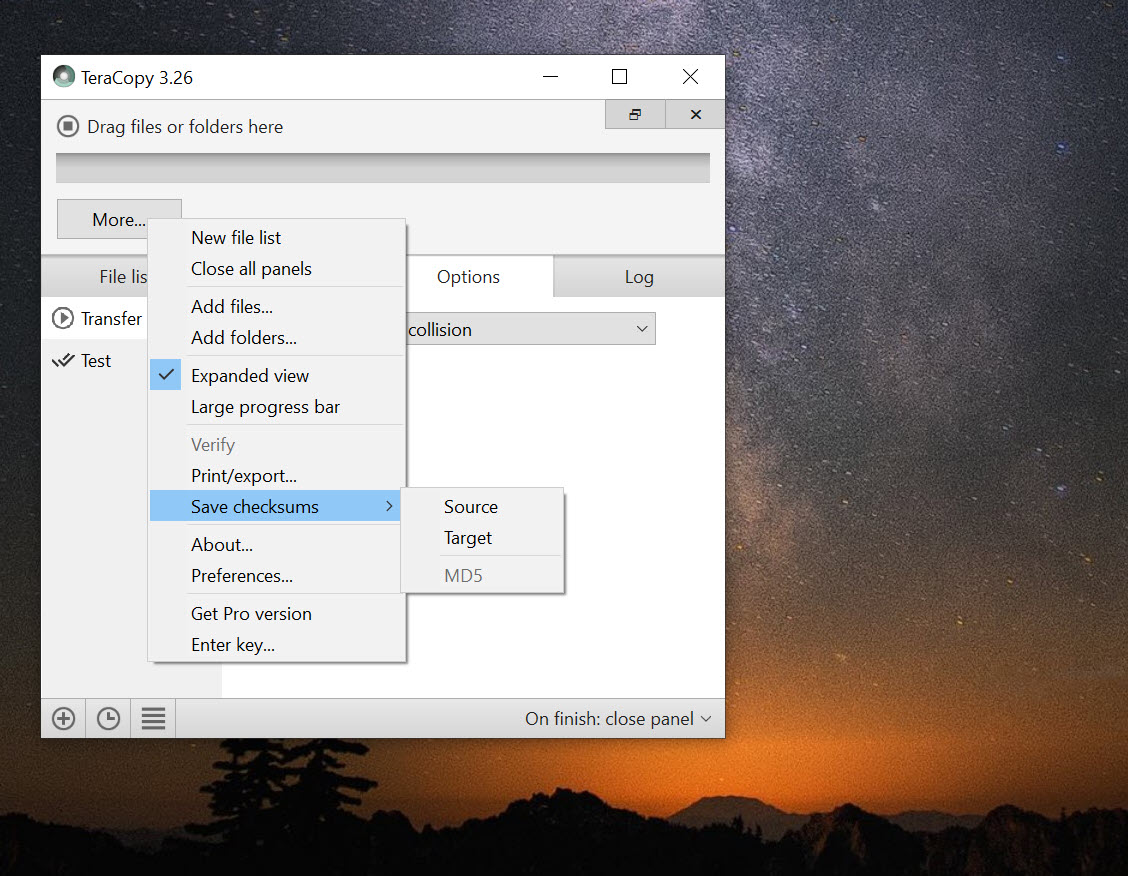
Here is where it goes beyond mere speed. After a copy finishes, TeraCopy can verify that the destination files are byte-for-byte identical to the originals by comparing checksums, mathematical fingerprints of each file. If even a single bit got mangled in transit, the check catches it. The default copy gives you no such assurance, it simply assumes the copy worked.
That matters enormously for anything you actually care about. When you are moving a backup, a media library, or important work files, “probably copied fine” is not good enough. The tool supports a wide range of checksum algorithms, from the fast and common CRC32 to the stronger SHA-256 and modern options, so you can choose between maximum speed and maximum certainty depending on how precious the data is.
For archival or sensitive material, that verification is genuine peace of mind.
Error recovery that keeps the batch alive
This is the feature that turns a frustrating afternoon into a minor inconvenience. When TeraCopy hits a file it cannot read, a damaged file, a permission problem, a momentary glitch, it does not panic and abort everything. It retries the file a few times, and if it still cannot copy it, it sets that one file aside and carries on with the rest of the queue.
At the end, you get an interactive list showing exactly which files failed and why. You can then fix whatever the problem was and recopy just those files, rather than running the entire job again. For large, unattended transfers, this resilience is invaluable, because it means you can walk away and trust that one bad file will not have wasted the whole effort.
Pause, resume, and queue
Long transfers are not always convenient to run in one uninterrupted block. You can pause a copy at any time to free up disk bandwidth for something more urgent, then resume it later with a click, picking up exactly where it left off. If a removable drive gets unplugged mid-transfer, TeraCopy can even wait for it to be reconnected and then continue, turning a disaster into a shrug.
There is also a queue. Rather than launching five copy operations that all fight over the same disk and slow each other to a crawl, you can line them up to run one after another. The drive does one job at a time at full speed instead of thrashing between five, which is both faster overall and easier on the hardware.
How it fits your workflow and the alternatives
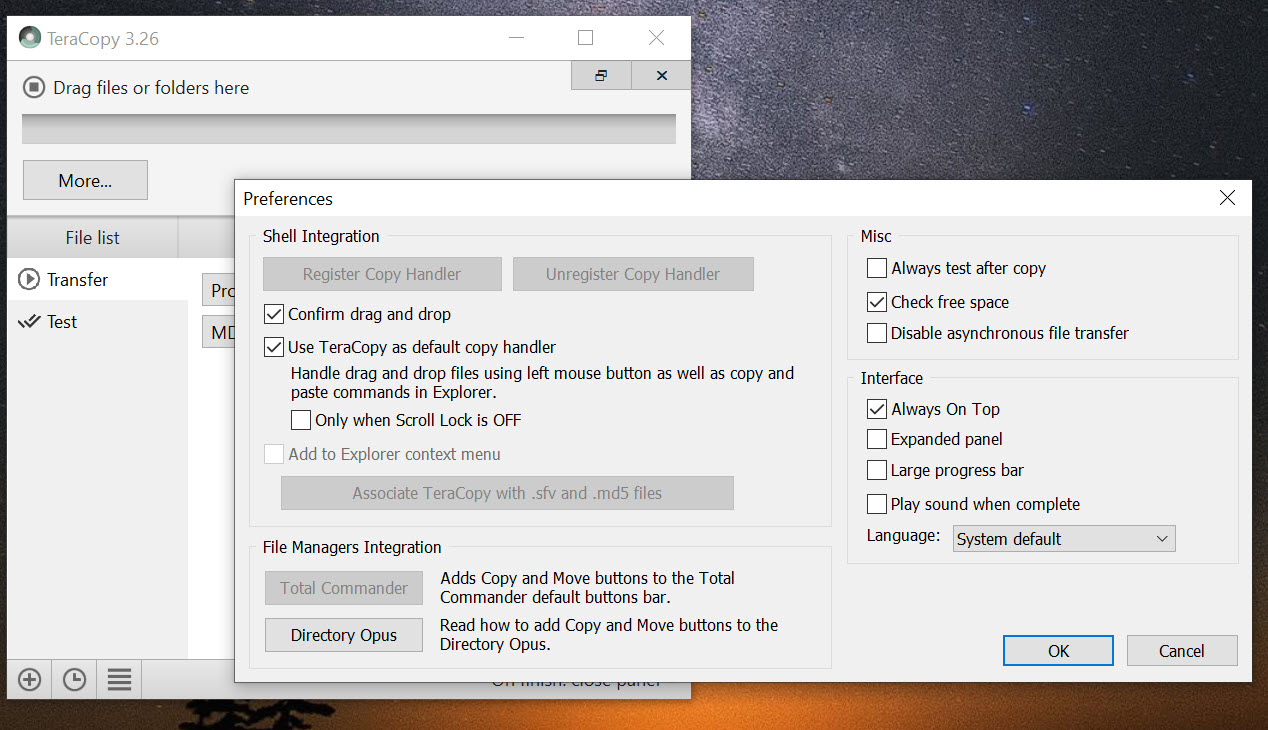
The TeraCopy integration is what makes it stick. It hooks into your file manager’s right-click menu, so copying with it is just another option when you select files, and you can choose to make it the default handler so that every copy and move goes through it automatically without changing your habits at all.
It is not the only player here. FastCopy chases raw speed even harder with aggressive multithreading, though that can run hot on laptops, while Ultracopier offers a similar queue-driven approach. For scripted, automated, repeatable jobs, the built-in Robocopy command-line tool is the right pick, and many administrators use both.
And if your real need is keeping two folders in sync rather than one-off copying, FreeFileSync is built for that instead. Where this one wins is the balance of speed, verification, and a friendly visual workflow for everyday interactive copying.
The trade-offs
It is worth being honest about the edges. This is an interactive, visual tool, not a scripting engine, so for automated backup routines and scheduled jobs you will still want a command-line option. Verification, while valuable, does add a little time to each transfer, so for throwaway copies you may leave it off.
And replacing the default copy handler entirely, while convenient, can occasionally confuse other software that expects the built-in behavior and its specific error messages. The safe approach many people take is to leave the default alone and just use the right-click option when they want it, getting the benefits without any risk of interference.
Conclusion
TeraCopy is for anyone who moves serious amounts of data and is tired of the default copy letting them down. The person backing up a photo library, the editor shuffling video files, the technician migrating a full drive, anyone who has lost an hour to a transfer that died on one bad file. It is faster where it counts, it verifies what it copies, and it recovers from the errors that would otherwise sink the whole job.
It is not a replacement for scripted backup tools, and its benefits are modest if you only ever copy small files. But for everyday interactive transfers, especially the large and the important ones, it turns file copying from a hope-it-works gamble into a controlled, verifiable process. Set it as your default copy handler and you may never think about it again, which is exactly the point.
Pros & Cons
- Noticeably faster than the default copy on large transfers between drives
- Checksum verification confirms files copied without a single bit of corruption
- Error recovery skips bad files and keeps the rest of the batch running
- Pause and resume, including waiting for a reconnected removable drive
- Queue system runs transfers sequentially to avoid disk thrashing
- Integrates into the right-click menu or replaces the default copy entirely
- Built for interactive use, not scripted or scheduled automation
- Verification adds some time, so it is overkill for trivial copies
- Replacing the default copy handler can confuse some other software
- Speed gains are minimal on single small files
Frequently asked questions
Yes, especially on large transfers between two drives. It uses dynamic buffers and asynchronous transfers to cut seek times, and the speed difference is most noticeable when moving big folders or many files at once.
After a transfer, it compares checksums of the source and destination files. If any file differs by even one bit, it flags the error, giving you confidence that copies of important data are intact.
It retries the file a few times, then skips just that one and continues with the rest. Afterward, an interactive list shows what failed so you can fix the issue and recopy only those files.
Yes. You can pause at any point to free up resources and resume with a click. If a removable drive is disconnected mid-copy, it can wait for reconnection and then continue.
Yes. It integrates into the right-click menu, and you can optionally set it as the default handler so every copy and move uses it automatically, keeping your normal workflow.
Not ideally. It is designed for interactive, on-demand copying. For scheduled or scripted backup jobs, a command-line tool is the better fit, and many people use both for different tasks.


Very nice program for transferring files at very high speed. Thank you!