

SoundSwitch
About SoundSwitch
Switching the default audio output in Windows is one of those tasks the operating system makes harder than it needs to be. You right-click the speaker icon, you open the sound panel, you find the playback tab, you locate the device you want, you set it as default, you close the dialog. Five steps to do something most people do five times a day, headphones for music, speakers for a meeting, a USB DAC for one specific application, back to headphones when the meeting ends.
SoundSwitch is a tiny utility built around that exact friction. It lives in the system tray and gives you a global hotkey that cycles through your audio devices, switching the system default with one keystroke.
That is the whole core function, and it is also the entire reason the application exists. Everything else in SoundSwitch is built around making that single action as fast and as flexible as your habits require.
A hotkey that actually replaces the sound panel
Press the hotkey, the next playback device in your list becomes the default. A toast notification confirms which device just took over. No dialogs, no clicks, no menu chains. If you have three devices in rotation (laptop speakers, USB headphones, HDMI to a monitor), three presses cycle through all of them and back to the start. If you want to skip past a device temporarily, an extra press jumps it. That is faster than memory can keep up with, which is part of the point.
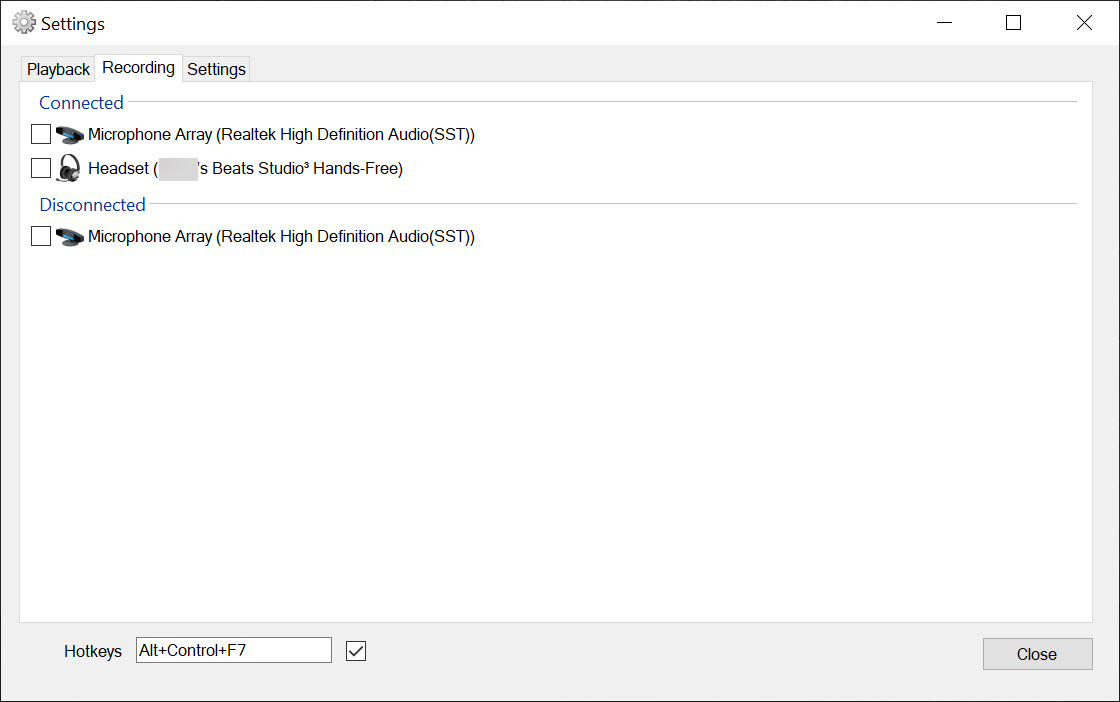
The same logic applies to recording devices, with a separate hotkey. You can switch microphones independently of speakers, which matters if you have a streaming mic on USB and a webcam mic for casual calls. Both hotkeys are user-defined, so they can sit on key combinations that do not collide with anything else you already use.
Device selection, the feature that makes it actually usable
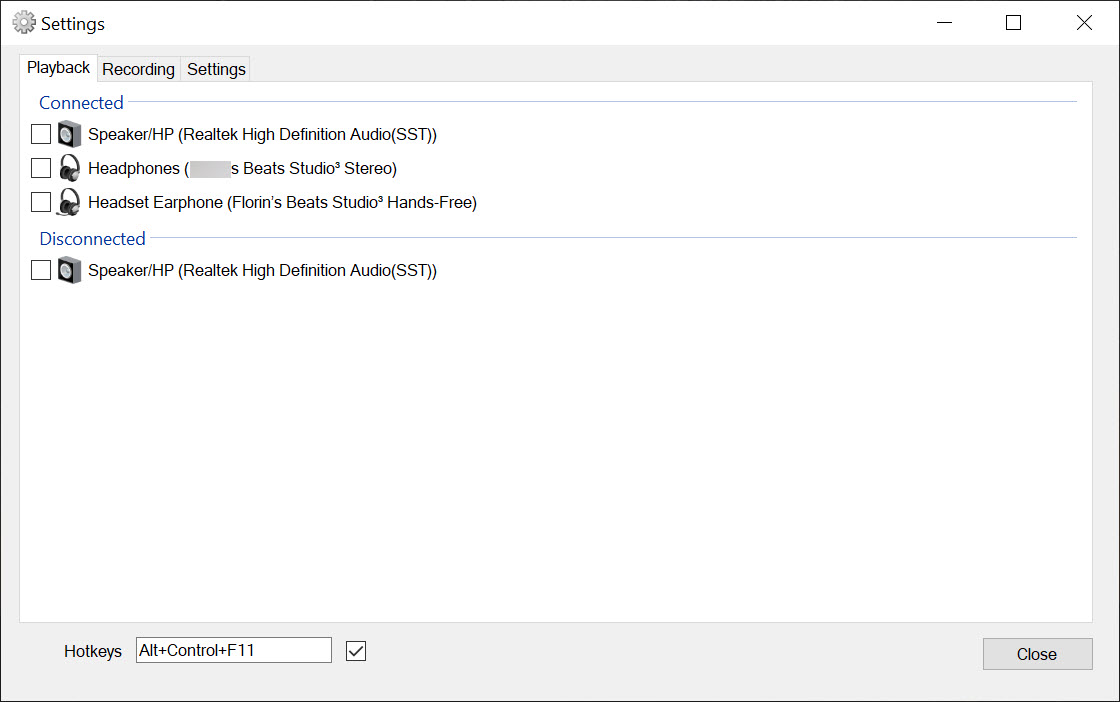
The Windows playback list often includes devices you do not care about. HDMI outputs from a graphics card that is not connected to a speaker. A virtual driver from some application you installed once. A Bluetooth headset you used last year. Cycling through all of these would defeat the purpose of fast switching.
SoundSwitch solves this by letting you tick which devices participate in the cycle. The list shows everything Windows reports, you check the three or four you actually use, the rest are ignored. The cycle order matches your selection order, so the device you reach for most can sit at the top. This is the difference between a utility that works in theory and one that fits the way you actually use your machine.
A general-purpose automation tool like AutoHotkey can script the same behavior, but you would have to write and maintain the script yourself, and most people who try that route end up back at a dedicated utility within a week.
Per-application profiles
A newer feature lets SoundSwitch auto-switch the default device based on which application is in focus. Bring up your DAW, the USB audio interface becomes default. Switch to a browser, the system reverts to whatever you set for general use. Open a game, the headset takes over.
Profiles are defined per executable, with a target playback and recording device for each. The matching is foreground-window based, so the device follows your attention rather than your launch order. It works for the common cases but has limits, applications that open as child processes, browser tabs, or anything running through a UWP wrapper sometimes do not trigger the rule as expected.
For routing audio per application rather than swapping the global default, Audio Router is the better fit, it operates at a different layer.
Mute, volume, and the rest of the tray menu
A separate hotkey can mute the active playback device, which is more useful than it sounds when a notification fires during a call and you need quiet immediately. Scroll-wheel-over-tray-icon adjusts volume on the current default. Left click on the tray icon advances the cycle, the same as the hotkey. Right click opens the full menu with the device list, a quick way to pick a specific device when you want to jump rather than cycle.
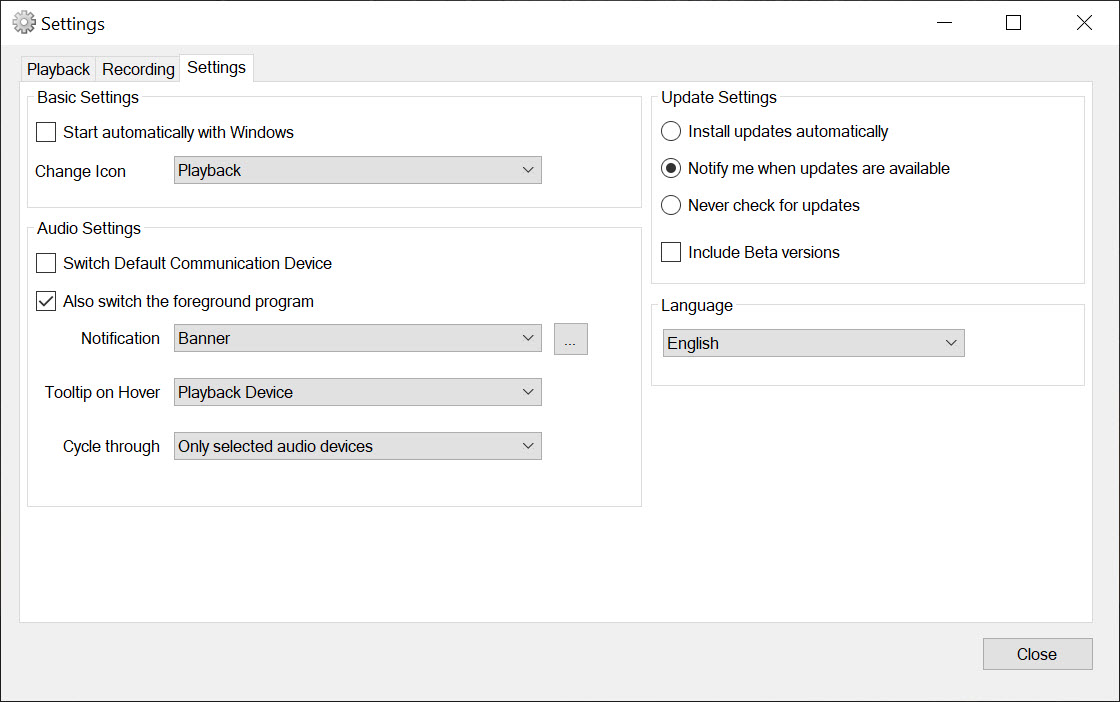
The notification toast that appears on each switch is configurable. You can have it show the device name only, or a full toast with an icon, or nothing at all. The silent option matters if you swap devices constantly and the popups start to feel like noise.
Footprint and what it does not do
The application sits in the tray with negligible memory use. It is the kind of utility you install once and forget about, until you switch to a machine that does not have it and remember why you bothered. There is no installer bloat, no telemetry prompts, no account requirement.
SoundSwitch does not mix audio, does not route per-application streams, does not equalize or process. For mixing multiple sources into virtual outputs or building a streaming audio chain, VoiceMeeter is the tool that fills that role and the two complement each other rather than compete.
SoundSwitch is also not a sound enhancer, voice changer, or driver utility. If you wanted any of those, something like Clownfish Voice Changer handles voice modification, but that is a different category.
The scope here is narrow on purpose. It does one thing, switches the default audio device, and it does it without ceremony.
Conclusion
SoundSwitch belongs to a small category of utilities that exist to solve one specific friction and stop there. Anyone who regularly switches between headphones, speakers, and a USB audio device will install it once and use it daily without noticing it. Anyone whose audio setup is fixed will never need it.
The per-application profiles raise the utility from a hotkey replacement into something that quietly manages your devices for you, which is the point at which a small tool starts to feel essential rather than convenient. It does not try to be an audio mixer, an equalizer, or a routing engine, and that restraint is part of why it works.
For everything beyond default-device swapping, the answer is a different tool. For the swap itself, the application removes a daily annoyance that Windows has never bothered to address.
Pros & Cons
- A single hotkey replaces the entire Windows sound panel routine
- Separate cycling for playback and recording devices
- Device list is filtered by you, only the devices you actually use appear in the cycle
- Per-application profiles auto-switch devices when a target app is foregrounded
- Mute, scroll-wheel volume, and tray menu access all included
- Lightweight, open source, no telemetry, no account required
- Per-application profile detection misses some edge cases, especially with browser-launched processes
- Does not route per-application audio streams, the swap is system-wide
- Toast notifications can feel repetitive on rapid cycles if not silenced
- No built-in EQ, mixing, or processing, those need separate tools
- The interface is functional and not particularly polished
Frequently asked questions
The default Windows method of changing audio output takes several clicks through nested menus. This utility reduces the swap to a single hotkey, with optional automation based on which application is in focus.
Yes, recording and playback have separate hotkeys and separate device cycles. You can change microphones without affecting speaker output and vice versa.
Only the ones you check. The settings expose the full Windows device list and let you select which devices participate in the cycle, so HDMI outputs you never use or stale Bluetooth pairings can be excluded.
You define a target executable and the playback and recording devices it should use. When that executable is the foreground window, the system swaps to those devices automatically. When focus leaves, the previous default returns. Matching is window-based, so some applications that launch through wrappers or run as child processes do not trigger the rule reliably.
It runs in the system tray with a very small memory footprint. CPU activity is essentially zero except during the actual device switch.
Yes, scrolling the mouse wheel while hovering over the tray icon adjusts the volume of the currently active default device.


