

Sound Booster
About Sound Booster
Sound Booster makes a computer louder than its volume slider allows. Once installed it sits in the tray with its own slider, and dragging that slider past the point where the system stops raises the output further, up to five times the normal maximum. Every program that plays sound is affected at once, a quiet video in a browser, a call in a meeting app, a game whose dialogue was mixed too low, a film with a soundtrack that drowns its lines.
Nothing in those programs changes, and nothing in the system’s own mixer moves, nor does the per-program device routing that Audio Router handles. The extra gain is applied to the audio on its way to the sound card.
The need it answers is familiar to anyone with a laptop. Built-in speakers are weak, a recording was made too quietly, or the room is noisy, and the slider is already at the top. Sound Booster adds the headroom the hardware never offered. The trade is physics, since more gain from a speaker not built for it means distortion and strain, and the program has a limiter to hold that off.
The sections below say how far that limiter stretches, what the two boosting methods do differently and where the application stops.
The tray slider and the hotkeys
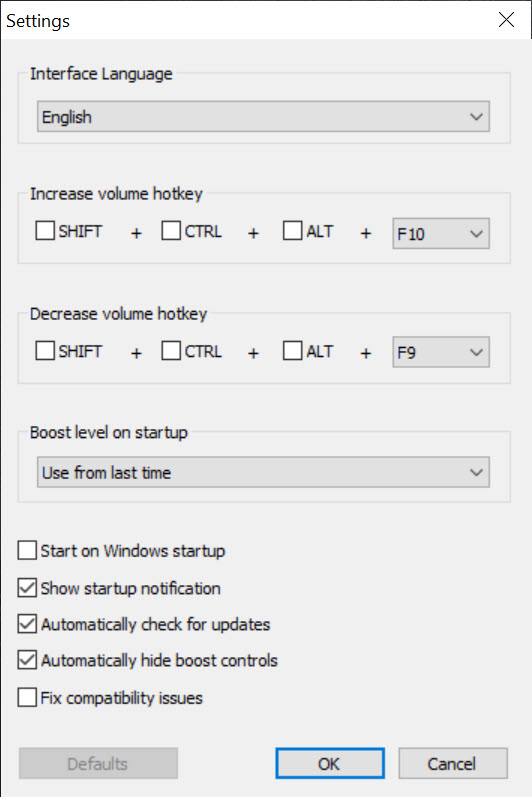
The whole Sound Booster interface is a slider that pops up from the tray icon, with the current boost percentage shown beside it and a checkbox to switch the boost off without closing the program. Drag it and the change is heard at once. There is no main window to speak of, only a settings menu with a handful of options, and the boost stays where you left it between sessions.
Hotkeys cover the moments when the tray is out of reach, during a full-screen game or a presentation. A key combination raises the boost, another lowers it, and a third toggles it, so a quiet scene gets a nudge without leaving the screen.
Autostart launches the program at sign-in so the boost is already in place when the first video plays, which most users leave on and which can be turned off for a machine where it is needed only now and then.
Two ways of boosting, and when to switch
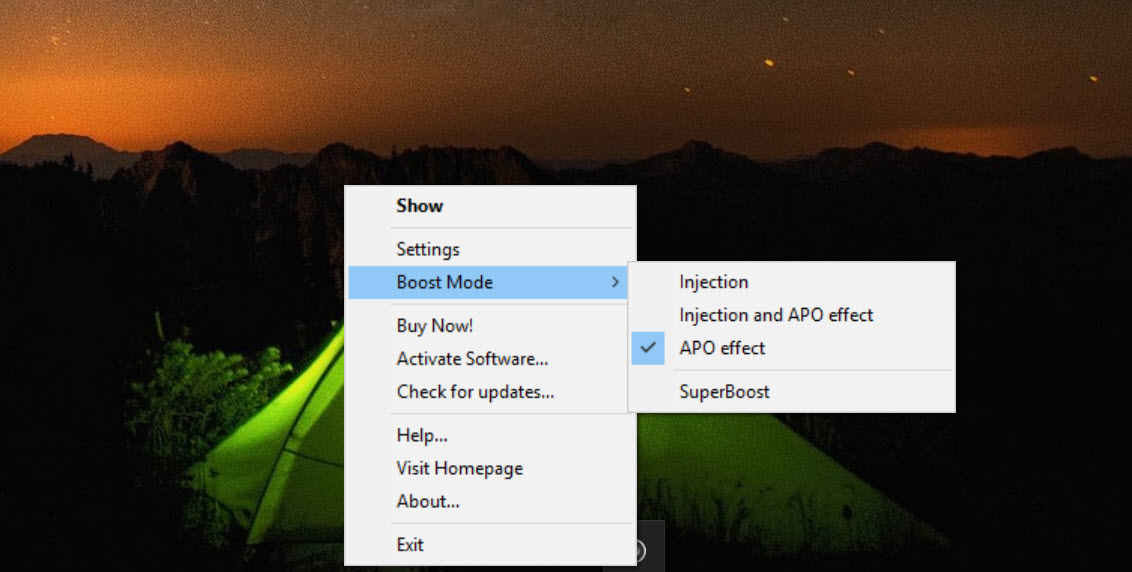
Sound Booster offers two methods and picks one by default. The first is an audio processing object, a filter attached to the sound device that every stream passes through on its way out. It is the cleaner method and it works with any program, including the ones that play sound through protected paths, and it is the one to try first. The second injects the boost into the programs themselves as they play, which reaches software the device filter misses and occasionally conflicts with anti-cheat systems or hardened browsers.
Switching methods is a menu choice and a restart of the program. If the boost does nothing in a particular application, the other method is the first thing to try, and if sound breaks entirely, switching back fixes it. Equalizer APO uses the same device filter idea for equalisation rather than gain, and the two can be installed together as long as only one is asked to raise the volume.
The limiter, and what distortion means here
Turning a signal up past its ceiling clips it, which is the crackle heard from any speaker pushed too hard. The program watches the level continuously and holds peaks under the limit, so the boosted sound stays clean well past the point where a raw gain increase would have broken up. That is the honest claim behind the no-distortion promise, and it holds at moderate boosts.
Speakers, headphones and the sensible range
The limiter does not hold forever. Push a laptop speaker to several times its design level and the limiter stops the digital clipping while the speaker itself buzzes and rattles, because the cone is doing something it was not built to do. The result sounds compressed and harsh, and sustained use at that level can damage small speakers. The practical range is a boost that makes a quiet source normal, not one that makes a normal source painful, and headphones take far more than built-in speakers do.
Where it stops
Sound Booster has no equaliser, no per-program volume and no way to boost one application while leaving another alone, since the gain applies to everything at once. For routing or balancing individual programs, a software mixer does that job and this one does not try. Louder is not better, and a recording with poor clarity gets louder without getting clearer.
The program runs for an evaluation period and then needs registering to keep working, which should be known before relying on it. Some anti-cheat systems object to the injection method, and switching to the device filter resolves most of those cases.
Conclusion
Sound Booster suits laptop owners with weak speakers, anyone watching quietly mixed videos or taking calls in noisy rooms, and gamers whose dialogue sits under the effects. The tray slider and the hotkeys make it a one-gesture fix, and the limiter keeps moderate boosts clean. People who present from a laptop in rooms with no speakers of their own will find it earns its place on the first trip.
It is a volume knob, not a sound improver, and treating it as one strains the hardware. Boost until quiet becomes normal and stop there, prefer the device filter method, and keep headphones for anything louder than the speakers were built for. Used that way it solves a daily annoyance without doing the damage its maximum setting invites.
Pros & Cons
- Raises volume up to five times the system maximum for every program at once
- Tray slider with instant effect and hotkeys for full-screen use
- Two boosting methods so a stubborn application can be reached
- Limiter holds peaks under the clipping point at moderate boosts
- Autostart so the boost is in place from sign-in
- Gain applies to everything, with no per-program control or equaliser
- High boosts strain built-in speakers and sound harsh despite the limiter
- Evaluation period, after which registration is needed
- Injection method can conflict with anti-cheat systems
Frequently asked questions
Up to five times the system's maximum, applied to every program that plays sound.
A limiter holds digital clipping off at moderate boosts. At high levels small speakers distort physically regardless, so the practical range is making quiet audio normal.
Switch boosting methods in the settings and restart the program. The device filter and the injection method each reach software the other misses.
No. The gain applies to all sound at once. A software mixer is needed for per-program control.


