

Snipping Tool++
About Snipping Tool++
Most screenshot tools save a file and leave you to do something with it. Snipping Tool++ is built around the step after that, taking the capture, uploading it and putting a link on your clipboard ready to paste.
Snipping Tool++ shortens a common sequence considerably. Capture, save somewhere, open a browser, upload, wait, copy the address becomes a hotkey and a paste.
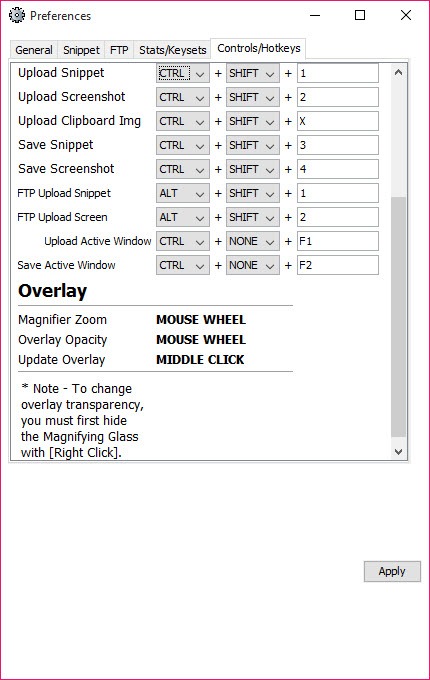
The hotkeys are configurable, so the capture overlay appears on whatever combination suits you, and the image is also saved locally rather than existing only on the far end.
The upload is to a public host
Being clear about this matters more than any Snipping Tool++ feature, because it is the central mechanism and it has a consequence people do not always consider.
The upload goes to an image hosting service, which means the screenshot leaves your machine and sits on somebody else’s infrastructure. Anybody who has the link can open it, and links are short enough that the contents are not protected by obscurity in any meaningful sense.
That is exactly right for sharing a screenshot of an error message with a colleague and exactly wrong for anything showing an account, an invoice or a document. The tool does not distinguish, so you have to.
Blurring before, not after
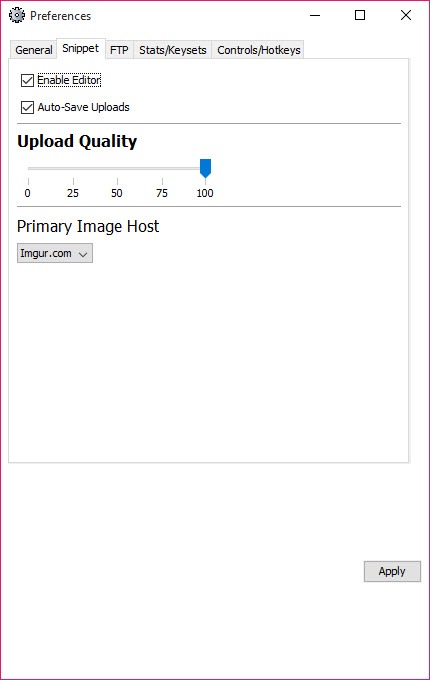
The Snipping Tool++ editor is basic, and its placement in the workflow is the clever part.
Blurring or blocking out an area happens before the upload rather than after, which is the only order that works. Redacting a screenshot you have already uploaded is closing a door behind somebody who has already walked through it.
So the habit worth building is looking at the capture properly before the upload rather than treating the hotkey as one continuous action. The editor exists precisely to make that pause useful.
Where the concern runs the other way, meaning software capturing your screen without permission, a tool that blocks the ordinary screen capture route addresses that different problem.
The deletion history is the thoughtful bit
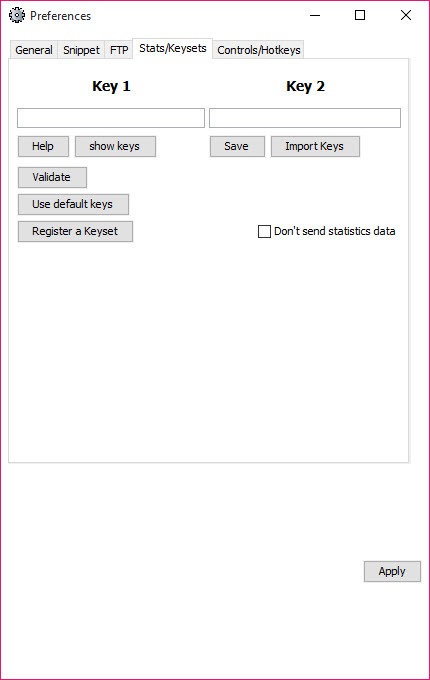
Upload tools generally hand you a link and forget the transaction. Snipping Tool++ keeps a history, and the history includes the links that delete each upload.
That matters because uploads accumulate. Anybody who has used a tool like this for a year has left dozens of screenshots on a public host with no idea what is in them, and no practical way to find out or clear up.
Being able to go back through the history and remove things is the difference between a tool you can use responsibly and one that quietly builds a public archive of your screen.
Multiple images upload in one go as well, which turns a folder of captures into a set of links in a single drag.
Anybody who would rather nothing left the machine should start elsewhere, and Greenshot captures and annotates while keeping every file local.
Where it sits against the alternatives
The built-in tool has improved considerably since Snipping Tool++ appeared, now handling capture, annotation, recording and even text extraction, none of which needs installing anything.
What it does not do is upload and return a link, which is the entire argument for this one. So the question is whether that specific step is part of your daily routine.
For the same idea with far more of everything, meaning many upload destinations, recording, workflows and a great deal of configuration, ShareX is the heavyweight option and the usual recommendation.
For capture and annotation without any uploading at all, a local-only tool avoids the question entirely.
Conclusion
Snipping Tool++ does one step better than the tools around it, which is turning a screenshot into a pasteable link without a browser in the middle. For anybody who shares captures constantly, in a support role or a development team, that saves a genuine amount of fiddling every day.
Use the editor before the upload rather than after, and keep an eye on the history. Every capture you send goes to a public host where a link is the only thing standing between it and anybody who finds it, and the deletion links in that history are the reason this tool handles that better than most.
Pros & Cons
- Capture, upload and a link on the clipboard in one keystroke
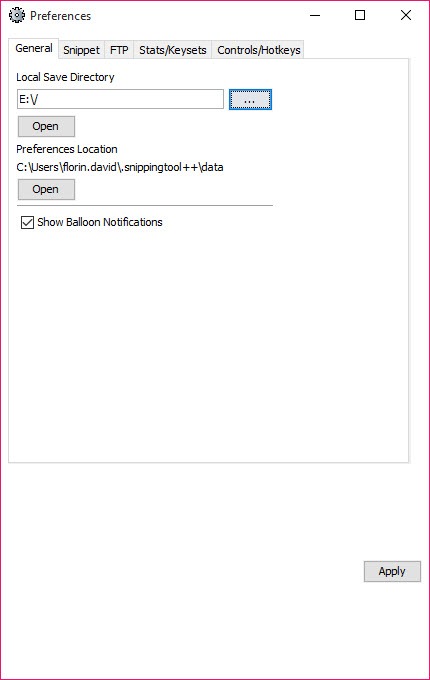
- Images saved locally as well rather than only on the host
- Blur and block-out tools available before the upload happens
- Upload history includes the links that delete each image
- Several images upload together in one operation
- Configurable hotkeys for the capture overlay
- Uploads go to a public host, so anything captured leaves your machine
- Anybody with the link can view the image
- The editor is basic, covering redaction rather than real editing
- The built-in tool now covers capture, annotation and recording without uploading
- Heavier alternatives offer far more destinations and configuration
Frequently asked questions
Uploads the capture and returns a link ready to paste. The built-in tool has caught up on capture, annotation and recording, and it does not put a shareable address on your clipboard.
To an image hosting service, meaning they leave your machine and sit on infrastructure you do not control. Anybody holding the link can view them, so think before uploading anything showing accounts or documents.
Yes, and this is one of its better features. The upload history keeps the deletion link for each image, so clearing up is possible rather than theoretical.
Yes, so a capture exists on your own machine as well as on the host, which matters if the upload fails or the link is lost.


