

Simple Port Forwarding
About Simple Port Forwarding
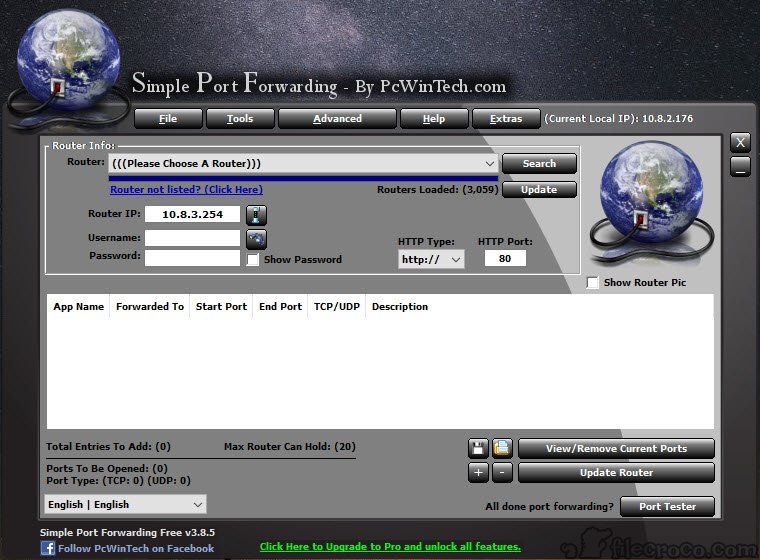
Simple Port Forwarding opens ports on your router without you ever visiting the router’s admin page. It knows the layout of more than 3,000 router models, so when you pick yours from the list and enter the admin password, the program drives the router’s own web interface for you, clicking through the same forms you would fill in by hand. You watch it happen in a browser pane inside the window, which is oddly reassuring the first time and useful every time something goes wrong.
The reason to want this is a game server, a security camera, a media server or a remote desktop session that needs to be reachable from outside the house. Every one of those requires the router to pass a specific port through to a specific computer, and every router hides that setting somewhere different.
Simple Port Forwarding flattens that difference into a list of ports and an Update Router button.
Picking ports from the database
The Simple Port Forwarding database lists the ports used by more than 700 games and programs. Choose an entry and the right port numbers and protocols fill in automatically, with no trip to a forum to find out which three ports a particular game server needs.
Custom entries can be added for anything not listed, and the program remembers them along with the last IP address you forwarded to, so repeat jobs take seconds.
Lists of ports can be saved to a file and loaded on another machine. Send that file to a relative in another city, have them load it and press Update Router, and the phone call ends ten minutes earlier.
Watching the router being configured
Simple Port Forwarding logs into the router’s web interface and fills in the forms using a script written for that exact model. The browser pane shows each page as it goes, so if the router’s firmware has moved a field or added a login step, you see exactly where the script stalls rather than guessing. When a model is missing from the list, you can submit screenshots and page code for it to be added, and the router database updates from inside the program.
This approach has a weakness that grows every year. Routers change their firmware, and a script written for last year’s admin page may not match this year’s. Newer routers with app-based configuration or two-factor logins may not be scriptable at all, and business-grade hardware such as MikroTik has its own configuration client that this program never touches.
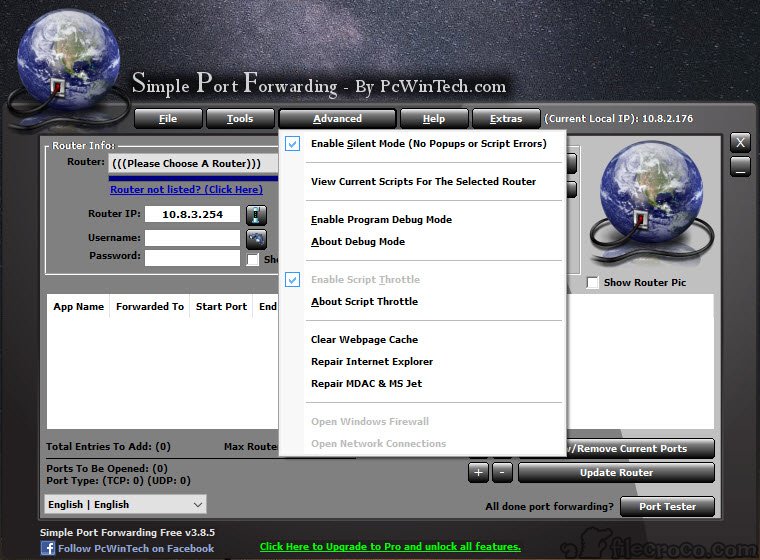
UPnP support offers a second route on routers that allow it, letting the program request the port mapping directly instead of filling in forms.
Static IP, firewall rules and the port tester
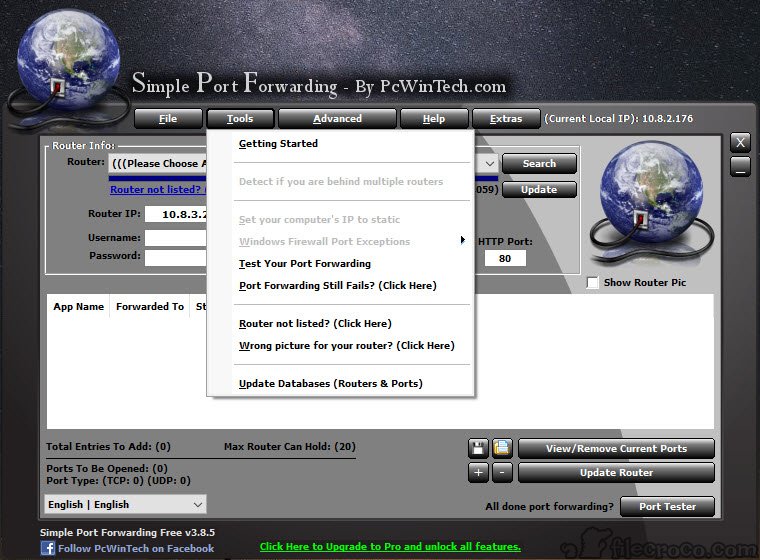
Port forwarding sends traffic to an IP address, and if that address changes when the lease renews, the forward stops working. The static IP tool sets the computer’s address to a fixed one, and switches it back to automatic later if you need to, without a trip into the adapter settings. It is the step beginners most often skip and the one that explains most “it worked yesterday” complaints.
A second helper adds the forwarded ports to the built-in firewall in a couple of clicks, since an open port on the router is useless if the computer’s own firewall rejects it. The built-in port tester then checks from outside whether the port actually answers, which is the only real proof that everything worked.
When it fails, a LAN scanner confirms the computer still has the address you forwarded to.
Where it fits and where it does not
For the routers on its list, this is the fastest route from “the game says my NAT is strict” to a working server. For a router it does not know, the script approach falls apart, and the honest alternative is the router’s own interface, or the maker’s own companion utility, such as the one for NETGEAR hardware.
Conclusion
Simple Port Forwarding suits home users who need a port open for a game, a camera or a server and would rather not learn their router’s admin layout. The port database, the static IP helper and the port tester cover the three places beginners usually stumble, and the saved lists make it a useful tool for helping others remotely.
It is tied to a database of router scripts, and that dependency is its limit. Owners of the newest routers should check the list before counting on it, and be ready to fall back to the router’s own pages when the script meets a firmware it has never seen.
Pros & Cons
- Scripts the router's own admin pages for more than 3,000 models
- Port database covers more than 700 games and programs
- Static IP tool prevents forwards breaking when the address changes
- Built-in port tester verifies the result from outside
- Saved port lists can be sent to someone else and loaded in one click
- Scripts break when router firmware changes its admin pages
- Newer routers with app-only configuration are often unsupported
- Needs the router admin password and the router's web interface reachable
- Router database grows only as users submit new models
Frequently asked questions
Yes. It logs into the router's admin interface with your credentials and fills in the forwarding forms on your behalf.
The computer's IP address changed. Use the static IP tool to fix the address so the forward keeps pointing at the right machine.
Try UPnP mode if the router supports it. Otherwise submit screenshots for the model to be added, or configure the forward manually in the router's own interface.
Use the built-in port tester, which checks from outside your network whether the port responds.


