

SecretFolder
About SecretFolder
Hiding sensitive files on a personal computer sounds like it should be a solved problem, but Windows itself doesn’t really offer good native options. The “Hidden” attribute in file properties stops files from showing in Explorer’s default view, but anyone who knows where to look (and “Show hidden files” is a single click away) can find them in seconds. Encrypting a folder requires either Pro/Enterprise editions of Windows or third-party tools, with varying degrees of complexity.
Most users who want to keep some files private from family members, roommates, or coworkers who occasionally use the same computer end up either accepting the lack of real privacy or installing dedicated software.
SecretFolder is one of the simpler, more practical answers in that second category, a free folder hiding utility that handles the common privacy scenario without overcomplicating things.
How the hiding mechanism actually works
The defining behavior of SecretFolder is that hidden folders genuinely disappear rather than just being marked with the standard Hidden attribute. When you add a folder to the application’s protected list, that folder no longer appears in File Explorer regardless of whether the “Show hidden files” option is enabled.
Searching for the folder by name doesn’t return it. Other applications can’t see it. From every standard interface a casual user might try, the folder simply doesn’t exist.
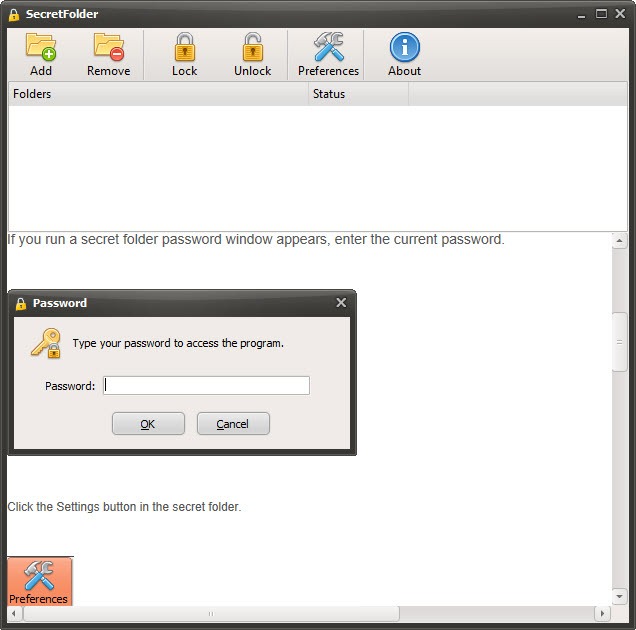
Unlocking a folder happens through the application itself. You open the program, enter your master password, select the folder you want to access, and click Unlock. The folder reappears in its original location, fully accessible until you choose to hide it again. When you’re done working with whatever files were inside, you re-add the folder to the protected list, and it disappears once more.
For the typical privacy use case, this approach works well. Family members borrowing the computer to check email won’t stumble across hidden folders. Casual snooping through Documents folders finds nothing unusual.
The friction required to discover hidden content is high enough to deter the kinds of accidental discovery that ordinary file-hiding wouldn’t prevent.
Master password protection and access control
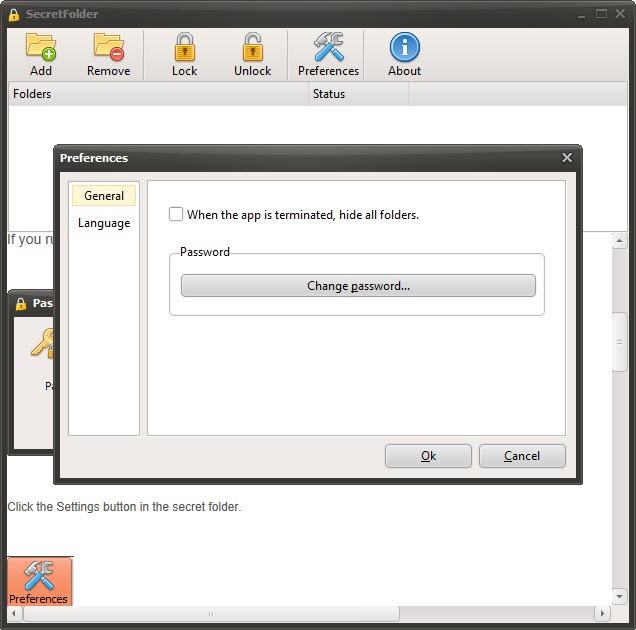
The application’s security model centers on a single master password that controls access to all your hidden folders. Set the password during initial setup, and any future attempt to access the application requires entering it correctly. Without the password, the hidden folders remain hidden and cannot be revealed through the normal interface.
Password recovery isn’t part of the design philosophy, which has both advantages and drawbacks. The advantage is that there’s no backdoor for anyone (including attackers) to exploit. The drawback is that forgetting your master password means losing access to your hidden folders through the application, with the folders themselves still existing on disk but not easily accessible without specialized recovery techniques.
Users should treat the master password seriously, choosing something memorable but not easily guessed, and ensuring they have a way to recall it months or years later when they might suddenly need access to long-hidden content.
Writing it down in a secure location, using a password manager, or some other reliable backup approach prevents the awkward scenario of being locked out of your own files.
Auto-hide and protection against malware
A useful feature of SecretFolder is that hidden folders can be automatically re-hidden when the application closes, reducing the risk of accidentally leaving sensitive content exposed. Open the application, unlock a folder, work with it, close the application, and the folder automatically returns to hidden status without requiring you to remember to re-hide it manually.
This automation matters more than it sounds like it does because the most common security failure isn’t sophisticated attack but ordinary human forgetfulness. Users intend to re-hide their folders after working with them, then get distracted, then walk away from the computer with sensitive content visible. Automatic re-hiding addresses this directly, with the protection applying without requiring active attention.
Beyond convenience, the hiding approach also provides some protection against malware. Hidden folders aren’t visible to most malicious software performing typical scans, which means ransomware looking for files to encrypt or spyware looking for data to exfiltrate often misses content protected through this tool.
The protection isn’t absolute, since sophisticated malware specifically designed to defeat folder-hiding tools can do so, but for ordinary threats the hiding provides a meaningful additional layer of defense.
Simple interface that doesn’t get in the way
The application interface is deliberately minimal. The main window shows your list of protected folders with status indicators showing which are currently hidden versus unlocked, plus buttons for adding new folders, unlocking selected ones, and managing settings. There’s no complex menu structure to navigate, no advanced options buried in obscure dialogs, no confusing terminology that requires technical background to understand.
For users who want straightforward folder hiding without learning a new application, this simplicity is the entire selling point. Within minutes of installation, you can have your sensitive folders protected without consulting documentation or watching tutorial videos. The software stays out of the way except when you need it, which is appropriate for a tool that should fade into the background rather than demanding ongoing attention.
The drag-and-drop support extends this simplicity to the actual folder management. Drop folders from File Explorer onto the application window, and they get added to the protected list immediately. Removing folders from protection works through similar direct manipulation rather than navigation through configuration dialogs.
What it isn’t and what users should understand
The honest assessment of SecretFolder requires acknowledging what the tool actually provides versus what some users might expect. The software hides folders from view; it doesn’t encrypt their contents. Files inside protected folders sit on disk in their normal unencrypted form, with the protection coming from the folders being invisible to standard interfaces rather than from cryptographic protection of file contents.
This distinction matters in scenarios where attackers might have direct disk access, deep system knowledge, or specialized tools designed to find hidden content. A determined attacker who has physical possession of your computer can potentially boot from external media and access your drive’s raw contents, finding files that the hiding software wouldn’t be able to obscure from that access level.
For most users facing realistic threat models (other household members, casual snoopers, malware looking for typical targets), this protection level is adequate. For users facing sophisticated adversaries or needing strong protection of genuinely sensitive content, encryption-based tools like VeraCrypt or BitLocker provide the stronger protection appropriate to those scenarios. The tool serves the common case well; understanding its limits prevents over-relying on it for situations where stronger protection is needed.
Compatibility across Windows versions
The application supports recent Windows versions including current releases, with consistent behavior across the supported range. Installation is straightforward through a standard installer, with no unusual dependencies or system modifications beyond what the folder-hiding mechanism requires.
For users on older systems or those with specific compatibility concerns, version 7.5.0.0 is the current release as of recent updates, with active development continuing to maintain compatibility as Windows itself evolves. The development pace isn’t aggressive, but updates appear regularly enough to keep the software functional with current operating system versions.
Considerations and limitations
The most significant consideration is the security model’s fundamental approach. Folder hiding is not encryption, and users who specifically need cryptographic protection of file contents should look elsewhere. For users who want simple privacy from casual access, the distinction may not matter; for users with stronger requirements, it matters substantially.
Recovery options are limited if you forget your master password. The development team’s stance on this favors security over convenience, with no built-in password recovery mechanism. Users absolutely need to remember their master password or maintain a reliable backup of it through external means.
The tool affects only folders, not individual files. If you want to hide a single file rather than an entire folder, you’d need to put that file in a folder of its own and protect the folder. This isn’t usually a problem in practice but represents a design choice users should understand.
Some users have reported edge cases where antivirus software flags the application or its operations as suspicious, particularly because the same kind of folder-hiding behavior is used by some malware. The tool itself is legitimate, but users encountering these warnings should download from trusted sources and verify the file integrity rather than disabling antivirus protection blindly.
Conclusion
SecretFolder has earned its quiet but devoted following by addressing a specific common need (basic folder privacy) with appropriate simplicity and zero commercial friction. For users who want to hide sensitive folders from family members, roommates, or coworkers without learning encryption tools or setting up vault containers, the application delivers exactly that through an interface anyone can use immediately.
It’s not the right choice for users with serious security requirements, where encryption-based tools provide stronger protection appropriate to those scenarios. But for the substantial audience whose privacy needs fit within “make these folders invisible to people casually using my computer,” the tool delivers focused capability without complications, with the kind of simple effectiveness that has kept it useful across many years of evolving Windows versions and evolving privacy needs.
Pros & Cons
- Simple folder hiding without complex encryption setup or vault management
- Genuinely free with no premium tiers, advertising, or bundled software
- Master password protects access to all hidden folders through a single credential
- Auto-hide on application close prevents accidentally leaving content exposed
- Hidden folders provide some protection against ordinary malware threats
- Drag-and-drop interface adds folders to protection quickly
- Lightweight resource usage with minimal system impact
- Active development maintains compatibility with current operating system versions
- Hiding rather than encrypting means contents remain readable to direct disk access
- No password recovery mechanism if you forget your master password
- Sophisticated attackers can potentially bypass the hiding through specialized tools
- Some antivirus tools occasionally flag the application due to its hiding behavior
- Operates on entire folders rather than individual files
Frequently asked questions
This software hides folders on your computer behind a master password, making them invisible to File Explorer and other standard interfaces until you unlock them through the application. The protected folders simply don't appear in normal browsing or searches, providing privacy from casual access without requiring complex encryption setup or technical knowledge.
No, the tool hides folders rather than encrypting their contents. Files inside protected folders exist on disk in their normal unencrypted form, with the protection coming from the folders being invisible to standard interfaces. For users needing actual encryption, dedicated tools like VeraCrypt provide that stronger protection at the cost of additional complexity.
There's no built-in password recovery mechanism, which means forgetting your password results in losing access to your hidden folders through the application. The folders themselves still exist on disk but cannot be revealed through the normal interface without the password. Users should ensure they remember their master password or maintain a reliable backup of it through external means.
Open the application, enter your master password, select the folder you want to access from the protected list, and click Unlock. The folder reappears in its original location and remains accessible until you choose to hide it again. When you're done, re-add the folder to the protected list to make it disappear once more.
The hiding behavior provides some protection against ordinary malware that scans for files to encrypt or steal, since hidden folders aren't visible through the standard interfaces those threats typically use. Sophisticated malware specifically designed to defeat folder-hiding tools can still find and affect protected content, but for typical threats the tool adds a meaningful protective layer.


