

Robocopy
About Robocopy
Most people’s experience of copying files is a dialog with a progress bar that gives up when something goes wrong. Robocopy was built for the opposite situation, which is copying a great deal of data across an unreliable path and having the operation survive whatever happens along the way.
It is a command-line tool, which is the first thing to know and the reason many people never meet it. There is no window, no drag and drop and no progress bar in the usual sense. You describe what you want in a line of text and it does it.
The second thing to know is that it is already on the machine. This ships as part of the system rather than being something you add, so anybody reading this can open a command prompt and use it immediately.
Resilience is the whole design
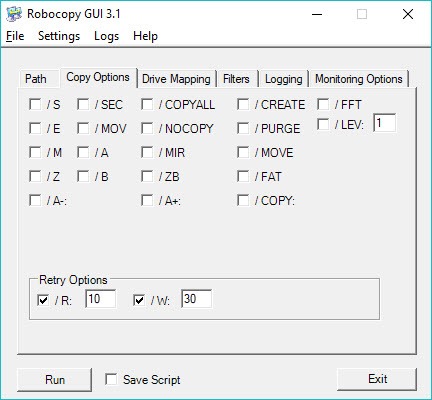
The name refers to robustness and the behaviour earns it. Robocopy retries a file that cannot be copied rather than abandoning it, with the number of attempts and the wait between them both configurable. That single behaviour is why it is the tool of choice for copying across a network connection that drops, or from a drive with a few unreadable areas.
Large files can be copied in restartable mode, which means an interrupted transfer resumes from where it stopped rather than beginning again. On a multi-gigabyte file across a shaky link that is the difference between finishing and giving up.
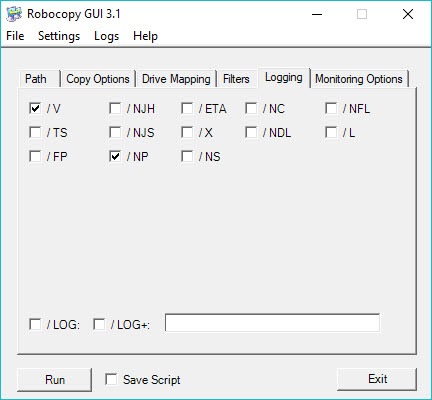
Logging records what happened, at whatever level of detail you ask for, which matters because an operation running for hours unattended needs to leave an account of itself.
The exact-match option, and the warning attached
One option deserves more caution than any other in this article. One option makes the destination match the source exactly. Files added to the source appear, files changed are updated, and files that no longer exist in the source are deleted from the destination.
That last clause is the one that destroys data. Somebody who runs it with an empty or wrong folder as the source will find the destination emptied to match, because the tool did precisely what was asked. It is not a backup command and treating it as one is how people lose things.
The protection is built in and almost nobody uses it. A list-only mode performs the entire operation without copying or deleting anything, printing exactly what it would have done. Running that first, reading the output, and only then running the real command is the discipline that makes the exact-match option safe.
For keeping two folders matched with a visible preview and rules you can inspect rather than a command line, FreeFileSync is built around exactly that and shows its intentions before acting.
What it preserves that ordinary copying loses
Copying a file is not one operation but several, and Robocopy lets you choose which of them happen.
Beyond the contents, a file carries timestamps, attributes, permissions, ownership, auditing information. Robocopy copies whichever of those you specify, which is why it is the tool used for server migrations where permissions arriving intact is the entire point.
That granularity is also a trap. Copying permissions to a destination on a different system, or to a filesystem that does not support them, produces results ranging from harmless to confusing, so specifying what you actually need beats copying everything by default.
Multithreaded copying is available, which speeds up large numbers of small files considerably, and the same caution applies as anywhere: a high thread count against a single mechanical drive makes things worse rather than better.
Selecting what moves
Robocopy filtering covers rather more than a graphical tool offers.
Files can be included or excluded by name pattern, by attribute, by size, and by age in either direction, so a command can express everything modified in the last week, excluding anything over a certain size, ignoring three named subfolders.
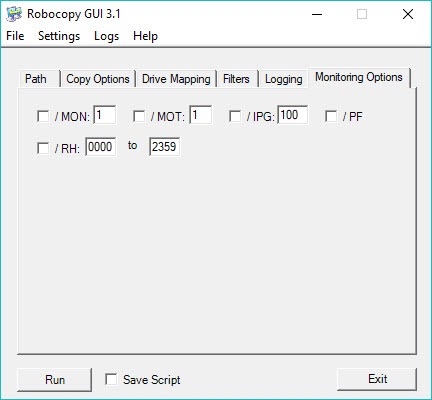
Monitor mode is the unusual one. It watches the source and runs again after a set number of changes or a set number of minutes, which turns a copy command into a crude but effective continuous synchronisation without a scheduler.
For the same resilience with a graphical interface and no command line, RichCopy covered that ground before it was abandoned.
FastCopy remains maintained and offers verification alongside its speed, which is the closer equivalent today.
Where it is the wrong choice
Two situations call for something other than Robocopy, and knowing them saves fighting it.
A single copy of a handful of files does not need this. Selecting them and dragging is faster than composing a command, and TeraCopy improves on the ordinary dialog with queueing and verification for everyday use.
And anything requiring you to see what will happen before it happens is better served by a tool built around a preview. The list-only mode provides that here and it prints text rather than showing a comparison, which is adequate for somebody comfortable reading output and not for everybody.
Conclusion
Robocopy is the most capable copying tool most people already own and never open. Retrying failures, resuming interrupted files, preserving permissions and logging the whole operation are the things that matter when moving real quantities of data, and no graphical dialog attempts any of them.
Learn one habit before anything else, which is running the list-only mode first and reading what it says. The exact-match option does exactly what it is told, including deleting everything in a destination that is not in the source, and the difference between a useful tool and a bad afternoon is entirely whether you checked the command before you ran it.
Pros & Cons
- Retries failed files with a configurable count and wait interval
- Restartable mode resumes an interrupted large file rather than starting again
- Copies timestamps, attributes, permissions and ownership selectively
- Filtering by name, attribute, size and age in a single command
- Monitor mode reruns automatically after changes or after a time
- Logging at whatever detail an unattended operation requires
- Multithreaded copying for large numbers of small files
- Command line only, so casual use is slower than dragging files
- Exact-match copying deletes files absent from the source, destroying data if reversed
- Copying permissions to an unsuitable destination produces confusing results
- The dry run prints text rather than showing a comparison to review
- High thread counts hurt performance on a single mechanical drive
Frequently asked questions
No. It ships as part of the system, so a command prompt is all that is required. Anybody reading this already has it available.
Makes the destination match the source exactly, which includes deleting files from the destination that no longer exist in the source. Reversing the two paths by mistake empties the folder you meant to protect.
Use the list-only mode, which performs the whole operation without copying or deleting anything and prints what it would have done. Reading that output first is the habit that prevents accidents.
For resilience and scale. It retries failures, resumes interrupted transfers, preserves permissions and ownership, filters precisely and logs everything, none of which an ordinary copy dialog attempts.
No. It copies and matches folders, with no versioning and no history, so a mistake propagates to the destination on the next run. Backup software keeps previous states, which is the difference that matters.


