

RKill
About RKill
When malware takes hold of a computer, one of the first things modern threats do is actively defend themselves against removal. Trying to launch Malwarebytes? The malware blocks the executable. Trying to open Task Manager? It’s been disabled. Trying to download fresh antivirus tools? The connection mysteriously fails.
This active resistance has become standard behavior across most current malware families, and it turns what should be a straightforward cleanup into a frustrating game of whack-a-mole where every tool you reach for has been preemptively neutralized. Rkill is the small utility built specifically to break this defensive cycle so that other security tools can actually do their work.
Created by Lawrence Abrams of BleepingComputer fame, this software has been around for many years and has earned a respected place in the toolkit of pretty much every technician who deals with malware-infected machines.
The premise is narrow and focused: Rkill is not an antivirus, not a malware scanner, and not a removal tool. It does one specific thing, which is terminate processes commonly used by malware to defend itself, allowing the actual cleanup tools you plan to use afterward to run without interference.
What it does and what it doesn’t do
The single most important thing to understand about Rkill is what it isn’t. The application doesn’t detect malware in any meaningful sense, doesn’t remove infections, and doesn’t repair damaged systems. What it does is kill running processes that match patterns commonly seen in malware behavior, terminate suspicious services, and reset certain Windows policies that malware frequently modifies to make removal more difficult.
After running this tool, the malware on the system isn’t gone. It’s still there, sitting on disk, ready to start up again on the next reboot. The whole point is that during the brief window between running this software and rebooting the machine, you have a chance to launch proper antimalware tools and let them do the actual cleanup.
The application explicitly tells you not to reboot until you’ve completed the follow-up scanning, because rebooting brings all the killed processes right back.
This narrow focus is what makes the tool useful. Trying to be a full removal solution would put it in competition with established products like Malwarebytes, ESET, or HitmanPro, all of which do that job better.
By staying laser-focused on the process termination step, Rkill complements those tools rather than competing with them, filling a specific gap in the cleanup workflow that the bigger products don’t quite address on their own.
How it actually works under the hood
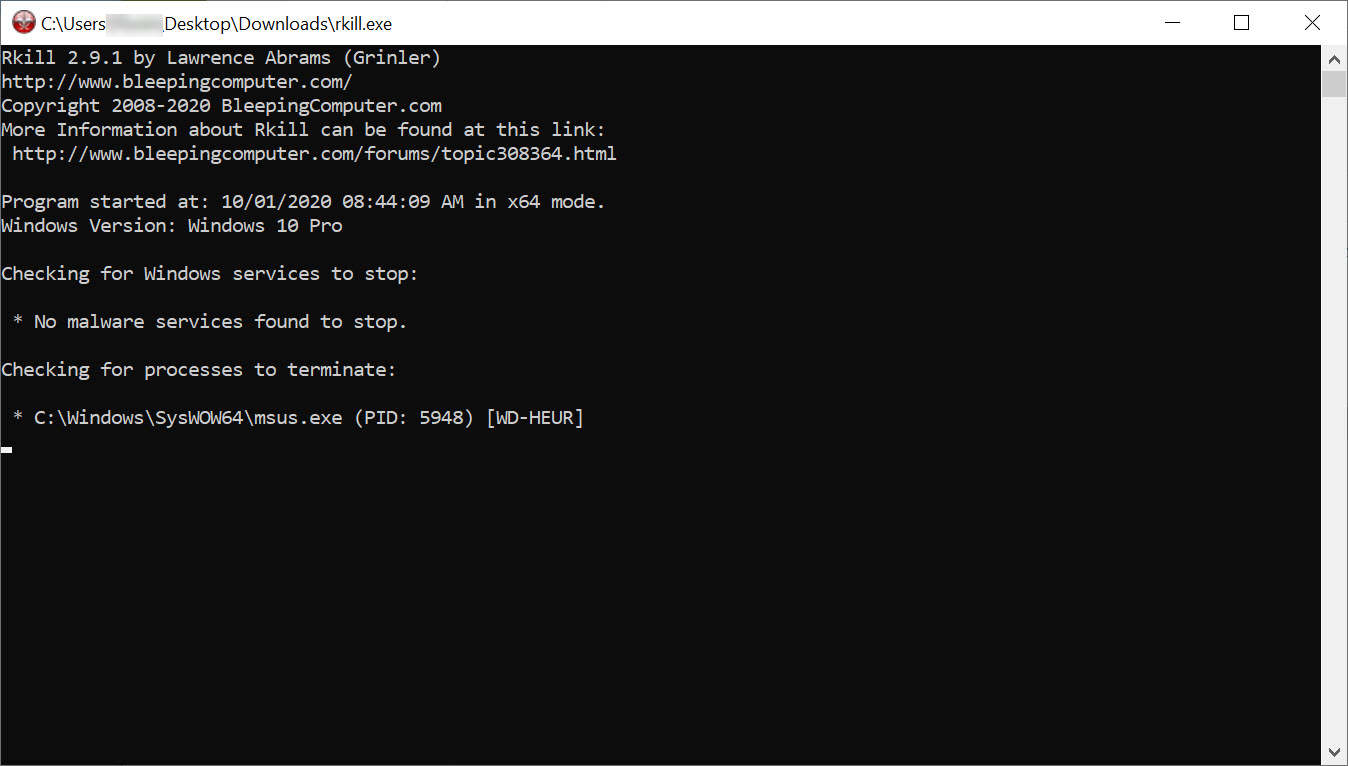
When you launch the application, it scans running processes and compares them against a list of patterns associated with known malware behavior. This isn’t a signature database in the antivirus sense, just a curated list of process names, paths, and behaviors that the BleepingComputer team has identified as commonly malicious through years of analyzing infections.
Anything matching those patterns gets terminated, with details logged to a text file on the desktop. The same scan checks for suspicious services and either stops them or flags them for attention. Windows policies that malware frequently modifies (disabling Task Manager, blocking the registry editor, preventing Folder Options access) get reset to their default states.
The operation typically takes under a minute even on heavily infected systems, which matters because you want to move quickly to actual cleanup before the malware has time to detect what’s happening and respond.
Multiple variants for different scenarios
The download page provides several different executable versions of the tool, each named differently to evade malware that specifically blocks the standard “rkill.exe” filename. Some versions have completely different names like “iExplore.exe” or “WiNlOgOn.exe”, which fool malware blocks looking for specific Rkill filenames while still running the same underlying code.
This naming workaround sounds silly but actually addresses a real problem. Sophisticated malware sometimes specifically blocks security tools by name, and Rkill has been around long enough to be on those block lists. The alternative-named variants get past those blocks, letting the tool run on systems where the standard version wouldn’t launch at all.
For technicians dealing with stubborn infections, having multiple variants available makes the difference between getting work done and being stuck at step zero.
The standard cleanup workflow with Rkill
The typical use pattern goes something like this. You have an infected machine, malware is actively interfering with your attempts to clean it, and you need to break the deadlock. You download this software (or carry it on a USB drive if the infected machine has lost internet connectivity), run the executable, and wait for it to finish.
Once it reports completion, you immediately launch your real cleanup tools, usually Malwarebytes, AdwCleaner, HitmanPro, or whatever combination you prefer, and let them scan and remove the actual infections.
The critical timing element is that you don’t reboot between running this tool and completing the actual cleanup. Rebooting restarts all the killed processes, putting the malware right back where it was. The tool buys you a window of clean operation, and you have to use that window for productive cleanup work before any restart happens.
For technicians who have done this enough times, the workflow becomes almost mechanical: run the application, run Malwarebytes full scan, run AdwCleaner, run HitmanPro, then reboot and verify.
The whole sequence takes a couple of hours on a typical infection, and the rate of successful cleanup has historically been very high using this combination of tools.
Detailed log file for analysis
After running, the tool creates a text file on the desktop documenting everything it did. Killed processes, stopped services, modified registry entries, system information, and any errors encountered all appear in this log. For technicians, this log provides valuable forensic information about what was actually running on the system before cleanup.
The information goes beyond simple process names to include file paths, command lines, parent processes, and other context that helps understand what kind of infection was present.
For analyzing recurring malware in a corporate environment or for documenting what was found on a customer machine, this log file is genuinely useful as a record of the infection’s footprint at the moment of cleanup.
Why technicians keep it on their toolkit
Despite being free and doing something seemingly simple, this software has earned a permanent spot in essentially every malware-cleanup toolkit assembled by IT professionals over the past fifteen years. The reasons come down to reliability and lack of alternatives. Nothing else does quite what this tool does, with the same focused effectiveness, freely available without strings attached.
For repair shops handling infected customer machines, the time savings from using this tool ahead of full scans is real. Without it, you might spend twenty minutes trying to get Malwarebytes to launch on a machine where the malware is actively blocking it. With it, you spend two minutes running the tool, then proceed directly to scanning. Multiplied across hundreds of customer cleanups per year, the efficiency gain matters substantially.
Limitations and considerations
The tool only kills processes matching its known patterns, which means novel or sophisticated malware specifically designed to evade Rkill detection won’t be terminated. The pattern list gets updated as new threats emerge, but there’s always a window where new malware doesn’t yet appear in the patterns, during which the tool won’t recognize it as suspicious.
For genuinely advanced threats, including rootkits operating at kernel level or fileless malware living entirely in memory through legitimate-looking processes, this software’s user-mode process termination approach is fundamentally limited. Those threats require deeper analysis tools and more sophisticated cleanup approaches than what this utility offers.
The tool also does nothing about persistent infections that survive its run. Malware that has hooked into autostart locations, scheduled tasks, registry run keys, or other persistence mechanisms will simply restart on the next reboot if the actual infection wasn’t cleaned by the follow-up scanners.
This is by design, since the tool isn’t trying to be a removal solution, but users need to understand that running this software alone accomplishes essentially nothing for actually fixing the infected system.
Conclusion
Rkill has earned its niche in the malware cleanup ecosystem by doing one specific thing well rather than trying to compete with established removal tools. For technicians, IT professionals, and serious users dealing with active malware infections that resist standard cleanup approaches, this small utility provides a reliable way to break the defensive cycle that modern threats establish around themselves.
It’s not glamorous and it’s not a complete solution, but used properly as the first step before running real cleanup tools, Rkill delivers exactly what it promises and has been doing so reliably for years.
For anyone who works with malware-infected computers regularly, having this tool ready on a USB drive or download bookmark is the kind of small preparation that pays back dramatically when an actively defending infection turns up and needs to be dealt with.
Pros & Cons
- Free utility from a respected security source with years of track record
- Specifically designed to enable proper antimalware tools by terminating interference
- Multiple alternative-named versions evade malware that blocks standard Rkill filenames
- Detailed log file documents what was found on the infected system
- Quick operation typically completes in under a minute
- Resets common Windows policies that malware frequently disables
- Coexists with installed security software without conflicts
- Portable executable runs without installation
- Not a malware removal tool by itself, requires follow-up scanning to actually clean infections
- Pattern-based detection won't catch novel or sophisticated malware
- Killed processes return on reboot, so workflow timing matters
- Interface is purely text-based with no graphical feedback during operation
- Effectiveness against advanced threats like rootkits is limited
- Documentation assumes some technical familiarity with the cleanup workflow
Frequently asked questions
This software terminates processes commonly used by malware to defend itself against removal, stops suspicious services, and resets Windows policies that malware often modifies. It does not remove malware, scan for infections, or repair damaged systems. The purpose is specifically to enable other antimalware tools to run by clearing the way of active interference.
No, the tool doesn't remove malware or function as an antivirus. After running it, the actual malware is still on the system and will return on reboot. The application creates a window of opportunity for other tools (like Malwarebytes or HitmanPro) to run and perform the actual cleanup, but those follow-up tools are essential for fixing the infection.
Some malware specifically blocks security tools by their executable filenames, with this software being a known target. The alternative-named versions like iExplore.exe or WiNlOgOn.exe fool those blocks while running identical code, which often works on systems where the standard version cannot launch at all due to malware interference.
No, do not reboot until you've completed your follow-up cleanup with proper antimalware tools. Rebooting restarts all the killed processes, returning the malware to active operation and undoing the work this tool just did. The proper workflow runs this software, then immediately runs cleanup scanners, and only reboots after the cleanup is complete.
Malwarebytes is the most commonly paired tool, providing comprehensive scanning that catches the actual malware files this utility just disabled the processes for. AdwCleaner handles adware and PUPs that Malwarebytes sometimes treats as lower priority, and HitmanPro provides a third-engine perspective. The exact combination depends on what kind of infection you're dealing with.
Yes, the log documents what processes were killed, what services were stopped, and what system changes were detected. For technicians analyzing infections or documenting cleanup work for customers, the log provides forensic information about the malware's footprint at the moment of cleanup. The information often helps identify what specific threat family was active.
The tool's pattern matching is conservative enough that running it on a clean system rarely causes problems, since legitimate processes don't typically match malware behavior patterns. That said, the tool isn't designed to be run preventively on clean machines, and there's no benefit to doing so. Run it specifically when dealing with active infections.


