

RefreshLock
About RefreshLock
RefreshLock is a small utility with one stubborn job. It forces your monitor to stay at the refresh rate you actually want, instead of the one the system keeps reverting to. If you have ever set your screen to 144Hz, only to find it quietly back at 60Hz after a game launches or the display goes to sleep, this is the tool built to stop that from happening.
The way it works is direct. You pick a refresh rate, lock it, and the application keeps watch in the background, reapplying that setting whenever something tries to change it. There is no driver to install and no system file to edit. It runs as a lightweight background process, sits in the tray, and steps in the moment your refresh rate drifts away from where you told it to be.
What makes this more useful than it first sounds is how common the underlying problem is. Many displays and graphics setups default to a conservative refresh rate after certain events, like resolution changes, fullscreen transitions, or returning from standby.
RefreshLock exists precisely for those moments, holding the rate steady so you do not have to dive into display settings again and again.
Why does refresh rate keep resetting?
It helps to understand what you are fighting. A high-refresh panel does not always stay at its top rate on its own. Some games request a specific mode and leave it changed afterward. Some drivers reset to a safe default when a new resolution is applied. Power management can knock the rate down after the screen sleeps. The result is the same either way: you think you are running smooth, and you are actually back at 60Hz without noticing.
RefreshLock treats this as a monitoring problem rather than a one-time setting. It does not just apply your chosen rate once and walk away. It checks continuously, and when the rate gets pulled down, it pulls it back up. For anyone with a 120Hz, 144Hz, or higher panel, that persistence is the whole point.
Setting your target rate
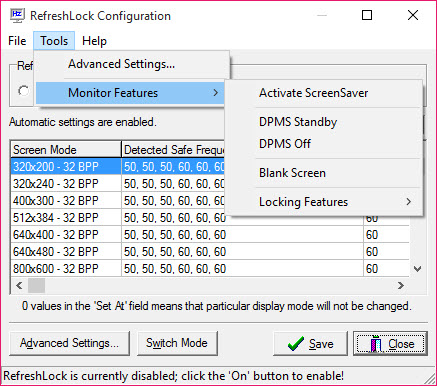
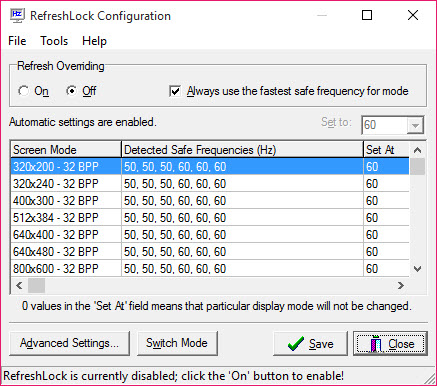
Getting started takes about a minute. The interface lists the refresh rates your display reports as supported, you select the one you want, and you lock it. From that point the tool enforces your choice. If you run a multi-monitor setup, you can handle each screen’s rate, which matters when one panel is a fast gaming display and the other is a standard office monitor that has no business climbing higher.
This is where a related tool comes in handy as groundwork. If a refresh rate you know your panel can hit is not even showing up as an option, something like Custom Resolution Utility can add that mode at the driver level first.
Once the rate exists and is selectable, this application is the piece that keeps it locked in. The two solve different halves of the same frustration.
Running quietly in the background
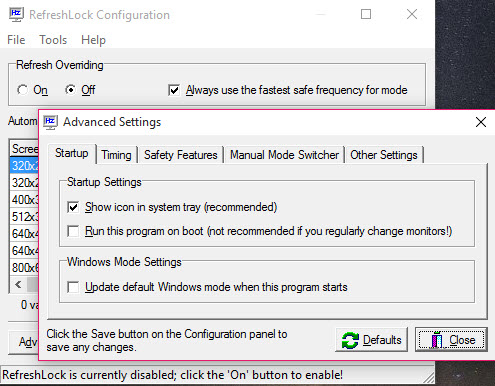
The best thing a tool like this can do is disappear. RefreshLock does. After you set it up, it tucks into the system tray and stays out of the way, using almost nothing in the way of resources because all it is really doing is watching a single value and correcting it when needed. You can leave it running at startup and effectively forget it is there, which is exactly what you want from a fix for a problem you would rather never think about again.
There is a trade-off worth naming. Because the tool actively holds the rate, it can occasionally clash with software that genuinely needs to switch modes, like certain video playback setups that try to match content frame rate. If you use that kind of feature, you may need to pause the lock for those moments. It is a niche conflict, but an honest one.
Where it fits among display utilities
There is a small family of utilities that each tackle one display annoyance. If your gripe is resolution snapping back rather than refresh rate, a tool such as HotKey Resolution Changer lets you flip between resolutions on a keypress, and Carroll can pin a resolution per user account so it survives reboots. This application sits right alongside them, aimed squarely at the refresh rate rather than the resolution.
That focus is its strength and its ceiling. It will not calibrate color, manage window layouts, or do anything beyond its one task. But for the specific irritation of a refresh rate that refuses to stay put, having a dedicated watcher beats wrestling with the display panel every session.
Conclusion
For anyone running a high-refresh display that keeps sliding back to a lower rate, RefreshLock is a tidy answer to an oddly persistent annoyance. It does not try to be a full display suite. It picks one frustration, the refresh rate that will not stay put, and solves it with a quiet background watcher that you can set once and ignore.
The narrow scope is the whole appeal. If you want color calibration or window management, look elsewhere. But if your only complaint is that your panel keeps forgetting it can run faster, this tool fixes that and gets out of the way, which is about all you can ask of a single-purpose utility.
Pros & Cons
- Forces your chosen refresh rate to stay locked instead of reverting
- Monitors continuously and reapplies the rate automatically when it drifts
- Handles multiple displays with independent rates for each
- Runs as a tiny background tray process with minimal resource use
- No driver installation or system file editing required
- Does only one thing, with no broader display management features
- Can conflict with software that needs to switch refresh modes deliberately
- Cannot add refresh rates your driver does not already expose
- Background enforcement may need pausing for frame-rate-matching playback
Frequently asked questions
It stops your monitor from dropping back to a lower refresh rate after games, resolution changes, or sleep. It holds the rate you picked and reapplies it whenever the system tries to change it.
Yes. You can set and lock a separate refresh rate for each connected display, which is useful when one screen is a fast gaming panel and another runs at a standard rate.
No. It can only lock rates your display and driver already report as available. To add a missing mode you would need a separate resolution and timing tool first, then lock it here.
No. It runs as a small background process that watches one value and corrects it when needed, so the footprint stays low even with it running constantly.
It can, in one specific case. If you use playback that matches the display rate to the content frame rate, the lock may fight that switch. Pausing the lock during those sessions resolves it.


