

Process Lasso
About Process Lasso
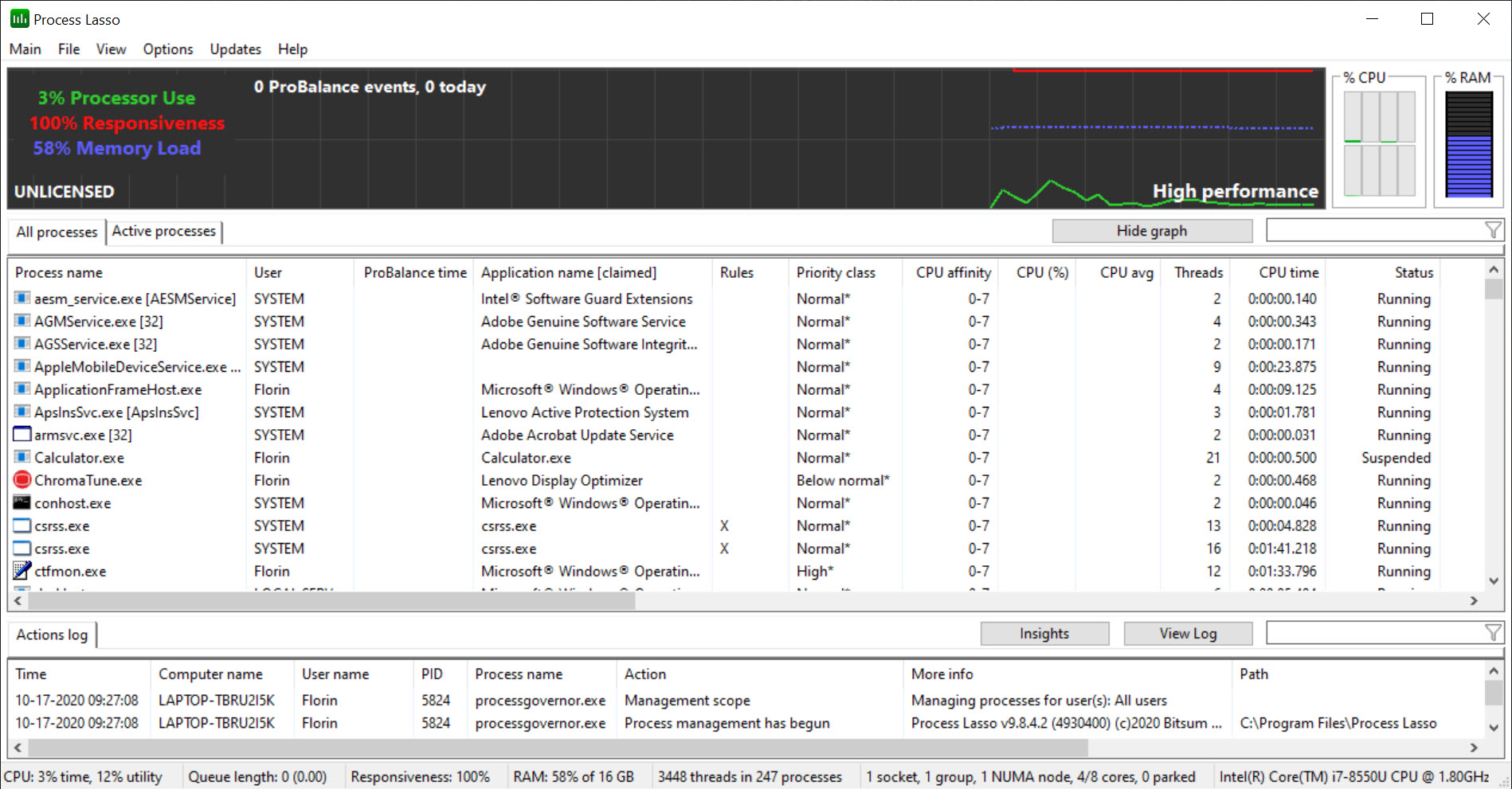
Process Lasso watches every running program and steps in when one of them starts hogging the processor. The built-in task manager lets you lower a process’s priority or pin it to certain cores, but the change evaporates the moment the program closes. Here the same settings become rules that stick, applied automatically every time the program starts, and a background engine called ProBalance adjusts priorities on its own when a runaway process threatens to make the desktop stutter. The result is a machine that stays responsive under load, not because anything runs faster, but because the thing you are using gets the cores first.
That distinction matters, and the maker is unusually honest about it. Process Lasso does not make a slow computer quick. It stops a video encode, a background indexer or a misbehaving browser tab from freezing the window you are typing in, and it lets you decide once, rather than daily, how particular programs should behave.
Around the core sit power plan automation, a performance mode for games, per-process limits on cores and instances, a watchdog that acts when a process crosses a threshold, and a memory trimmer, with several of those held back for the registered tier.
ProBalance, the part that runs itself
ProBalance, the heart of Process Lasso, is on by default and needs no configuration. It watches processor use per process, and when a background program sits on the cores long enough to harm responsiveness, it temporarily drops that program’s priority a notch, usually to below normal, then restores it once the load eases.
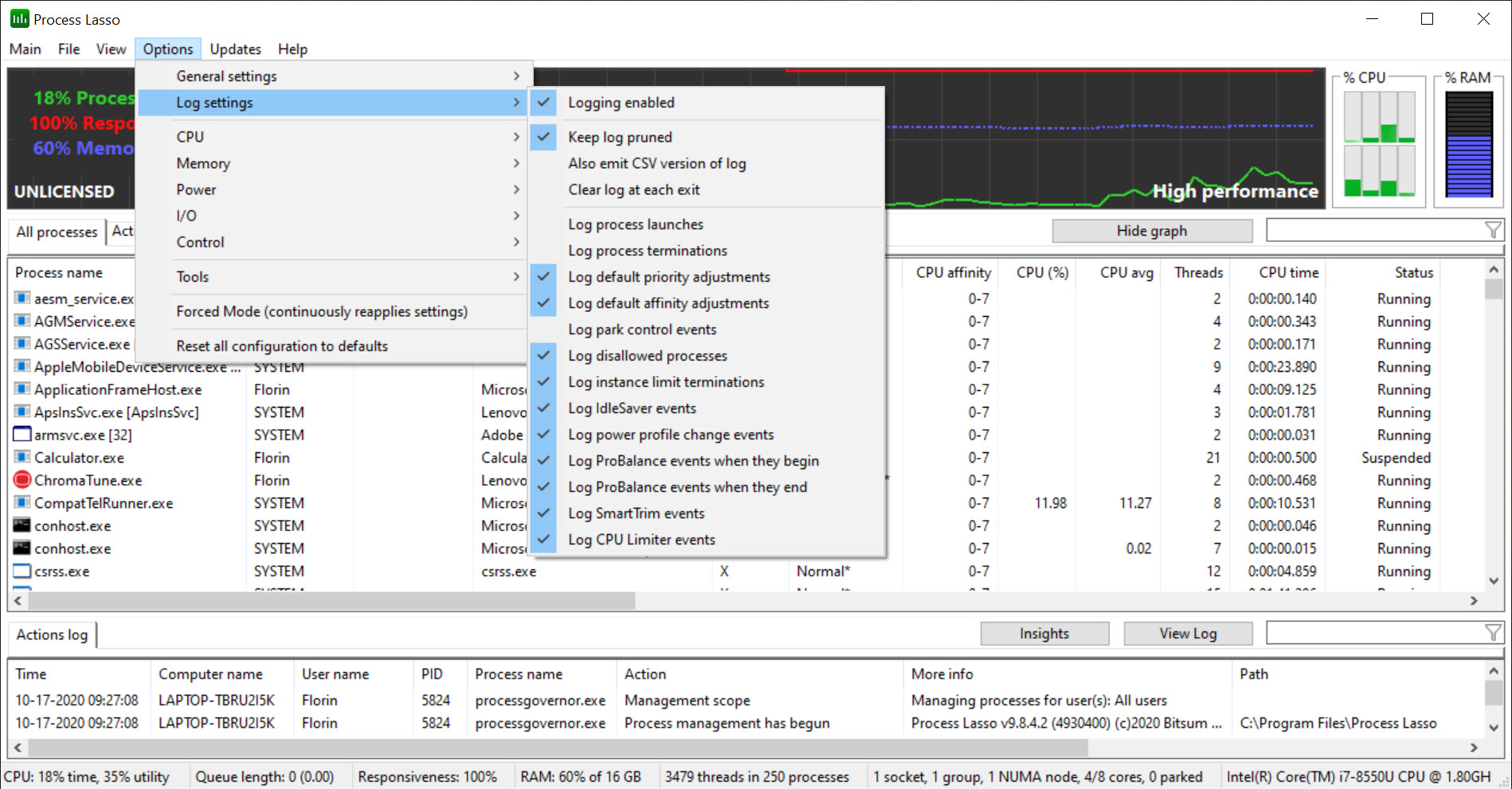
The foreground program is excluded, so the game or editor in front of you is never the one demoted. On a machine with few cores the effect is immediate and obvious, a stutter that used to arrive with every big file copy simply stops. Thresholds and the list of excluded programs are adjustable, and a log records every intervention with the process name and the time, which is how you learn what has been dragging the machine down.
Anyone who wants to see the processes themselves in depth, with their handles and threads, still reaches for Process Explorer, and the two sit comfortably side by side.
Rules that outlast a reboot
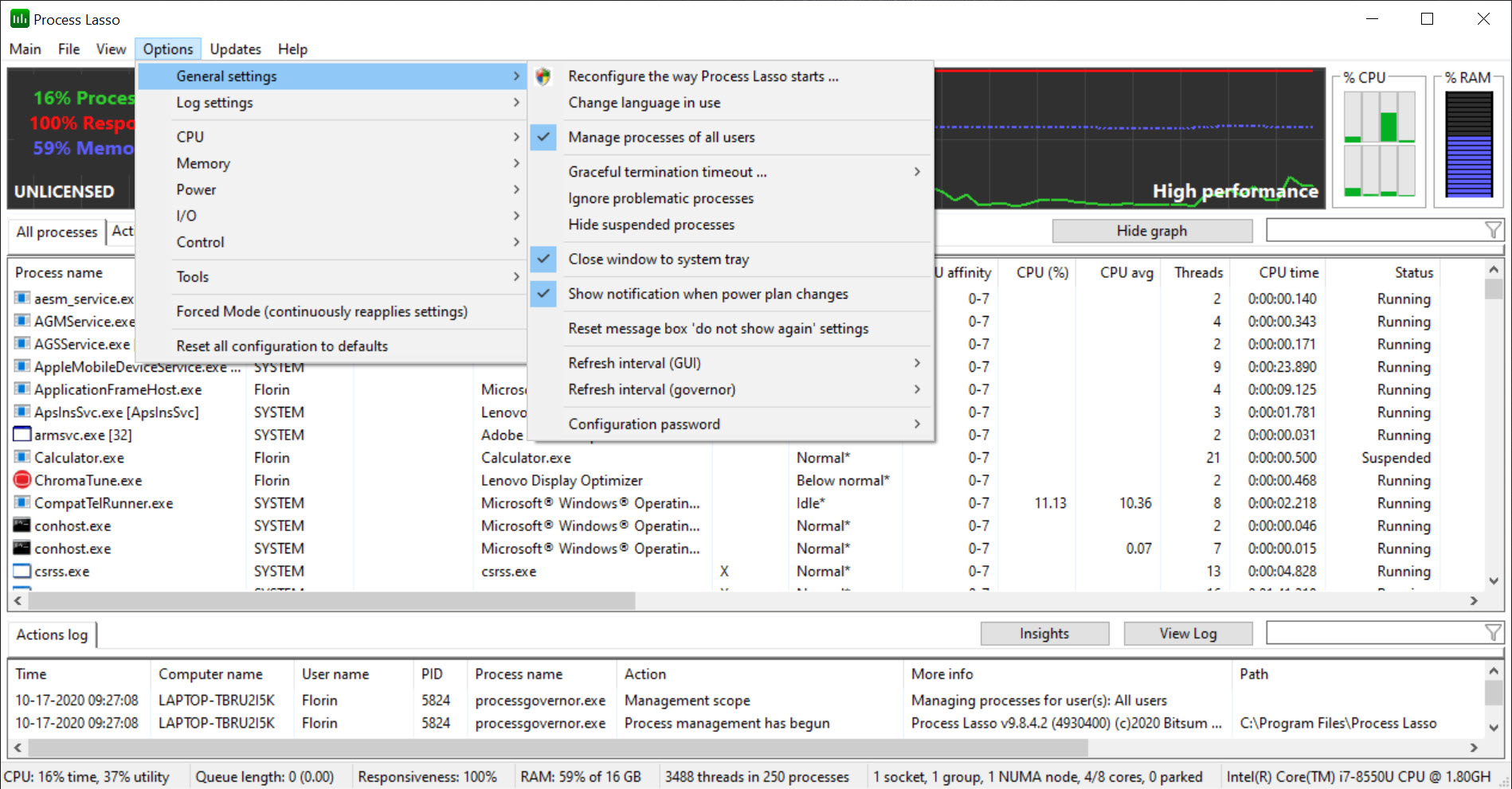
Right-click any process in Process Lasso and the menu offers two kinds of change, called current and always. Current behaves like the task manager and lasts until the program closes. Always writes a rule that reapplies whenever a program with that name starts. Rules cover priority class, processor affinity, the softer CPU sets that guide rather than force the scheduler, disk priority, memory priority and, on recent systems, efficiency mode. A game can be pinned to the fast cores of a hybrid processor, a backup tool confined to two cores, and a browser nudged to below normal forever, each with one rule.
Hyperthreading can be disabled per process by staggering the affinity across physical cores, which some real-time audio and game users swear by. Rules match by name with wildcards, and a profile switcher swaps whole rule sets, so a work profile and a gaming profile can differ.
Performance mode, IdleSaver and power plans
Process Lasso performance mode switches the system to the maker’s own highest-performance power plan, disabling core parking and frequency scaling for the duration, and it engages automatically when a detected game or a process you nominate is running.
IdleSaver works the other way, keeping the machine on a performance plan while you use it and dropping to a power-saving plan when input stops for a set time, which stretches a laptop battery without the slowdown of leaving it in saving mode all day. Power plan automation in the registered tier ties a plan to a process, so a rendering tool brings the high-performance plan with it and takes it away on exit.
A keep-awake timer holds off sleep during a long job. None of this adjusts voltages or clocks, which stay the job of MSI Afterburner and the firmware.
The limiter, the watchdog and the registered tier
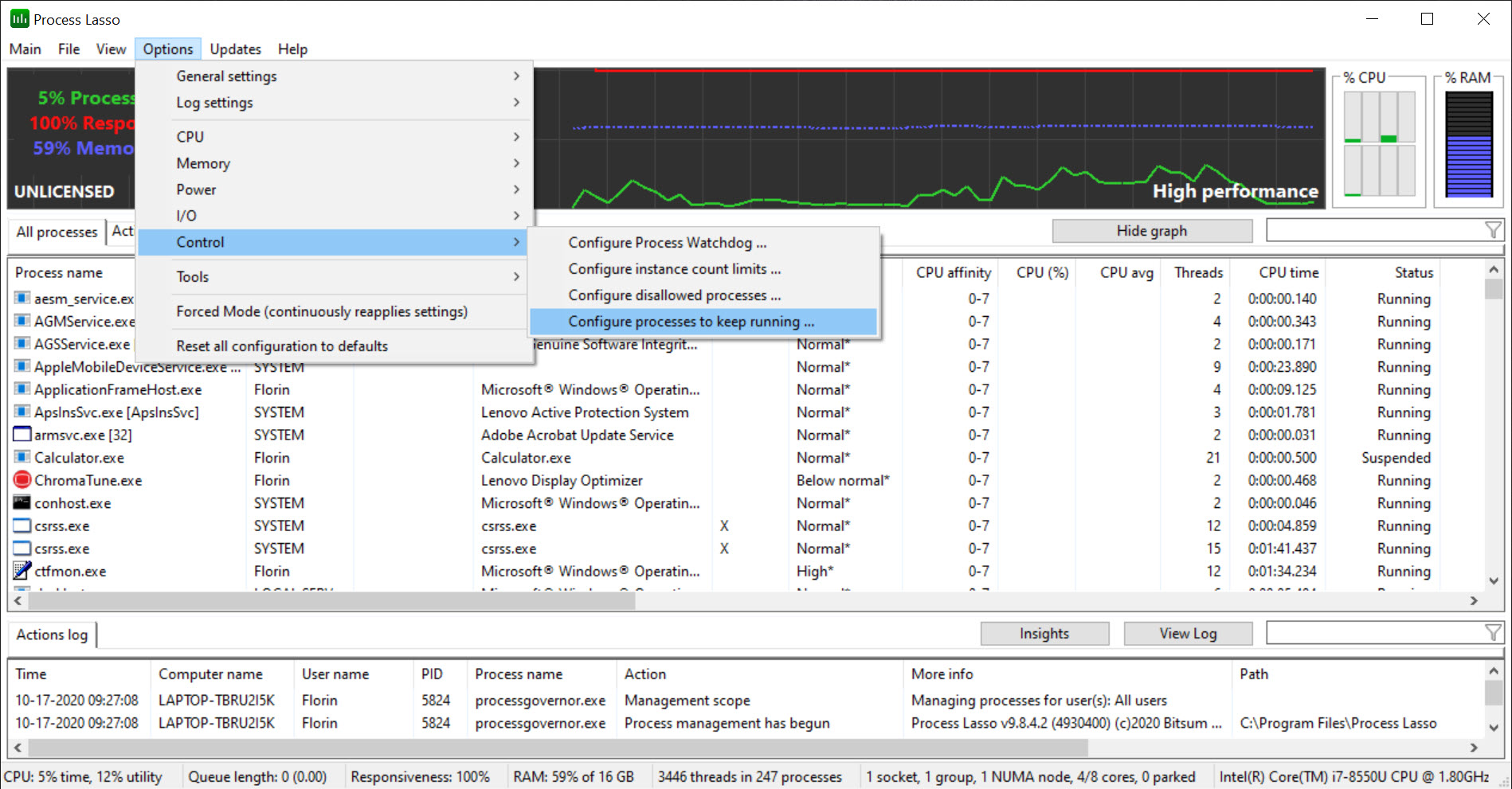
The Process Lasso CPU limiter caps how much processor a program may consume by shrinking its affinity when it crosses a threshold you set, which tames a program that insists on using every core. The instance balancer spreads copies of one program across cores, and instance count limits cap how many may run.
The process watchdog acts on a condition, lowering priority, restarting or terminating a process that exceeds a processor or memory threshold for too long. A disallowed list kills named processes on sight. All of those sit in the registered tier, available in the unregistered build only during the trial period.
The core ProBalance engine, persistent priorities and affinities, performance mode and IdleSaver remain available without registering, which is a generous split, and the engine can run as a service in the registered tier so the rules apply before anyone logs on.
SmartTrim and the memory question
SmartTrim, the Process Lasso memory feature, trims the working set of processes when a memory threshold is reached, pushing pages out of physical memory so that other programs find room. The maker calls it selective and threshold-based rather than a general memory optimiser, because aggressive trimming slows programs when pages fault back in. Left at its defaults, it fires rarely and harmlessly.
Pushed hard, it does the thing memory cleaners are rightly mocked for, so the conservative settings are the right ones, and anyone watching memory for its own sake gets a clearer view from a hardware monitor alongside.
Where it asks care
A wrong Process Lasso rule hurts. Pinning a program to the wrong cores or starving it of priority produces exactly the stutter the tool exists to prevent, and the rules persist, so the mistake persists until you find it. Games with aggressive anti-cheat occasionally object to affinity changes, and the maker documents a workaround. The interface is dense, with graphs, a long process table and a menu tree that assumes you know what a priority class is, and the installer offers an optional telemetry setting to decline.
The honest advice is to leave ProBalance on, add one rule at a time and watch the log before adding the next.
Conclusion
Process Lasso suits anyone whose machine stutters when something runs in the background, from a gamer with a browser full of tabs to an audio producer who needs the processor’s attention undivided, and anyone who has set affinities in the task manager one time too many. ProBalance alone justifies the install on a machine with few cores, and the persistent rules turn repeated tuning into a one-time decision.
It is overkill for a powerful desktop that never struggles, and dangerous in careless hands, because bad rules stick. Leave the defaults alone for a week, read the log, add rules only for programs that proved themselves a problem, and it earns a permanent place in the tray.
Pros & Cons
- ProBalance lowers runaway processes' priority automatically and restores it afterwards
- Priority, affinity, CPU set and efficiency rules that persist across reboots
- Performance mode and IdleSaver switch power plans by activity
- Per-process hyperthreading disable and wildcard rule matching
- Intervention log shows which processes have been slowing the machine
- Core engine and persistent rules available without registering
- Limiter, watchdog, instance controls and power automation need the registered tier
- Dense interface built for people who already know process scheduling
- A wrong persistent rule degrades performance until found
- Little effect on many-core machines with spare capacity
- SmartTrim can slow programs if pushed beyond its defaults
Frequently asked questions
No. It keeps the machine responsive under load by demoting runaway background processes and applying your rules, which feels faster without raising any clock.
Current changes a setting until the program closes, like the task manager. Always writes a rule that reapplies every time a program with that name starts.
Yes. Set an always affinity or CPU set rule for the game's executable, and it is confined or guided to those cores on every launch.
ProBalance, persistent priority and affinity rules, performance mode, IdleSaver and SmartTrim. The limiter, watchdog, instance controls and power plan automation need registration after the trial.


