

Process Hacker
About Process Hacker
Windows Task Manager has improved over the years, but it remains a fundamentally limited tool that shows you a fraction of what’s actually happening on your computer. Power users who want to know which process has hooked into another’s memory, what services are quietly running in the background, or why a process refuses to terminate need something with substantially more depth.
Process Hacker is the open-source utility that fills this gap, providing a level of system visibility that genuinely competes with Microsoft’s own Process Explorer while remaining free and community-developed.
This software has been a staple of the IT troubleshooting toolkit for over a decade. The combination of detailed process information, kernel-mode driver capabilities, malware analysis features, and general system monitoring makes it useful across a remarkable range of scenarios, from casual investigations of why a laptop is suddenly slow to serious security work analyzing suspicious behavior on compromised machines.
A process viewer that actually shows you everything
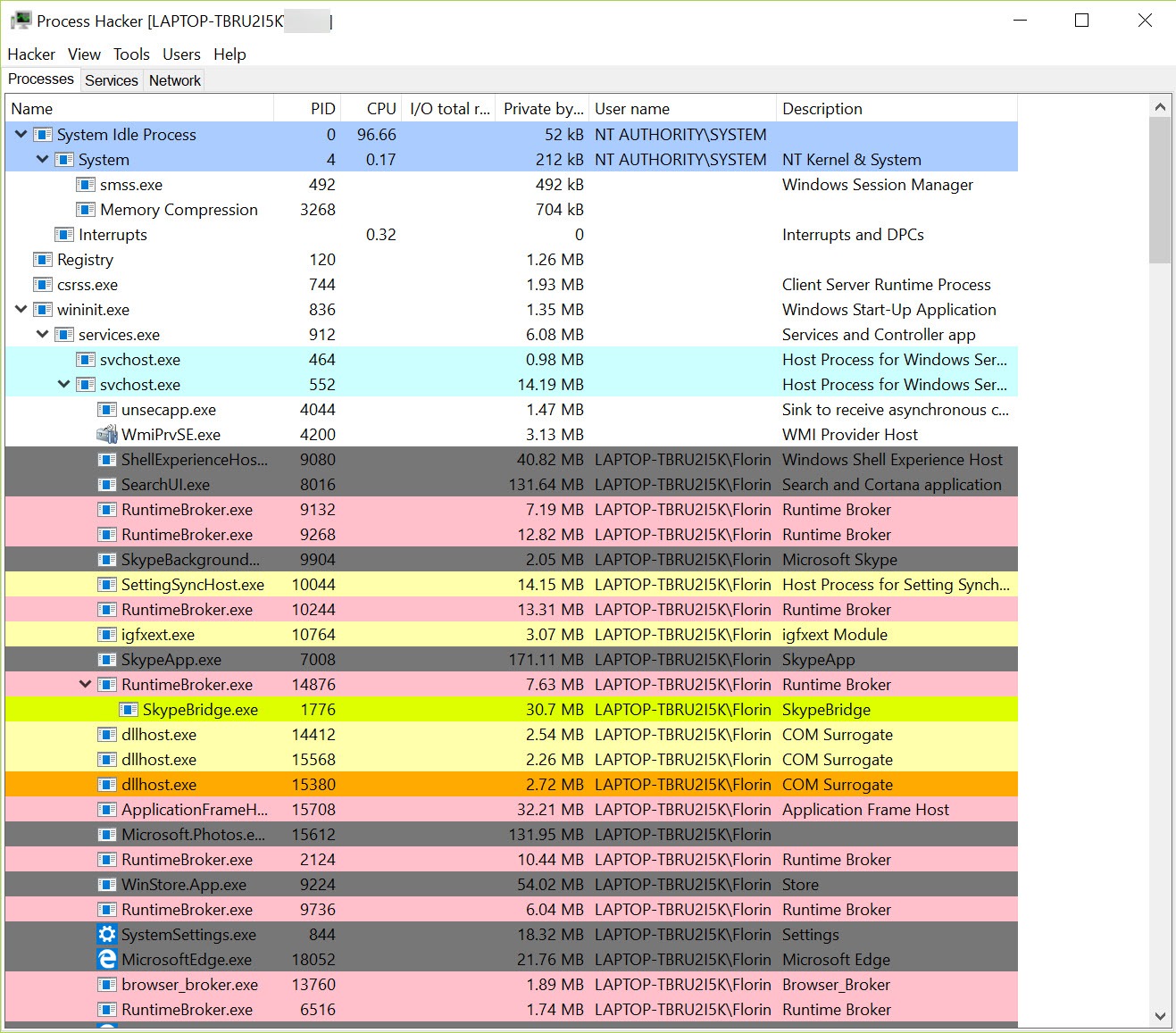
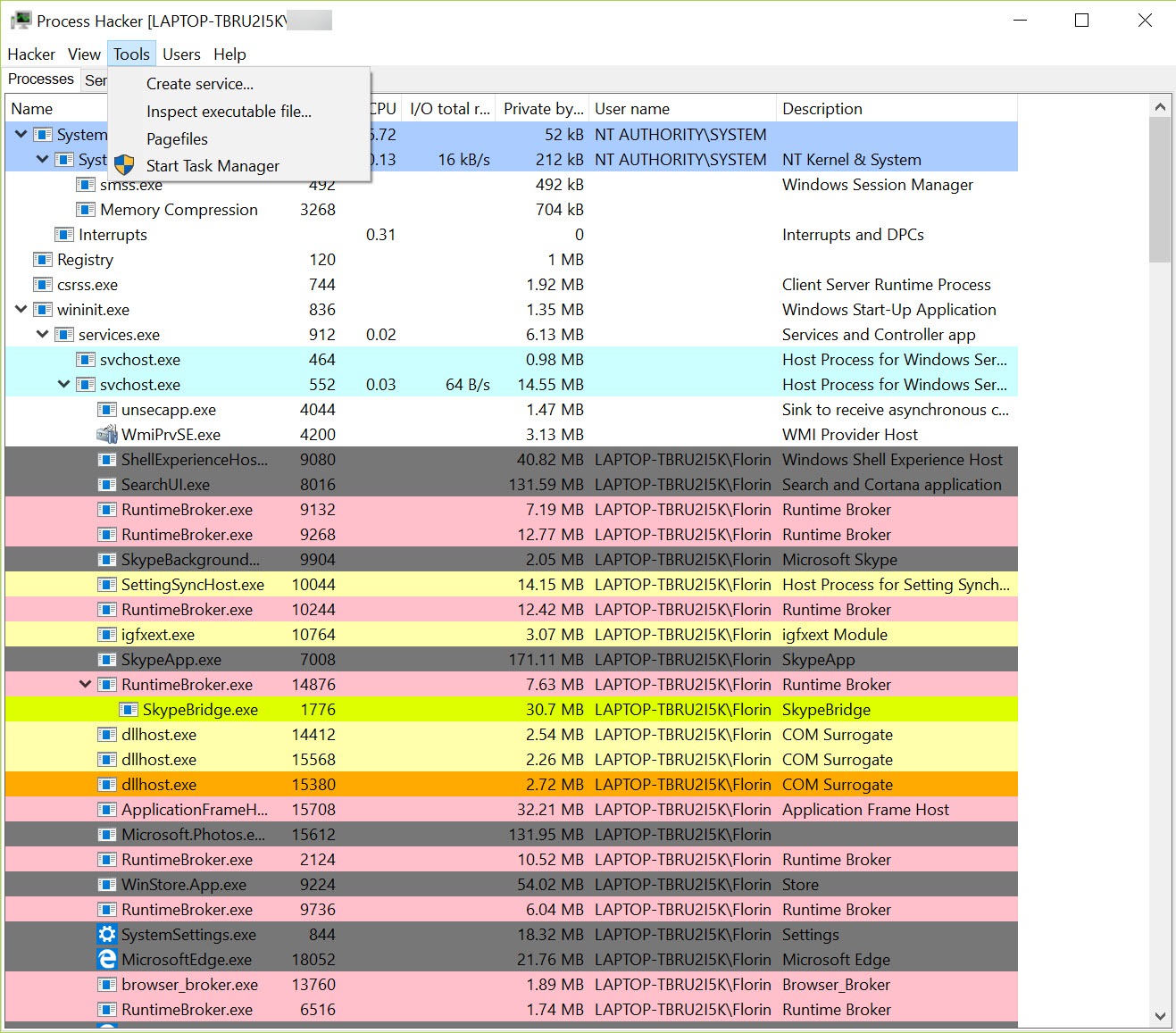
The defining feature of Process Hacker is the depth of process information it exposes. Where Task Manager shows you a flat list of processes with basic metrics, this tool displays the full process tree with parent-child relationships, complete command lines, full executable paths, digital signature status, loaded modules, open handles, network connections, and dozens of other details that explain exactly what each process is doing.
The tree view alone changes how you think about system activity. Seeing that a suspicious process was launched by Chrome instead of by Windows Explorer tells you something important about its likely legitimacy.
Watching a process spawn child processes in real time during a particular user action helps you understand which application is actually responsible for system behavior. This contextual information is mostly invisible in Task Manager but immediately apparent here.
For each process, you can drill down into properties showing memory usage broken down by allocation type, threads with their individual states and stack traces, modules loaded into the process, handles to files and other system objects, and an environment variable dump. This level of detail genuinely makes a difference when investigating performance problems, hangs, or suspicious behavior.
Real-time system monitoring with proper graphs
Beyond per-process information, the application provides whole-system monitoring through interactive graphs for CPU, memory, disk activity, network throughput, and GPU usage where applicable. The graphs update continuously and can be configured to show different time scales, with hover tooltips revealing specific values at any point.
The disk activity view in particular addresses one of Task Manager’s persistent weaknesses: telling you which process is hammering your disk when overall system responsiveness collapses. Where Task Manager often just shows that “something” is using the disk heavily, this software identifies the specific process, the files being accessed, and the read versus write activity, letting you actually diagnose what’s going on rather than guess.
For users on machines with mysterious performance issues, this disk-attribution capability often reveals culprits like Windows Search indexing aggressively, antivirus software scanning a network location, or a backup tool processing files in the background. Knowing the cause makes solving the problem possible.
Service management without the registry diving
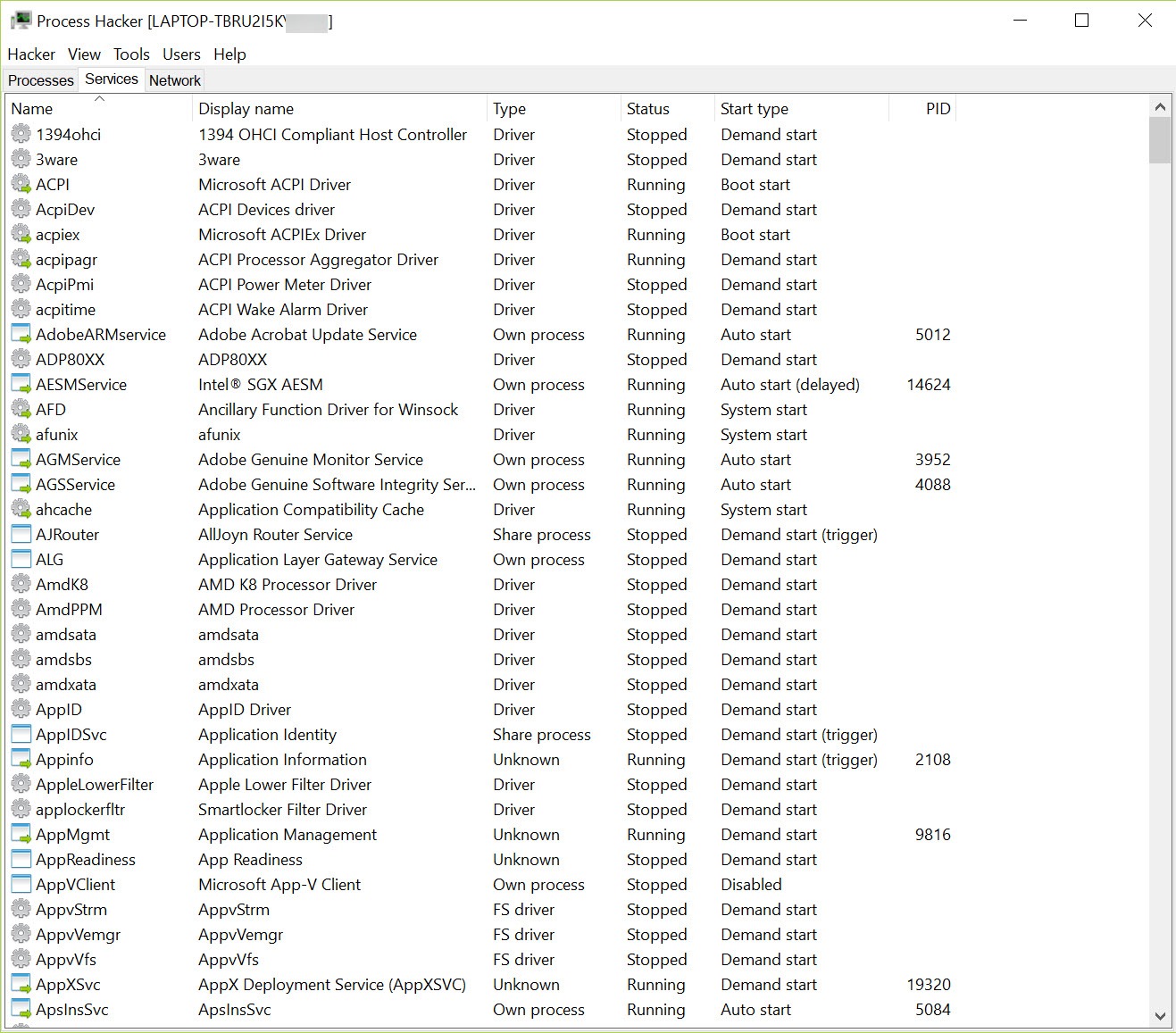
Windows services are managed through services.msc, which works but provides limited visibility. Process Hacker integrates service management into its main interface, showing you all installed services, their current states, the executables that implement them, and the dependencies between them. You can start, stop, pause, and configure services directly without launching the separate management console.
For technicians who frequently work with services (troubleshooting failed installs, identifying which service is blocking a system shutdown, tracking down what a particular vendor’s installer added), having this functionality consolidated with process management is genuinely useful.
The relationship between services and the processes hosting them becomes visible in a way that the standard tools don’t quite expose.
Network connection monitoring
The Network tab shows every active network connection on the system, attributing each one to its specific process and displaying the local and remote endpoints, ports, protocols, and connection states. This visibility into per-process network activity is essential for security analysis, since malware frequently establishes outbound connections to command-and-control servers that can be identified through this kind of monitoring.
For users investigating suspicious system behavior, seeing exactly which processes are talking to which external addresses often reveals the source of problems.
A process you don’t recognize making outbound connections to unusual destinations is a meaningful indicator that something is wrong, and this software provides the visibility to spot such activity.
File and handle search for unlocking stuck files
A frustrating Windows experience is trying to delete or modify a file and being told it’s “in use by another process” without any indication of which process. Process Hacker addresses this through its handle search functionality, which finds every process that currently has a handle to a specified file. You can then close the handle directly (carefully, since this can cause problems for the application holding it) or terminate the entire process if necessary.
This capability turns the maddening “file is locked, somewhere” problem into a solvable issue. For technicians who deal with this scenario regularly, the handle search alone justifies installing the tool. Beyond simple file unlocking, the same search works for any system object including registry keys, mutexes, and other handle types that can prevent operations from completing.
Kernel-mode driver for deeper access
Some operations require privileges beyond what user-mode applications can normally obtain, particularly when dealing with malware that has hidden itself in ways that ordinary tools can’t see. Process Hacker can install an optional kernel-mode driver (kprocesshacker.sys) that gives the application direct access to kernel data structures, allowing it to detect and terminate processes that would otherwise be invisible or untouchable.
The kernel driver is the reason this software sometimes triggers warnings from antivirus tools. Legitimate kernel access is exactly the kind of capability malware would also want, and the security software can’t easily distinguish legitimate use from abuse. The kernel driver is signed by Microsoft and the project is genuinely legitimate, but the capability itself is powerful enough that some security products flag it as a potential threat.
For users who only want process viewing without kernel-level access, the application can run perfectly well without installing the driver, sacrificing some advanced capabilities in exchange for avoiding antivirus warnings. The choice depends on what you actually need from the tool.
Plugin architecture for extensibility
The application supports plugins that extend functionality beyond the core feature set. The bundled ExtendedTools plugin adds GPU monitoring, additional disk and network statistics, and other capabilities that might not be needed by everyone. Other plugins handle specific advanced scenarios like memory editing, online process verification, or custom monitoring extensions.
For most users the default capability set is sufficient, but the plugin architecture means power users can extend the tool in directions specific to their work. For security researchers, malware analysts, or technicians with particular monitoring needs, this extensibility provides options that closed-source alternatives don’t offer.
Comparison with Process Explorer and Task Manager
The natural comparison is with Sysinternals Process Explorer, which Microsoft acquired and continues to develop as part of the Sysinternals suite. Both tools target similar use cases, with comparable depth of process information and overall purpose. Process Explorer benefits from Microsoft’s official endorsement and tighter integration with Windows internals documentation, while Process Hacker offers more aggressive features (kernel driver, more invasive operations) and an open-source codebase that some users prefer.
In practice, many serious technicians have both tools available and use whichever fits the immediate scenario. Process Explorer feels slightly more polished and conservative, while this software tends to expose more dangerous capabilities for users who specifically want them. Neither replaces the other entirely, but for users picking just one, the choice typically comes down to whether you value Microsoft’s endorsement (Process Explorer) or open-source development plus more aggressive features (this software).
Compared to Task Manager, both these tools provide dramatically more depth, and recommending Task Manager for any serious troubleshooting work undersells what’s available for free with these alternatives. For users who want to actually understand what’s happening on their Windows system, the upgrade is worth making.
The “is it safe” question worth addressing
The most-searched questions about this software are some variant of “is Process Hacker safe” or “is it a virus,” reflecting genuine concern from users who hear it flagged by antivirus tools. The short answer is that the legitimate downloads from the official project are safe and have been used by IT professionals for many years without incident.
The flagging happens because the kernel driver capabilities the tool offers are genuinely powerful, and malware authors sometimes bundle this software (or modified versions of it) with their malicious payloads to take advantage of those capabilities. Antivirus tools see the kernel driver and the powerful operations it enables and apply caution rather than trying to distinguish legitimate users from abuse cases.
Downloading from the official sources (the original processhacker.sourceforge.io for the legacy version or the renamed System Informer project for current development) ensures you get the legitimate software. Avoiding random third-party download sites prevents picking up modified versions that may have actual malicious modifications added by attackers exploiting the tool’s reputation.
Considerations and limitations
The interface is dense and assumes technical familiarity. Users who don’t know what threads, handles, or kernel objects are will find much of the information meaningless. For its target audience (technicians, developers, security analysts) this density is exactly right, but casual users looking for a slightly better Task Manager may find this overkill.
The advanced capabilities can cause real problems if misused. Forcefully terminating critical system processes can crash Windows, closing handles arbitrarily can corrupt application state, and adjusting process privileges incorrectly can produce security implications. The tool gives you significant power, and that power requires understanding what you’re doing before exercising it.
Documentation, while present, assumes substantial background knowledge of Windows internals. New users frequently need to consult external resources to understand what particular features mean and when to use them. The learning curve is real for users coming from Task Manager, though the depth pays off once you understand what’s available.
Conclusion
Process Hacker has earned its position as one of the most respected system monitoring utilities available on Windows by combining genuine technical depth with open-source development and a feature set that addresses real needs that the built-in tools simply don’t cover. For IT professionals, developers, security analysts, and serious power users, the depth of visibility it provides into Windows internals turns problems that would otherwise require guesswork into ones that can actually be diagnosed and solved.
It’s not for everyone. Casual users will find it dense and intimidating, and the powerful capabilities require enough technical understanding that misuse can produce real problems.
But for the audience that needs what it offers, Process Hacker delivers exactly that, with the kind of capability and reliability that has kept it on technicians’ toolkits for over a decade and looks set to continue doing so under its new System Informer identity for years to come.
Pros & Cons
- Comprehensive process information far beyond Task Manager's exposure
- Tree view shows parent-child relationships for understanding system behavior
- Real-time graphs for CPU, memory, disk, network, and GPU monitoring
- Service management integrated alongside process management
- Network connection monitoring with per-process attribution
- Handle search resolves "file in use" mysteries reliably
- Kernel-mode driver provides deeper access for advanced scenarios
- Plugin architecture extends functionality for specialized needs
- Free and open-source with active community development
- Interface density assumes technical familiarity with Windows internals
- Kernel driver triggers warnings from some antivirus tools
- Powerful capabilities can damage system state if used incorrectly
- Documentation assumes substantial background knowledge
- Project rename to System Informer creates some user confusion
Frequently asked questions
This software is an advanced process and system monitoring utility that provides much deeper visibility into what's happening on your computer than the standard Task Manager. It shows detailed process information including parent-child relationships, command lines, loaded modules, open handles, and network connections, along with system-wide monitoring of resources and services. The tool is widely used by IT professionals, developers, and security analysts for troubleshooting and malware analysis.
System Informer is the renamed continuation of the original Process Hacker project, with the rename happening in 2022 primarily to address antivirus flagging confusion and reflect a cleaner identity for the project. The two are essentially the same software, with System Informer being the current actively-developed version. Most existing users still refer to it by the original name out of habit, but new development and updates happen under the System Informer name.
Both tools serve similar purposes with comparable depth, but they differ in approach. Process Explorer is part of Microsoft's Sysinternals suite and benefits from official Microsoft backing. This software is open-source and offers more aggressive features including the optional kernel driver. Many serious technicians use both, choosing whichever fits the immediate scenario better. For users picking one, the choice often comes down to whether Microsoft's endorsement matters more than open-source development.
The kernel driver provides access to system information that user-mode applications can't normally see, including processes that have hidden themselves through various techniques. Without the driver, the tool functions as a more capable Task Manager alternative. With the driver installed, it gains the ability to detect and interact with hidden processes, which is essential for malware analysis and certain advanced troubleshooting scenarios.
Yes, the application includes more aggressive process termination methods that can handle cases where standard termination requests are ignored or blocked. With the kernel driver installed, even processes actively defending themselves against termination can usually be killed. This capability matters specifically when dealing with malware or buggy applications that resist normal closure attempts.
The handle search identifies which process holds an open handle to a specific file, registry key, or other system object. This solves the common "file is in use by another process" problem by telling you exactly which process is using the file, allowing you to either close the handle, terminate the process, or work around the lock through other means. The search works for many object types beyond files, making it useful for various troubleshooting scenarios.


