

Playnite
About Playnite
PC gaming used to mean one storefront, then it meant two, and now most active players have games scattered across Steam, Epic, GOG, Ubisoft Connect, Battle.net, EA App, Xbox, Amazon Prime Gaming, itch.io, and whatever else gave away a free copy of something last week. Add a folder of emulated console games on top and the situation is genuinely fragmented.
Playnite is the open source desktop application that pulls all of that into a single library view, complete with cover art, metadata, playtime tracking, and a couch-friendly fullscreen mode.
The application doesn’t replace the storefronts. The games still launch through their original launchers, the saves still live wherever the publisher put them, and the underlying ownership relationships are unchanged.
What changes is the layer you spend time browsing in. Instead of opening four different launchers to remember which one has the game you wanted to play, you open Playnite once and pick from the unified catalog.
The library aggregation engine
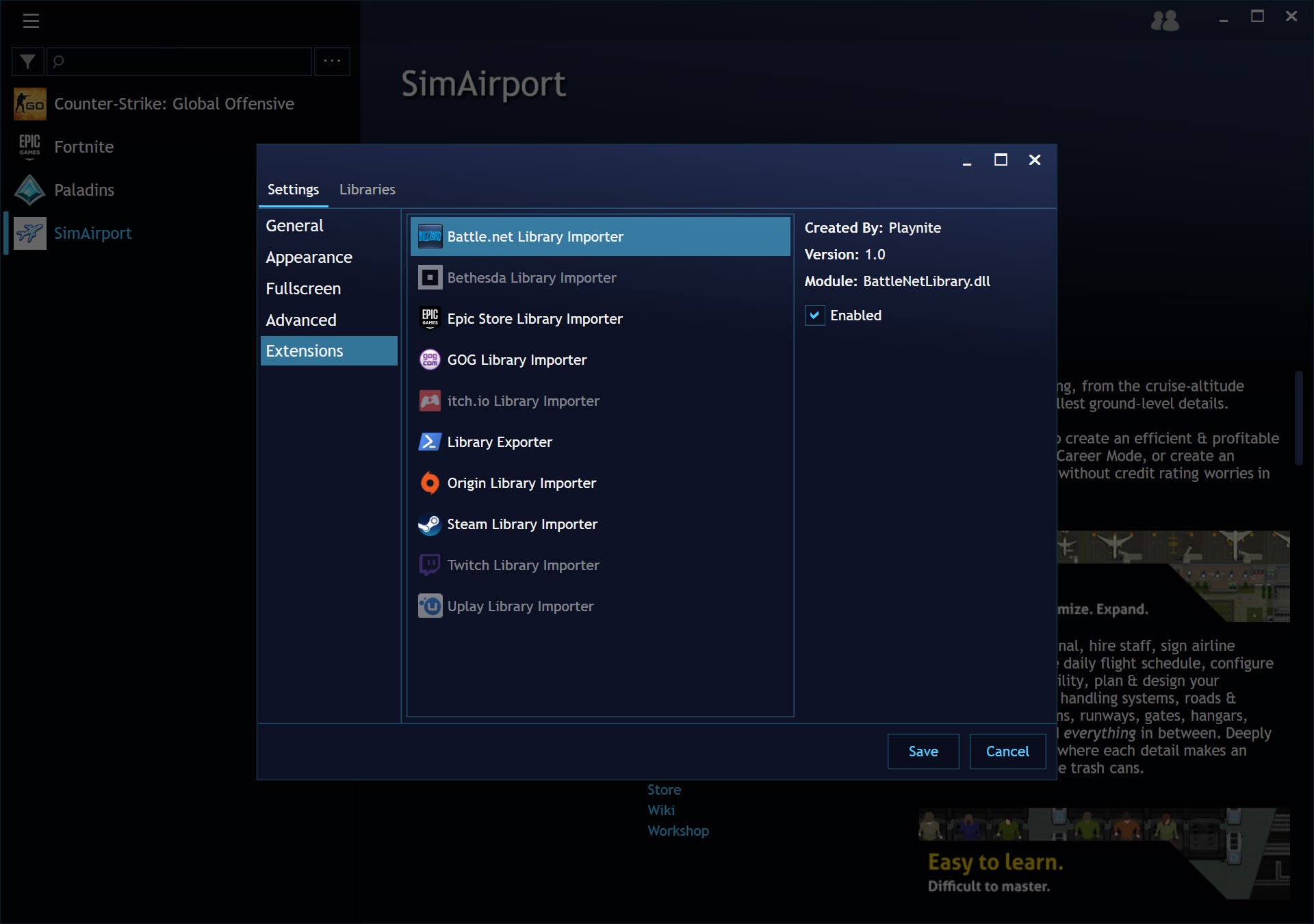
The core feature is automatic import from supported storefronts. Sign in to Steam, GOG, Epic, Origin (now EA App), Ubisoft Connect, Battle.net, Microsoft Store/Xbox, Amazon Games, itch.io, Twitch, Humble Bundle, or GameJolt, and the application pulls your complete library from each one. The import covers owned games regardless of install state, so you can browse your full ownership history rather than just what’s currently installed.
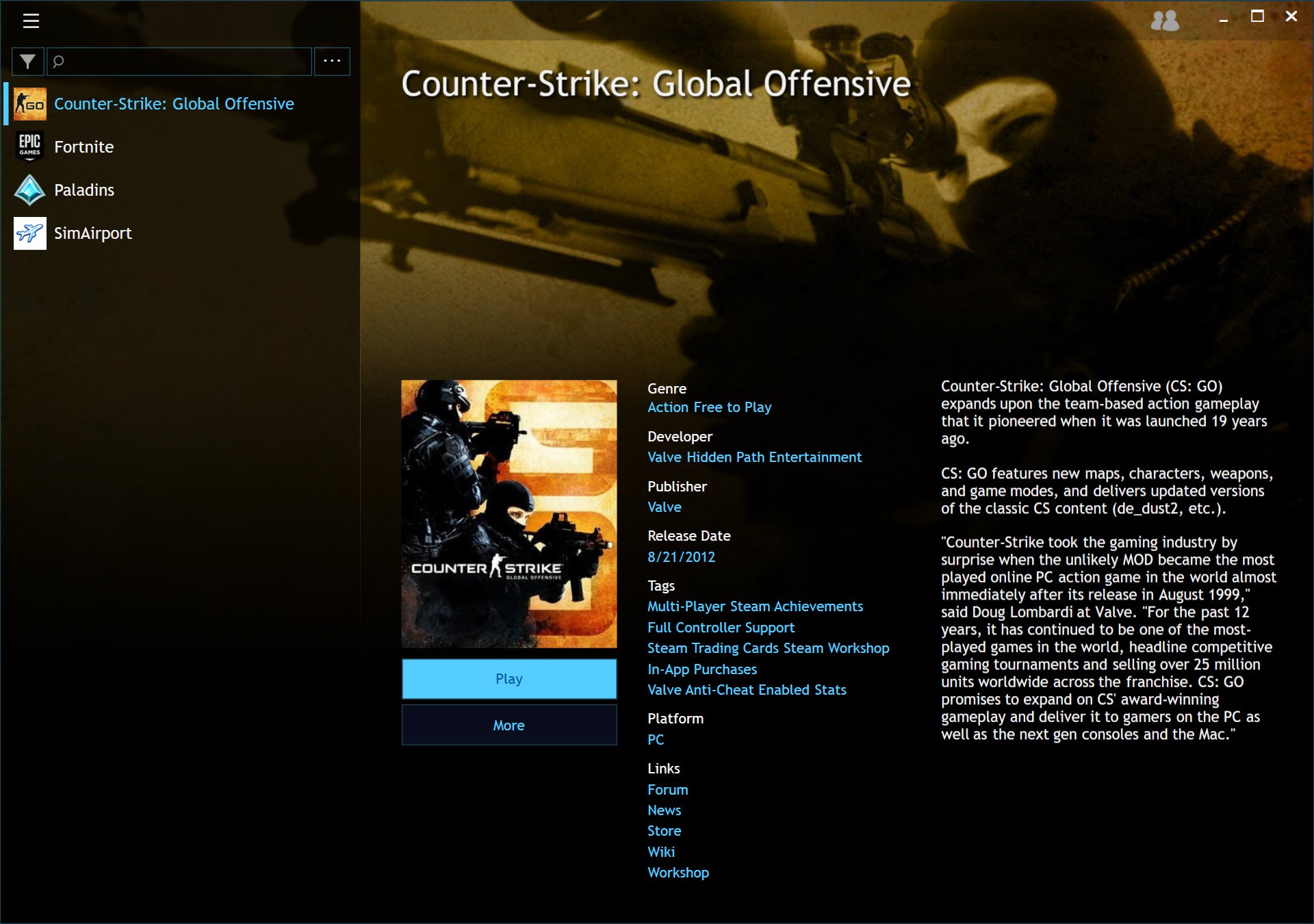
For each game, the application fetches metadata. Cover art, background images, descriptions, release dates, developer and publisher info, genres, tags, age ratings, and platform information come from a combination of IGDB, SteamGridDB, and the storefronts themselves.
The result is a library view that looks polished out of the box without manual curation. When the automatic metadata is wrong (and on obscure or older games it sometimes is), you can override any field manually and the override sticks across rescans.
Library entries that aren’t from a supported storefront (DRM-free installers, emulated games, portable executables) can be added manually. The application also scans configured directories for executable files matching specific patterns, which automates the import of large emulator ROM libraries without entering each game by hand.
Emulator integration
The emulator workflow is where the application differentiates itself from pure storefront aggregators. You add an emulator (RetroArch, Cemu, DeSmuME, ePSXe, MAME, Dolphin, PCSX2, Yuzu, etc.) by pointing at the executable, set the appropriate platform mapping, and the application uses the right command-line arguments to launch each ROM. The configurations for most common emulators are pre-defined, so you don’t need to remember RetroArch’s command-line syntax for the dozenth time.
ROM scanning works the same way as storefront imports. Point the application at the folder containing your ROMs for a specific platform, choose the emulator profile, and games appear in the library with metadata fetched automatically based on filename matching against IGDB. For users coming from dedicated emulator frontends like LaunchBox or HyperSpin, the workflow is similar in concept but more integrated with PC gaming libraries.
The result is that an SNES game from a ROM folder shows up in the same library view as a Steam game and an Epic game, with the same metadata layout and the same launch flow. That unification is the practical reason to use the application even if your collection is mostly digital PC games.
Desktop mode vs Fullscreen mode
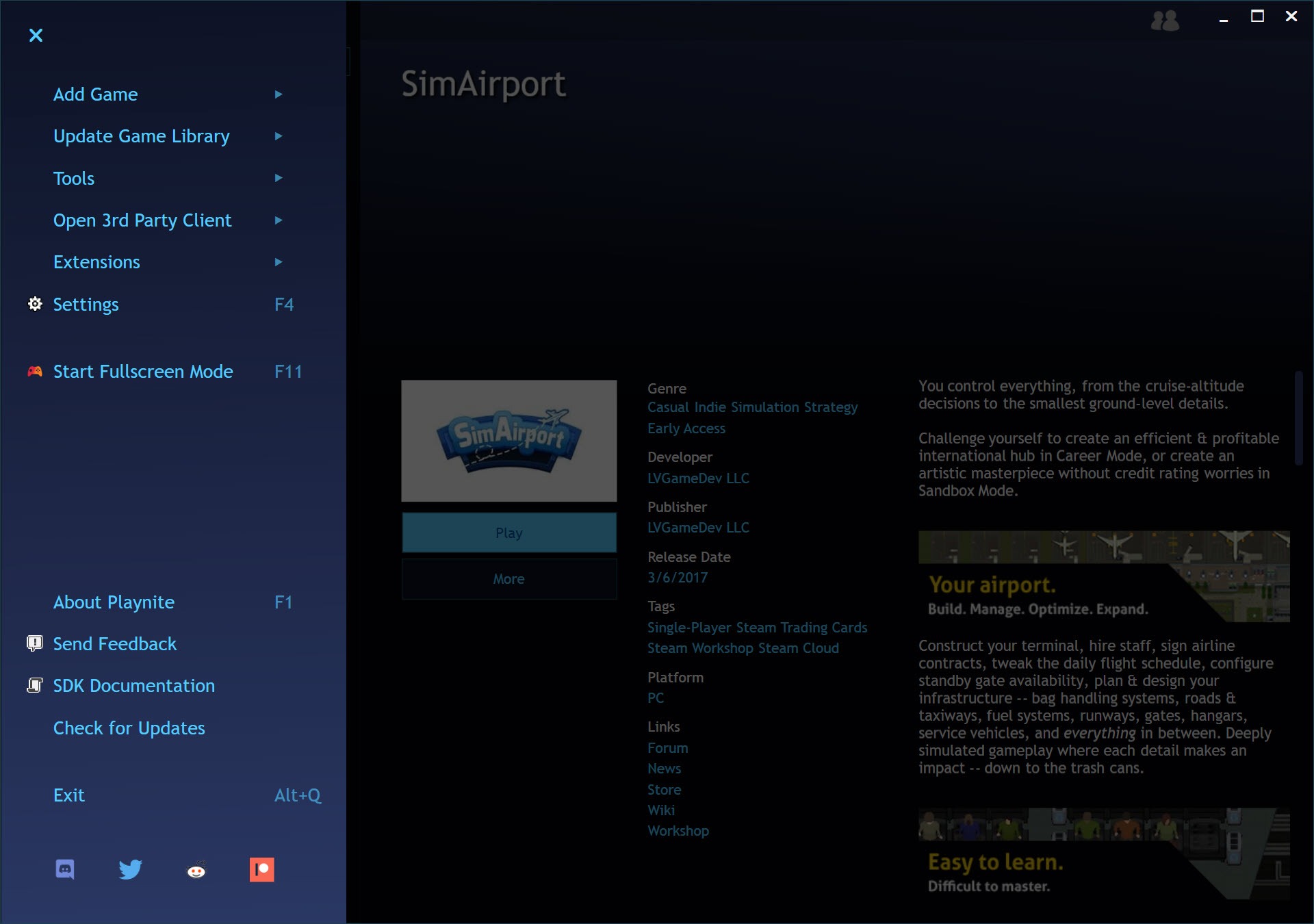
The application has two distinct interface modes. Desktop mode is the conventional Windows application interface, with a sidebar, library grid, filter controls, and detail panels. Mouse and keyboard driven, dense with information, suitable for browsing on a regular monitor with a desk setup.
Fullscreen mode is the couch-friendly alternative. Large cover art tiles, controller-first navigation, simplified menus, scaled fonts that read from across a room. It’s the closest thing the PC has to a built-in console-style game library, and it’s the reason the application gets installed on a lot of HTPC setups and Steam Deck dock configurations.
You can switch between modes manually, or configure the application to launch directly into Fullscreen mode on boot for a dedicated gaming machine. Controller mapping in Fullscreen mode covers Xbox controllers natively and DualShock through tools like DS4Windows, with key bindings configurable per controller type.
Theming and the customization angle
The theming system is one of the application’s standout features. Both Desktop and Fullscreen modes can be reskinned through community themes, which are XAML-based and shipped through an in-app theme browser. The themes range from minor visual tweaks to complete reimaginings of the layout, including console-style grids, vertical-scrolling card layouts, and themes that explicitly mimic the Steam Big Picture or Xbox dashboard aesthetic.
For users wanting cover art replacements at the same time, SteamGridDB integration through a plugin lets you browse community-made grids and apply them per-game. Combined with a theme that emphasizes large cover art, the resulting library can be made to look substantially better than any of the underlying storefronts on their own.
The trade-off with heavy theming is performance. Some elaborate themes have animation effects or complex visual layers that can produce noticeable lag on lower-end systems, especially in libraries with hundreds of games. The default themes are tuned for performance, and stripping back to those is the fallback when a custom theme produces problems.
The plugin and extension system
Beyond themes, the application has a Python-like scripting layer and a plugin system that extends what the library can do. Plugins cover storefront support for less common platforms, metadata source additions, achievement tracking, save game backup automation, system tray integration, Discord rich presence, and various other niches that the core application doesn’t address.
The plugin marketplace is built into the application, with installation reduced to a click per plugin. Updates flow through the same channel. The quality varies (as plugin ecosystems always do), but the popular plugins are actively maintained and the foundational ones work reliably across application updates.
For pairing with game streaming setups, the Sunshine integration plugin lets you stream the Playnite fullscreen interface to a remote device, which is how a lot of users get their PC library onto a tablet or living room TV without rebuilding the entire setup around Steam’s streaming.
Playtime tracking and statistics
The application tracks how long you’ve played each game, when you last launched it, total session counts, and aggregated stats across your library. Steam already tracks this for Steam games and the application reads that data when available, but for non-Steam games (Epic, GOG, emulated titles), this is the first time playtime data has existed in one place across the full library.
Statistics views show your top played games, recent activity, total library size, and breakdowns by platform, genre, or any custom tag. For users who like quantified self data about their gaming habits, it’s more thorough than what any single storefront offers.
Where the application falls short
The initial setup can be involved. Connecting all your storefronts, configuring emulators, scanning ROM folders, picking a theme, and tuning the library to your preferences takes time. Once that’s done the maintenance is minimal, but the up-front investment is enough that some users bounce off before getting to the payoff.
Metadata scraping isn’t perfect. Generic-named ROM files, obscure indie titles, and games with multiple region variants can produce incorrect matches that need manual correction. The application’s bulk metadata refresh helps with this, but you’ll still end up doing some manual cleanup on any library that includes old or unusual titles.
The Linux story is community-maintained rather than officially supported. There’s a project that runs the application under Wine on Linux with varying success, but the supported platform is Windows and that’s where the experience works consistently. For users wanting consolidated launcher functionality on other operating systems, the alternatives are more limited.
Performance scales sub-linearly with library size in extreme cases. Libraries with several thousand entries, especially combined with heavy themes and extensive metadata, can produce slow initial load times and laggy scrolling. The application is built to handle large libraries, but the upper limit isn’t infinite.
Conclusion
Playnite is the practical answer to the storefront fragmentation that’s defined PC gaming over the last several years. The aggregation function alone justifies installing it for anyone with games across more than two or three platforms, and the addition of emulator support makes it work equally well for retro-focused collections.
The audience that gets the most out of the application is players with diverse libraries, HTPC and Steam Deck dock users wanting a console-style interface, and anyone who’s tired of opening four launchers to find one game. Players who only buy from Steam don’t really need it, since Steam already handles their entire catalog. Players who exclusively use emulators have more specialized frontends available.
For everyone in the middle, which is most active PC players today, the application takes a genuinely fragmented experience and makes it feel deliberate.
Pros & Cons
- Aggregates Steam, GOG, Epic, Origin, Ubisoft, Battle.net, Xbox, Amazon, itch.io, and more into one library
- Emulator integration unifies ROM-based games with PC storefront games
- Fullscreen mode provides a console-style couch-friendly interface
- Active theming community offers extensive visual customization
- Plugin system extends functionality including streaming and Discord integration
- Playtime tracking unified across storefronts that don't otherwise share that data
- Open source with active development
- Initial setup is time-consuming for users with many storefronts and emulators
- Metadata scraping can produce incorrect matches on obscure or generic-named games
- Heavy themes can introduce performance lag on lower-end systems
- Linux support is community-maintained rather than official
- Very large libraries with thousands of entries can produce slow load times
Frequently asked questions
It aggregates games from multiple storefronts and emulators into a single library view with consistent metadata, cover art, and launch behavior. The games still launch through their original launchers, but you browse and select them from one unified interface.
Steam, GOG, Epic Games, Origin (EA App), Ubisoft Connect, Battle.net, Microsoft Store and Xbox, Amazon Games, itch.io, Twitch, Humble Bundle, and GameJolt are all supported through the built-in library importers. Plugins extend this to additional platforms.
Yes. The application has emulator support built in. Configure the emulator executable, set the platform, point at your ROM folder, and the games import with metadata fetched automatically. Pre-defined configurations exist for most popular emulators.
Yes, especially in Fullscreen mode which is designed around controller navigation. Xbox controllers work natively. DualShock controllers work with appropriate input mapping tools.
Both manage unified game libraries with emulator support, but the focus differs. LaunchBox leans more heavily toward retro and emulator collections with elaborate frontend customization. Playnite balances modern storefront integration with emulator support, and uses a less skinned default interface. For pure emulator frontends, LaunchBox is more specialized.
Extensively. Both Desktop and Fullscreen modes accept community-made themes installed through the in-app browser. SteamGridDB integration also allows per-game cover art replacement. The default appearance can be transformed substantially through theming.
The application shows your library and launches games through the original launchers, where the download and installation actually happen. It doesn't replace Steam, Epic, or any other storefront's installation function.
Metadata matching works by name comparison against IGDB and other sources. Generic ROM filenames, region-specific releases, and obscure games can produce incorrect matches or no matches at all. You can override the metadata source per-game and provide custom cover art for any title.


