

PCSX2
About PCSX2
PCSX2 turns your computer into a PlayStation 2, faithfully enough that thousands of games from the console’s massive library run start to finish. It reads your game discs or ISO backups, runs them through a recompiler that translates the PS2’s hardware instructions into something your CPU understands, and hands the heavy lifting of upscaling and effects off to your graphics card. The result is a PS2 that boots faster, looks sharper, and saves whenever you want.
What sets it apart from a real console is everything you get on top of accurate emulation. You can render Gran Turismo 4 or Final Fantasy X at 1080p, 1440p, or 4K instead of the original 640×448.
You can save a state mid-boss-fight and reload it a second later. And you can map a modern controller, tweak per-game settings, and load high-resolution texture packs that the original hardware could never have displayed.
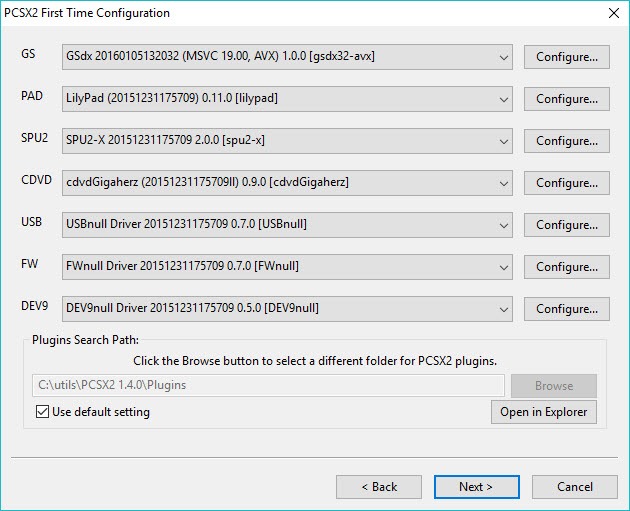
There’s a catch worth naming up front. PCSX2 needs a PS2 BIOS image dumped from a console you own, and it won’t boot games without one. That’s the one hurdle between installing the application and playing. Everything after that is configuration.
What makes the rendering so flexible?
Most of what people notice first is how good old games can look. The emulator ships with three rendering backends. Vulkan, Direct3D, and OpenGL, and you switch between them in the graphics settings depending on what your hardware likes. Vulkan tends to be the safe default on modern machines, Direct3D 12 squeezes out extra performance on capable GPUs, and OpenGL hangs around mostly for compatibility on stubborn titles.
Internal resolution scaling is where the visual jump happens. Native is 640×448, the same as the console. Bump it to 2x and the image already looks cleaner than the original ever did. 3x is the sweet spot for a lot of setups, landing somewhere around 1080p or 1440p depending on the game. Push to 4x or beyond if you have a 4K monitor and a GPU that won’t choke. (A quick rule. If you see glitches or your frame rate tanks, drop the internal resolution before you start fiddling with anything else.)
On top of that you get texture filtering to smooth out pixelated surfaces, FXAA and hardware anti-aliasing to clean up jagged edges, and optional CRT and scanline shaders if you want that old tube-TV look back. The shaders are a nice touch for 2D-heavy games that were designed for a fuzzy display and can look a little stark at 4K.
Save states and memory cards, side by side
This is where emulation genuinely beats the original hardware. Save states let you snapshot the exact moment you’re in and jump back to it instantly, which turns brutal sections into something you can actually finish. No more memorizing checkpoints. No more redoing the same twenty minutes.
The application also emulates proper PS2 memory cards, so in-game saves work exactly as they did on console. Here’s the thing nobody tells you. The default 8MB virtual cards fill up fast once you’ve saved across a few RPGs. The fix is to create a folder-type memory card instead, which is effectively unlimited and drops straight into Slot 1. Most people set that up once and never think about saves again.
You manage all of this through the memory card manager, where you create, format, and swap cards. Backing up those save files now and then is smart. A folder card sitting in your documents folder is one accidental delete away from gone.
How well does it handle controllers?
Controller support is broad and refreshingly simple to set up. Plug in a DualShock, an Xbox pad, or most generic gamepads and you map each button in the controller settings. The emulator reads pressure sensitivity where games use it, and you can run two pads for local multiplayer.
If your controller of choice doesn’t behave the way you expect, a tool like DS4Windows can wrap a PlayStation pad into something the system reads cleanly, and Xpadder covers more exotic mapping needs.
For the rare game that wants something unusual, like the EyeToy camera, you can even assign a connected webcam through the USB port settings.
Cheats, patches, and per-game tuning
One feature that takes a while to discover but pays off is per-game configuration. Right-click any game in your library and you get its own settings profile, so a title that needs a specific renderer or a particular speed hack keeps those settings without affecting everything else. Some games are fussy. This is how you tame them.
Widescreen and 60FPS patches come bundled now, enabled from the per-game patches menu, which means a lot of 4:3 games can stretch properly to a modern display without hunting down separate files. The emulator also reads PNACH cheat files, so if you want infinite health or unlocked content, you drop the file in the cheats folder and tick it on in the patches list.
There’s depth here that rewards patience. Speed hacks can boost frame rates on demanding games, but lean on them without knowing what they do and you’ll break graphics or game logic.
The advice you’ll hear from experienced users is consistent. Configure problem games individually, and don’t abuse hacks you don’t understand.
Building and browsing your library
Point the application at a folder of games and it scans them into a clean, double-clickable list with cover art. From there you boot directly into a game, jump into per-game settings, or pull up the compatibility info. With more than 2500 titles tested over the years and the vast majority of the library running well, odds are good that whatever you’re chasing will work.
If you’re juggling several different emulators, a front-end like LaunchBox can pull your PS2 collection in alongside everything else. And if you came here after outgrowing a PlayStation 1 setup, ePSXe handles that older library while this one takes over the PS2 era.
Conclusion
PCSX2 is the most capable way to revisit the PlayStation 2 library on a computer, and for most people it’s the obvious choice. The upscaling, save states, and per-game tuning give you a version of these games that’s sharper and more convenient than the console ever managed, and the compatibility list is deep enough that disappointment is rare.
It does ask something of you, though. You need a BIOS from your own console, a CPU with enough muscle for the heavier titles, and a little patience with a settings menu that doesn’t hold your hand. Get past that, and you have a near-complete PS2 in software, ready whenever you are.
Pros & Cons
- Runs the vast majority of the PS2 library, with more than 2500 titles tested for compatibility
- Upscales games to 1080p, 1440p, or 4K from the original 640x448
- Three rendering backends (Vulkan, Direct3D, OpenGL) to match your hardware
- Save states let you snapshot and reload any moment instantly
- Folder-type memory cards remove the 8MB save limit entirely
- Per-game settings profiles isolate fixes for fussy titles
- Bundled widescreen and 60FPS patches, plus PNACH cheat support
- Broad controller support with pressure sensitivity and two-player input
- Requires a PS2 BIOS image dumped from your own console before anything boots
- Demanding games lean hard on your CPU, so weaker processors will struggle
- Speed hacks can break graphics or game logic if you enable them blindly
- Some integrated GPUs run into driver crashes and glitches with the hardware renderers
- The number of settings can overwhelm newcomers who just want to press play
Frequently asked questions
Yes. The application requires a PS2 BIOS image dumped from a console you own, and it won't boot any game without one. This is the single setup step you can't skip.
If your computer has a compatible DVD drive, the emulator can read and play original discs directly. Otherwise you load ISO backups of games you own.
The default virtual cards cap at 8MB, the same as real hardware, so they fill after a handful of save-heavy games. Create a folder-type memory card instead and the limit effectively disappears.
Widescreen patches are bundled and enabled from the per-game patches menu. Tick the box for the game you want and many 4:3 titles will stretch correctly to a modern display.
Yes, and they're one of its best features. You can snapshot any moment and reload it instantly, which makes difficult sections far less punishing than they were on console.
Start by lowering the internal resolution, then try switching the graphics backend between Vulkan, Direct3D, and OpenGL. Enabling speed hacks can help too, though use them carefully since they can introduce glitches.


