

Notepad++
About Notepad++
Notepad++ is the free text and source code editor that fills the awkward space between the basic Notepad shipped with the OS and a full integrated development environment. Open it, type, save, close. The whole point is that nothing gets in the way.
But underneath that simplicity sits a real editor with syntax highlighting for more than 80 languages, a plugin system that’s been collecting community extensions for over two decades, and editing features that working developers reach for every day.
The project is the work of Don Ho, who started it in 2003, and it has remained one of the more consistently maintained open-source Windows tools in existence. Releases are frequent, the codebase is small enough to audit, and the editor itself starts up in under a second on modern hardware.
For anyone who edits config files, writes shell scripts, hacks on HTML, drops into JSON or XML to fix something, or just wants a serious replacement for the OS notepad, this is the default answer.
What sits between basic notepad and a full IDE
The boring built-in notepad on most operating systems opens a single file in a single window, with no syntax help, no tabs, no real find-and-replace worth using. Heavier tools like Visual Studio Code or JetBrains IDEs are excellent but they’re also several hundred megabytes, slow to launch on older hardware, and overkill for editing a 50-line config file at three in the morning when you just need to fix one typo.
Notepad++ is the middle option. Tabbed multi-file editing, syntax coloring, a sane find/replace with regex, plugin extensibility, but no project workspace, no integrated debugger, no language server protocol. You don’t open a “project” in it, you open files.
That mental model is the whole appeal for a lot of users, especially sysadmins and anyone who works across many small scripts in many languages rather than living inside one large codebase.
Built on Scintilla, which matters more than you’d think
Underneath, Notepad++ runs on Scintilla, the editing component that also powers SciTE and several other Windows editors. Scintilla handles the text rendering, syntax tokenization, code folding, and styling, which is why the editor can open enormous files (tens or hundreds of megabytes of log data, for instance) without grinding to a halt the way browser-based editors do.
This shows up in real workflows. Open a 200 MB SQL dump file or a multi-hour application log and Notepad++ scrolls through it smoothly. Try the same thing in Atom or VS Code and you’ll wait for the syntax engine to catch up, sometimes for minutes, sometimes never. For anyone who deals with big text files regularly, the Scintilla foundation is the unsung reason this editor has stuck around.
Syntax highlighting and the language list
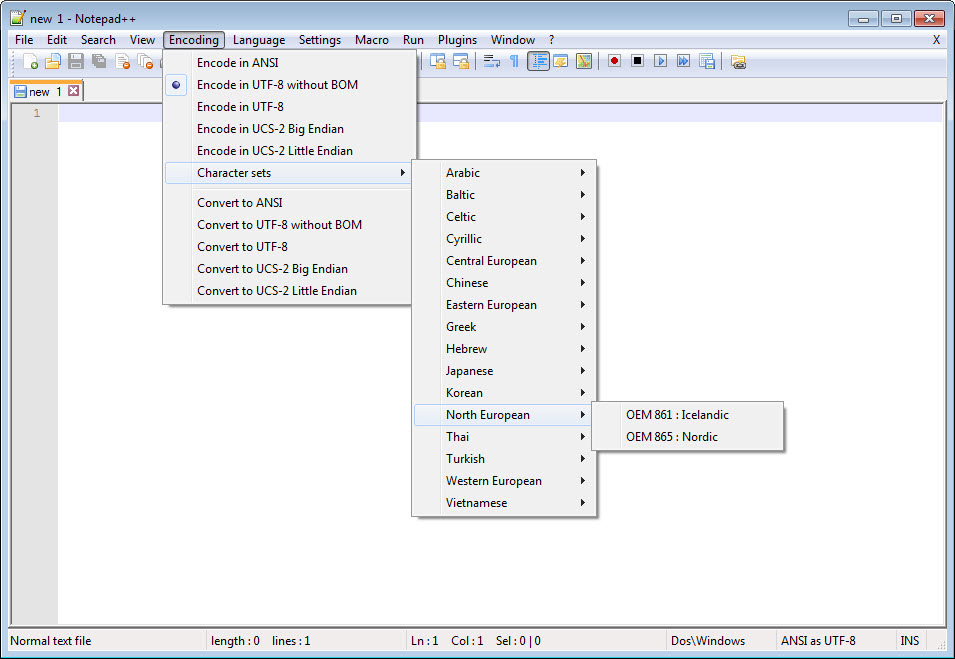
Out of the box, the editor knows how to color C, C++, C#, Java, Python, JavaScript, TypeScript, PHP, Ruby, HTML, CSS, SQL, XML, JSON, YAML, Markdown, Lua, Perl, R, Rust, Go, Swift, batch files, PowerShell, INI, properties files, and dozens more. The language menu is alphabetical and unsurprising.
You can also define your own language with custom keywords and styles through the User Defined Language dialog, which is genuinely useful for proprietary scripting languages or DSLs that don’t ship with built-in support.
Code folding works for languages with clear block structure. You collapse a function definition, an XML element, or an HTML section by clicking the gutter arrow. This isn’t revolutionary in 2026 but it’s well-implemented and the folding state survives switching tabs.
Auto-completion exists but it’s word-based by default rather than semantic. It suggests words you’ve already typed in the file, not symbols imported from libraries. For light scripting work that’s fine.
For serious development you’d want an IDE with actual language server integration. Knowing where this tool stops is part of using it well.
The plugin ecosystem
The Plugins Admin (Plugins menu, then Plugins Admin) opens a list of community-maintained plugins you can install with a checkbox and a restart. The list is curated by the project, not a free-for-all marketplace, which keeps the security situation manageable but also means fewer obscure plugins than something like Geany or older editors have accumulated.
A few plugins are practically required for the workflows people use this editor for. Compare lets you diff two files side by side with colored change markers, which is the feature most often searched for and the reason many developers install it in the first place. NppFTP turns the editor into a remote file editor against FTP, SFTP, and FTPS servers, which is the simple way to fix a config on a server without spinning up a full SSH session. JSTool, XML Tools, and JSON Viewer add pretty-printing and validation for those specific formats. HexEditor swaps the view into raw hex for binary file inspection.
The plugin system used to be more chaotic. Older versions let any plugin install itself, which led to security incidents and unsigned code running with user privileges. The modern Plugins Admin curated approach is a real improvement and worth using rather than dropping DLLs into the plugins folder manually.
Editing features that earn the install
The features that turn this from a glorified notepad into a real working editor mostly involve text manipulation patterns you don’t realize you need until you have them.
Column mode editing (hold Alt and drag, or use Alt+Shift+arrow keys) lets you select a rectangular block of text across multiple lines, type, and have the same edit applied to every selected line at once. This is the trick for editing fixed-width data files, prefixing or suffixing rows, or padding columns. Once you’ve used it, going back to a regular editor feels handicapped.
Find and Replace handles normal text, extended sequences (\n, \t, \r), and full regular expressions. The regex flavor is Boost regex which is close to PCRE, and the live preview shows you what the replacement will look like before you commit.
Find in Files searches across a directory tree and gives clickable result lines that jump straight to the match. For someone who lives in Cmder or other terminal tools, this is the GUI version of grep that’s faster to use for one-off searches.
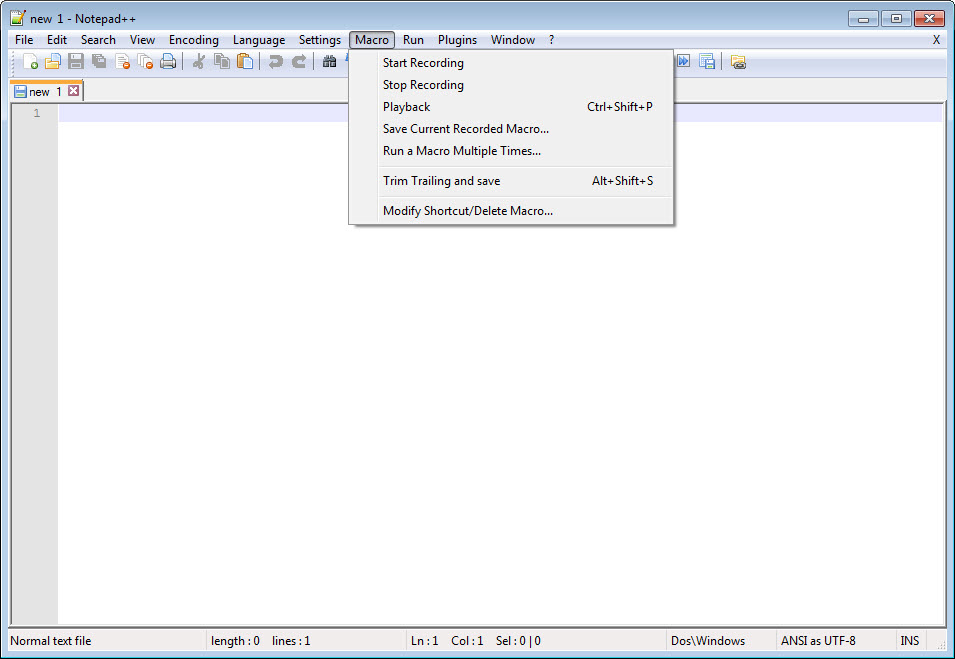
The macro recorder captures keystrokes and lets you replay them across files, which is how you do bulk reformatting work without writing a script. Save the macro to the menu and bind a hotkey to it if it’s a pattern you use often.
Session and crash recovery
Close Notepad++ with unsaved files open and they come back when you reopen the app, unsaved changes intact. This is the kind of feature that sounds boring until your machine reboots after a Windows update and you realize the editor preserved everything you’d been working on. The session is stored as a backup folder, files are auto-saved at intervals, and there’s no nagging save dialog that interrupts the workflow.
You can also explicitly save and load named sessions, which is useful if you flip between different projects. Sessions are just lists of file paths plus cursor positions and unsaved buffer contents, nothing fancy, but they cover the use case completely.
Customization, themes, and dark mode
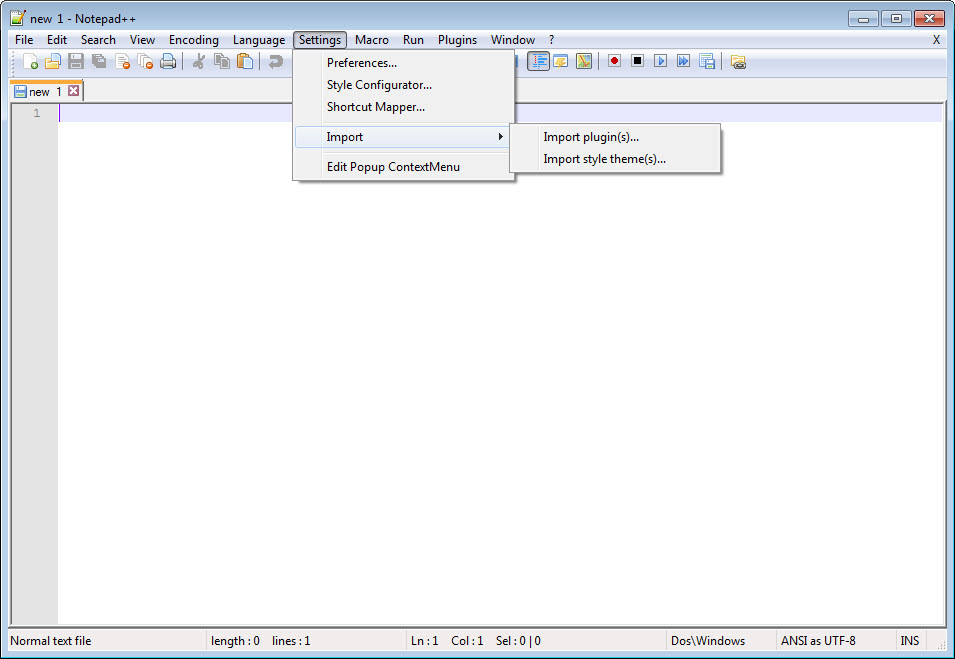
The look of the editor is fully themeable through the Style Configurator. Pick from the built-in themes (Obsidian, Bespin, Solarized, Monokai, several others) or write your own XML theme file. There’s a proper dark mode toggle in recent versions that goes beyond just darkening the text area and adjusts the menus, toolbar, and tab strip too.
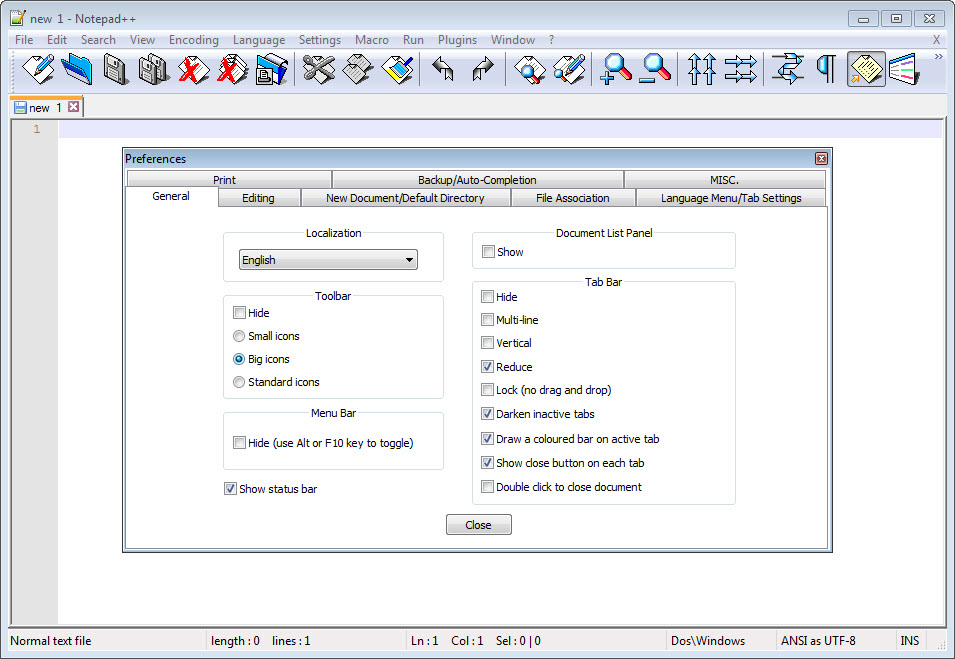
Fonts, indentation, tab width per language, line numbers, current line highlighting, end-of-line markers, all of it is configurable through dialogs that are dense but logical. Spending an hour customizing the editor when you first install it pays off forever afterward.
Where it falls short
This is a Windows-first project and the developer has been pretty explicit that he isn’t interested in porting it elsewhere. There are workarounds (running it under Wine on Linux, looking at alternative editors on Mac) but those are workarounds.
The interface, while functional, is dated by modern standards. Icons are pixelated in places, dialogs have that early-2010s Windows feel, and some preferences are buried in submenus where a more modern editor would surface them. It’s a minor issue but worth mentioning if you’ve been spoiled by newer tools.
The editor isn’t built for actual software development on large projects. No integrated terminal, no debugger, no real refactoring tools, no git integration beyond what plugins provide. Use it for what it’s good at and don’t try to make it into something it isn’t.
Conclusion
Notepad++ is the right tool for anyone who edits configuration files, writes shell scripts, debugs HTML and CSS, hacks on small Python or Lua scripts, or just wants a serious replacement for the OS notepad that loads instantly and stays out of the way.
The Scintilla foundation gives it real performance with large files, the plugin ecosystem covers the practical extensions you’ll want, and the editing features (column mode, regex find/replace, macros, session save) hold up against any editor at any price.
It’s not the right tool for big project development, large codebase navigation, or anything that needs language server integration and refactoring support.
Knowing where the line sits is part of using this editor well. For the work that fits its strengths, twenty-plus years of active development and a community that hasn’t given up on it makes a strong case for keeping it installed alongside whatever heavier editor you also use.
Pros & Cons
- Free and open source under GPL, with active development that's been ongoing for over two decades
- Starts in under a second and handles huge files without lag thanks to the Scintilla foundation
- Syntax highlighting for over 80 languages built in, with the option to define your own
- Plugin ecosystem covers the practical needs (compare, FTP, formatters) without being chaotic
- Column mode editing and powerful regex find/replace are real productivity features
- Session save and crash recovery means you never lose unsaved work
- Customization is deep enough to make the editor truly yours
- Windows-only with no official ports to other platforms
- Interface design feels stuck in an earlier era despite the dark mode update
- No integrated terminal, debugger, or git tools, so not a full IDE replacement
- Auto-completion is word-based rather than semantic
- Plugin installation has had security incidents historically, though current curation is better
- Some menus and dialogs are dense and take time to learn
Frequently asked questions
The editor includes syntax highlighting for more than 80 programming and markup languages including C, C++, C#, Java, Python, JavaScript, PHP, HTML, CSS, SQL, XML, JSON, YAML, Markdown, PowerShell, batch files, and many others. Custom user-defined languages can be added through a dialog.
This is a pure text and code editor focused on fast startup, low resource use, and quick file editing. VS Code is a full development environment with project workspaces, integrated terminals, debuggers, and language servers. For editing many small files across many languages, the lighter editor is faster. For working on a single large project, the IDE makes more sense.
Yes. The Scintilla rendering engine handles files in the hundreds of megabytes range smoothly, which is well beyond what most browser-based editors can manage. Log files, SQL dumps, and large XML files open and scroll responsively.
Use the Plugins Admin from the Plugins menu, which lists curated community plugins. Avoid dropping DLLs into the plugins folder manually unless you trust the source completely, since the unverified plugin install path is where security incidents have historically come from.
Compare is a plugin that displays two open files side by side with colored markers showing additions, deletions, and changes. It's the simplest way to diff two files without a separate tool, which is why most developers install it within the first week of using this editor.
Yes. Recent versions include a proper dark mode toggle that styles the menus, toolbars, and tab strip in addition to the editor area. You can also pick from many built-in themes through the Style Configurator.
The editor auto-saves unsaved buffers to a backup folder at regular intervals. After a crash or unexpected close, reopening the application restores all previously open files with their unsaved changes intact.


