

MyProcesses
About MyProcesses
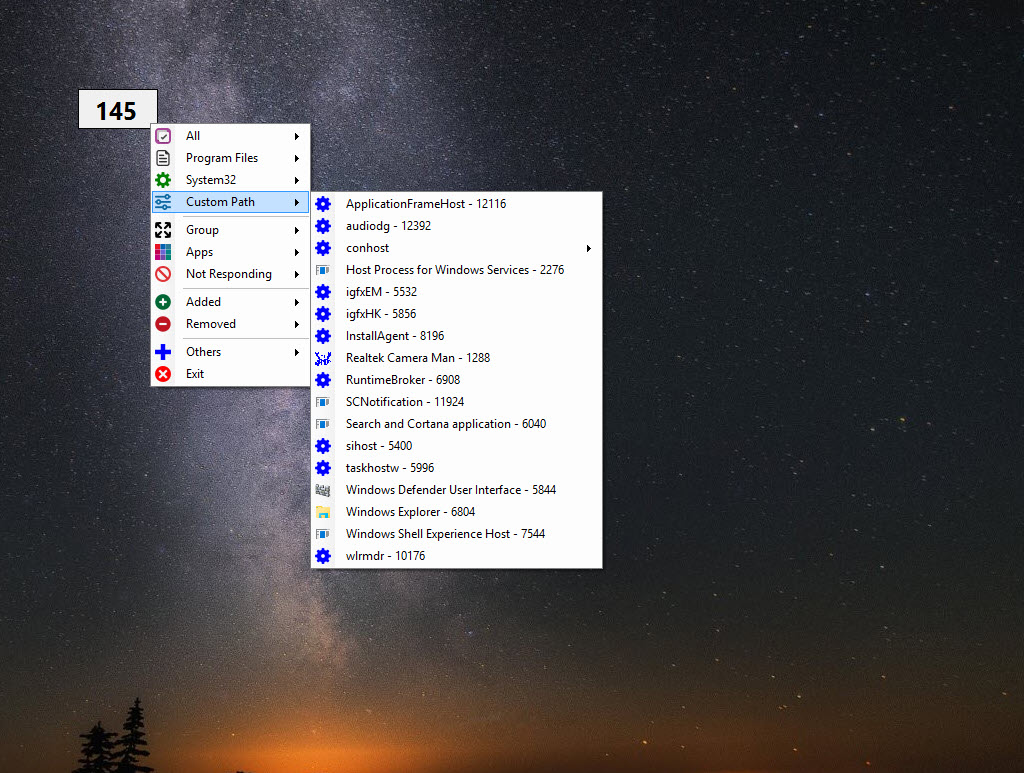
MyProcesses is a process manager that lives in the system tray and keeps count. A small counter shows how many processes are running right now, and clicking it opens a menu of those processes, each one a step away from a panel of details and actions. Behind that sit a history of processes, a grouped list, two live graphs, a watchdog for named processes, a stress test and a tool that floods the machine with harmless test processes. It needs no installation and runs as a single file.
The breadth comes with a warning the program itself repeats on every page of its documentation. MyProcesses can stop system processes as easily as an ordinary program, and closing the wrong one can lose unsaved work or destabilise the machine until a restart.
It is a tool for people who already understand what a process is. The sections below explain each part and where the risks sit, with a low-risk way to learn it.
The counter, the history and the process list
The MyProcesses counter is the quickest view. It shows the current number of processes at a glance, and a sudden jump tells you something new has started. The Process History records both running and stopped processes in a table with their main details, which is how a program that flashed up and vanished during startup can still be identified afterwards.
The Process List shows what is running now, grouped in several ways, and every entry opens a Process Panel with its information and the available actions. Processes that share a name, such as the many copies a browser starts, appear together under a Group menu, so you can act on all of them at once.
For a deeper view of handles, modules and the tree of parent and child processes, Process Explorer shows far more detail, and the two answer different questions.
Kill, timed kill and the advanced switch
The MyProcesses Process Panel can end a process immediately or after a delay you set, which is the Timed Kill. A delayed kill lets a program finish a job before it closes. The group versions end every process of that name, now or later.
By default each kill asks for confirmation. An Advanced switch on the panel removes that question, so the action happens the moment you click. The documentation says to use it only in exceptional cases, and that advice deserves respect. One mistaken click in Advanced mode on a system process can mean a restart.
Process Guard, the watchdog
Process Guard in MyProcesses watches for processes by name and reacts when they start or stop. Each entry has two possible actions. Alert plays a sound when a named process starts or stops, which is useful for knowing when an updater or a background helper wakes up. Kill closes the process the moment it appears and plays a sound, which stops an unwanted helper from ever running.
Entries can be paused or deleted at any time, and processes can be sent to the guard from the other parts of the program. Because it works by name, a Kill rule applies to every process with that name, so it must never be set on a system process. The documentation is blunt about this.
For a gentler way of controlling running programs, by lowering their priority rather than ending them, Process Lasso does the job without the risk of a kill.
The graphs, the stress test and the process bomb
Two MyProcesses graphs watch the machine. The First 15 Graph tracks processor and memory use for the fifteen busiest processes. The Selected 8 Graph follows the processor use of up to eight processes you pick, which is how a single program can be watched over time.
CPU Stress loads the processor according to preset parameters, a quick way of seeing how hot and how loud the machine gets under load. It is a light test, and a dedicated stress tester is the right tool for proving stability over hours.
The Process Bomb is the oddest part and the most useful for learning. It starts a set number of harmless test processes, up to a hundred, each with its own window. The documentation recommends it as the way to practise kills and guard rules on processes that do not matter, before trying them on real ones.
Conclusion
MyProcesses suits experienced users who want more than the built-in task manager, from someone tracking down a helper that keeps restarting to a tinkerer who likes to see every process that comes and goes. The tray counter, the history and Process Guard are the parts that earn it a place.
It can stop anything, including the processes the system needs, so treat it with care. Practise with the Process Bomb first, leave Advanced mode off, and never put a system process on the kill list.
Pros & Cons
- Tray counter with quick access to every running process
- History of started and stopped processes, and a list grouped by name
- Kill and timed kill, for single processes or whole groups
- Process Guard alerts or kills named processes as they start
- Graphs for the busiest processes and for up to eight chosen ones
- Process Bomb lets you practise safely on test processes
- Can end system processes, with a risk of data loss or a restart
- Advanced mode removes all confirmation prompts
- CPU Stress is light compared with dedicated stress testers
Frequently asked questions
It watches for processes by name. Alert plays a sound when a named process starts or stops, and Kill closes it as soon as it starts.
Use the Process Bomb, which starts harmless test processes, up to a hundred, each with its own window. Try kills and guard rules on those first.
No. It runs as a single file and sits in the system tray.


