

MyHarmony
About MyHarmony
MyHarmony is the desktop application that programs Harmony universal remotes. The remote itself knows nothing about your television until this software tells it. You sign into an account, add the devices in your living room by brand and model, build Activities such as Watch TV or Play a Game that turn the right equipment on and switch the right inputs, then connect the remote over USB and press Sync. From then on, one button press replaces the four remotes on the coffee table.
Everything depends on a device database with more than 225,000 entries, kept online and updated constantly. That database is why the setup is mostly a matter of typing model numbers rather than teaching commands one at a time.
It is also why the software needs an internet connection to do anything.
Adding devices and building Activities
Adding a device in MyHarmony means choosing its type, entering the brand and model, and letting the database supply the infrared commands. Most equipment is found on the first try. When a model is missing, the software walks you through teaching from the original remote, pointing it at the sensor on the Harmony and pressing the buttons it asks for, and the result is submitted so the next person finds the device already listed.
Activities are where the value lives. Watch a Movie might power on the television, the receiver and the disc player, set the television to HDMI 2 and the receiver to its optical input, and assign volume to the receiver and playback to the player.
Pressing the Activity does all of it in sequence, and Replace Device carries settings across when a television is swapped later. A computer running a media center with its own remote support can be added as a device like any other.
Customising buttons and favourite channels
Each button on the remote can be reassigned per Activity, so the same physical key does one thing while watching television and another while playing music. Sequences, chains of several commands fired from one button, cover awkward cases such as a projector that needs two presses to power off. On remotes with a screen, favourite channels get icons and a number, with the channel list refreshed at sync, the same convenience a TV channel list editor brings to the television itself.
Power settings need attention. Some devices toggle power with a single command rather than having separate on and off signals, and the software asks about this during setup because getting it wrong leaves a device out of step with the others.
The Help button on the remote exists to fix exactly that, asking questions until everything is back in sync.
Syncing, and why the remote is not detected
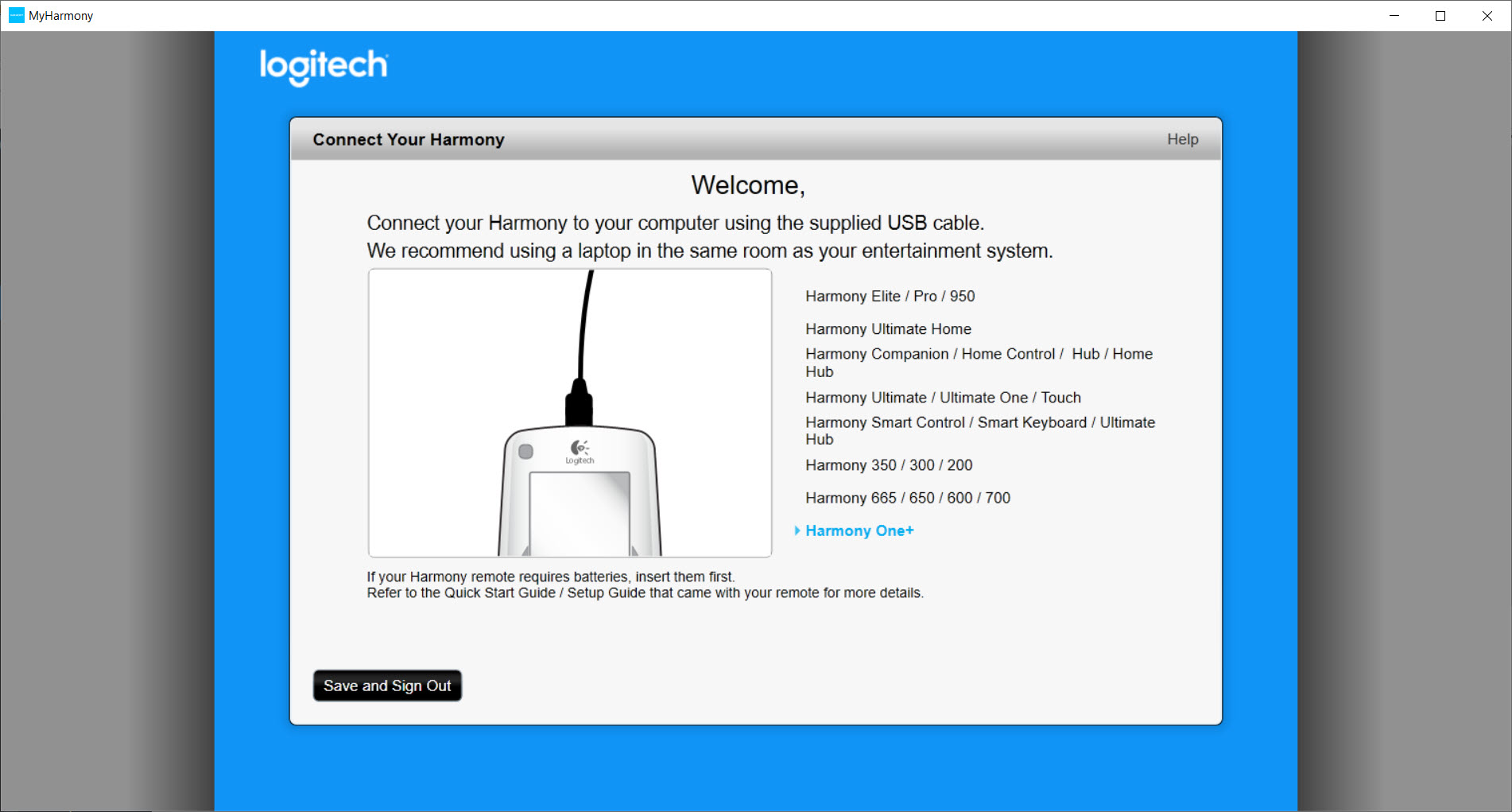
Changes made in MyHarmony do nothing until they reach the remote. The Sync button in the top corner turns yellow when there are changes waiting and blue once the remote is connected, and pressing it checks for firmware updates first and then writes the configuration. On the remotes without a hub, USB is the only route, and firmware only arrives that way too.
Detection failures have consistent causes. Try a different USB port, preferably a 2.0 one, use the supplied cable rather than a charge-only one, and close and reopen the software. If the remote is stuck mid-update, sync recovery mode, removing a battery and holding the All Off button while reinserting it, puts it back in a state the software can reach.
Which remotes it covers
MyHarmony handles the hub-less models with and without screens, plus the hub-based ones for people who prefer a computer to a phone. The oldest generation of remotes used a different desktop program that has been retired, and those cannot be reprogrammed here or anywhere. Note that the hardware line is discontinued, so this is maintenance software for remotes people already own rather than a reason to buy one.
For the reverse job, controlling a computer from a phone rather than a remote, a general remote control app covers what the Harmony does not.
Conclusion
MyHarmony suits anyone who owns a supported Harmony remote and wants the living room reduced to one button per Activity. Setup takes an evening of typing model numbers, and the payoff is a remote the rest of the household can actually use.
It is a dependency rather than a product in its own right, and with the hardware discontinued it is best seen as the tool that keeps an existing remote alive. Check the model list, keep the USB cable that came in the box, and it will carry on doing its job.
Pros & Cons
- Device database of more than 225,000 models supplies commands automatically
- Activities switch several devices and inputs with one button
- Per-Activity button mapping, sequences and long-press actions
- Replace Device carries settings to a new television or receiver
- Teaches commands from an original remote when a model is missing
- Needs an internet connection and an account for every change
- Hub-less remotes sync and update only over USB
- Remote detection failures are common and cable-dependent
- Oldest remote models cannot be programmed at all
- Hardware is discontinued, so this is maintenance software
Frequently asked questions
Try another USB port, use a data cable rather than a charge-only one, and restart the software. If the remote is stuck, remove a battery and hold All Off while reinserting it to enter sync recovery mode.
No. The oldest models used a retired desktop program and cannot be reprogrammed. Check your model against the supported list before installing.
Yes. Device commands come from an online database and settings are stored in your account, so nothing works offline.
Use Replace Device on the old entry. The new model inherits the Activities and button mapping so you do not rebuild anything.


