

Monosnap
About Monosnap
Monosnap takes a screenshot, lets you mark it up, and sends it wherever you keep your files. Press a hotkey and drag over part of the screen, or grab the full screen or a window, and the capture opens in a small editor.
Add arrows and boxes, text, numbered steps, and blur the account number in the corner, then save it to a folder, copy it to the clipboard or upload it and get a link. Uploads can go to the service’s own storage or to a destination you control, a cloud drive, an S3 bucket or an FTP, SFTP or WebDAV server. That is the feature that sets it apart from the screenshot tools that only know their own cloud.
It records video too, the screen with the microphone and the webcam, and it can take a still from the webcam. Monosnap has a basic tier that carries a storage allowance and caps video recording, and a paid tier for teams and longer recordings, which this article mentions once and leaves alone.
The sections below cover capture and the editor, the destinations and links, the recorder, and the places reviewers find it thin.
Capture and the editor
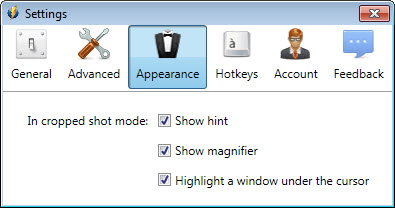
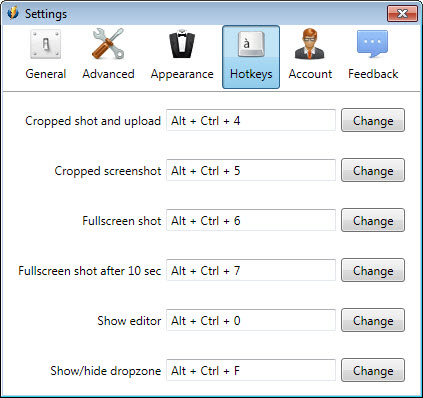
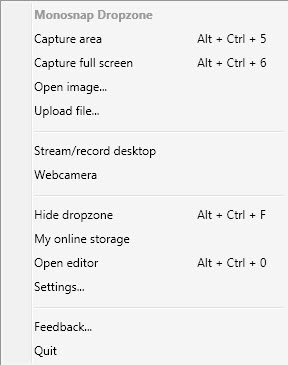
Three Monosnap capture modes sit behind hotkeys you set. Capture an area with a crosshair and a magnifier for exact edges, capture the full screen across several monitors, or capture a window. A delay timer handles menus that close when a key is pressed. The capture opens in the editor at once, with a floating toolbar that appears only while editing, which keeps the window clean.
The toolbar has a pen, lines and arrows, rectangles and ovals, and text. Numbered step markers suit instructions, and a highlighter and the blur tool hide or point at details. Several screenshots can be combined into one image, which suits a before-and-after or a sequence of steps.
Crop and resize are there for the basics. It is a quick editor rather than a deep one. For a screenshot tool with a fuller set of effects and annotation styles, Greenshot offers more, and more again in its plugins.
Uploading and the link
After editing, one click decides where the image goes. Save it locally, copy it, or upload it. An upload returns a short link on the clipboard, ready to paste into a chat or a ticket. The settings can make upload automatic, so every capture becomes a link without a dialog, which suits anyone who shares screenshots all day.
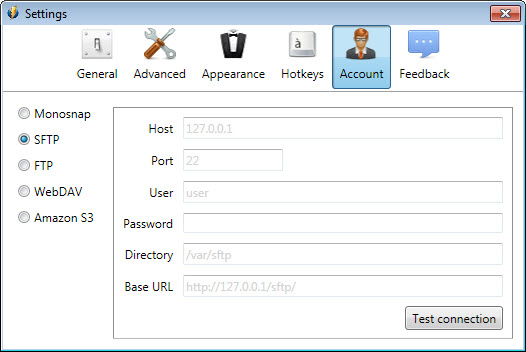
The destination list is the strength. The service’s own storage is the default. The common cloud drives and S3 storage are built in, and so are FTP, SFTP and WebDAV servers. An organisation that keeps screenshots on its own server can point the program there and never touch the service’s cloud.
That makes it acceptable in places where an outside cloud is not. For a capture tool with even more destinations and a workflow engine to automate what happens after, ShareX goes further, with a steeper learning curve.
The screen recorder
The Monosnap recorder captures an area or the full screen, with the microphone and the webcam overlaid, and saves to a file or uploads to a link the same way screenshots do. A webcam snapshot takes a still photo from the camera. Videos can be shared directly to a video site from inside the program.
Video is the thinner half. There is little annotation during recording and little editing afterwards, and the basic tier caps recording length. Reviewers also note that system sound capture has been limited on this platform, so a recording of a video playing on the screen may come out silent.
Check the audio settings before a recording that matters. For long local recordings with full control over sources, a dedicated screen recorder is the better tool.
Storage and accounts
Monosnap cloud uploads need an account, and the service’s own storage comes with an allowance on the basic tier. Shared links can carry a password and an expiry date in the paid tier, and a web view lists everything uploaded, organised in folders. Team features in the paid tier add shared folders and administration, and single sign-on for organisations that manage identities centrally.
For personal use without uploading, nothing has to be signed into. Captures save locally, copy to the clipboard and work entirely offline, which is how many people use it, as a quick editor rather than a cloud service.
Where reviewers find it thin
The Monosnap editor is quick and also shallow, without the shadow and border effects or the step-by-step layouts of the bigger tools. Video annotation is minimal. The basic tier’s limits on recording and storage are real.
The installer is larger than a screenshot tool needs. And the program has gone through long quiet stretches between releases, though it is being updated again, with recent fixes to its S3 uploads.
Conclusion
Monosnap suits anyone who takes screenshots to explain something and wants them marked up and in a chosen place within seconds, especially people whose employer wants files on its own server rather than an outside cloud. The quick editor, the blur and the destination list are what earn it a hotkey.
Its video side is thin, its editor is basic and its basic tier is limited. Set the destination once, turn on automatic upload if you share all day, and keep a dedicated recorder for anything longer than a quick clip.
Pros & Cons
- Area and window capture, plus full screen, on custom hotkeys with a delay timer
- Editor with arrows and shapes, text, numbered steps and a blur tool
- Uploads to its own storage or cloud drives, S3 buckets and FTP, SFTP or WebDAV servers
- Automatic upload with a short link on the clipboard
- Combines several screenshots into one image
- Screen recording with webcam overlay and a webcam snapshot
- Editor is quick but shallow
- Video recording has few annotation and editing tools
- Basic tier limits recording length and storage
- System sound capture during recording has been limited
Frequently asked questions
Yes. It uploads to FTP, SFTP and WebDAV servers and to S3 storage, as well as to cloud drives and its own storage.
Only for uploading to its own cloud. Capturing and editing work without signing in, as does saving locally.
Yes. The blur tool in the editor hides any area of a screenshot before it is saved or uploaded.
System sound capture has been limited, and the microphone is the dependable source. Check the audio settings before recording.


