

Monitorian
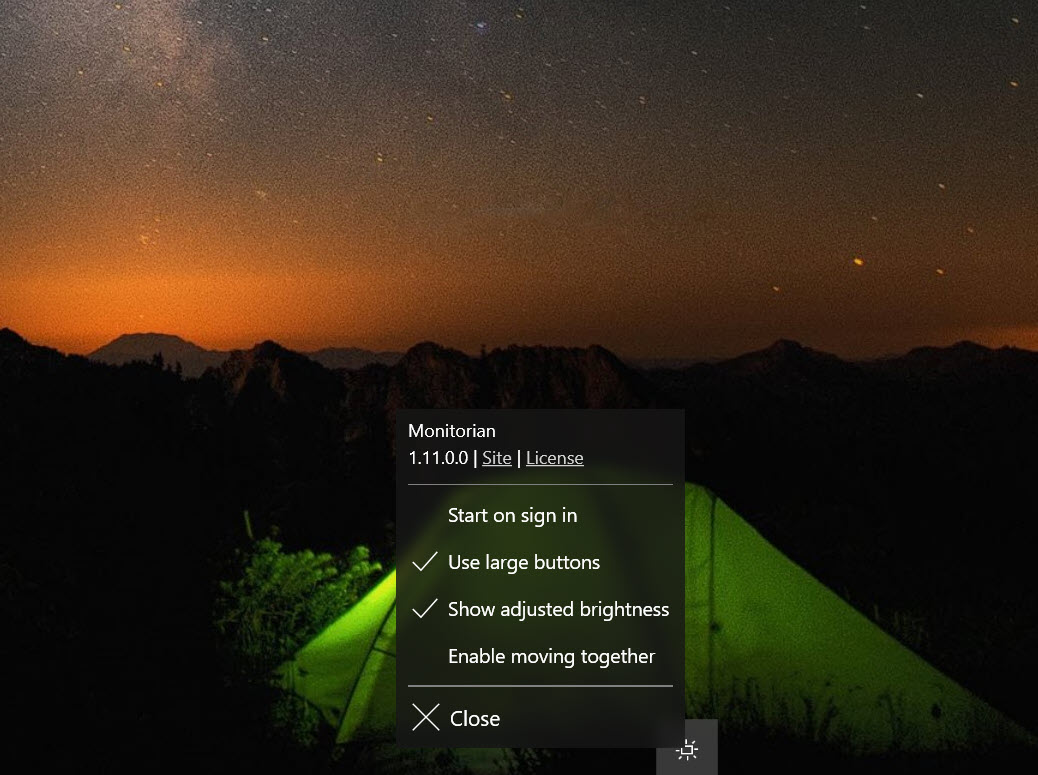
About Monitorian
Monitorian fixes one of the dumbest daily rituals in computing, the one where you reach around the back of your monitor and fumble through a joystick menu just to make the screen dimmer. It puts a brightness slider for every connected display in your system tray. Click the icon, drag the slider, done, and it works on external monitors, the ones the built-in brightness controls have always pretended don’t exist. If you run two or three screens and adjust them more than once a year, this small utility pays for its download in about a week of evenings.
The trick underneath is a protocol most people have never heard of. Modern monitors accept commands over the same cable that carries the picture, and Monitorian uses that channel to tell each display what brightness to hold.
No hardware, no reaching, no menus designed by someone who clearly never used them. Built-in laptop screens are covered too, through the standard route, so a laptop-plus-monitor desk gets every display in one popup.
What separates it from a bare-minimum slider app is the quiet thoughtfulness around the edges. Displays can be renamed so “Generic Monitor” becomes “Left Dell.” Sliders can be locked together so every screen moves in unison.
Each monitor can get its own allowed range, which matters more than it sounds once you know why. It’s a tiny tool that behaves like someone actually lived with it.
Every screen, one popup
The core experience is a tray icon and a popup with one slider per display. Drag any of them and the change lands on the monitor immediately, the same adjustment the on-screen menu buries three levels deep. For the evening wind-down, dragging everything from daytime bright to nighttime dim takes two seconds instead of a round trip behind each screen.
The unison option is the multi-monitor killer feature. Enable it and all sliders move together, holding their relative offsets, so screens that need different values to look identical stay matched as you brighten or dim the whole desk. Anyone who has manually chased three monitors to the same apparent level knows this is not a small gift.
The close rival Twinkle Tray plays in exactly this space with a different interface flavor and its own extras, and choosing between the two mostly comes down to taste. Both bury the old ritual for good.
Ranges, names, and the details that stick
Renaming sounds cosmetic until you own two identical monitors. When both report the same model string, “which slider is which” becomes a daily guessing game, and Monitorian ends it by letting you label each display whatever helps, left, right, vertical, the good one. Small feature, permanent relief.
Per-monitor ranges are the sleeper. You can cap how low or high each slider goes, which is worth setting on a screen that turns to unusable mud below a certain level or one that only looks right in a narrow band. Once set, no careless drag can push a display somewhere useless.
There’s optional contrast adjustment tucked in the settings for monitors that respond to it, and command-line switches let scripts and hotkey tools drive brightness without opening the popup at all, so a keyboard shortcut for “dim everything” is a five-minute project.
The protocol caveat
Now the honest part, because this entire category lives or dies on one dependency. The monitor has to cooperate. The control channel is a standard, but manufacturers implement it with wildly varying enthusiasm. Some monitors respond instantly. Some respond after a sulky delay. Some ship with the feature switched off in their own menus, waiting for you to enable it, and some, especially televisions doing monitor duty and displays hanging off certain hubs or adapters, ignore commands entirely.
None of that is the software’s fault, and Monitorian handles the uncooperative cases about as gracefully as possible, but expectations matter. Check that your displays have the control setting enabled in their own menus, connect them as directly as your setup allows, and test before building habits.
Monitor-brand utilities like Dell Display Manager exist precisely because vendors control their own hardware’s quirks, and for a single-brand desk they remain a reasonable alternative to a universal tool.
Where it fits among its neighbors
It helps to place it. For laptop-only users, the simpler BrightnessTray covers the built-in screen and little else, which may be all that’s needed. And brightness is not calibration. Getting colors accurate for photo or print work is a different discipline requiring a measuring device and something like DisplayCAL, and no tray slider replaces it. This tool’s territory is comfort, matching your screens to the room and the hour, and inside that territory it’s about as good as the category gets.
It’s also worth saying what it deliberately isn’t. There’s no automatic scheduling that dims screens at sunset, no color temperature shifting, no blue light features. It adjusts brightness when you ask, precisely and instantly, and stops there.
People who want their displays managed by the clock will pair it with something else or look elsewhere. People who want a fast manual control that always works the same way tend to prefer exactly this restraint.
Conclusion
For anyone running external monitors, Monitorian is one of those utilities that feels obvious the moment it’s installed and indispensable a week later. It takes an adjustment monitor makers have hidden behind terrible buttons since forever and turns it into a two-second slider drag, with unison mode, naming, and range limits showing real care for how multi-screen desks actually work.
Its fate rests on your hardware’s cooperation, and its refusal to schedule or color-shift means automation seekers should look elsewhere. But as a fast, precise, manual brightness control for every screen on the desk, it does the job so cleanly that going back to the buttons feels like a punishment.
Pros & Cons
- Adjusts external monitor brightness from the tray, no physical buttons involved
- Unison mode moves all displays together while keeping their relative offsets
- Custom names end the guessing game between identical monitors
- Per-monitor range limits stop careless drags into unusable settings
- Command-line options enable hotkeys and scripted brightness changes
- Entirely dependent on monitors implementing the control protocol properly
- Televisions and displays behind some hubs or adapters may not respond
- No scheduling or automatic day-night adjustment
- Contrast control is modest and hidden compared to the brightness focus
Frequently asked questions
Usually the monitor's own control setting is disabled. Look for an option with DDC in the name inside the display's menu and switch it on. If it's already on, the culprit is often a hub, adapter, or television that doesn't pass or accept the commands.
Yes, through the unison option. All sliders move together and keep their relative differences, so displays tuned to slightly different values stay visually matched as you raise or lower the whole set.
It does, alongside any external displays, so a docked laptop shows every screen in the same popup with its own slider.
Yes, indirectly. The command-line options accept brightness changes, so pairing them with any hotkey tool gives you keyboard control without opening the tray popup.
No. It changes brightness and optionally contrast, nothing about color temperature, and it has no scheduler. It's a precise manual control rather than an automatic eye-care suite.


