

MobaXterm
About MobaXterm
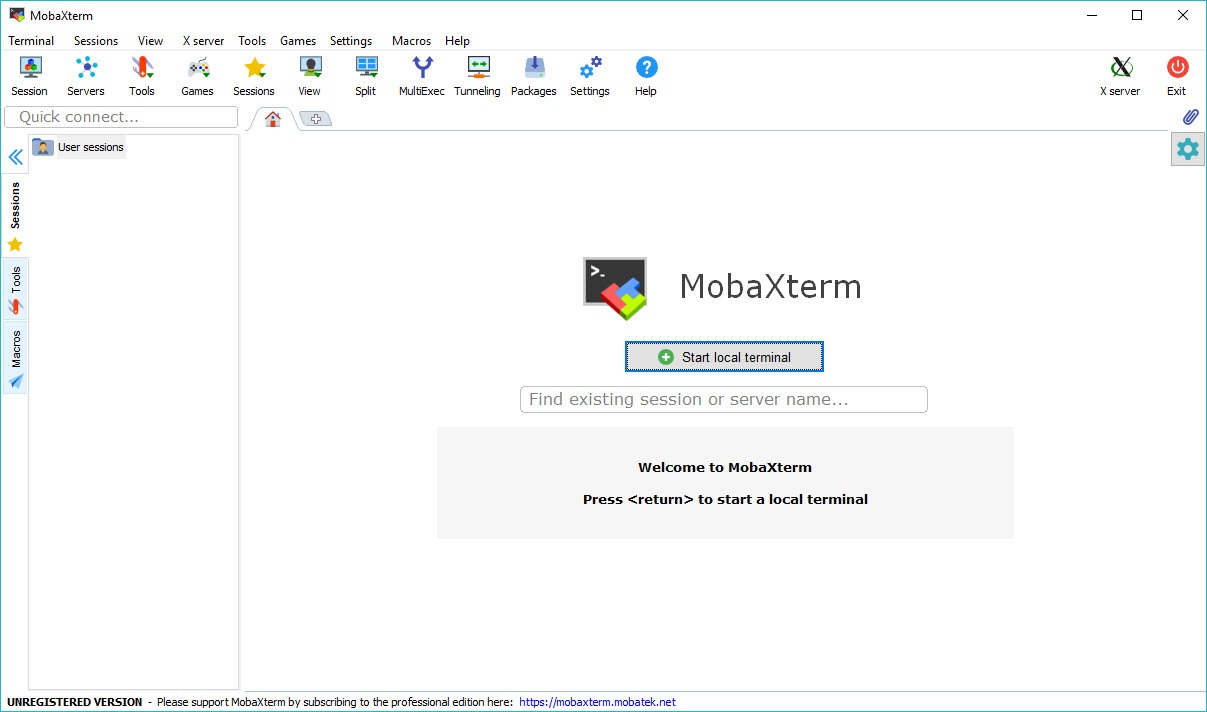
MobaXterm puts every tool you need for working on remote machines into a single window. A tabbed terminal, an SSH client, an automatic file browser, a built-in graphical display server, and a set of common command-line tools, all bundled together so you stop installing five separate programs to do one job. Open it and you have a workspace built for connecting to servers, not a bare terminal you have to assemble yourself.
The pitch is consolidation. Most people who manage remote systems end up juggling a terminal for the shell, a separate program for file transfers, another for graphical forwarding, and a pile of small utilities besides. MobaXterm folds all of that into one interface where the pieces already know how to work together.
Connect to a server over SSH and MobaXterm opens a file browser beside the terminal on its own. Launch a graphical remote program and it appears on your desktop without any extra setup. That tight integration is the whole reason to reach for it.
Tabbed sessions and a manager that remembers everything
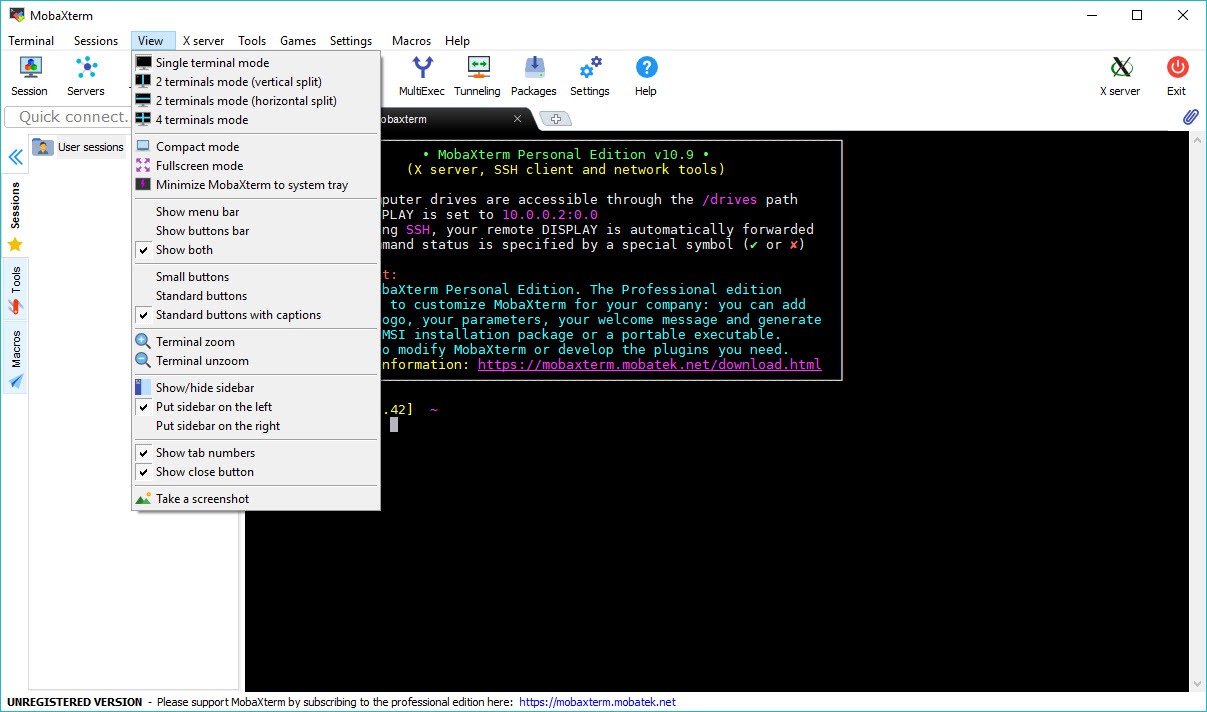
Every connection opens in its own tab, so a dozen servers can sit side by side in one window instead of scattered across separate program instances. Switching between them in MobaXterm is as quick as clicking a browser tab. For anyone who routinely has several machines open at once, this alone changes how the day feels.
Behind the tabs sits the session manager, which saves each connection you set up. Host, credentials, protocol, and any custom settings get stored and dropped into a sidebar, organized into folders if you want them grouped by project or environment.
You configure a server once and from then on it is a double-click away. A multi-tab client like MTPuTTY brings tabs to a classic terminal, and a connection manager such as mRemoteNG organizes saved sessions across protocols, but this one combines both jobs and adds the rest of the toolbox around them.
The SFTP browser that opens itself
Here is the feature that wins people over. Start an SSH session and a graphical file browser for that same server pops up automatically in the sidebar. No separate login, no re-entering credentials, no second program. You can drag files between your machine and the remote host, and double-clicking a remote file opens it in the embedded editor for quick changes.
That last part matters more than it sounds. Editing a config file on a server usually means either wrestling with a terminal editor or downloading the file, changing it, and uploading it back. With the built-in editor you double-click, edit, and save, and the change lands on the server. For the constant small edits that fill a sysadmin’s day, that shortcut adds up fast.
If your work is mostly moving files rather than running commands, a dedicated transfer client like FileZilla gives you a fuller two-pane interface devoted to exactly that.
Running graphical remote programs locally
The built-in display server is what separates this from an ordinary terminal client. When you connect to a server that runs graphical programs, those windows can appear right on your own desktop, rendered locally, while the program itself runs on the remote machine. The forwarding is set up for you the moment you connect, with none of the manual display configuration this normally demands.
In practice that means you can launch a graphical tool on a remote server and use it as if it were installed on your own computer. For developers and administrators who occasionally need a graphical application from a remote box rather than just a command line, this removes a setup headache that has frustrated people for years. It is the kind of thing you do not think about until you realize it just worked.
Jump hosts, tunnels, and running commands across many servers
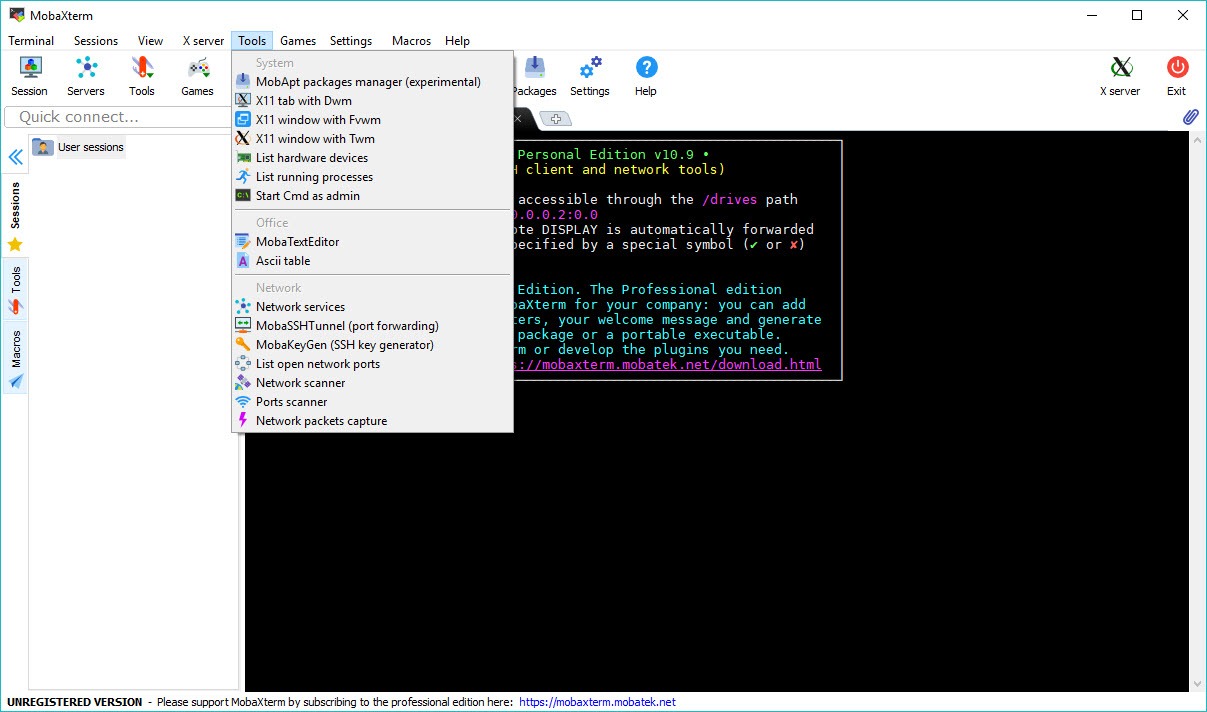
For more involved setups, the tool handles the awkward parts of real networks. You can route a connection through an SSH gateway, also called a jump host, to reach a server that sits behind a firewall and cannot be contacted directly. A graphical tunnel manager lets you set up port forwarding through a visual interface instead of memorizing command flags, which turns one of the fiddliest corners of remote work into a few clicks. A focused tool such as Doffen SSH Tunnel specializes in exactly this kind of tunneling if you need it on its own.
There is also a multi-execution mode that types a command once and sends it to every selected session at the same time. If you administer a cluster or a fleet of identical machines, rolling out the same change across all of them becomes a single action rather than a repetitive slog.
Add macros for recording and replaying sequences, plus a master password to keep your saved credentials encrypted, and the tool covers the routine and the heavy-duty alike.
Conclusion
MobaXterm is built for the person who lives in remote sessions and is tired of stitching together separate tools to get through the day. The automatic file browser, the effortless graphical forwarding, and the multi-execution mode are the standouts, and the session manager quietly saves time on every single connection. For a developer or administrator who works across many machines, it is one of the most capable workspaces you can put on your desktop.
The flip side of all that capability is weight. If you only need to drop into a single server now and then, the busy interface and deep feature set are more than the task calls for, and a lean client will get you there faster.
But for anyone whose work is genuinely about managing remote systems at scale, the breadth here stops being clutter and starts being exactly the point.
Pros & Cons
- Bundles terminal, SSH client, file browser, display server, and command-line tools in one window
- Tabbed sessions and a folder-organized manager keep many connections tidy
- A graphical SFTP browser opens automatically beside every SSH session
- Built-in editor lets you change remote files with a double-click
- Display server runs remote graphical programs on your desktop with no manual setup
- Jump host support, a visual tunnel manager, and multi-execution mode handle complex networks
- The sheer number of features makes the interface busy for someone who only wants a plain terminal
- A bare-bones client launches faster and feels lighter for quick one-off connections
- The bundled toolbox is more than many casual users will ever touch
- Advanced options like tunnels and gateways still assume real networking knowledge
Frequently asked questions
It is an all-in-one workspace for connecting to and managing remote machines. It combines a tabbed terminal, an SSH client, an automatic file browser, a graphical display server, and bundled command-line tools so you can handle remote work from one window.
When you open an SSH session, a graphical file browser for that server appears automatically in the sidebar. You can drag files between local and remote, and double-click a remote file to edit it in the built-in editor, with no separate login or transfer program.
It covers a wide range, including SSH, RDP, VNC, Telnet, SFTP, and serial connections, with each saved session listed in the sidebar for quick reuse. That breadth lets you manage very different kinds of remote systems from the same place.
Yes. The built-in display server forwards graphical applications from the remote machine to your own desktop automatically when you connect, so a remote graphical tool appears and behaves as if it were running locally.
Very much so. Tabbed sessions, a folder-based session manager, jump host routing, and a multi-execution mode that broadcasts one command to several sessions all make it well suited to administering clusters or large groups of machines.


