

MediaCoder
About MediaCoder
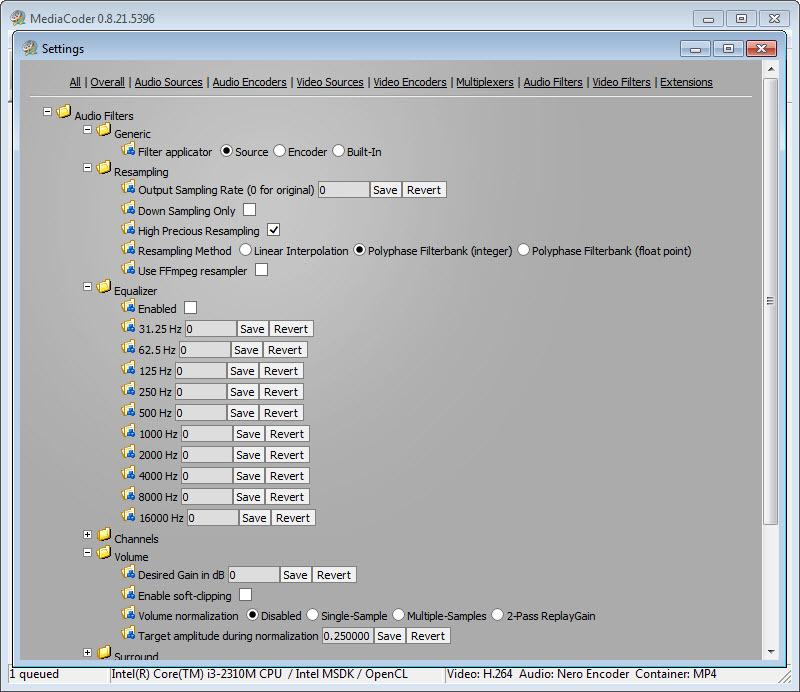
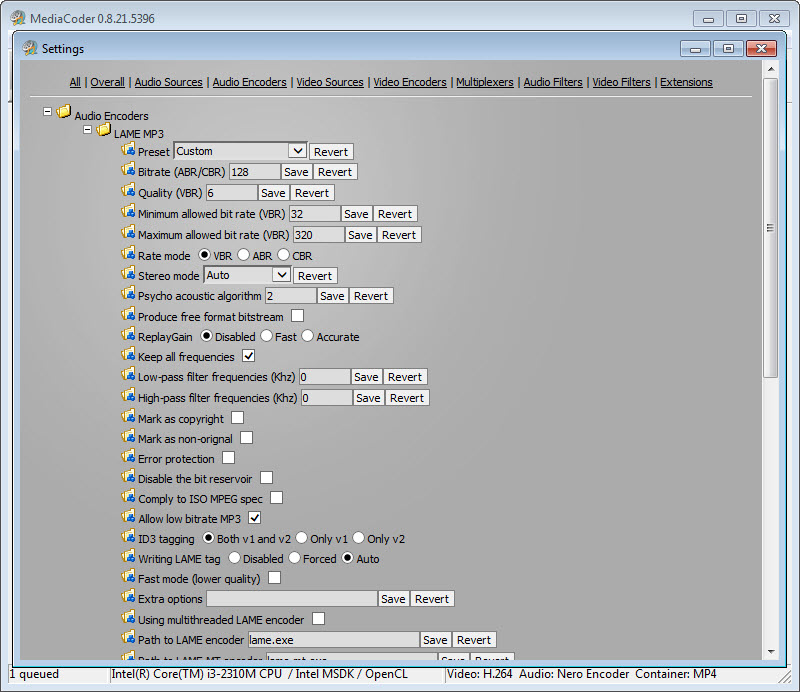
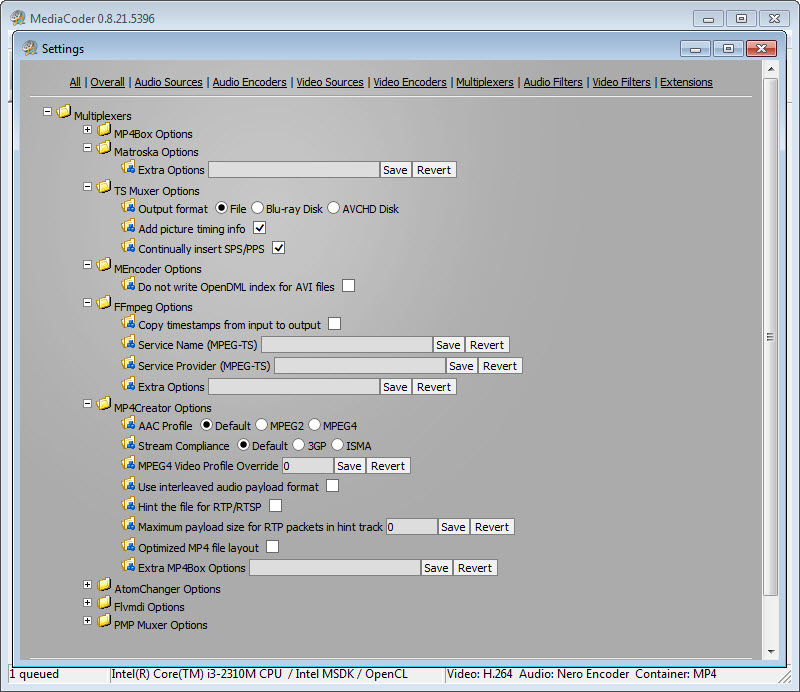
MediaCoder is a transcoder for people who want every dial exposed. It converts audio and video between just about any pair of formats you can name, and instead of hiding the process behind three friendly presets, it opens the engine room. Codec choice, bitrate mode, container, resolution, frame rate, audio resampling, threading, which encoder implementation does the work, all of it sits in the interface waiting to be set.
Where most converters ask what device you own, this one asks how you want the encoding done, and it means the question literally.
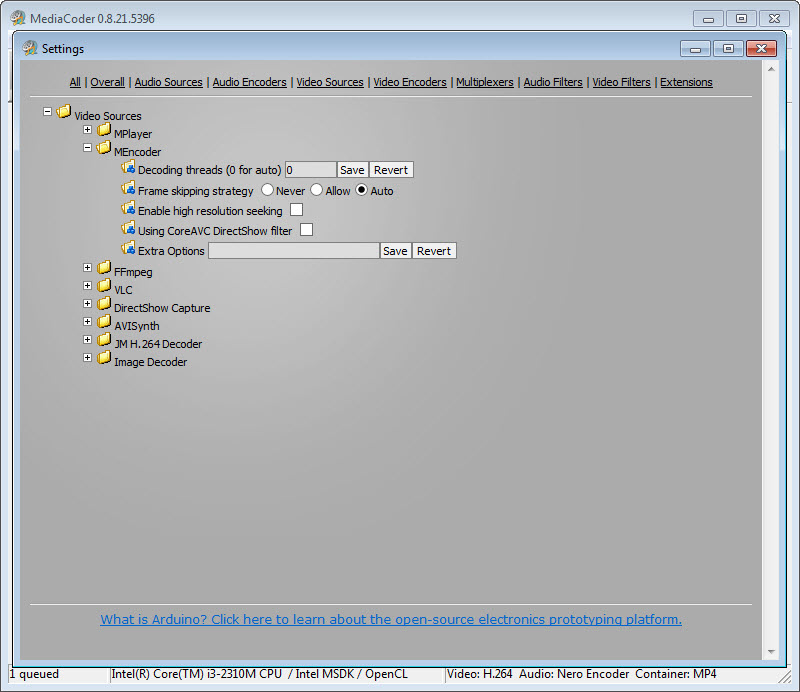
Under the hood it’s an orchestrator. MediaCoder bundles a small army of encoders and decoders and routes your files through whichever chain fits the job, which is why its format reach is so wide, obscure legacy formats on the way in, modern efficient codecs on the way out, and the audio world covered as thoroughly as video.
Batch processing is native to the workflow. Load a folder of files, set the output recipe once, and let the queue grind through overnight.
It also taps the hardware encoders built into modern graphics cards and processors, which turns conversions that would occupy a processor for an hour into jobs measured in minutes. The catch, and it’s a real one, is that all this power arrives wrapped in one of the busiest interfaces in the category, with a few commercial habits that test your patience. This is a tool you choose for capability and tolerate for manners.
Control that friendlier converters won’t give you
The core appeal is precision. Simple converters decide most encoding questions for you, and usually decide them fine, but the moment you need something specific, an exact bitrate for a streaming target, a particular codec profile for a stubborn device, two-pass encoding for quality at a fixed size, the friendly tools run out of menu. MediaCoder keeps going. Every meaningful encoder setting is reachable, and the format grid covering both directions is about as complete as desktop software gets.
Audio gets equal citizenship, which is rarer than it should be. Extracting soundtracks from video, converting between lossy and lossless audio formats, batch-normalizing a podcast backlog, resampling for a device with narrow taste, all of it is regular work here rather than an afterthought bolted onto a video tool.
If your actual need is simpler, a one-window tool like Format Factory covers everyday conversions with a fraction of the learning curve, and it’s the honest recommendation for anyone who just wants file A to become file B.
Speed, hardware, and the batch queue
Encoding is the slowest common task on a computer, so the acceleration story matters. MediaCoder can hand the heavy lifting to the dedicated encoding hardware on recent graphics chips, and the speedup is dramatic, often several times faster than processor-only encoding.
The trade is worth knowing. Hardware encoders are built for speed, and at a given file size, a slow software encode still squeezes out slightly better quality. For a nightly batch of screen recordings, take the hardware speed and never look back. For the single archival copy of a wedding video, let the processor take its time.
The batch system is where the tool feels most at home. Queue dozens of files, apply one configuration across them, and walk away. Segmented output, per-file overrides, and the sheer reliability of the pipeline under long runs make it a workhorse for people converting libraries rather than files.
For batch work with a gentler face and excellent defaults, HandBrake remains the category’s people’s champion, and the choice between the two is essentially manual transmission versus a very good automatic.
The interface, and the manners problem
Time for the honest section. The interface is dense to the point of intimidation, a wall of tabs, dropdowns, and encoder jargon that assumes you already know what a rate factor is. There’s no guided mode worth the name, and a beginner who picks wrong settings can produce output that’s worse than the source, bigger and uglier at the same time, without the software raising an eyebrow. The power is real, and so is the assumption that you arrive already educated.
Then there are the commercial habits. The free experience comes seasoned with promotional clutter and nudges toward a paid unlock, and over the years the installer and interface have carried more advertising baggage than most of its competition.
None of it stops the tool from working, but it colors the experience, especially next to the clean, quiet alternatives. Anyone allergic to being nagged should factor that in before committing.
Where it sits in the toolbox
Think of the category as a spectrum. At one end, pure command-line power through FFmpeg, infinitely capable and entirely manual. At the other, friendly preset-driven converters that decide everything. MediaCoder occupies the space just short of the command line, exposing most of that depth through a clickable surface, while a tool like Shutter Encoder covers similar ground with a workflow aimed at video editors specifically.
The person it fits is specific. Someone converting in volume, with opinions about codecs, who wants hardware speed and granular control without living in a terminal, and who can shrug off a pushy interface. For that person it’s a genuine power tool. For everyone else, the friendlier names on this page will produce the same files with less studying and less irritation.
- Pros
- Converts between an exceptionally wide range of video and audio formats
- Exposes deep encoder settings that preset-driven converters hide
- Hardware-accelerated encoding cuts long jobs down to minutes
- Batch queue handles large libraries reliably in unattended runs
- Audio extraction and conversion are first-class features, not afterthoughts
Conclusion
MediaCoder earns its place as the power user’s converter, the one that exposes the machinery friendlier tools bolt shut, backs it with serious hardware acceleration, and chews through batch queues without complaint. Volume converters, codec tinkerers, and anyone whose needs outgrew the preset menus are its natural audience.
It asks a price in patience twice over, once for the learning curve and once for the promotional noise wrapped around the free experience. Accept both and there’s very little a desktop converter can do that this one can’t. Decline either, and the calmer alternatives will treat you better while doing ninety percent of the same job.
Features & benefits
Pros & Cons
- Dense, jargon-heavy interface with a steep learning curve
- Promotional clutter and upgrade nudges sour the free experience
- Bad settings can quietly produce output worse than the source
- No guided workflow for newcomers who don't know encoding basics
Frequently asked questions
With hardware acceleration enabled, dramatically so, since the encoding runs on dedicated silicon in recent graphics chips rather than the processor. At identical file sizes, slow software encoding still wins slightly on quality, so the right choice depends on whether the job is bulk work or an archival copy.
Yes, batch processing is central to it. You queue any number of files, define the output settings once, and the pipeline processes them sequentially, which suits overnight library conversions.
Thoroughly. It extracts audio tracks from video, converts between lossy and lossless formats, and applies resampling and normalization in batches, making it as much an audio converter as a video one.
Almost always settings. Too low a bitrate, a mismatched codec profile, or unnecessary resizing degrades output, and the software applies whatever you chose without warnings. Starting from a conservative bitrate and changing one setting at a time is the reliable way to learn.
People converting media in volume who want control over how encoding happens, not just what comes out. If you don't care which encoder does the work, a simpler preset-based converter will make you happier.


