

DuplicateFinder
About DuplicateFinder
DuplicateFinder scans the folders you tick and lists every file that exists more than once. Comparison is byte for byte by default. Two photos with different names but identical contents count as a pair. Two files with the same name and different contents do not.
The results come back grouped, one copy in each group is marked as the original and the rest are pre-selected, and a Delete Selected button removes them. It is a single-window tool with a folder tree on the left and a handful of options on the right.
The category has a few heavyweights. dupeGuru recognises near-identical pictures and music by tags rather than bytes, and the big cleaning suites bolt a duplicate scan onto everything else. DuplicateFinder does the exact-match job only, does it quickly, and asks fewer questions than either.
That makes it the right tool for a downloads folder full of second copies and the wrong one for a photo library with edited variants.
Setting up a scan
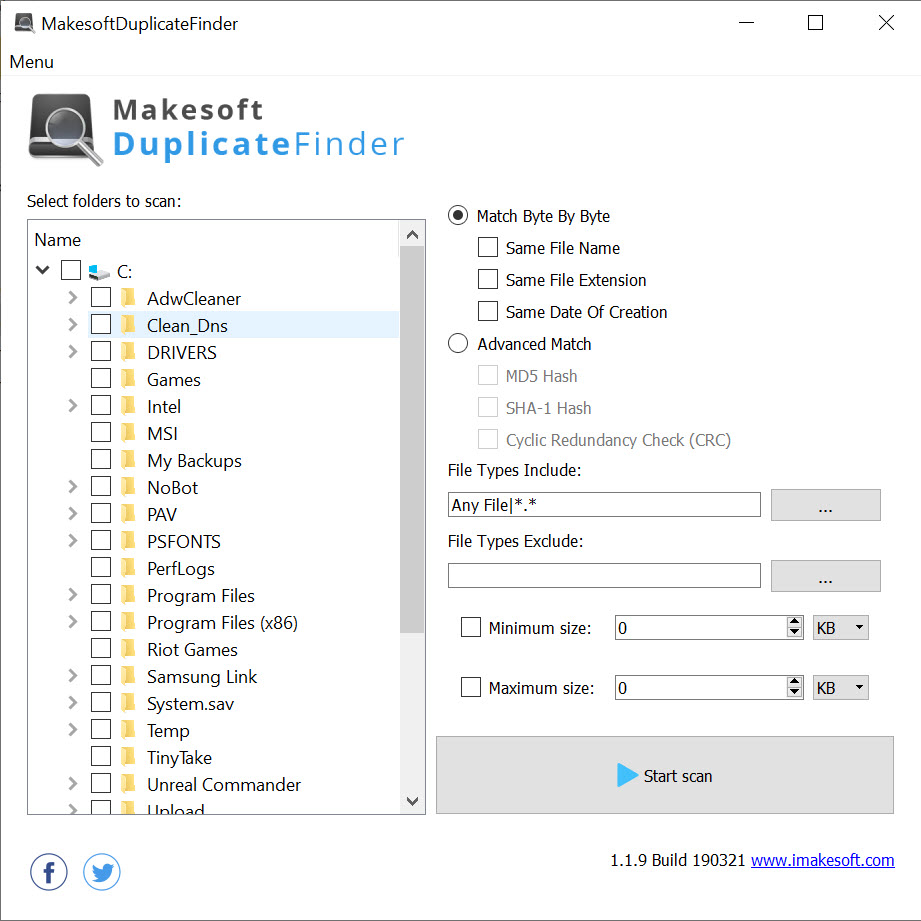
The left pane of DuplicateFinder is a tree of drives and folders with checkboxes. A scan covers whatever is ticked, across as many drives as you like, external ones included. The right pane holds the options.
A file mask includes only certain extensions, so a scan can look at photos alone or documents alone, and an exclusion mask does the reverse. Minimum and maximum size limits keep tiny configuration files and huge video files out of the results. That speeds a scan up a great deal and removes most of the noise.
Matching can be widened beyond bytes. Ticking the name and extension options, or the creation date, makes the program report files that share those attributes. That is useful for spotting a folder that was copied twice with different contents inside.
Left at the default, only true duplicates appear, and that is the setting most people should keep.
Byte comparison versus hashes
Byte-by-byte comparison reads candidate files in parallel and stops at the first difference, so it is fast on files that differ early and exact on files that match. The Advanced Scan option computes a CRC32, MD5 or SHA-1 hash for each file instead and compares the hashes. On very large folders the hash method can be slower, since every file is read in full. In return it produces a value that can be written to the report and checked later.
For ordinary clean-up the default is right. The hash modes are for people who want a record, or who are comparing across drives where reading both files side by side is slow.
Neither mode finds a resized photo or a re-encoded song, because those are different bytes, and DuplicateFinder makes no attempt at that kind of similarity.
Reviewing and deleting
DuplicateFinder results appear as groups, each listing file names and paths with sizes, and the space a group would recover. One file in each group is treated as the original and left unticked. The rest are ticked for deletion. You can change which copy survives by clicking the boxes. An image preview shows the picture for photo groups, so a check takes a glance rather than a trip to another window.
Delete Selected removes the ticked files, and a report of the scan can be saved as a text file, which is the only record you get afterwards. There is no move-to-folder option and no hard-link replacement, so the choice is delete or keep.
Review the automatic selection before pressing the button. The program’s idea of the original is simply the first copy it met, not the one in the folder you care about.
Where it stops
There is no similar-image detection, no music matching by tags and no scheduling. Deleted files go where the delete setting sends them and there is no built-in undo beyond that. For working out what is filling a drive in the first place, a treemap of folder sizes is the better first step.
This tool follows it once the culprits turn out to be copies.
Conclusion
DuplicateFinder is for the person whose downloads, documents and backup folders have accumulated second and third copies of the same files. They want those found and gone in ten minutes without a manual. The masks and size limits make a targeted scan quick, and the byte comparison means nothing is deleted that was not truly identical.
Anyone with a photo library of edited variants or a music collection with different encodings needs a smarter tool. Anyone nervous about deletion should save the report and review the groups twice. Within its exact-match remit it is fast and plain, and it does not surprise you.
Pros & Cons
- Exact byte-by-byte matching by default, with hash modes available
- Include and exclude masks plus size limits keep scans focused
- Groups pre-selected for deletion with the original left unticked
- Image preview inside the results for photo groups
- Scan report saved to a text file
- No similar-image or fuzzy matching
- Delete is the only action, with no move or hard-link option
- Automatic choice of original is arbitrary and needs checking
- Plain interface with no dark theme
Frequently asked questions
No. It matches identical bytes only. A resized or re-saved copy is a different file to it, and a tool with similarity matching is needed for those.
It leaves the first copy it encounters unticked and selects the rest. Check each group and move the tick if the file you want to keep is in a different folder.
Yes. Tick folders on any connected drive in the tree and the scan compares files across all of them in one pass.


