

Locale Emulator
About Locale Emulator
If you’ve ever tried to run a Japanese visual novel, a Chinese RPG, or some piece of niche Asian software on a Western Windows installation, you’ve probably seen the result: garbled square boxes, mojibake characters, or an outright crash with cryptic error messages.
The problem is that many older programs from Japan, China, Korea, or Taiwan were written assuming the system would use that region’s character encoding, and Windows in your country isn’t. Locale Emulator is the small utility that solves this problem without requiring you to change your entire system locale just to run one game or application.
For years, Microsoft’s own AppLocale handled this kind of compatibility on Windows XP, but it was discontinued and never officially supported on newer versions of Windows. Locale Emulator stepped in to fill that gap, and over the years it has become the standard tool for visual novel players, Japanese game collectors, and anyone else who needs to run software designed for a different language locale than the one Windows is currently set to.
What it actually does and why it matters
When a program runs, it expects certain assumptions about how text is encoded and how regional settings work. A Japanese game from 2008 expects Shift-JIS encoding and a Japanese system locale, and when those expectations aren’t met, the program either displays gibberish where text should be or simply refuses to start. The traditional workaround was to change your entire Windows system locale to Japanese, which works but reverses the problem for every other application on your computer.
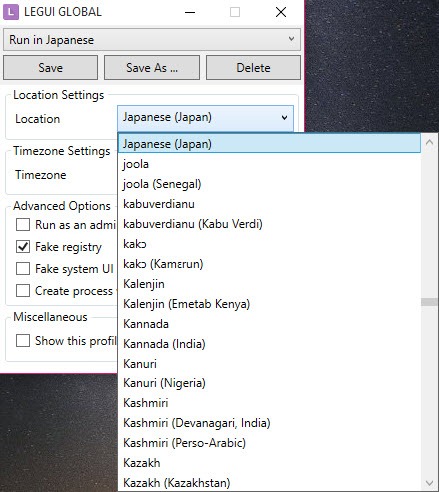
Locale Emulator takes a smarter approach by emulating the regional environment for individual applications without affecting the rest of the system. You right-click an executable, choose the locale you want it to run under (Japanese, Chinese Simplified, Chinese Traditional, Korean, and so on), and the program launches as if it were running on a system with that locale installed. Everything else on your computer stays exactly as it was.
This per-application approach is genuinely useful, and it’s the main reason this tool has held its position as the go-to solution for so many years.
Profile-based locale management
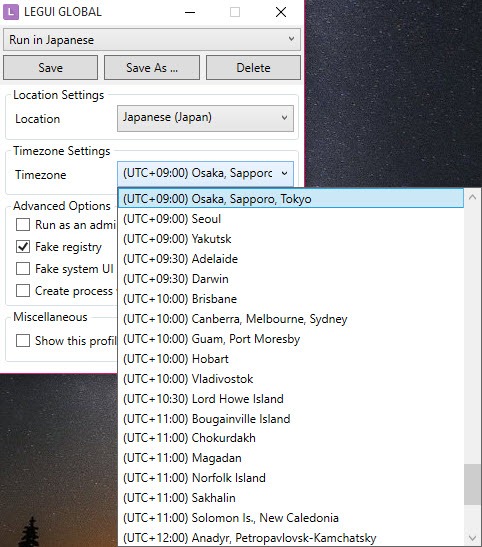
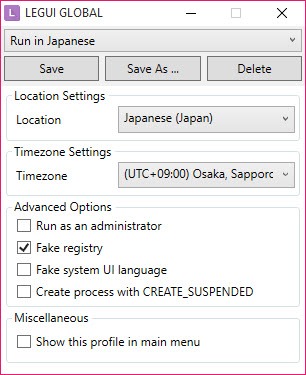
The interface organizes locale settings into profiles, each one defining a specific combination of language, region, and encoding. The default profiles cover the most commonly needed Asian locales, and you can create custom profiles if your particular use case needs something more specific.
Each profile lets you configure not just the language but also other regional settings like timezone, date format, and number format, which occasionally matter for programs that check these values during startup. For users who run software from multiple regions, having distinct profiles ready to go makes switching between them effortless.
Right-click integration that actually works
The shell integration is one of the things this software gets right. After installation, right-clicking on any executable adds menu entries letting you launch it with a specific locale profile directly. There’s no need to wrap the program in batch files, modify shortcuts, or jump through configuration hoops.
For users who frequently run different programs requiring different locales, this immediate access from the file context menu turns what would otherwise be a chore into something that takes two clicks. It’s the kind of small interface decision that reflects an understanding of how the tool will actually be used in practice.
Permanent profile assignment for repeat use
For programs you run regularly, this software lets you permanently associate a specific locale profile with a particular executable. Once configured, the program will always launch in the chosen locale automatically, whether you double-click the executable, run it from a desktop shortcut, or launch it from a game library application.
This persistence is particularly valuable for collectors who maintain libraries of older Japanese or Chinese games, since it means the locale handling becomes invisible after the initial setup. The games just work, the way they would on a system with the appropriate native locale.
Compatibility with games and visual novels
The largest user base for Locale Emulator has historically been the visual novel and Japanese game community. Many of these games were never officially localized for Western markets, and even modern releases sometimes assume Japanese system settings for their installers, save files, or specific game features.
Common scenarios where this tool proves essential include older eroge titles where the menus appear as boxes without proper locale handling, Japanese-only Steam games that crash on launch under Western locales, fan-translated games that require running through a Japanese locale to function correctly, and Chinese single-player RPGs whose character encoding falls apart on non-Chinese systems.
For users in these communities, this software is essentially required infrastructure rather than an optional utility, and the reliability with which it handles these tasks is the main reason it has remained popular for so long.
Comparison with NTLEA and the original AppLocale
Other tools have tried to fill the same niche, with NTLEA (NT Locale Emulator Advanced) being the most notable alternative. Both tools accomplish similar goals but through different technical approaches, and which one works better depends on the specific application you’re trying to run.
In practice, Locale Emulator has gained more widespread adoption thanks to its cleaner interface, better Windows 10 and 11 compatibility, and more reliable behavior across a broader range of applications. NTLEA still has its supporters, particularly for specific games where it happens to work better, but for most users this tool is the easier starting point. If a particular program doesn’t work well with one tool, switching to the other often resolves the issue.
Limitations worth knowing about
Despite its usefulness, this software isn’t a magic bullet that makes every foreign-locale program work perfectly. Some applications use anti-cheat systems or DRM that doesn’t play well with locale emulation. Others have hardcoded assumptions that go beyond simple locale handling. And occasionally a particularly stubborn program will simply refuse to cooperate regardless of which compatibility tools you throw at it.
For these edge cases, alternative approaches like running the application in a Japanese-locale virtual machine or using a different emulation tool may be necessary. But for the vast majority of common scenarios involving older Asian games and software, this tool handles things smoothly without requiring such elaborate workarounds.
Conclusion
Locale Emulator is one of those quietly essential utilities that solves a problem most users never realize exists until they encounter it. For visual novel fans, Japanese game collectors, Chinese RPG players, or anyone running niche Asian software on a Western Windows installation, this tool removes a frustrating barrier with minimal fuss.
It’s not flashy, it doesn’t pretend to do anything beyond its specific purpose, and it doesn’t need to. Locale Emulator has earned its place as the standard solution in this space by reliably doing one job well, and for the audience that needs it, that’s exactly the right kind of software to have around.
Pros & Cons
- Per-application locale emulation without affecting the rest of the system
- Profile-based settings cover Japanese, Chinese, Korean, and other major Asian locales
- Right-click context menu integration makes one-time launches effortless
- Permanent locale assignment for programs run regularly
- Replaces deprecated Microsoft AppLocale on modern Windows versions
- Active community and good documentation for troubleshooting specific games
- Doesn't work with every game, particularly those using anti-cheat or aggressive DRM
- Setup can require some trial and error to find the right profile for specific applications
- Initial configuration occasionally requires adjusting permissions or running as administrator
- Visual novel and game-specific compatibility issues sometimes need manual workarounds
- Documentation assumes some technical familiarity for advanced configuration scenarios
Frequently asked questions
This software lets you run individual programs as if your system were configured for a different language locale, without changing your overall Windows settings. It's commonly used to run Japanese, Chinese, or Korean games and software on Windows installations set to English or other Western languages.
Yes, this software has been used by hundreds of thousands of users for years and is considered safe by the visual novel and Japanese gaming communities. As with any download, sticking to trusted sources avoids modified versions, and the application uses standard Windows APIs to apply its locale changes rather than anything intrusive.
Yes, the latest versions of this software support Windows 11 along with Windows 10 and earlier versions. Some installations may require running as administrator initially or adjusting User Account Control settings, but the core functionality works correctly across modern Windows.
Changing your system locale globally affects every application on your computer, which causes problems for non-Japanese programs that expect the original locale. This tool applies the locale change only to specific programs you choose, leaving the rest of your system unchanged and avoiding the side effects of a global locale switch.
Effectively yes. Microsoft AppLocale was officially supported only on Windows XP and was discontinued, leaving users without an official solution for newer Windows versions. This software fills that gap and works on modern Windows where AppLocale never did.
Yes, this is one of the most common use cases for this tool. Many Japanese visual novels expect a Japanese system locale and either crash or display garbled text when launched normally. Right-clicking the executable and launching it through the Japanese profile typically resolves these issues immediately.
Yes, this software can launch Steam games through the appropriate locale, although the process sometimes requires creating a custom shortcut or modifying how Steam launches the game. Some users find that adding the locale tool as a launch option in Steam itself works well, while others prefer to bypass Steam and launch the game executable directly.
For online games using anti-cheat systems, this tool may cause compatibility issues since anti-cheat software often flags any kind of process modification as suspicious. Single-player games and visual novels typically work without problems, but online competitive games are usually best left to their default launch method.turn to their default behavior.
Some games have specific compatibility quirks beyond simple locale handling. The community-maintained guides for popular visual novels and Japanese games often document workarounds for specific titles, and switching between this tool and alternatives like NTLEA sometimes resolves issues where one works better than the other for a particular game.


Good software and easy to use.