

Lenovo Vantage
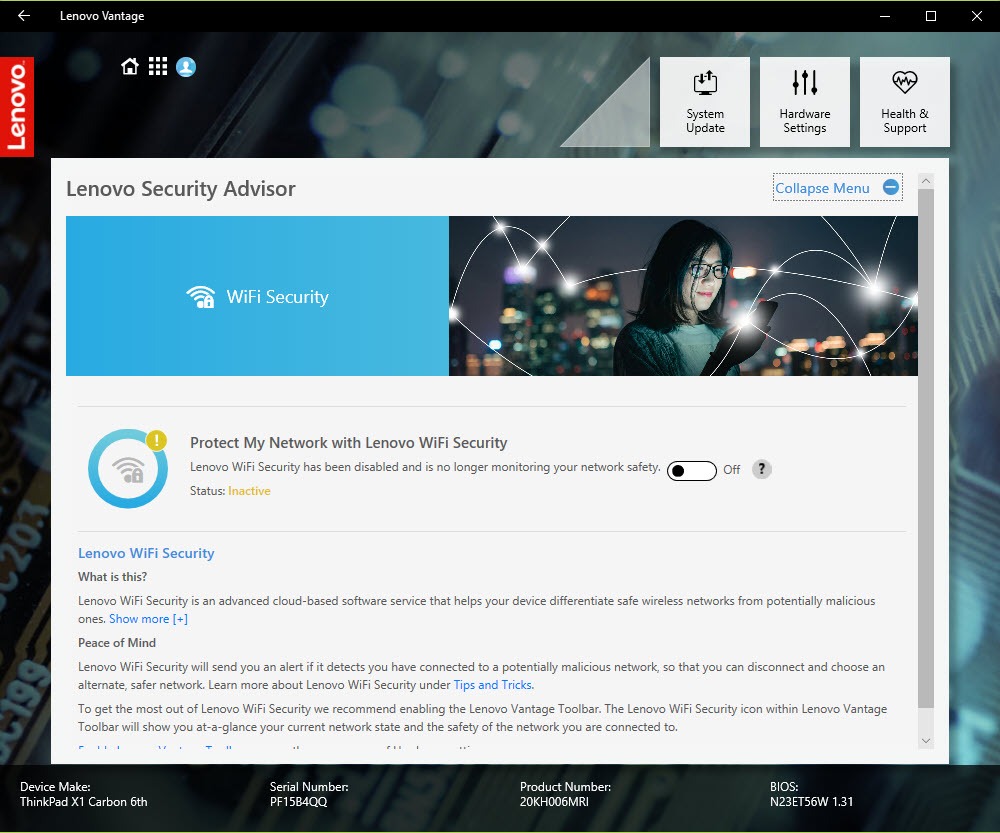
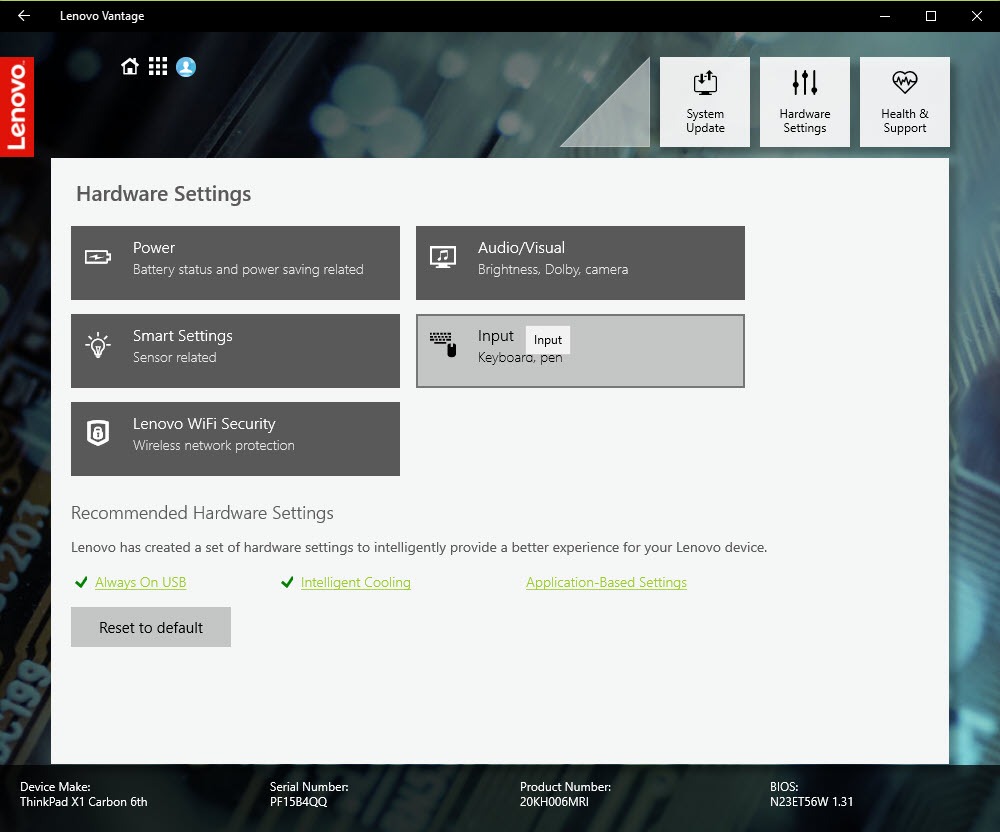
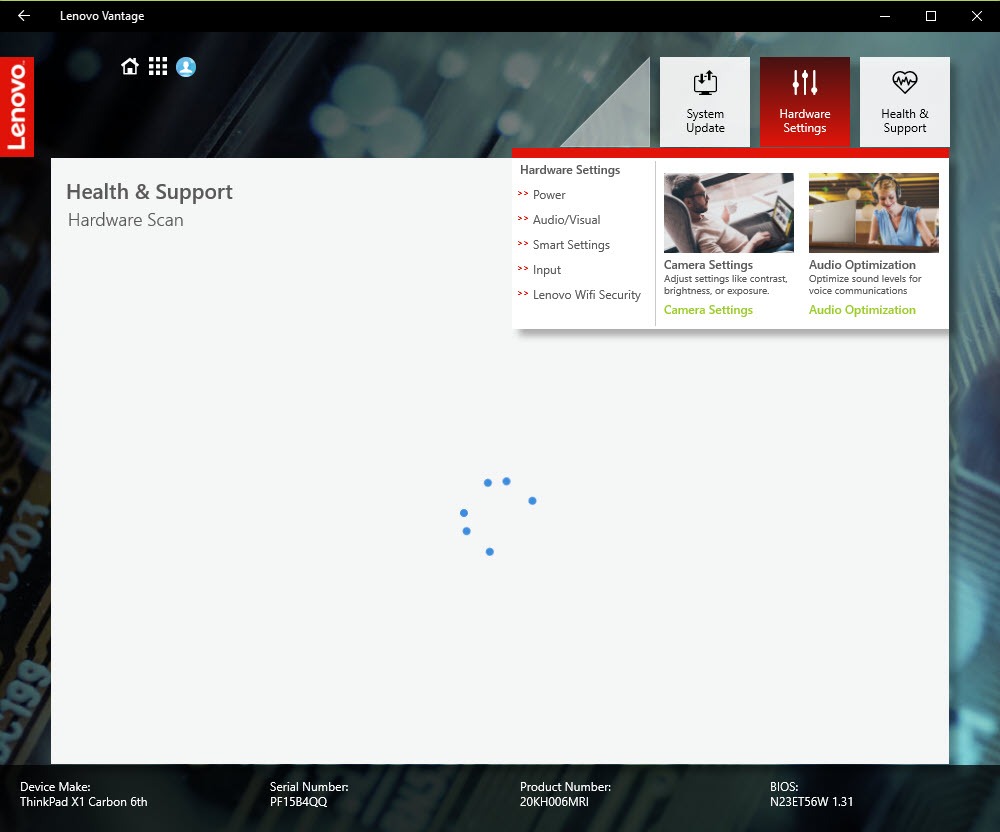
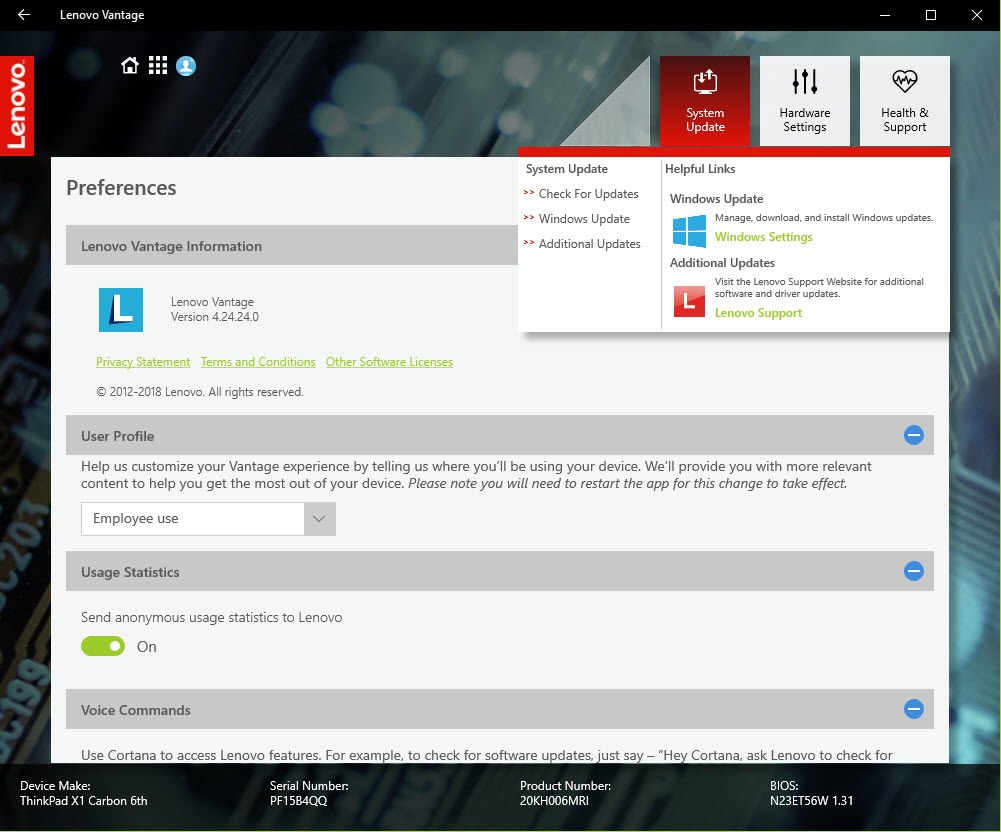
About Lenovo Vantage
Lenovo Vantage is the control hub that ships with Lenovo laptops and desktops, and the app you install manually if your machine came without it. It bundles driver and BIOS updates, battery charge management, hardware diagnostics, and dozens of device settings into one dashboard, so you stop digging through system menus and firmware screens to find them. Think of it as the same job HP Support Assistant does for its own hardware family, only with a heavier focus on battery and input controls.
One thing to be clear about up front. The application only makes sense on Lenovo hardware. Install it on anything else and most panels simply stay empty, because the settings it exposes come from firmware hooks specific to ThinkPad, IdeaPad, Legion, and Yoga machines.
What you actually get depends on your model. A Legion gaming laptop shows overclocking toggles and per-key lighting options that a basic IdeaPad never will. But the core toolkit (updates, battery care, diagnostics, camera and keyboard settings) is there on every supported machine, and that core is the reason to try Lenovo Vantage before you hunt down individual utilities.
One place for drivers, BIOS, and firmware updates
The update module is the feature most people install this software for. It scans your exact model, pulls matching driver, firmware, and BIOS packages, and flags each one as critical, recommended, or optional. That severity split matters.
You can apply the critical fixes and skip the optional Bluetooth driver that has burned you before. If you have ever bricked audio with a bad driver from a generic driver updater, the appeal of packages tested against your specific machine is obvious.
Power users on ThinkPads sometimes prefer Lenovo System Update instead, which does the same job with a plainer interface and no promotional extras. It’s a fair choice for a work fleet. For home machines, the update engine inside Lenovo Vantage is the more current of the two and covers consumer lines that the older tool ignores.
BIOS updates through the app deserve a small warning. They work, and rollbacks exist for some models, but you should plug the laptop in and close everything else first. The installer will refuse to run below a certain battery level, which is annoying exactly once and sensible forever after.
Battery tools that go beyond a percentage readout
Here’s where Lenovo Vantage earns its keep. Conservation Mode caps charging at roughly 75 to 80 percent, which keeps a permanently docked laptop from cooking its cells at full charge day after day. Lithium batteries kept at 100 percent around the clock degrade measurably faster, so if your laptop lives on a desk plugged into a dock, this single toggle probably matters more than every other setting in the app combined.
There’s also Rapid Charge on supported models, a battery gauge reset that recalibrates the reported percentage, and charge threshold controls that let you set custom start and stop points on ThinkPads. That gauge reset quietly fixes the classic complaints of jumping percentages or a laptop that claims “plugged in, not charging” when thresholds are active.
No amount of software will revive a physically worn battery, and the app is honest enough to show you cycle counts and full charge capacity so you can judge for yourself.
Hardware switches you won’t find anywhere else
Some settings in Lenovo Vantage exist nowhere else on the system, or exist only in the BIOS where nobody wants to go. Function key swap turns F1 to F12 back into real function keys without a reboot. USB port management decides whether the ports keep charging your phone while the laptop sleeps. Camera and microphone privacy toggles kill the hardware at driver level rather than just muting an app.
Audio profiles tie into the enhancement layer your model ships with, and on machines with Dolby Access integration you can flip between presets for movies and voice calls from the same panel. Keyboard backlight timing, touchpad behavior, display color modes on supported panels, it all sits under one Device tab.
Is any of this revolutionary? No. Most of it duplicates settings scattered across the system or the firmware. The value is the gathering, not the invention. And a few controls, like charge thresholds and Fn behavior, really are exclusive to this app on consumer models.
Thermal modes, and what the fans think of them
Performance mode raises power limits and thermal targets, Balanced sits in the middle, and Quiet caps things for meetings and library sessions. On Legion machines the same switch handles GPU wattage too. The trade is straightforward. Pick Performance and the fans will let you know about it, audibly, within a minute of any sustained load.
If you mostly browse and write, leave it on Balanced and forget the panel exists. If you render video or game, the mode switch (also available through a keyboard shortcut on many models) is faster than any manual fan curve tool, though it gives you far less granular control than enthusiasts will want.
Diagnostics, warranty, and the bloat question
The hardware scan runs targeted tests on storage, memory, CPU, battery, and the wireless card, then produces a result code you can hand to support if something fails. It’s useful triage before you assume the worst.
For a deeper inventory of what’s inside the machine, a dedicated tool like Speccy still shows more sensor detail, but for a quick “is my SSD dying” check the built-in scan is enough. Warranty status and remaining coverage appear right in the app, which beats hunting for a serial number sticker.
Now the honest part. This software has a reputation for clutter, and it’s earned. The default install surfaces promotional tiles, accessory offers, and occasional pop-ups. A background service stays resident and can nibble a few hundred megabytes of memory on some systems. Almost all of it can be switched off in the settings (turn off the marketing toggles the first day and the app becomes far quieter), but the fact that you have to opt out rather than opt in annoys people, and fairly so.
The interface also leans on large colorful tiles where a plain list would find things faster.
Conclusion
Lenovo Vantage is for anyone running a Lenovo laptop who wants updates, battery care, and hardware quirks handled in one place instead of five. Owners of docked machines get the most out of it, since Conservation Mode alone can add real months to a battery’s useful life, and tinkerers will appreciate the Fn and USB controls that nothing else exposes.
It isn’t elegant, and the promotional clutter needs taming on day one. But once trimmed, the application does more real work than its reputation suggests, and on this hardware there’s no better single tool for the job.
Pros & Cons
- Driver, firmware, and BIOS updates matched to your exact model, with severity flags
- Conservation Mode and charge thresholds measurably extend battery lifespan
- Controls for Fn keys, USB sleep charging, and camera privacy that the system itself never exposes
- Thermal mode switching covers most performance tuning needs without a separate fan utility
- Built-in hardware diagnostics and warranty lookup save a support call
- Promotional tiles and offers appear until you manually disable them
- The resident background service consumes noticeable memory on lower-end machines
- Useless on non-Lenovo hardware, most panels simply stay empty
- The tile-heavy interface hides simple settings behind several clicks
- Feature availability varies wildly between consumer lines, so two users can see very different apps
Frequently asked questions
Yes, that's Conservation Mode doing its job. It caps the charge to slow battery wear. Toggle it off in the Power section whenever you need a full charge for travel.
You can install it, but almost nothing will work. The hardware controls rely on firmware hooks that only exist on Lenovo machines, so the panels stay empty.
Both deliver model-matched updates. System Update has a plainer interface aimed at managed work machines, while this app adds battery care, device settings, and diagnostics on top of updating.
On many models the hotkey overlays and Fn behavior depend on its background service. If you uninstall the app, keep the system interface driver installed or those keys may stop responding.
You probably enabled Performance mode, which raises power and thermal limits. Switch back to Balanced or Quiet and the fan noise drops within a minute or so.


Super I have my battery controller again. After the uninstallation, if the battery does not charge, you have to reinstall the software, remove the cable from the charger and uninstall. It is best to install when the internet is disconnected, although the installation package must be initialised with a network connection. Once the installation has started, it is best to disconnect from the internet. Even after blocking updates in the Microsoft store, Vantage tends to auto-update plugins, which causes options to disappear. These plugins must be blocked in the task scheduler. It is a pity that this website does not… Read more »