

KOPLAYER
About KOPLAYER
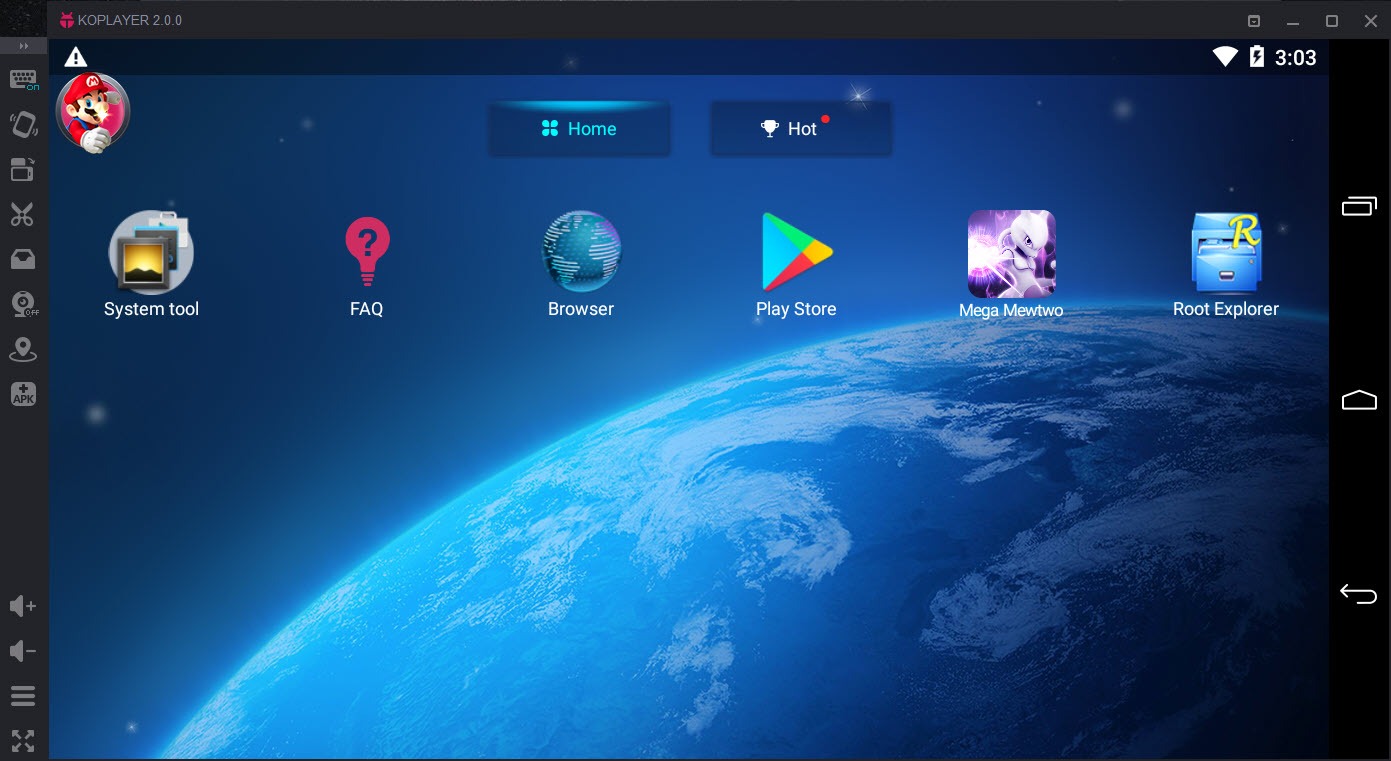
KOPLAYER is an Android emulator built for one audience, people who want to play mobile games on a monitor with a keyboard and mouse. It boots a virtual Android device in a window, installs apps from the built-in store or from APK files dragged onto it, and layers PC-friendly controls on top, key mapping for touch zones, gamepad support, and a record button for capturing gameplay. The pitch that set it apart in a crowded field was modesty, a lighter footprint than the heavyweight emulators, aimed at ordinary computers rather than gaming rigs.
Time has to be part of any honest description here. The Android core inside is an older generation, and the project has gone quiet, which draws a clear line through the game library. Older and lighter titles run happily, while modern releases demanding newer system versions refuse to install at all. That line decides who this emulator still serves, and the answer isn’t nobody.
Against the current mainstream of BlueStacks, KOPLAYER trades library compatibility for simplicity and low overhead, a trade that reads very differently on a new machine versus an aging laptop.
Keyboard mapping, the feature that earns the install
Touch games assume fingers, and the mapping overlay converts them for desk use. Drag virtual buttons onto the screen positions a game uses, bind them to keys, and set a movement zone that translates WASD into the swipes of an on-screen joystick. The arrangement saves per game, so a shooter’s layout and a strategy game’s layout coexist without redoing the work.
The rest of the gaming toolkit follows the same practical spirit. Gamepads work for games that suit them, a toolbar button records gameplay to video, and screenshots land in a shared folder visible from both the virtual device and the desktop, which is also the general file bridge for moving APKs and media in and out. Installing an app you already have as a file takes one drag onto the window.
Volume, GPS position, and device identity can be adjusted from the settings, which matters for games that unlock by region and for the general fiction that this is a phone. None of it requires reading documentation, and that approachability was always the point.
Multiple instances on a VirtualBox heart
A multi-instance manager clones the virtual device, so two or more Android windows run side by side, each with its own apps and accounts. Players use it for running a second account in the same game or for keeping one instance clean while experimenting in another. Each instance costs memory and CPU in full, so the practical ceiling arrives quickly on modest hardware.
Under the hood sits VirtualBox, the general-purpose virtualization engine, which explains both the reliability of the basic formula and the troubleshooting folklore around it. The single most common problem new users hit is hardware virtualization being disabled in the BIOS, which produces slow, stuttering performance or an emulator that won’t start. Enabling VT-x, or its equivalent on other processors, transforms the experience, and no amount of settings-fiddling inside the emulator substitutes for it.
The engine choice also means occasional friction with other virtualization software on the same machine, and graphics rendering offers a choice between speed and compatibility modes, worth flipping when a specific game glitches.
Where the age shows, and where it doesn’t
The compatibility line is the real limit. Games built for recent Android generations check the system version and simply decline, and no setting bypasses that. Competitive players chasing current titles belong on an actively maintained emulator, with LDPlayer being the natural pick for modern gaming performance.
Developers who need many Android versions for testing were never the audience, and a tool like Genymotion owns that use case properly.
What’s left is a real niche. Older games, the retro mobile catalog, and light apps run well, and they run on hardware that the modern emulators treat as beneath contempt. An office laptop with modest memory boots this emulator and plays the classics smoothly, where the current heavyweights choke on their own splash screens.
For that machine and that library, the old modest design is exactly right.
Conclusion
KOPLAYER today makes sense for owners of modest or aging computers who want the older and lighter side of the Android game catalog with proper keyboard controls, plus anyone revisiting the classic mobile titles that current emulators have left behind along with the hardware that ran them.
Players of current releases should start with an actively developed emulator and never look back. As a light, unfussy window into Android’s earlier library, this one still does its one job on machines nothing newer will tolerate.
Pros & Cons
- Simple keyboard mapping with per-game layouts for touch titles
- Runs acceptably on old and low-end hardware where modern emulators struggle
- Multi-instance manager runs separate Android windows side by side
- Drag-and-drop APK installs and a shared folder bridge to the desktop
- Built-in gameplay recording without extra software
- The old Android core blocks modern games from installing at all
- Development has gone quiet, so nothing will improve
- Requires hardware virtualization enabled in the BIOS for usable speed
- Can conflict with other virtualization software on the same machine
Frequently asked questions
The virtual device runs an older Android generation, and games requiring a newer system version refuse to install. Nothing in the settings changes that, so recent titles need a modern emulator.
Hardware virtualization is almost certainly disabled. Enable VT-x or its equivalent in the BIOS setup, and the difference is night and day.
Open the mapping tool from the toolbar, drag button markers onto the game's touch zones, assign keys, and add a WASD zone for movement. The layout saves per game automatically.
Yes, the multi-instance manager clones the virtual device, and each instance keeps its own apps and accounts. Every instance consumes its full share of memory and CPU.
Use the shared folder, which appears inside the virtual device and as a normal folder on the desktop. APK files skip even that, since dropping them onto the window installs them.


