

KeePass
About KeePass
In an era when the average person has hundreds of online accounts and reusing passwords is one of the fastest ways to get hacked, the importance of a good password manager is hard to overstate. KeePass is one of the oldest and most respected names in this category, having earned its reputation through years of reliable service, an open-source codebase that anyone can audit, and a stubborn refusal to compromise on the security principles that matter most.
Unlike commercial password managers that store your data in their cloud, this software keeps everything in an encrypted database file on your own computer, under your direct control.
For privacy-conscious users, IT professionals, and anyone who has watched cloud-based password managers suffer breaches over the years, this local-first approach has obvious appeal. The trade-off is that you handle your own backups and sync, but the gain is that no third party ever holds your credentials.
The local-database approach to password storage
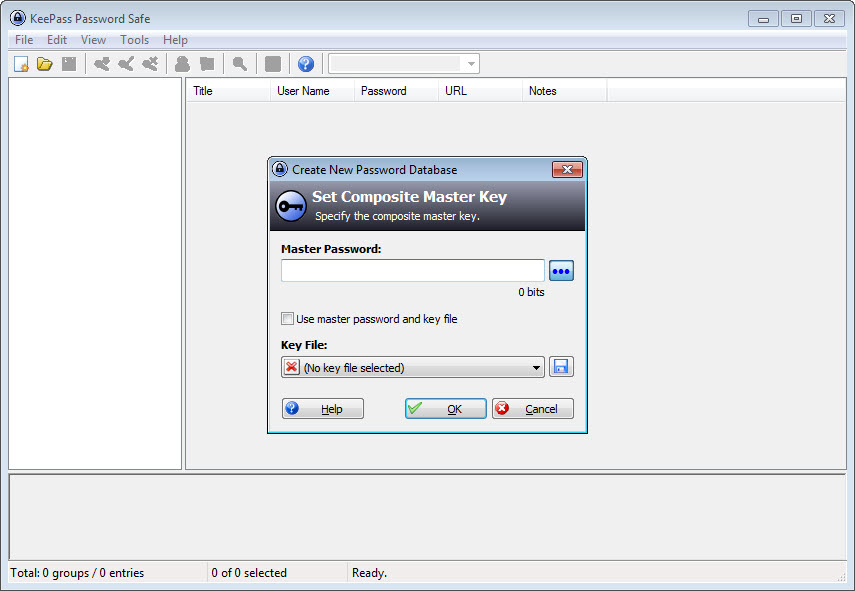
The fundamental design of KeePass is straightforward. Your passwords live in a single encrypted database file (typically a .kdbx file) protected by a master password, optionally combined with a key file or Windows user account integration. Open the database with the correct credentials, and you have access to everything inside. Close it, and the data returns to its encrypted state on disk.
This local file approach has significant implications for security and trust. Your credentials never leave your computer unless you choose to put the database file somewhere else, like a sync service or USB drive. The application doesn’t maintain servers that could be breached, doesn’t require accounts or subscriptions, and doesn’t depend on any company staying in business to keep your passwords accessible.
For users who have watched cloud password managers like LastPass deal with serious security incidents over the years, the appeal of keeping the database under personal control is real and well-founded.
Strong encryption with multiple algorithm options
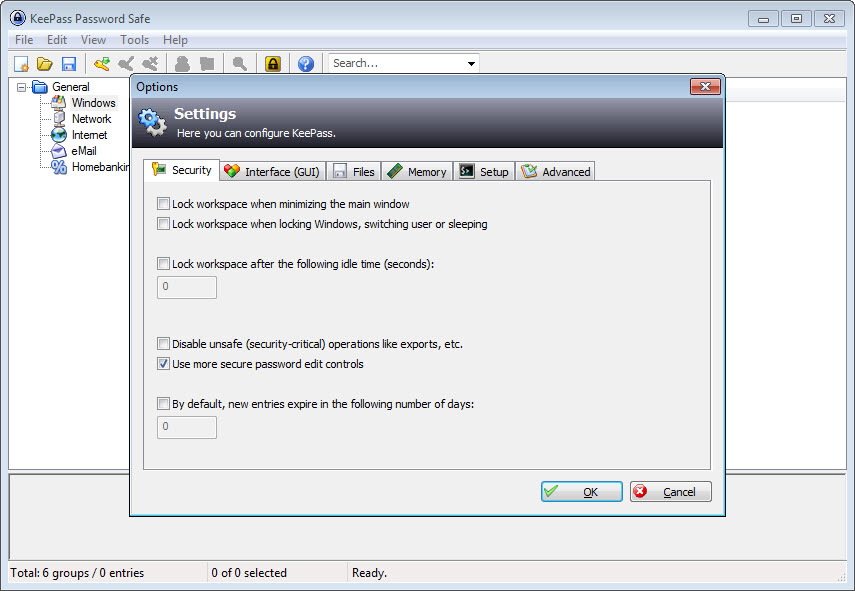
The encryption used to protect databases is industry-standard and configurable. AES-256 is the default, with options for ChaCha20 and Twofish for users who prefer alternatives. Argon2 is supported as the key derivation function, which provides strong protection against brute-force attacks on the master password.
This level of cryptographic flexibility matters because security best practices evolve over time. The ability to choose modern algorithms and configure work factors appropriately ensures the database protection stays strong as computing power increases and attack techniques improve.
Plugins extend functionality dramatically
One of the defining characteristics of KeePass is its plugin ecosystem. The base application provides solid core functionality, but a wide range of community-developed plugins extend it in directions ranging from browser integration to cloud sync to enhanced security features.
Common plugins handle browser autofill (since the base application doesn’t include this), database synchronization through various cloud services, two-factor authentication code generation (turning the password manager into a TOTP authenticator), and integration with various other tools and workflows. For users willing to invest some setup time, this extensibility makes the application as capable as commercial alternatives in most scenarios.
The trade-off, of course, is that plugin quality varies and configuration takes effort. Users coming from polished commercial password managers often find this aspect of the application frustrating, since features they expect to work out of the box require manual plugin installation and setup.
Auto-Type for filling credentials anywhere
Where commercial password managers typically use browser extensions to fill credentials, the base application takes a different approach with its Auto-Type feature. Press a hotkey, and the application types your username, tab, password, and Enter key directly into whatever window has focus, which works in any application rather than just browsers.
This approach has real advantages. It works in desktop applications, remote desktop sessions, terminal windows, and pretty much anywhere else you might need to authenticate. The downside is that it’s less convenient than browser autofill for typical web logins, which is why many users supplement Auto-Type with one of the browser integration plugins for the best of both approaches.
Database synchronization through your choice of method
Since this software keeps databases as files on your computer, sync between devices works through whatever file sync method you prefer. Putting the database in a Dropbox, OneDrive, Google Drive, or Nextcloud folder makes it available across devices automatically. USB drives work for users who want truly local sync. SFTP, network shares, and other approaches all work fine.
The application also includes synchronization features that handle merging conflicts when the same database is modified on multiple devices, ensuring that updates from different devices combine correctly rather than overwriting each other. For users who want sync but don’t want to entrust a single password company with their data, this approach delivers cloud-like convenience without single-vendor dependency.
Suitable for technical users and security professionals
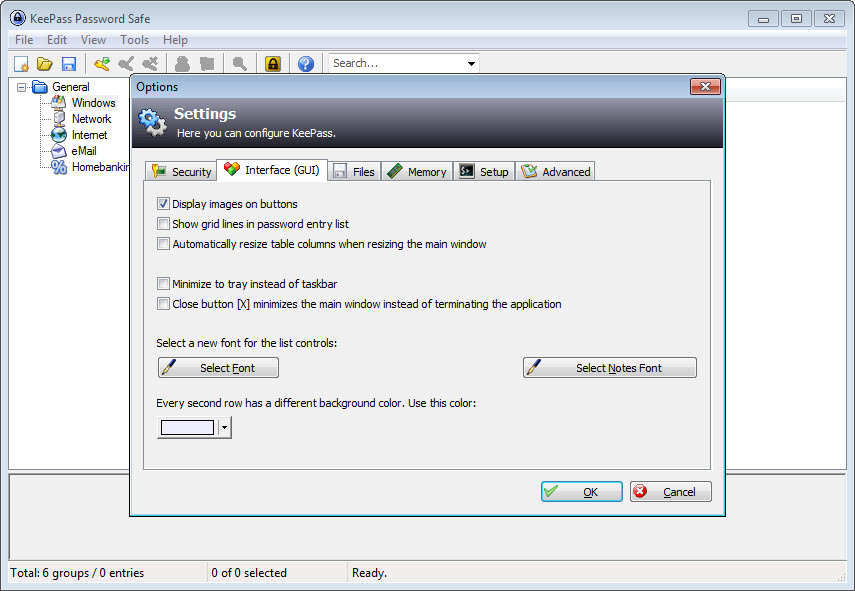
Despite its capabilities, this software is not the most beginner-friendly password manager available. The interface is functional rather than polished, the plugin-based extensibility requires technical comfort to configure, and the local-database approach demands that users handle their own backups responsibly.
For users who appreciate these characteristics rather than seeing them as drawbacks, KeePass offers something that commercial alternatives can’t match. It’s a password manager that you fully control, that doesn’t depend on any company’s continued existence, and that has been audited and verified by countless security professionals over decades of use.
For users who would rather have polished simplicity and don’t mind cloud dependency, alternatives like Bitwarden offer a different trade-off that may suit them better. Both approaches are legitimate, and the right choice depends on what you actually value in a password manager.
Conclusion
KeePass represents a particular philosophy about password management, one that prioritizes user control, transparency, and independence over polished convenience.
For users who share that philosophy, it’s essentially without peer in the password manager category, offering security and trust that no commercial alternative can match.
It’s not for everyone, and that’s fine. But for users who want their passwords under their own control, who appreciate audited open-source software, and who don’t mind investing some setup time for the resulting independence, KeePass has earned its long-standing reputation as one of the most respected password managers available.
Features & benefits
Pros & Cons
- Local database storage keeps credentials under your direct control
- Strong encryption with industry-standard algorithms protects stored data
- Plugin ecosystem extends functionality across browser integration, sync, and TOTP
- Auto-Type works in any application, not just browsers
- Open-source codebase has been audited and verified by security professionals
- No subscription, no account requirement, completely free
- Database format compatible with KeePassXC and other implementations
- Sync works through any file synchronization method you already use
- Interface design feels dated compared to modern password managers
- Browser autofill requires plugin installation rather than working out of the box
- Setup and configuration take more effort than cloud-based alternatives
- Mobile experience depends on third-party clients with varying quality
- Not the easiest password manager for non-technical users to adopt
Frequently asked questions
The database file is encrypted with strong algorithms like AES-256, protected by your master password and optionally a key file. As long as you use a strong master password and protect the key file properly, the encrypted database is essentially impossible to crack even if someone gets a copy of the file.
Yes, since the database is encrypted before it ever reaches the cloud, storing it in services like Dropbox, OneDrive, or Google Drive doesn't expose your passwords. Even if those services were compromised, attackers would only get the encrypted file, which they cannot read without your master password.
KeePassXC is a fork of the original that aims for better native cross-platform support and built-in features like browser integration and TOTP. The two share the same database format, so you can use either or switch between them. The original works well on Windows with plugins, while KeePassXC tends to be preferred on macOS and Linux.
The base application is fully functional for storing and retrieving passwords without any plugins. However, features like browser autofill, two-factor code generation, and certain synchronization options require plugins. Most users install at least a browser integration plugin to make web logins more convenient.
There's no recovery option for a forgotten master password. The encryption is strong precisely because there's no backdoor, which means losing the master password means losing access to the database permanently. This is why writing down the master password and storing it somewhere physically secure is recommended for many users.
The main difference is the local-versus-cloud approach. This software stores everything locally under your control, while Bitwarden and 1Password use cloud servers (with end-to-end encryption). The local approach offers more privacy and independence at the cost of requiring you to handle sync and backup yourself.
Sharing a database file with others is straightforward since it's just a file, but doing so means everyone with access has the master password and can see all entries. For more granular sharing, plugins exist that handle specific entries, or you can maintain separate databases for different sharing groups.
The application supports importing from various other password managers through built-in import features and plugins. Most major password managers can export to standard formats like CSV or KDBX, which can then be imported into the database without losing your existing credentials.


