

ImgBurn
About ImgBurn
ImgBurn is a dedicated optical disc tool that handles the entire burning workflow, and it does so by splitting the job into clear, separate modes rather than burying everything in one cluttered window. Want to rip a disc to an image, build an image from a folder of files, burn an existing image to a blank disc, or confirm a finished disc is readable? Each of those is its own mode, and you pick the one that matches the task at hand. It covers CD, DVD, HD DVD, and Blu-ray, and it stays small and fast while doing it.
That mode-based design is the thing that defines it. A lot of burning suites pile every function into a busy interface and leave you hunting for the option you need. ImgBurn instead gives you five focused tools, each doing one thing properly. The result is a program that feels lean and predictable, where you always know which mode you’re in and what it’s about to do.
It also reads and writes an unusually wide range of image formats, including older ones that newer tools have quietly dropped. If you’ve got disc images from old archiving or backup projects, there’s a good chance this opens them when other software shrugs.
The five modes and what each one does
The whole tool is organized around its modes, so understanding them is understanding the program. Read mode rips a physical disc into an image file on your drive, which is how you back up a disc you own to your computer. Build mode goes the other way, compiling files and folders from your computer into a disc image, or writing them straight to a blank disc if you’d rather skip the image step.
Write mode takes an image file you already have and burns it to a disc, the classic burn-an-ISO job. Verify mode checks that a burned disc is fully readable, and this is the one people overlook at their peril. It can compare the disc byte-for-byte against the original image to confirm the data actually wrote correctly, which is the difference between assuming a backup is good and knowing it is.
Discovery mode rounds things out by testing the quality of your drive and media, though it leans on a companion analysis tool to show its full results.
Format support that refuses to leave old discs behind
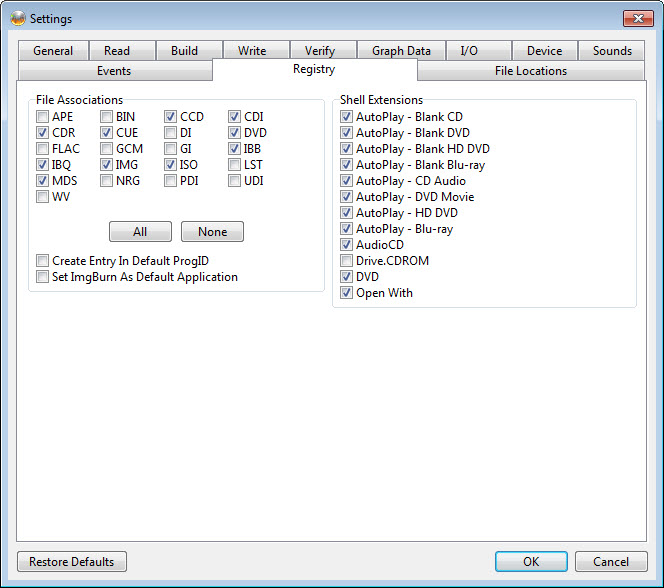
This is where ImgBurn quietly outclasses flashier competitors. It reads and writes the common formats you’d expect, ISO, BIN, CUE, IMG, and more, but it also handles the awkward legacy ones. NRG images left over from old Nero projects, CDI files from Discjuggler, and IMG files from older backup tools all open without fuss.
For anyone doing software preservation, dredging up game backups, or rescuing an old archive, that breadth is hard to match. A maintained tool like ISO Workshop covers many formats too, and CDBurnerXP handles ISO and BIN natively, but neither reaches quite as far into the obscure older formats.
If your only goal is converting an odd image to a standard ISO, AnyToISO is the simpler pick, but for actually burning that image to a disc afterward, this is the tool.
Burning audio and video discs
It’s not just data discs. ImgBurn builds Audio CDs from a long list of source formats, and not only the obvious MP3 and WAV. It pulls in lossless sources like FLAC, APE, and WV, and it supports gapless playback and CD-Text, so a compilation plays the way you intended rather than with awkward silences between tracks. That makes it a real option for putting a music collection onto a disc for an older player.
On the video side, it builds proper DVD Video, HD DVD Video, and Blu-ray Video discs from their respective folder structures. Point it at a prepared VIDEO_TS folder and it assembles a disc that plays in a standard player.
It won’t author menus or encode video for you, so you’ll need your files already in the right structure, but as the final step that turns a folder into a playable disc, it’s dependable.
Built for control without demanding it
The clever balance here is that the tool works straight out of the box, yet opens up considerable depth for anyone who wants it. Drop in an image, hit write, and it picks sensible settings on its own. But the options are there when you go looking.
There’s an image queue system for burning several images in a row, and if you have more than one drive, it can share the jobs across them to get through a stack faster. For double-layer DVD Video, an easy layer break selection screen lets you choose where the disc splits between its two layers, a detail that matters for smooth playback and that many tools handle clumsily.
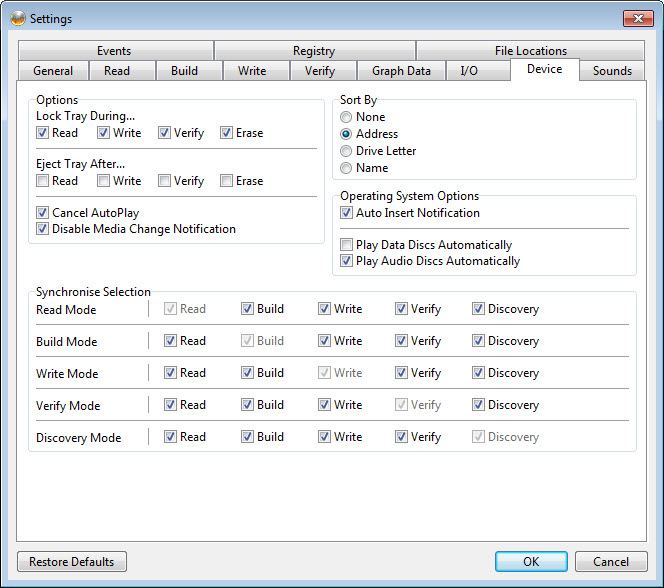
The Automatic Write Speed feature remembers your preferred burn speed for each type of blank media, so once you’ve dialed in the right speed for a particular disc brand, it applies it automatically next time. If you also want to write disk images to USB sticks rather than optical discs, ImageUSB covers that adjacent job.
Conclusion
ImgBurn stays useful for a simple reason. It does the specific job of optical disc burning thoroughly and reliably, without trying to be a bloated media suite. The five-mode structure keeps each task clear, the verify-against-source feature gives you real confidence in your backups, and the format support reaches into corners that almost no other tool bothers with. For burning, ripping, and preserving discs, it remains one of the most dependable options going.
It does show its focus. The interface assumes you know roughly what you’re doing, it’s no longer picking up new features, and it’s useless to anyone who has moved entirely past optical media. But for the person who still burns discs, whether for backups, audio, video, or keeping old archives alive, this is a precise and trustworthy tool that earns its place in plenty of toolkits.
Keep it around, and the next time you need a disc done right, it won’t let you down.
Pros & Cons
- Splits burning into five focused modes that each do one task cleanly
- Reads and writes an exceptionally wide range of image formats
- Opens legacy formats like NRG and CDI that newer tools have dropped
- Verify mode compares a disc byte-for-byte against the source for true integrity
- Builds Audio CDs from lossless sources with gapless playback and CD-Text
- Creates DVD, HD DVD, and Blu-ray Video discs from prepared folders
- Image queue can spread multiple burn jobs across several drives
- Stays small and fast while remaining deeply configurable for power users
- The mode-based layout can confuse newcomers expecting a single guided wizard
- No longer actively developed, so it won't gain new features
- Discovery mode needs a separate companion tool to show its full analysis
- It builds video discs but won't author menus or encode the video for you
- Strictly an optical disc tool, with nothing to offer if you don't burn discs
Frequently asked questions
It burns and creates optical discs, handling CDs, DVDs, HD DVDs, and Blu-rays. It works through five modes that let you rip a disc to an image, build an image from files, write an image to disc, verify a finished disc, and test your drive and media.
The five modes are Read, Build, Write, Verify, and Discovery. Read rips a disc to an image, Build compiles files into an image or disc, Write burns an image to disc, Verify confirms a disc is readable, and Discovery tests drive and media quality.
Yes, that's exactly what Write mode is for. You select your ISO or other image file, choose your drive, and it burns the image to a blank disc. You can then use Verify mode to confirm the burn completed without errors.
It supports a broad range including ISO, BIN, CUE, IMG, MDS, and PDI, along with older formats like NRG and CDI that many modern tools have abandoned. This makes it useful for opening disc images from older archiving and backup projects.
Yes. Verify mode checks that a disc is fully readable and can compare it byte-for-byte against the original image file. This confirms the data wrote correctly, which matters when you're burning backups you need to trust later.
Yes. It builds Audio CDs from many source formats, including lossless ones like FLAC and APE alongside MP3 and WAV. It also supports gapless playback and CD-Text, so your compilations play smoothly with track information intact.


