

iLok License Manager
About iLok License Manager
iLok License Manager is the program that decides whether your audio plugins open. A large share of the paid instruments and effects that load into a music application are protected by the iLok system, and each one needs a licence sitting in a place the plugin can see.
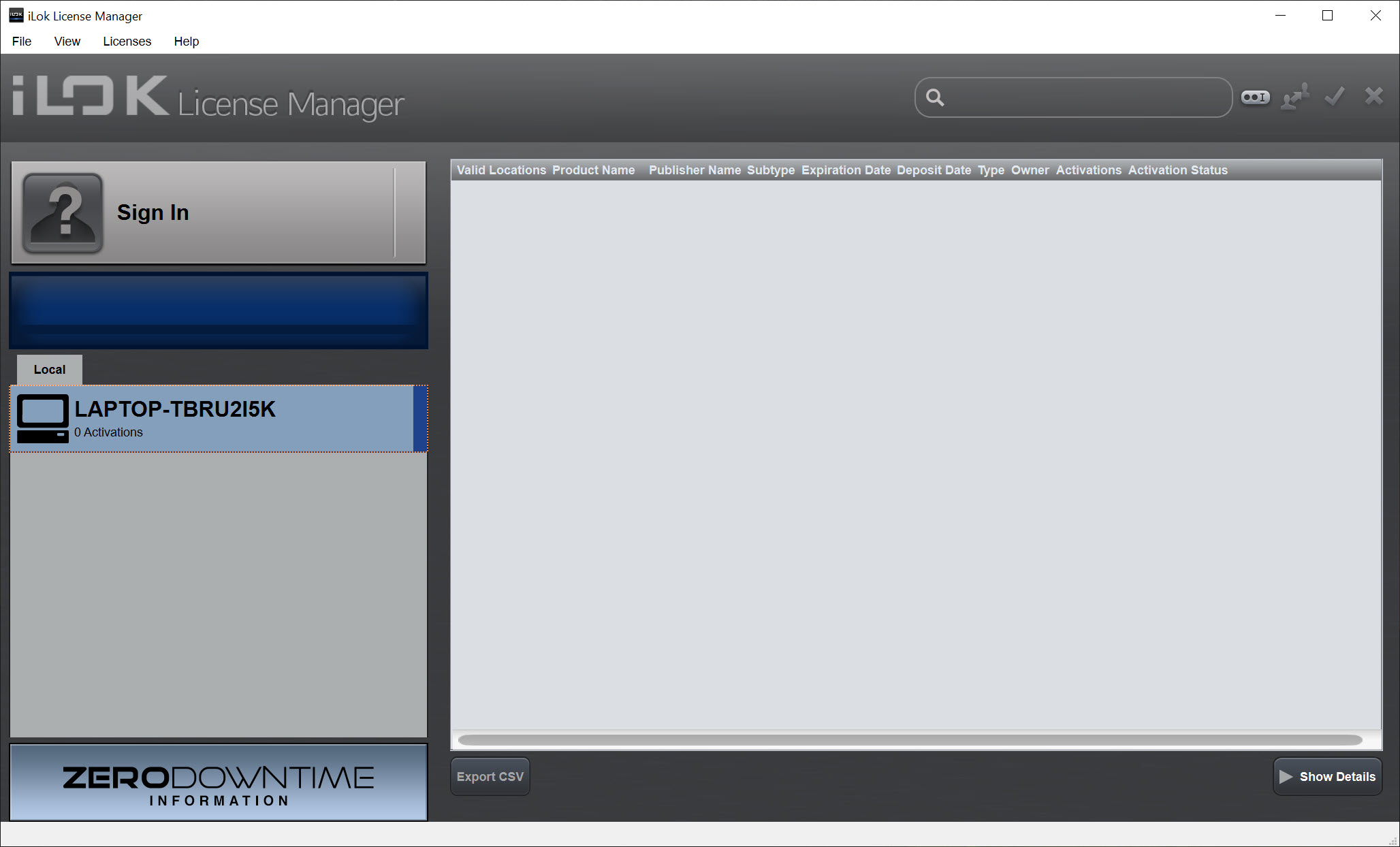
This program is where the licences live. It shows every one attached to your account, lets you put each into one of three places, a USB key, the computer itself or a cloud session, and moves them back when you change machines. It also redeems the activation codes that arrive with a purchase, and it is the first thing to open when a plugin complains that no licence was found.
Nothing else does this job, because the protection scheme has a single manager as its only front end. That makes the review less about alternatives and more about understanding the three locations. Nearly every support thread about a plugin that refuses to load comes down to a licence in the wrong place or a cloud session that dropped.
iLok License Manager is not complicated, only unforgiving of the gap between where a licence is and where the plugin expects it.
Three places a licence can live
A licence in your iLok License Manager account is not yet usable. Activation moves it to a location, and the location decides how portable the plugin is. The USB key is the most portable. Plug it into any computer that has the plugin installed and the plugin runs, which is how touring engineers carry a rig’s worth of licences in a pocket.
The computer is the least portable. The licence is bound to that machine’s hardware, works offline forever, and follows you nowhere. The cloud session is in between. Sign in on any machine and the cloud-enabled licences become available there for as long as the session and the internet connection last.
Each product’s publisher decides which locations it allows, and the manager shows the permitted ones per licence. Some allow only the key. Most allow the key and the computer. A growing number allow the cloud.
The number of simultaneous activations is also the publisher’s choice, so a licence might permit two computers at once or only one. That count is what runs out when a licence is stuck on an old machine.
Redeeming, activating and moving
A purchase produces an activation code for iLok License Manager. Licences, Redeem Activation Code, paste, and the licence lands in the account with an offer to activate it immediately. From then on, activation is a drag from the account list onto a location in the sidebar, or a right-click and Activate, and deactivation is the reverse. Moving a licence between machines is deactivate here, activate there, and both steps need an internet connection even for licences that then work offline.
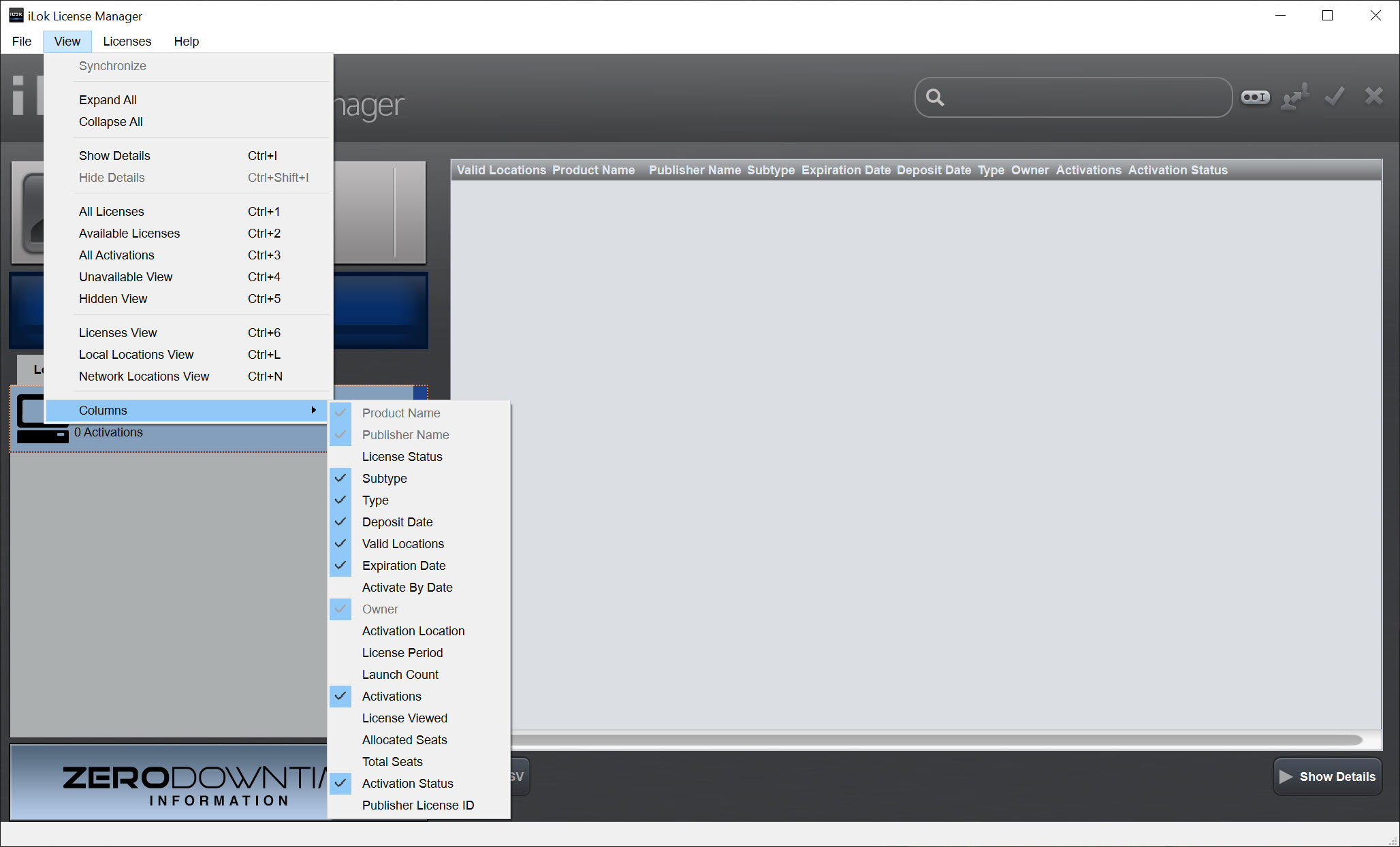
The Available tab lists licences waiting in the account, All Activations shows where everything currently sits, and a details pane gives the product, the publisher, the permitted locations and the expiry for trials.
iLok License Manager also holds trial licences, which is how a two-week demo of a plugin arrives and how it stops working on day fifteen with no further action.
Cloud sessions and why they drop
File, Open Cloud Session, and every cloud-enabled licence in the account activates to this machine at once. It is the most convenient location and the most fragile. The session needs a constant connection while the plugin runs, and a network hiccup can end it, at which point every plugin depending on it fails until the session is reopened. Only one cloud session per account exists at a time, so signing in on a second machine closes the first.
The manager’s own advice for a flaky session is Close All Cloud Sessions followed by Open Your Cloud Session, which refreshes it. The lasting fix is to activate the licences you use daily to the computer or a key and reserve the cloud for the rest.
The choice is not one or the other. A licence activated to a key keeps working with or without a cloud session open.
The USB key, and what happens when it is lost
The USB key holds iLok License Manager licences in hardware, and the manager treats it as another location in the sidebar with a Synchronize button for when a plugin fails to see a licence the key plainly holds. Keys must be registered to the account once. A powered hub is the recommended way to connect one, since an underpowered port produces the intermittent detection that fills the forums.
A lost or broken key takes its licences with it, and the manager offers no way to move a licence off hardware you no longer have. Recovery goes through each publisher individually, or through an optional coverage plan sold separately that issues temporary replacement licences while a damaged key is exchanged.
Know that before the key goes missing, not after.
When a plugin says no licence found
The message from iLok License Manager is generic and the causes are few. The licence is still in the account and was never activated. It is activated to a different computer. The key is not connected or not detected, in which case reseat it and press Synchronize. The cloud session closed. Or the wrong edition of the plugin is installed, the professional version against a standard licence, which is a common mistake the manager cannot see. Those five, in order, resolve nearly every case.
One more belongs to the machine rather than the licence. The background licensing service that the manager depends on sometimes fails to start, and the plugin then reports an error before the manager even opens.
Setting that service to start automatically and starting it by hand clears the fault. An audio editor that needs no licence at all is a reminder that not every workflow has to pass through this program.
Conclusion
iLok License Manager is for anyone who has bought a protected plugin, which is most people with a paid instrument or effect in their session. It is not a choice so much as a fact of the workflow. Understanding the three locations and keeping the daily plugins on the computer or a key rather than the cloud removes almost every interruption it is blamed for.
It is not friendly about the difference between an account and an activation, and the no-licence message tells you nothing. Learn the five causes, register the key, and it becomes a program you open twice a year and forget the rest of the time.
Pros & Cons
- Shows every licence in one account view with its permitted locations
- Activation to a USB key, the computer or a cloud session, moved by drag and drop
- Redeems activation codes and holds trial licences
- Synchronize refreshes a key the plugin cannot see
- Licences on a key or a computer work offline once activated
- Cloud sessions need a constant connection and drop with it
- Lost or broken key takes its licences unless separate coverage was bought
- Activation counts get stuck on old machines and need the publisher to reset
- Every move needs an internet connection
- Generic no-licence error leaves the diagnosis to you
Frequently asked questions
The licence is in the account but not activated, or activated to another location. Drag it onto this computer or a connected key. If it sits on a key, reseat the key and press Synchronize.
Deactivate it on the old machine, which returns it to the account, then sign in on the new one and activate it there. Both steps need an internet connection.
They were running from a cloud session, which needs a constant connection. Reopen the session from the File menu, and activate the plugins you rely on to the computer or a key so a dropped connection cannot stop them.
Yes for most licences. Publishers decide the permitted locations, and most allow the computer or a cloud session as well as the key. A few still require the key.


