

HD Tune
About HD Tune
Hard drives don’t usually fail without warning. They give you small clues for weeks or months before they finally die: occasional slow-loading files, the occasional bad sector that Windows quietly works around, transfer speeds that gradually drop below what they should be. The trick is noticing these signs early enough to back up your data and replace the drive before catastrophic failure takes everything with it.
HD Tune is one of the oldest and most respected utilities for spotting these warning signs, with a track record stretching back many years and a reputation built on doing one job (testing and monitoring storage drives) extremely well.
What it actually tests and why those tests matter
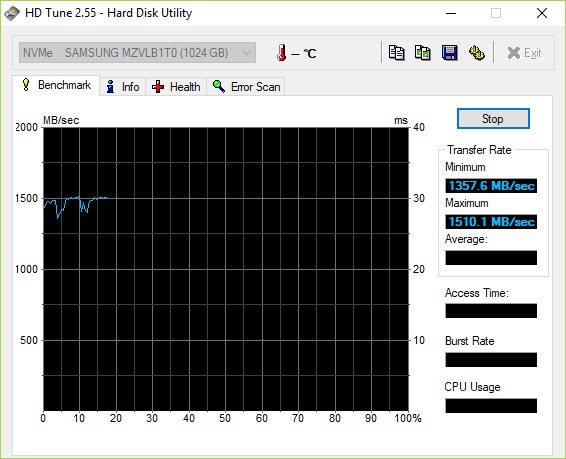
The core capability of HD Tune is benchmarking storage drive performance through a series of read tests that measure transfer rates across the entire drive surface. The benchmark produces a graph showing read speed at every position, along with overall metrics like minimum, maximum, and average transfer rates plus access time and burst rate.
This graph matters more than the individual numbers because patterns in the graph reveal problems that a simple “average speed” measurement would miss. A healthy drive shows a relatively smooth curve with predictable degradation toward the inner tracks (for spinning HDDs) or essentially flat performance (for SSDs).
A drive starting to fail typically shows dramatic dips at specific positions where bad sectors slow reads dramatically, or unstable patterns where speeds vary wildly between adjacent positions.
Reading the benchmark graph correctly is a skill that develops with experience, but even casual users can spot obvious problems like sudden cliffs in performance or extended slow zones that indicate sector-level damage. For users investigating whether a sluggish system is caused by a failing drive, this benchmark visualization provides genuinely useful diagnostic information.
S.M.A.R.T. health monitoring with detailed attribute reporting
Modern storage drives expose health information through the S.M.A.R.T. (Self-Monitoring, Analysis, and Reporting Technology) protocol, which tracks dozens of attributes ranging from temperature and power-on hours to reallocated sector counts and pending sector errors. HD Tune displays all these attributes through its Health tab, with both raw values and warning thresholds clearly indicated.
The S.M.A.R.T. data is where serious drive failure prediction happens. Attributes like Reallocated Sector Count, Current Pending Sector Count, and Uncorrectable Sector Count tell you directly whether the drive is having problems writing or reading specific locations. Power-On Hours and Power Cycle Count give you context for the drive’s age and usage. Temperature monitoring reveals whether thermal issues are stressing the hardware.
For users who don’t know what specific S.M.A.R.T. attributes mean, the application clearly indicates which ones have crossed warning thresholds, providing visual guidance toward problems even without deep technical knowledge. For technicians who do understand the attributes, having all the values clearly displayed in one interface beats hunting through manufacturer-specific tools or Windows utility output.
Error scanning to find bad sectors
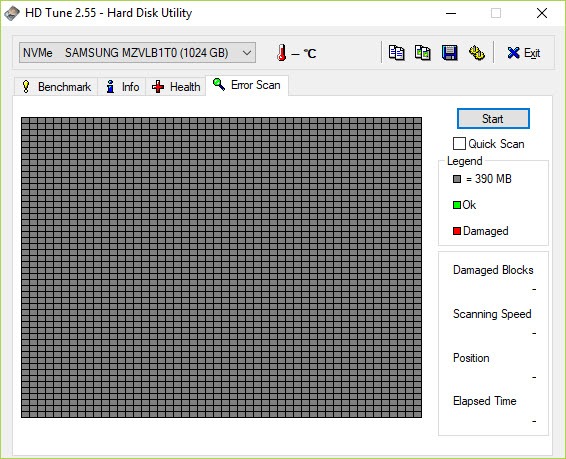
Beyond benchmark testing and S.M.A.R.T. monitoring, the application can perform a full error scan that reads every sector on the drive looking for read failures. This scan takes substantial time on large drives (potentially hours on multi-terabyte spinning disks), but it provides comprehensive verification that every sector can actually be read successfully.
The visualization shows the drive as a grid of sectors, with each block colored according to whether the read succeeded. Bad sectors appear as red blocks, providing immediate visual indication of where problems exist on the drive surface. For drives showing intermittent issues that S.M.A.R.T. attributes haven’t yet caught, this comprehensive scan often reveals the actual extent of damage.
For users investigating whether a drive is worth keeping or whether they should replace it, the bad sector count from a full error scan provides concrete data. A handful of bad sectors might be acceptable for non-critical use, while extensive sector-level damage indicates a drive that should be replaced before catastrophic failure takes data with it.
Drive information and identification
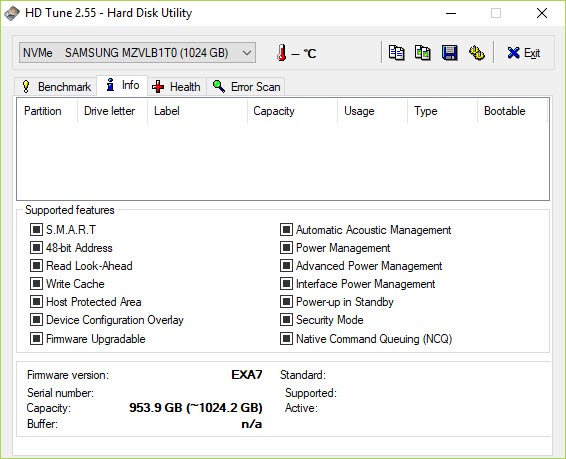
The Info tab displays comprehensive information about whatever drive you’ve selected, including model number, firmware version, serial number, capacity, supported features, and various other details that come up when investigating specific drives.
For users dealing with multiple drives or trying to identify exactly what hardware they have, this consolidated information view saves the manual work of looking up specifications elsewhere.
The supported features list is particularly useful for understanding what capabilities a drive actually exposes. Some drives advertise features they don’t fully implement, while others have features that aren’t immediately obvious from the marketing materials. This direct query of the drive itself provides the authoritative answer about what’s actually available.
Pro version capabilities worth understanding
The free version covers basic benchmarking, S.M.A.R.T. monitoring, error scanning, and drive information. The Pro version adds substantially more capability that matters for serious users, including write speed benchmarking (the free version only tests read speed), random access tests that better characterize SSD performance, file benchmark that tests actual file I/O patterns rather than raw block transfers, AAM (Automatic Acoustic Management) controls for spinning drives, and disk monitoring that tracks performance over time.
The Pro version also adds Folder Usage analysis that shows where space is being consumed across the file system, secure erase capability for cryptographically wiping drives before disposal, and the ability to save and load benchmark results for comparison across tests or between different drives.
For casual users who just want to check whether their drive is healthy, the free version is genuinely sufficient. For technicians, system builders, or users who want detailed performance characterization including write performance and random access patterns, the Pro version’s additional capabilities justify the cost for the audiences that need them.
Compatibility across drive types
The application supports HDDs (traditional spinning hard drives), SSDs, USB external drives, memory cards in card readers, and various other storage devices that present themselves to Windows as drives. The supported interface list includes IDE, SATA, USB, FireWire, SCSI, and NVMe (in newer versions), covering essentially every common storage interface a user might encounter.
For SSDs specifically, the application provides reasonable testing although the read-pattern benchmark is somewhat less informative for solid-state drives than for spinning disks (since SSDs don’t have the position-dependent performance variation that makes the benchmark graph so useful for HDDs). The S.M.A.R.T. attribute reporting and error scanning remain valuable regardless of drive type, with SSD-specific health attributes like wear leveling counts and percentage used providing meaningful health indicators.
The breadth of compatibility means a single tool covers your entire storage testing needs rather than requiring different utilities for different drive types or interfaces.
The “is it safe” question users actually ask
A persistent question in forum discussions about this software is whether it’s safe to run, with users worried about whether testing might damage their drive or introduce problems. The short answer is that the software is read-only by default and poses no risk of damaging drive contents through normal benchmark operations.
The error scan tests read every sector but doesn’t write anything, so it can’t corrupt data through its operation. The benchmark performs read tests at various positions but again, no write activity occurs that could affect existing data. Drives don’t get worn out by reading the way they do by writing, so even extensive scanning doesn’t meaningfully shorten drive life.
The capabilities that could affect drive contents (specifically the secure erase function in the Pro version) are clearly labeled and require explicit user action. They don’t run accidentally during normal testing, and the standard health-checking workflow doesn’t touch any of those capabilities.
Users can run benchmarks and health checks freely without concern about damaging the drives being tested.
Considerations and limitations
The free version’s age shows in places. The interface design hasn’t been updated for many years, and some features expected from modern utilities (NVMe SMART attribute interpretation in particular) aren’t as polished in the free version as in dedicated SSD-focused tools. For users who specifically want SSD testing on the latest NVMe hardware, alternatives like CrystalDiskInfo for monitoring or specialized vendor tools may serve better.
The Pro version costs money in a market where many alternatives are free, which raises the question of whether the upgrade is worth paying for. Tools like CrystalDiskInfo cover health monitoring well, while tools like AS SSD Benchmark handle SSD performance testing. The Pro version’s value comes from consolidating many capabilities in one application rather than offering anything fundamentally unique that the free alternatives can’t match individually.
Some advanced features assume technical familiarity that casual users may not have. Reading benchmark graphs correctly, interpreting S.M.A.R.T. attributes meaningfully, and understanding what error scan results actually indicate all require some background knowledge. The application provides reasonable visual indicators for obvious problems but doesn’t hold your hand through detailed interpretation.
Conclusion
HD Tune has earned its long-running reputation as a go-to utility for storage drive testing through years of consistent capability and a focused approach that matches what users actually need. The combination of benchmarking, health monitoring, and error scanning covers the essential questions about drive condition through a single application that remains lightweight enough to use casually.
It’s not the absolute newest or flashiest tool in this space, with various alternatives offering modernized interfaces or specialized SSD focus that this software doesn’t quite match.
But for users who want a reliable, capable drive tester with a long track record and proven approach, HD Tune continues to deliver exactly that, with the kind of stability that has kept it on technician toolkits and recommended-software lists across many years of evolving storage technology.
Pros & Cons
- Comprehensive drive testing including benchmark, S.M.A.R.T., and error scanning
- Visual representation of test results makes problems immediately apparent
- Supports HDDs, SSDs, USB drives, and memory cards through one application
- Lightweight portable design runs without significant system impact
- Free version covers essential testing capabilities adequately for home users
- Pro version adds write benchmarking, random access tests, and additional analysis
- Long track record with established credibility in the technical community
- Read-only testing operations pose no risk to drive contents
- Free version interface design feels visibly dated
- NVMe SMART attribute support less polished than dedicated SSD tools
- Pro version requires purchase for features available free in other utilities
- Reading test results requires some technical background for full interpretation
- Free version updates have been infrequent in recent years
Frequently asked questions
This software tests and monitors hard drives, SSDs, and other storage devices through several different test types. The benchmark measures read speed across the drive, the health monitor displays S.M.A.R.T. attributes that indicate drive condition, the error scan checks every sector for read failures, and the information panel shows detailed drive specifications. Together these capabilities provide comprehensive insight into whether a drive is healthy and performing as expected.
For casual users who just want to check whether their drive is healthy, the free version handles this adequately. The Pro version adds write benchmarking, random access tests, file benchmark, folder usage analysis, secure erase, and various other capabilities that matter for technicians and serious users. The right choice depends on whether you need those additional capabilities or just basic health checking.
Several indicators suggest drive problems. S.M.A.R.T. attributes showing values past their warning thresholds, particularly Reallocated Sector Count and Pending Sector Count above zero. Benchmark graphs with sudden drops in performance at specific positions. Error scan results showing actual bad sectors. Any of these on their own warrants attention, and combinations are particularly serious indicators that drive replacement should happen soon.
Yes, although the benchmark graph is less informative for SSDs than for spinning disks because SSDs have essentially flat performance across the drive rather than the position-dependent variation that makes the graph so useful for HDDs. The S.M.A.R.T. monitoring and error scanning remain useful for SSDs, though dedicated SSD tools may provide better interpretation of SSD-specific health attributes like wear leveling counts.
Error scan duration depends heavily on drive size and type. Small SSDs may complete in under an hour, while large multi-terabyte hard drives can take many hours. The full scan reads every sector on the drive, so the time required scales with drive capacity. For users who don't need exhaustive verification, the quick scan option provides faster but less comprehensive testing.
The benchmark measures performance across the drive but doesn't necessarily detect all bad sectors. It tests read speed at various positions, building up a picture of overall drive performance. The error scan tests every individual sector for read success, identifying specific locations where the drive can no longer reliably read data. Both provide useful information for different purposes, with the benchmark addressing performance and the error scan addressing surface-level data integrity.


