

Hardwipe
About Hardwipe
The secure deletion category splits into two kinds of tools. There are utilities you open, point at files, and close again, the kind of thing you reach for once or twice a year when you remember it exists. And there are utilities that bury themselves in the operating system so the wiping action is available everywhere you encounter files.
Hardwipe is firmly in the second group, built around the idea that secure deletion should feel like a normal Windows operation rather than a separate workflow.
Right-click integration as the central design choice
The defining behavior of Hardwipe is its Explorer context menu integration. After installation, every file and folder in Windows Explorer gains right-click options for secure deletion using the algorithms the tool ships with. You don’t open the application to wipe a file, you select the file the same way you’d select any file, right-click, and choose the wipe option from the menu.
This sounds like a small UX choice, but it changes how the tool gets used. Utilities that require opening a separate application get launched rarely, because the friction of switching contexts adds up. Tools that integrate into the existing file management flow get used routinely, because the path from “I want to delete this securely” to actually doing it is two clicks instead of seven.
The submenu offers a quick wipe (single-pass random overwrite) and a thorough wipe (multi-pass using the algorithm configured in preferences), along with options to wipe folder contents recursively or wipe the file plus the directory entry. You can also drag files onto the Hardwipe taskbar shortcut as an alternative.
The trade-off is that Explorer integration means the tool installs more deeply into Windows. There’s an installer (a portable version exists but the right-click integration only works with the full install), an uninstaller, and registry entries that handle the shell extension. For users who specifically want a portable, no-traces tool, this is the wrong choice.
Wiping removable drives as a focal feature
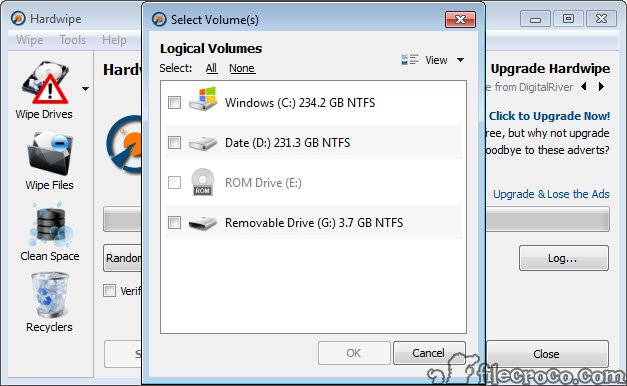
Where Hardwipe distinguishes itself most clearly is in handling removable media. USB flash drives, SD cards, external hard drives, and (with limitations) optical media can all be wiped at the drive level through the application’s drive wipe function, not just at the file level.
This addresses a specific scenario that comes up more often than people expect, disposing of a USB stick that’s carried sensitive files, selling or returning external storage, or preparing a flash drive for someone else to use. The drive wipe writes to all storage on the device, not just unallocated space, which means previously-deleted files and any hidden allocation are also overwritten.
For SD cards used in cameras and phones, this matters. Photos and documents that were deleted from the card through normal means remain recoverable by anyone with basic forensic tools until the storage gets overwritten. A drive-level wipe handles that in one operation.
The same applies to small portable HDDs. For larger drives or full disk wiping when retiring a computer, dedicated boot-time tools like DBAN or Active KillDisk are still the better choice because they can wipe the system drive itself.
Hardwipe runs inside Windows and can’t wipe the drive Windows is currently running from.
The algorithm set and what’s actually included
The free version includes the standard algorithm set, single-pass random, three-pass DoD 5220.22-M, seven-pass DoD ECE, and Schneier (seven passes with a specific pattern sequence). These cover the realistic spectrum from “secure enough for personal documents” to “compliant with most regulatory standards.”
The Pro tier adds Gutmann (35 passes), HMG IS5 enhanced, and a few additional government-standard methods. As covered in the broader category context, these extra passes don’t meaningfully improve security on modern storage, they exist mainly to satisfy specific compliance frameworks that require named algorithms by checkbox.
What the free version doesn’t include is custom algorithm definition. If your organization requires a specific pattern sequence that isn’t on the built-in list, you need the Pro tier (or a different tool entirely, like Eraser, which allows custom method definitions in its free version).
Performance, scheduling, and the Pro tier difference
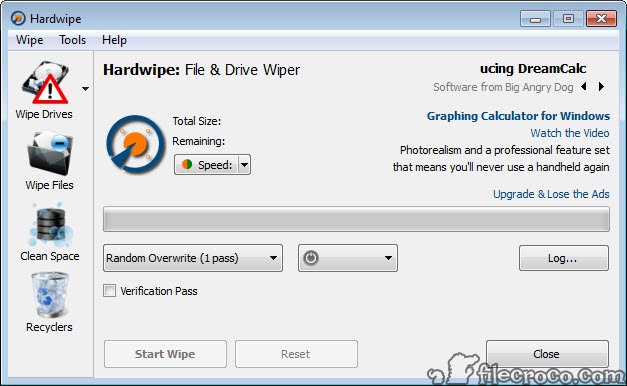
The free version handles single-shot wiping cleanly. You select files or drives, choose an algorithm, the wipe runs, the application closes. There’s no scheduling, no batch processing of multiple wipe targets in sequence, no command-line interface for automation.
The Pro tier adds command-line operation, which lets you call Hardwipe from scripts or scheduled tasks. This is the feature most likely to push commercial users toward paying, because automating wipes (overnight cleanup of designated folders, post-build scripts in development environments, scheduled clearing of temporary directories with sensitive content) requires it.
Speed depends heavily on the target. File-level wipes on an SSD complete in seconds for small files because the controller writes in parallel across multiple memory cells. Drive-level wipes on a 64 GB USB stick using a single-pass random overwrite take roughly 15-30 minutes depending on the stick’s write speed.
The same operation with Schneier’s seven-pass method takes seven times as long. Free space wiping on a half-empty 500 GB drive can run for an hour or longer.
Free space wiping and the privacy cleanup angle
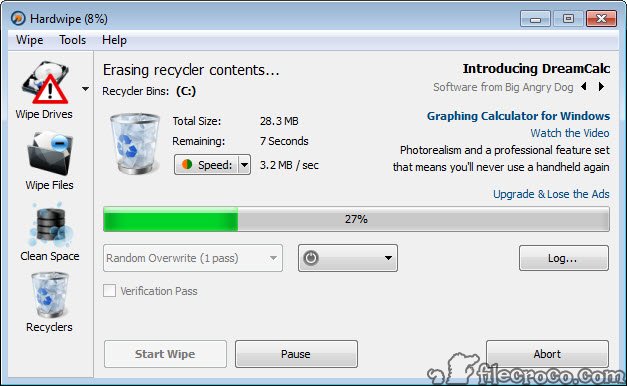
The free space wipe option overwrites all unallocated storage on a selected drive. This is the operation you run after the fact, when you’ve been deleting files normally for a while and want to ensure that the previously-deleted content is no longer recoverable from unallocated clusters.
It’s particularly useful before selling or donating a computer where a full disk wipe isn’t practical (you want to keep the OS and your installed software intact, just remove traces of old personal files). Run a free space wipe on each drive, and the previously-deleted files become unrecoverable while the current file system stays untouched.
The freemium model and what it actually costs
The Pro license is a one-time purchase, not a subscription, which puts Hardwipe in a smaller group of paid tools that don’t pull the recurring-revenue model. The current price is in the £20-30 range depending on the license tier (personal or commercial), and the license covers all future 5.x updates.
For personal use, the free version genuinely does what most people need. The Pro features (Gutmann, command-line operation, commercial use rights) target specific cases where the additional capabilities matter.
The honest assessment is that if you don’t already know you need command-line wiping or 35-pass Gutmann, you don’t need the Pro tier.
Conclusion
Hardwipe earns its place in the category by integrating secure deletion into the existing Windows file workflow rather than asking users to open a separate utility every time. That design choice changes how the tool gets used over time, occasional cleanup becomes routine cleanup, and the friction that keeps most people from wiping files regularly mostly disappears. For users who handle sensitive files often enough that the right-click menu is worth the deeper Windows installation, it’s the right shape of tool.
The freemium structure draws a clear line between casual and professional use. The free version covers what most personal users need. The Pro tier serves the specific scenarios (compliance algorithms, automation, commercial deployment) where the extra features pay back the license cost.
Where it doesn’t fit is the case for portable, no-installation-required usage, and the case for whole-system disk wiping, both of which have dedicated tools that handle their narrower targets better.
Features & benefits
Pros & Cons
- Explorer right-click integration makes secure deletion feel like a normal Windows operation
- Removable drive wiping handles USB sticks, SD cards, and external HDDs at the drive level
- Free version includes algorithms covering most practical and compliance scenarios
- One-time Pro license without subscription pressure for users who need more
- Active development with regular updates, unlike many tools in this category
- Pro tier locks Gutmann, command-line operation, and commercial use behind a paid license
- Cannot wipe the system drive Windows is running from
- Installation modifies the Windows registry and shell, no fully portable mode with full features
- Free space wipe operations on large drives can take hours to complete
- Cannot define custom wipe algorithms outside the bundled list
Frequently asked questions
The application securely deletes files, folders, and entire removable drives by overwriting the storage with patterns that make recovery impossible through standard means, plus offers free space wiping for already-deleted content.
Yes. The drive wipe function works on USB flash drives, SD cards, and external hard drives, overwriting all storage on the device including previously-deleted files.
The free version includes core wiping with the standard algorithm set. The Pro tier adds Gutmann and additional government-standard methods, command-line operation for automation, and a commercial use license.
Time depends on drive size, connection speed, and the algorithm chosen. A single-pass wipe of a 64 GB USB drive typically takes 15-30 minutes. Multi-pass algorithms multiply that time proportionally.
No. The application cannot wipe the system drive Windows is running from. For wiping a computer's main drive, a boot-time tool that runs outside Windows is required.
The shell extension that powers the right-click integration loads on-demand when Explorer needs it, but no background service or scheduled task runs continuously after installation.


