

Gyazo

 (5 votes, average: 2.20 out of 5)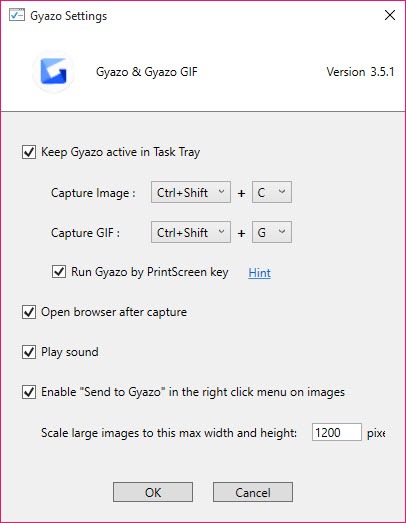
About Gyazo
Gyazo approaches screenshots from a different direction than the standard capture-and-edit tools. The default workflow is not “take a screenshot, then decide what to do with it.” The default workflow is “take a screenshot, get a URL on your clipboard, paste it somewhere.” Upload happens automatically, the image lives on a remote server, and the link is what you share. The local file is a byproduct.
This sounds like a small distinction until you spend a day using it. Every screenshot becomes a URL in under two seconds. You hit the hotkey, drag a rectangle around the thing you want to capture, and by the time you switch back to the chat window or document, the link is already on your clipboard ready to paste.
No save dialog, no folder, no upload-to-Imgur step. For people who screenshot constantly to share with coworkers or in support tickets, this changes the rhythm of how the day works.
The capture flow in practice
Three capture modes exist as separate executables in the tray: still image, GIF, and video. Each one has its own hotkey, and each one shows the same crosshair-and-rectangle selection interface when triggered. You drag, release, and the capture starts immediately. For the still image mode this means the upload begins before your cursor has finished moving back. For the GIF and video modes, recording starts when you release the mouse and continues until you click the stop button.
The animated GIF mode is what people specifically come to this application for. Drag a rectangle around a UI element, demonstrate a bug or a workflow, click stop, and within a few seconds you have a hosted GIF URL to paste into a bug report.
The encoding happens locally, the upload happens automatically, the resulting file lives at a permanent address until you delete it. For showing a coworker exactly what happens when you click a specific button, this is faster than any record-trim-export-upload pipeline.
The video mode is the same concept extended. Higher quality, longer durations, and the output is an actual video file rather than a GIF. The trade in feel is that GIFs play inline in most chat applications while videos require a click to view, so the GIF mode tends to win for short clips even when the file is technically less efficient.
The hosted library and what it changes
Every capture you take lands in your account on the application’s web library, browseable in a browser, searchable by date, taggable, and organizable into collections. This turns a screenshot tool into a small visual archive of everything you have looked at and wanted to remember. Going back to find a screenshot from three weeks ago becomes a quick search rather than a hunt through a Pictures folder full of cryptic filenames.
The library is where the application separates itself from purely local tools. Something like LightShot does the capture-and-upload flow well, but its hosted side is lighter and less library-oriented.
Something like Greenshot is purely local with no hosted component at all, which is the right answer for users who do not want their captures leaving their machine. ShareX sits at the opposite extreme: enormously configurable, supports dozens of upload destinations including your own server, but with a setup curve that takes some time. Gyazo is the application that picks a specific opinionated default and stays there.
Annotations and the editor
The annotation tools are deliberately minimal. After a capture, an edit panel offers arrows, text, rectangles, and a few highlight options. That is most of what is there. For users coming from PicPick or Monosnap, which both ship with much more elaborate editors, the Gyazo editor feels stripped down on purpose. The bet is that the speed of the capture-and-share loop matters more than the editing capability inside it, and that if you need real annotation you will paste the image into a proper editor afterward.
For users who specifically want to draw arrows and highlight regions before sharing, this is a real limitation. The work-around is either capturing in Gyazo for speed and then editing the downloaded image elsewhere, or using a different application for the annotation-heavy workflows.
The tier model and how it affects daily use
The application has a free tier and several paid tiers, and the difference between them is not what is captured but how long the history is accessible, whether your captures are easily discoverable through the public site search, and which advanced features are present.
On the free tier the most recent captures stay in your library indefinitely, but the library view shows only the most recent ones, and there is no OCR or video capture. The paid tiers extend history visibility, add OCR for text extraction from screenshots, unlock longer GIF and video durations, and enable team-shared collections.
This matters for buying decisions because the actual capture experience is the same on both tiers. Someone who takes ten screenshots a week and shares the URL immediately will never notice the limitation.
Someone who treats the library as a searchable archive of every UI they looked at in the past year needs the paid tier or the archive simply does not work that way.
Privacy considerations worth understanding
Captures upload to the application’s servers immediately. The URLs are not obviously guessable, but they are not authentication-protected by default either, so anyone with the link can view the image. This is fine for most use cases (sharing a UI bug in a public Slack channel, posting a meme, showing a coworker a webpage) and obviously wrong for some use cases (anything involving personal information, anything covered by an NDA, anything you would not paste into a public chat).
The privacy considerations are not a problem with the application but a consequence of its core model. Tools that upload automatically have a different trust profile than tools that save locally and let you decide.
For users whose work involves sensitive material, the application is the wrong choice, and a local-first tool with optional upload like Greenshot is the right one. For users sharing public or work-team content all day, the trade is rarely felt.
The hotkey-driven workflow
Default hotkeys cover image capture, GIF capture, and video capture as separate operations. They are remappable, and the productive setup most people land on uses a single modifier combination plus three different keys for the three modes. Once that is in muscle memory, the application disappears from the workflow. You see something you want to share, your fingers hit the keys, you drag, you paste a URL somewhere a moment later. The tray icon stays out of the way unless you need to access settings or the recent captures dropdown.
For users coming from the built-in Windows snipping tools, the speed difference is noticeable mostly because the upload step is removed. The same capture in the system tool yields a local image that still needs to be hosted somewhere before it can be shared as a link, and that step is what Gyazo elides.
Where it falls short
The editor is thin. Long-form annotation work belongs in a different tool. The tier model means the free experience is genuinely limited for users who want the library archive function, not just the capture function. There is no built-in scrolling capture for capturing a long webpage in one image, which is a feature competitors like PicPick and Jumpshare include.
Custom upload destinations are not supported in the way ShareX supports them, so you are committed to the application’s hosting infrastructure or you use a different tool.
Conclusion
Gyazo is built for one specific user pattern: people who screenshot frequently throughout the day and need the result to become a shareable link in seconds rather than steps. For that user, the application removes friction that no purely local tool can remove, and the GIF mode in particular fills a gap that nothing in the standard screenshot tool category really addresses with the same speed.
It is the wrong choice for anyone who needs local-first capture, who works with sensitive material that should not leave the machine, who wants deep annotation features built into the capture flow, or who treats screenshots as a feature inside a more configurable automation pipeline.
The application picks a strong opinion about what screenshotting should feel like and commits to it, and inside the boundaries of that opinion it is faster than the alternatives.
Pros & Cons
- Capture-to-URL workflow takes about two seconds end to end, faster than any save-then-upload pipeline
- Three separate capture modes (image, GIF, video) with independent hotkeys and a consistent crosshair selection interface
- Hosted library is searchable and persistent across machines, accessible from any browser logged into the account
- GIF mode handles the show-a-coworker-what-happens use case better than recording a full video and trimming it
- Tray-driven workflow with remappable hotkeys means the application stays out of the way during normal use
- Captures upload to remote servers immediately, which is the wrong default for any sensitive material
- The annotation editor is minimal, with only basic arrows, text, and shapes available before sharing
- The free tier limits visibility into older captures, so the library archive function effectively requires a paid tier to be useful
- No scrolling capture for long-page screenshots, a feature standard in several competing tools
- Upload destination is fixed, with no option to point at a self-hosted server or alternative service
Frequently asked questions
It uploads every capture automatically and gives back a URL ready to paste, so sharing the screenshot is a single step rather than a save-then-host workflow.
It records the rectangular region you select as an animated GIF while you demonstrate the action, then encodes locally and uploads the result to a hosted URL when you click stop.
On the application's hosted servers, accessible through your account library in any browser. The URL returned at capture time is the permanent address for the image.
The application is designed around immediate upload, so a fully offline capture flow is not the intended use case. For local-only captures, a different tool is the appropriate choice.
No. The selection model is a fixed rectangle on the current screen. Long webpages have to be captured as multiple images or with a different tool that supports scroll capture.
Captures are not publicly listed but the URLs are accessible to anyone who has them. For genuinely private sharing, a tool with authenticated access controls is more appropriate than one built around shareable URLs.
GIF produces an animated GIF file that plays inline in most chat applications, with a typical short duration limit. Video produces an actual video file with higher quality and longer duration support, but requires a click to play in most contexts.
No. The application is tied to its own hosting infrastructure. Tools that support custom upload destinations require a different approach to configuration than this one offers.


